Manage Calendar and Send Notices
View the calendar
Section titled “View the calendar”The calendar shows what’s coming up across your properties: unpaid invoices on their due dates, move-ins and move-outs, inspections and showings.
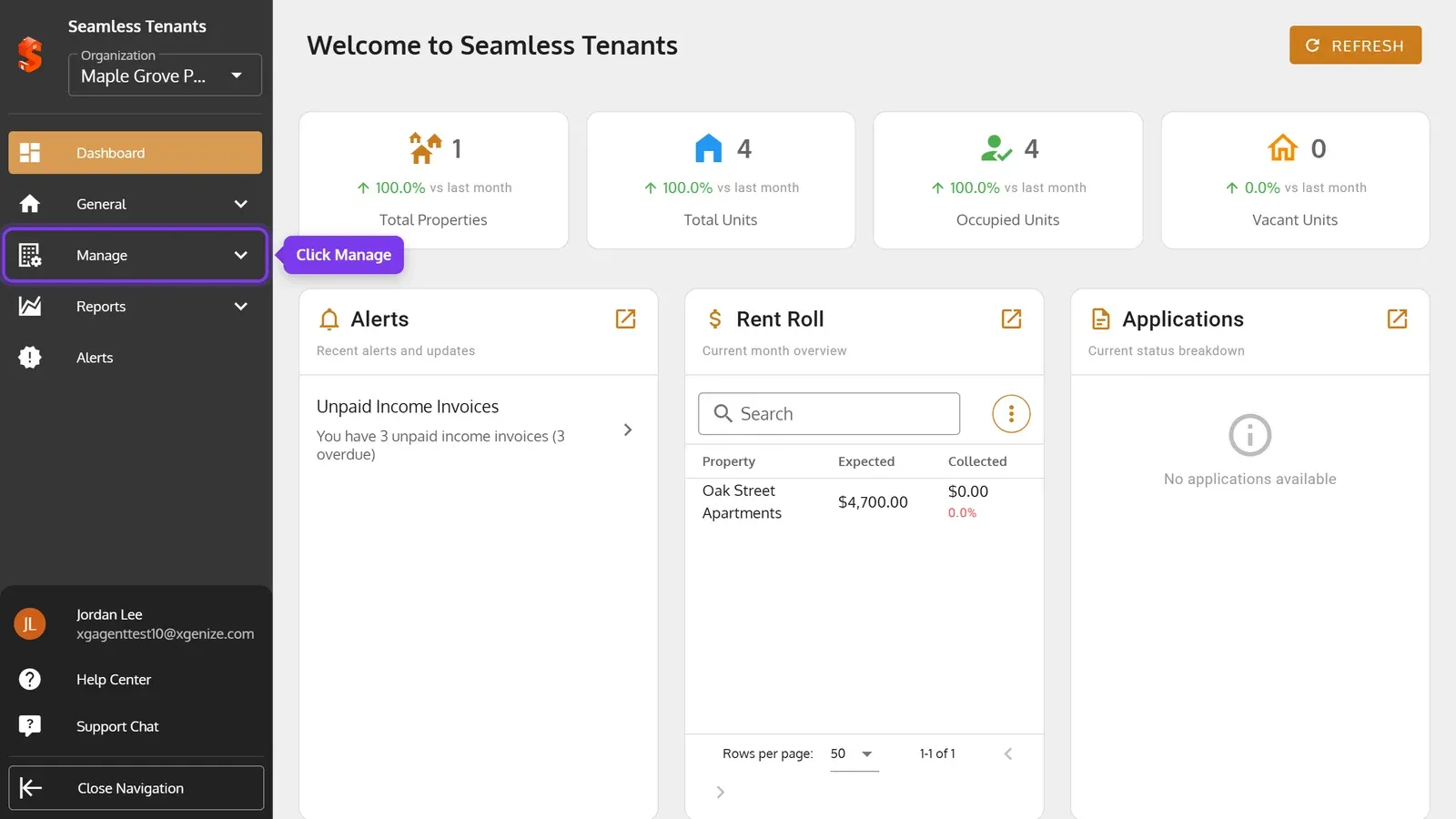
1. In the sidebar, click Manage.
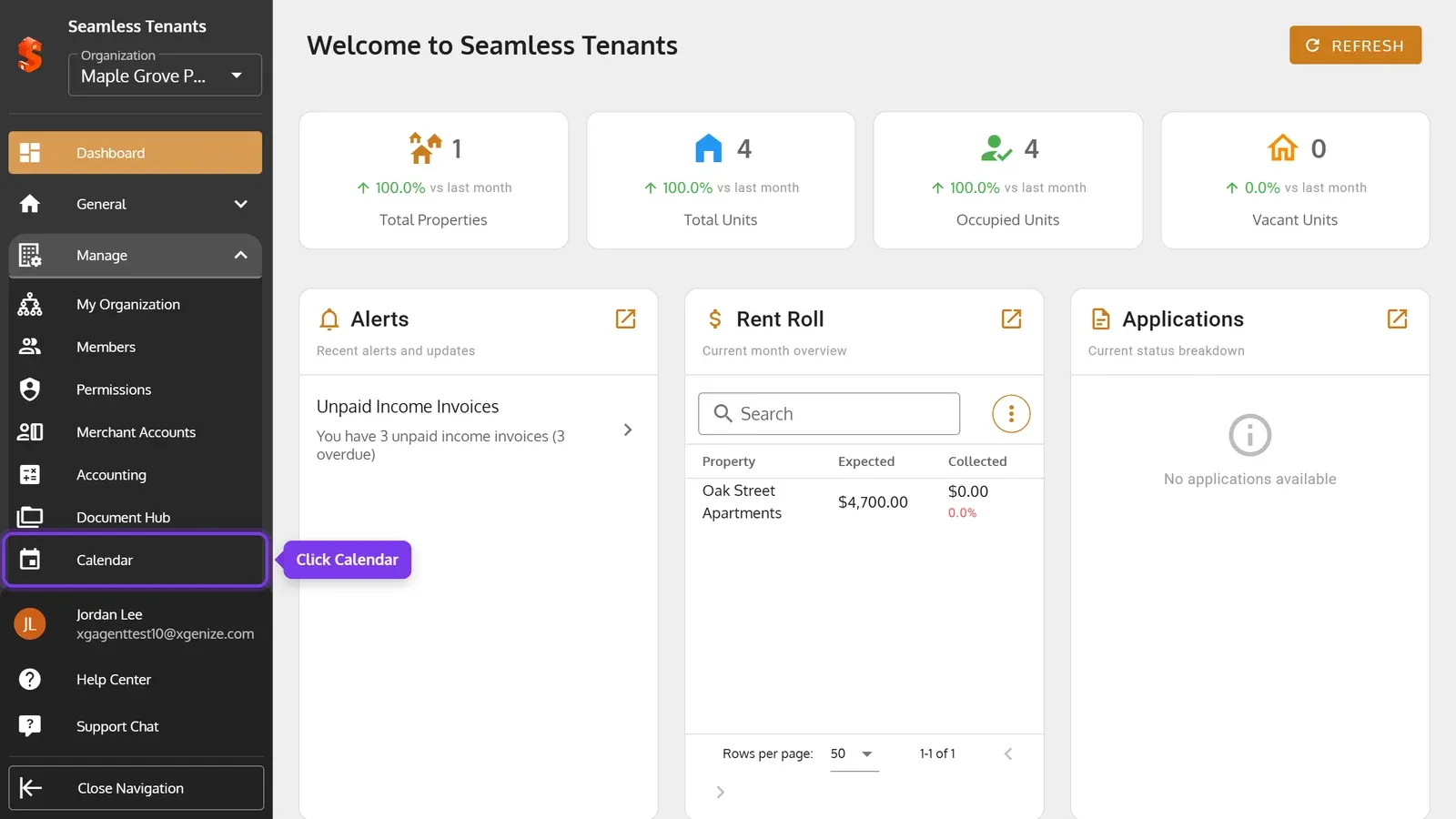
2. Click Calendar.
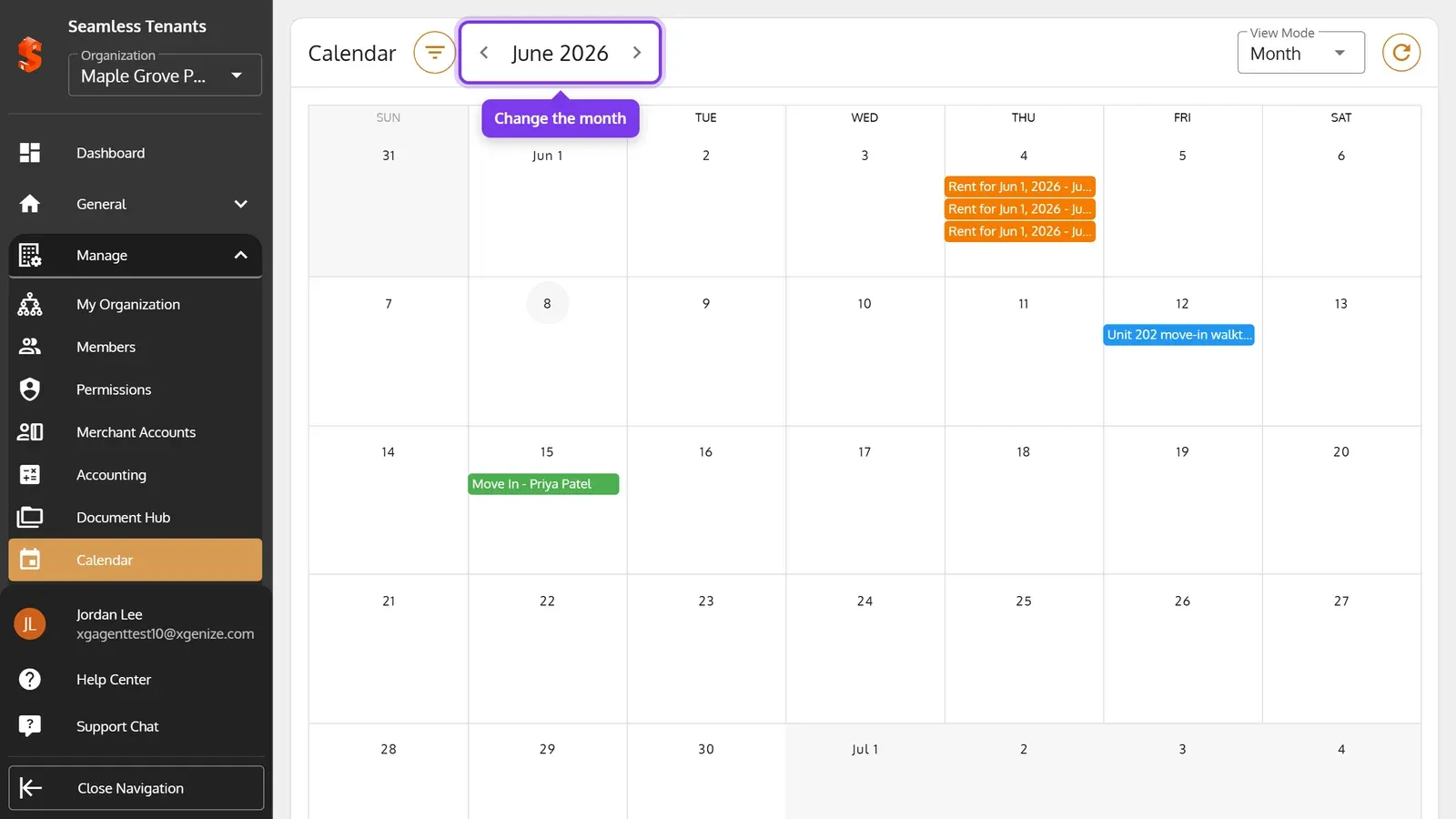
3. Use the arrows to change the month. The refresh button at the top right loads changes made since you opened the calendar.
4. To show only some events, click the filter button, then choose properties, units, tenants or event types.
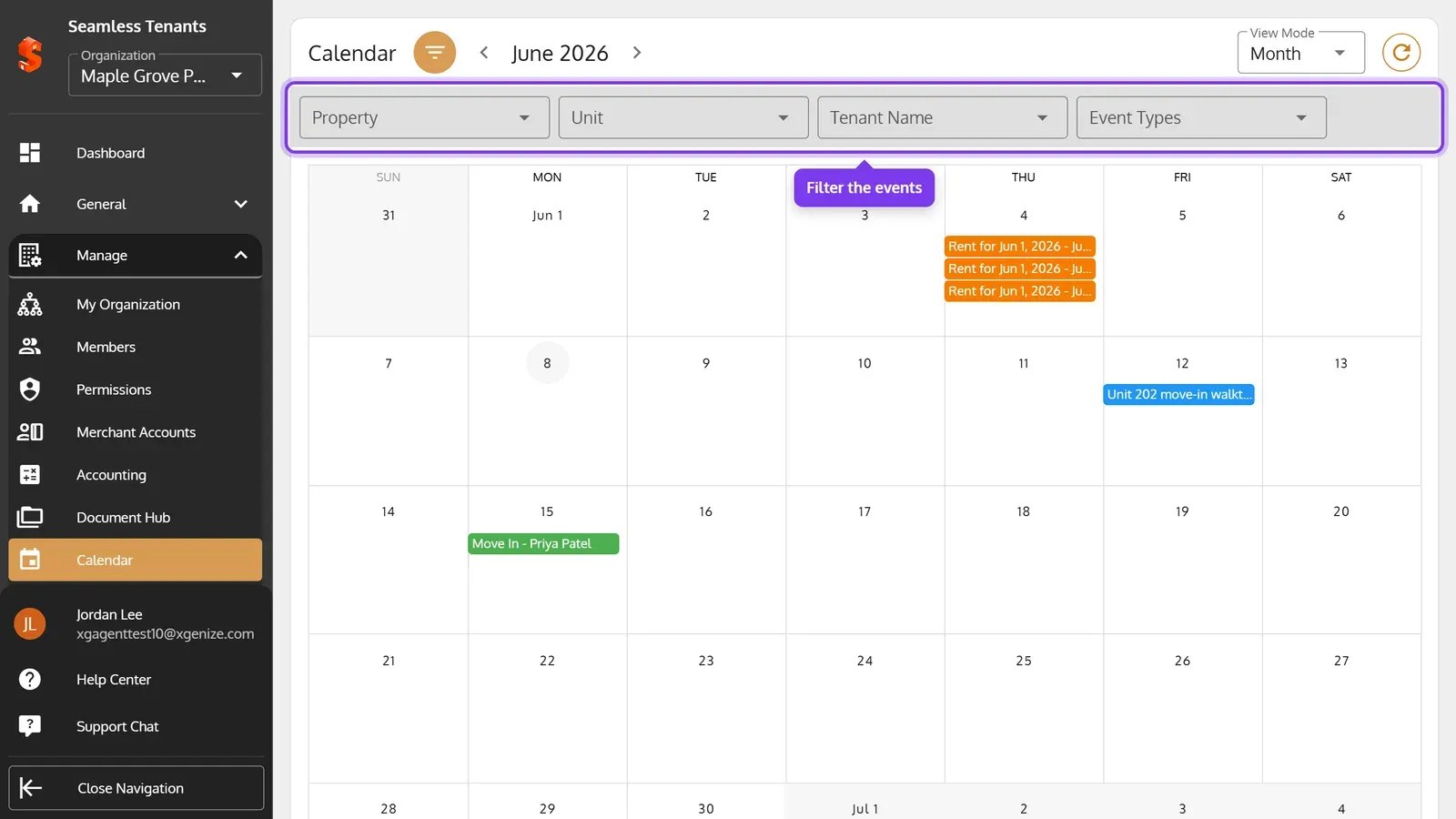
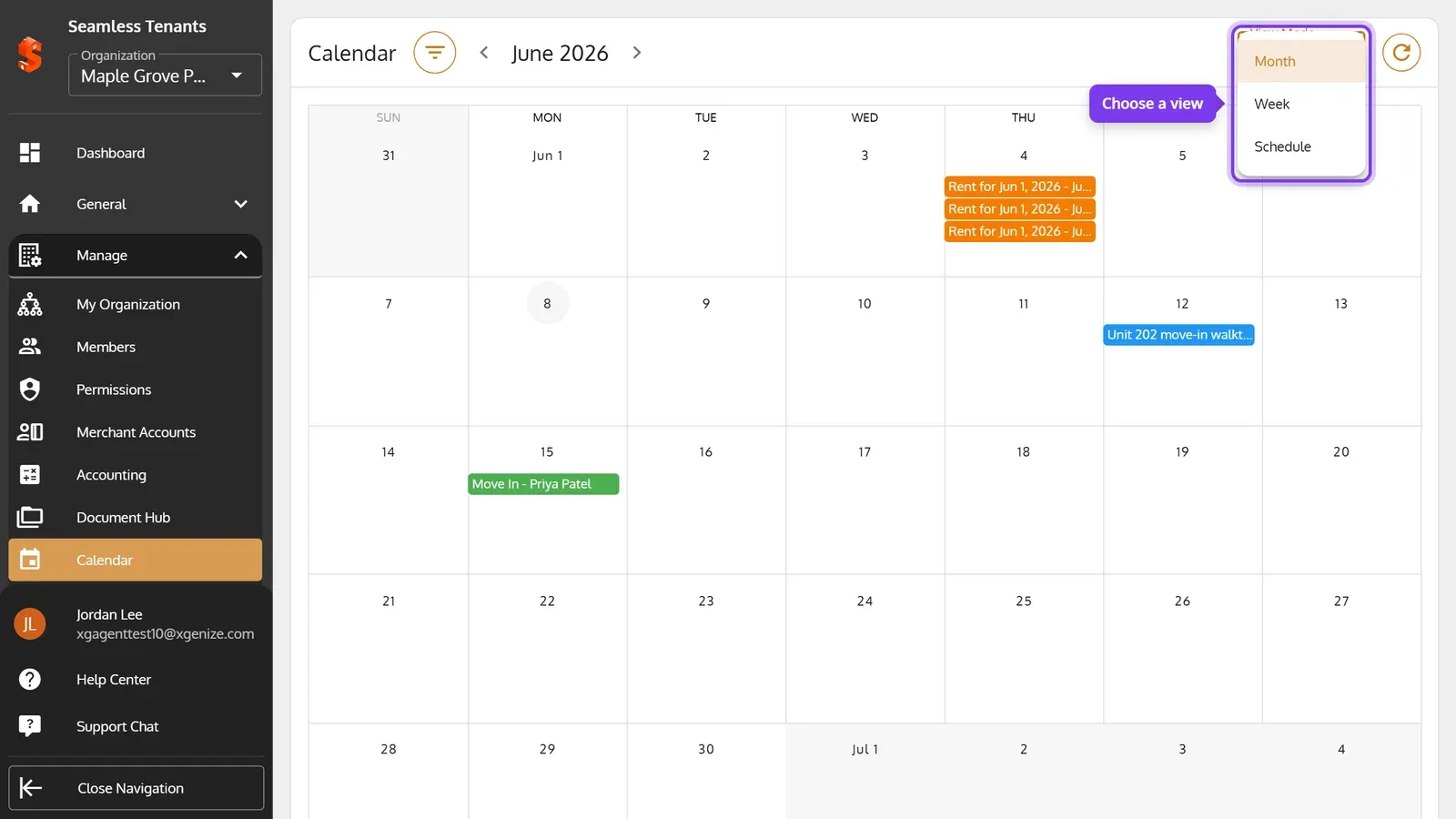
5. Under View Mode, choose Month, Week or Schedule.
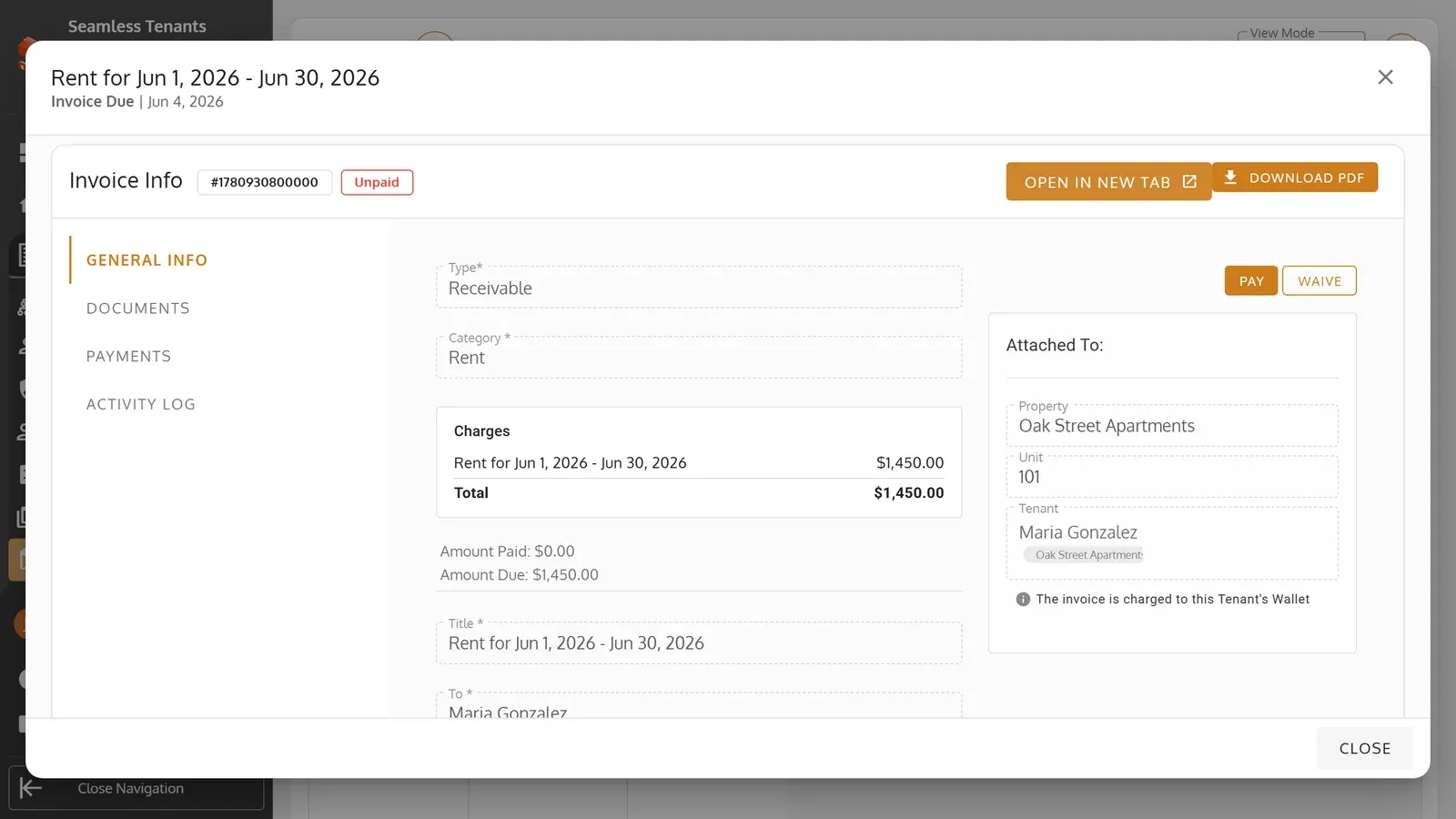
6. Click an event to open it. A rent event opens its invoice, where you can Pay or Waive it.
Send a notice
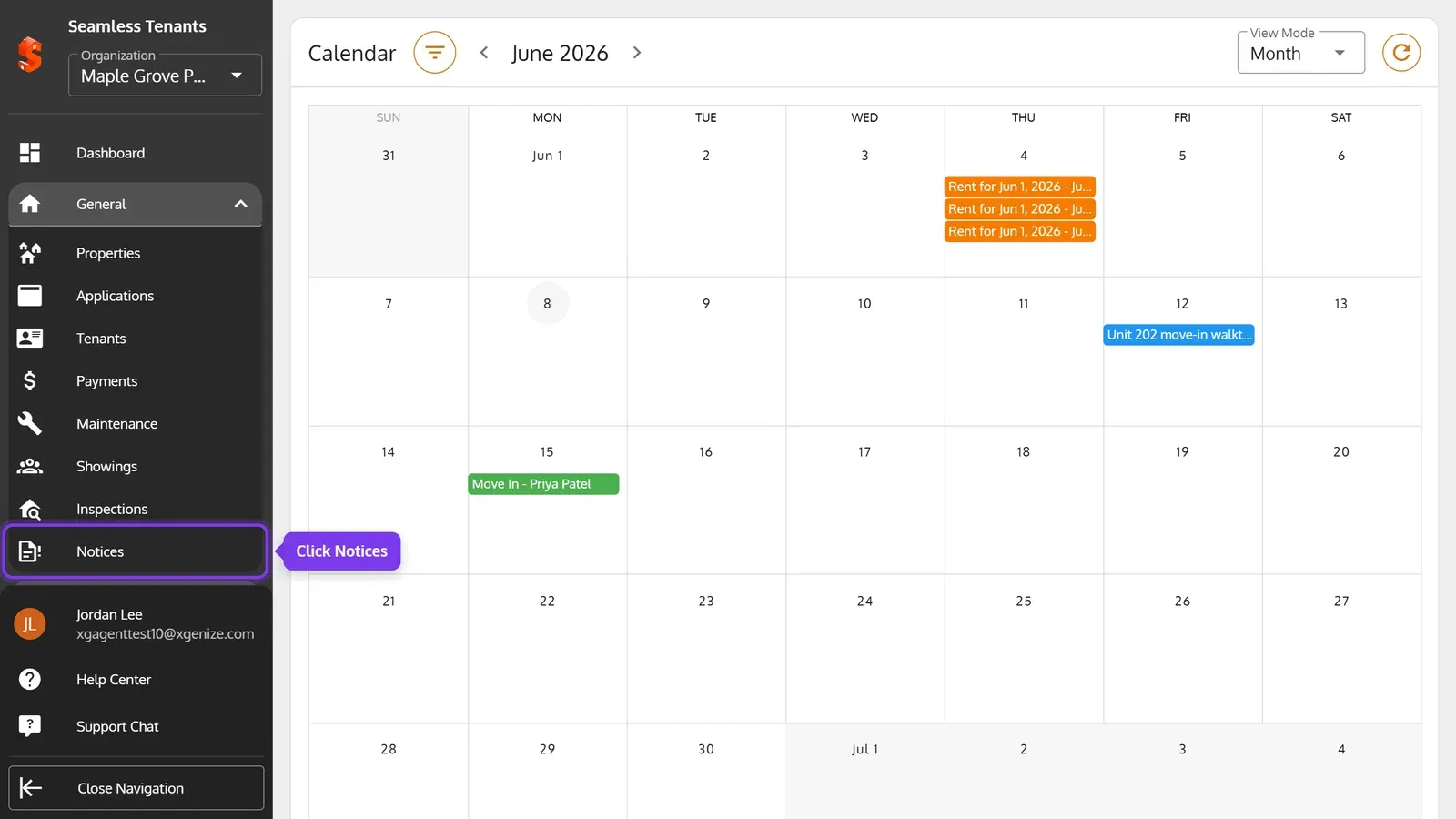
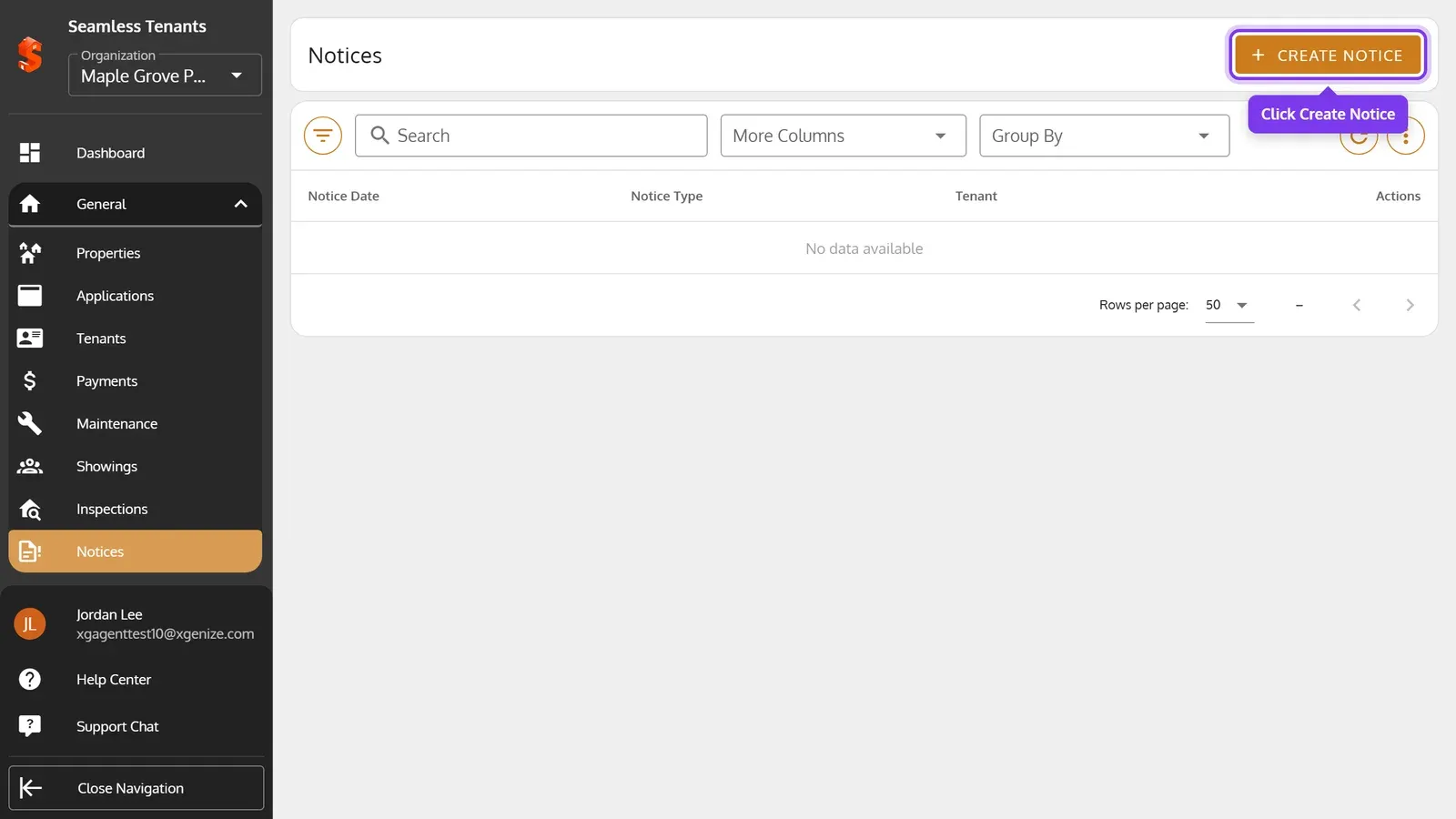
Section titled “Send a notice”1. In the sidebar, click General, then Notices.
2. Click Create Notice.
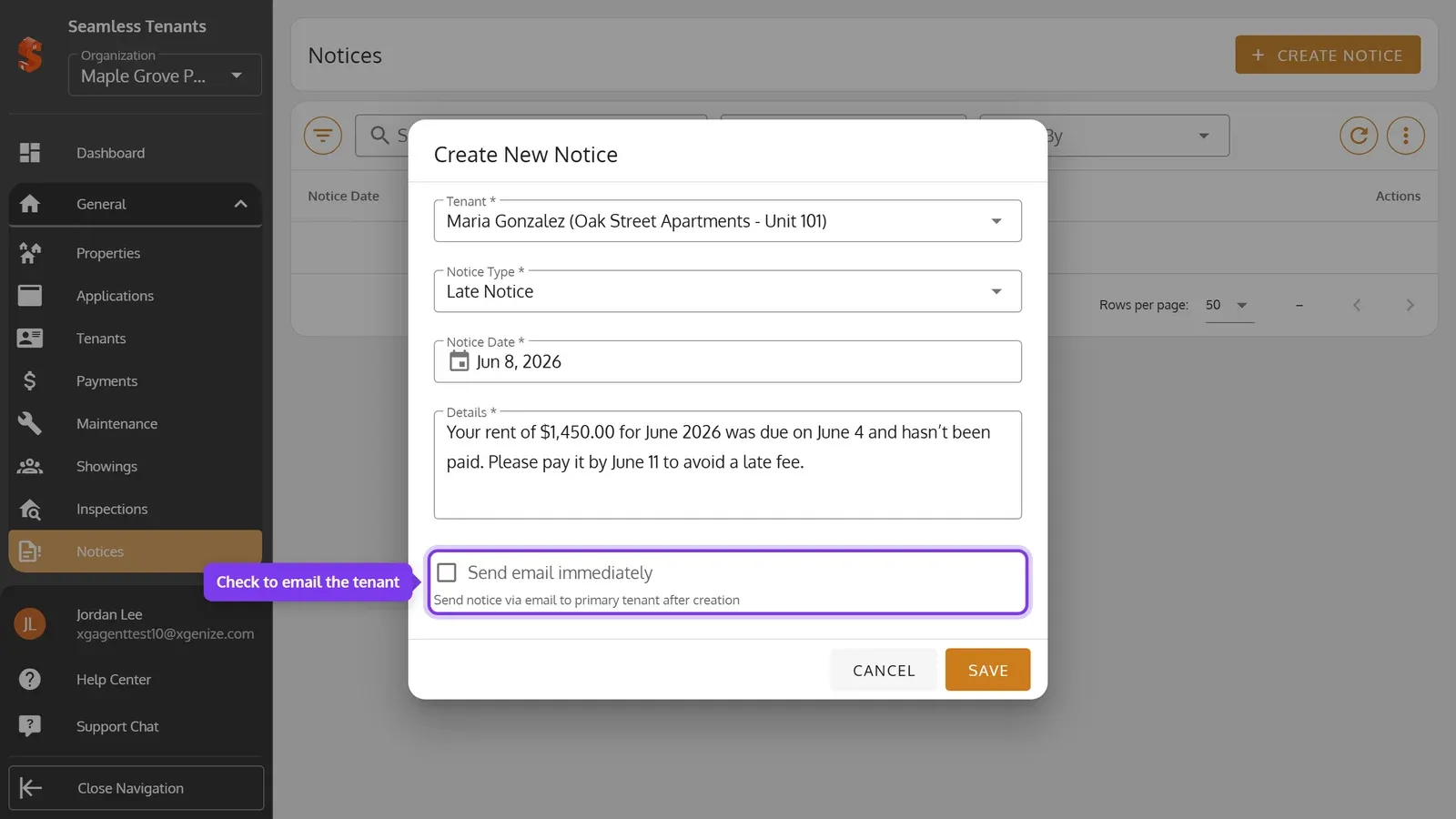
3. Choose the tenant and the Notice Type (Late Notice or Eviction Notice), pick the Notice Date and enter the Details. To email the notice to the primary tenant when you save it, check Send email immediately. Then click Save.
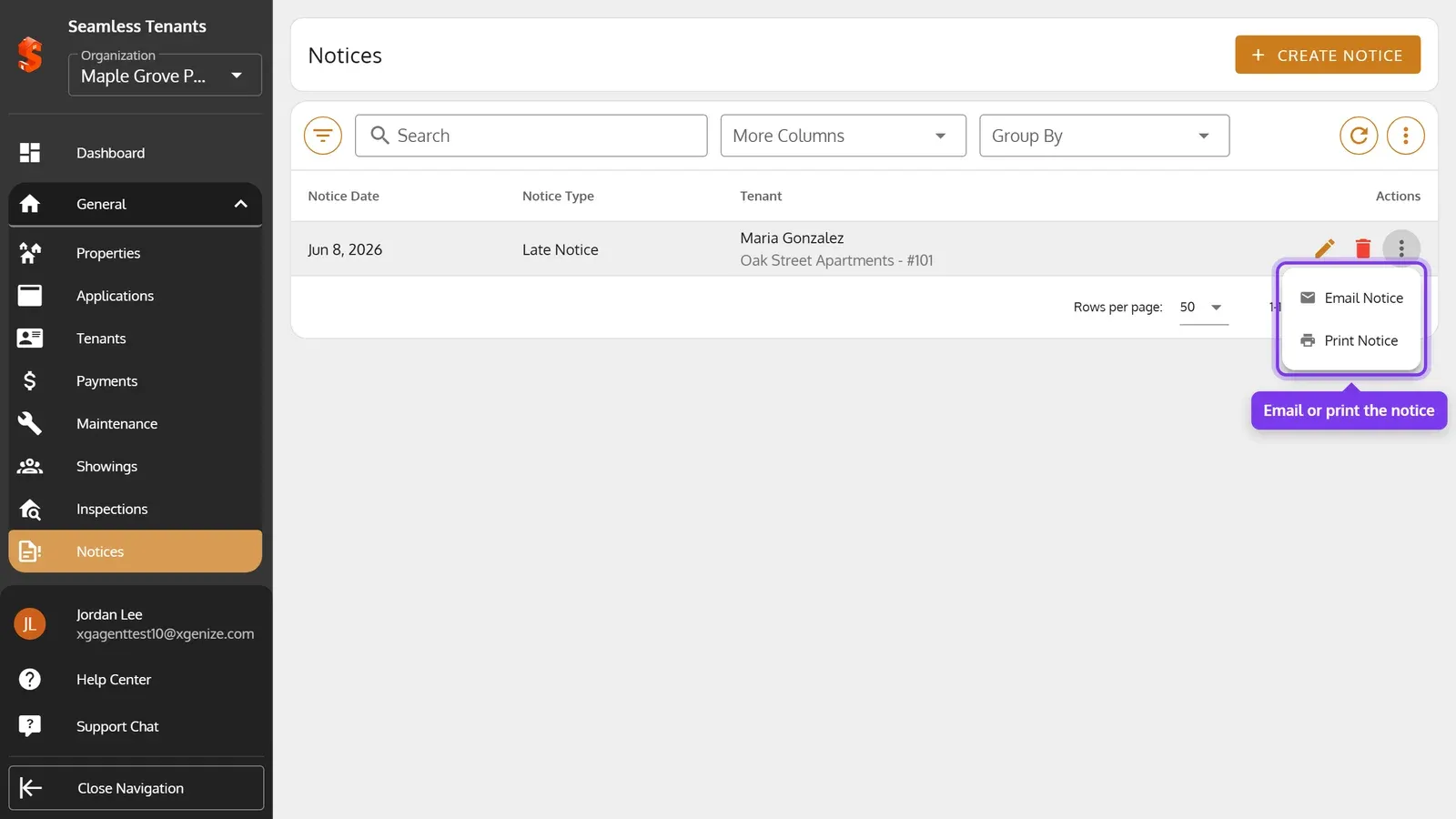
4. The notice is listed under Notices. Click the pencil to edit it or the bin to delete it. To email or print it later, click the three dots, then Email Notice or Print Notice.