
Find Tenants
Open Tenants
Section titled “Open Tenants”-
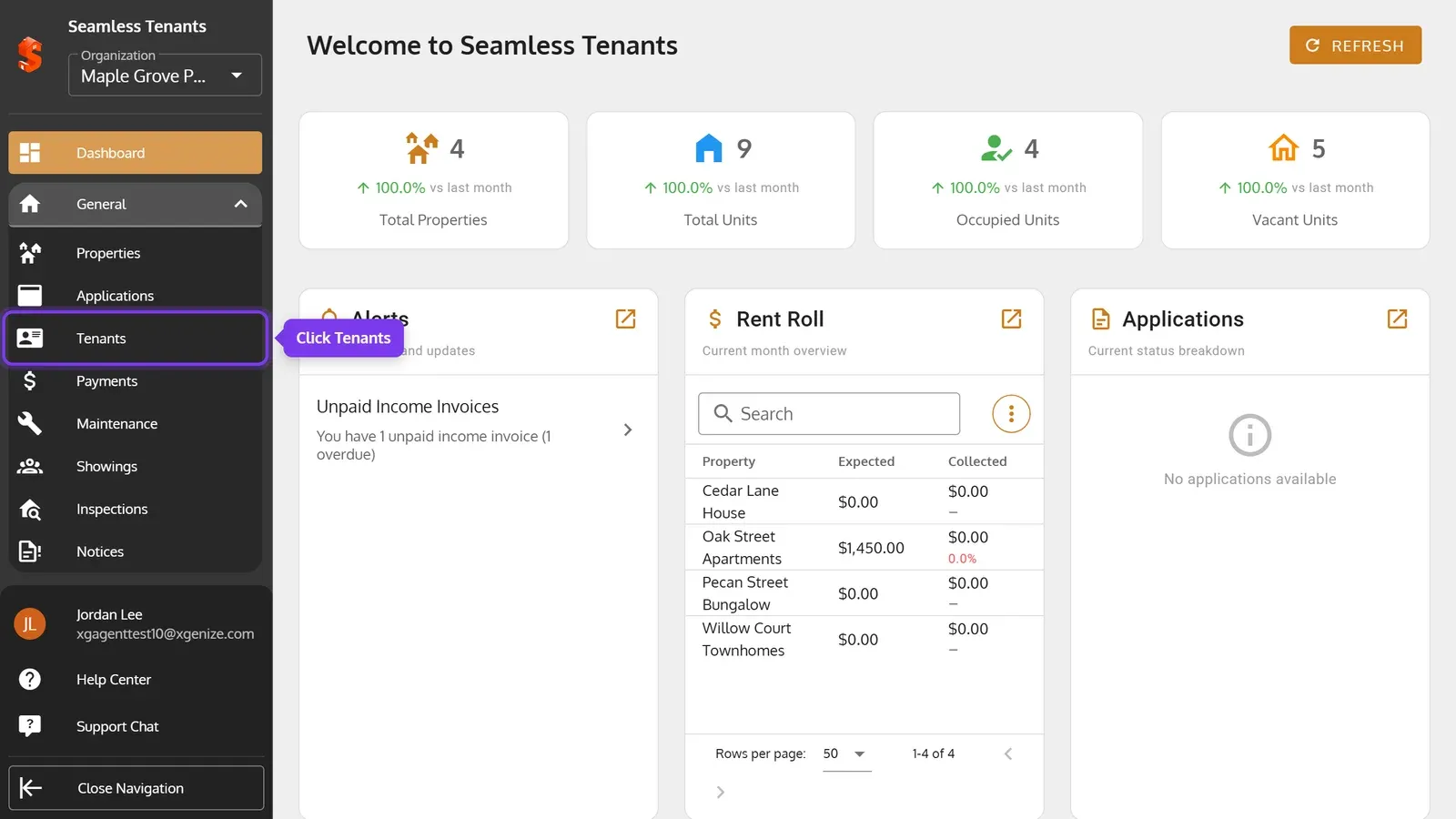
In the sidebar, click General, then Tenants.
-
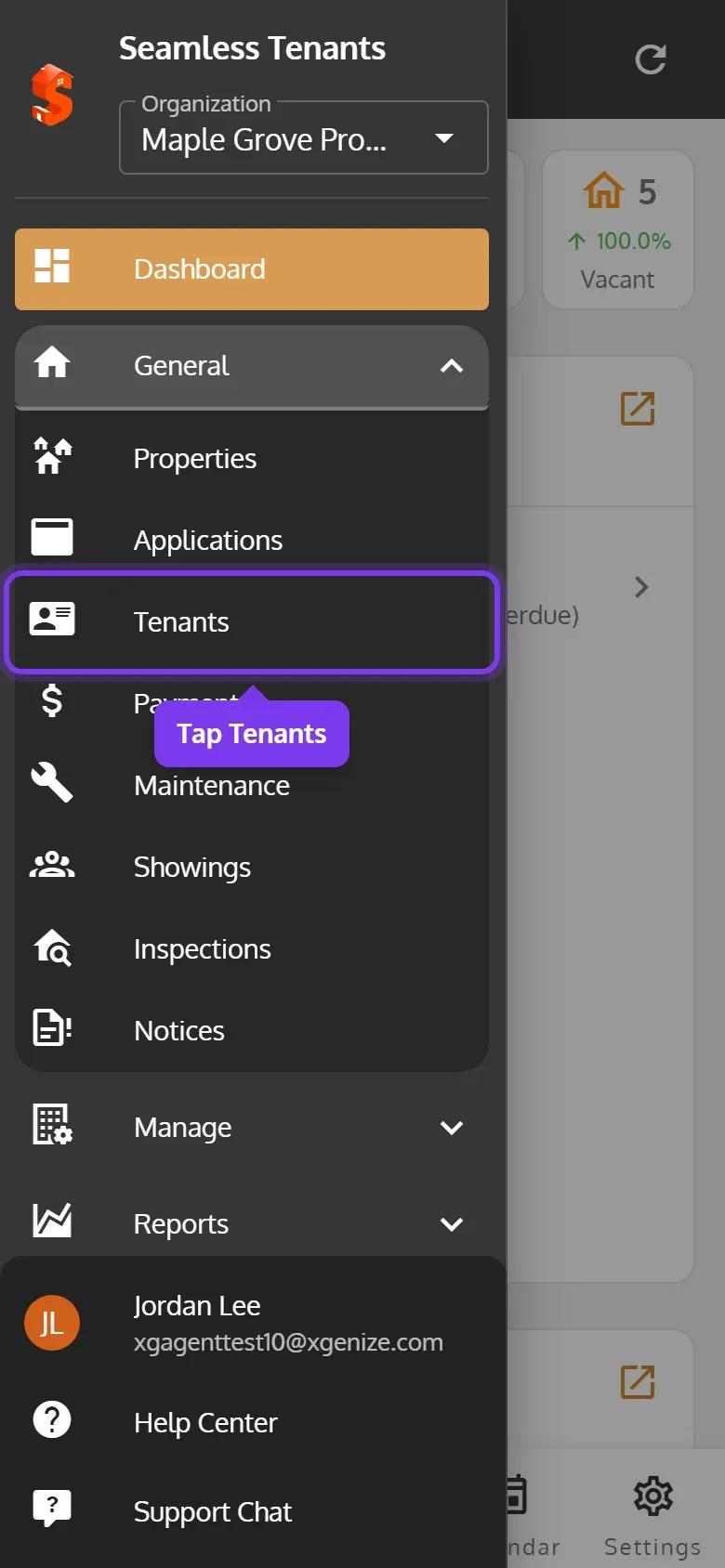
Tap Tenants at the bottom. Or tap the menu at the top left, then General, then Tenants.
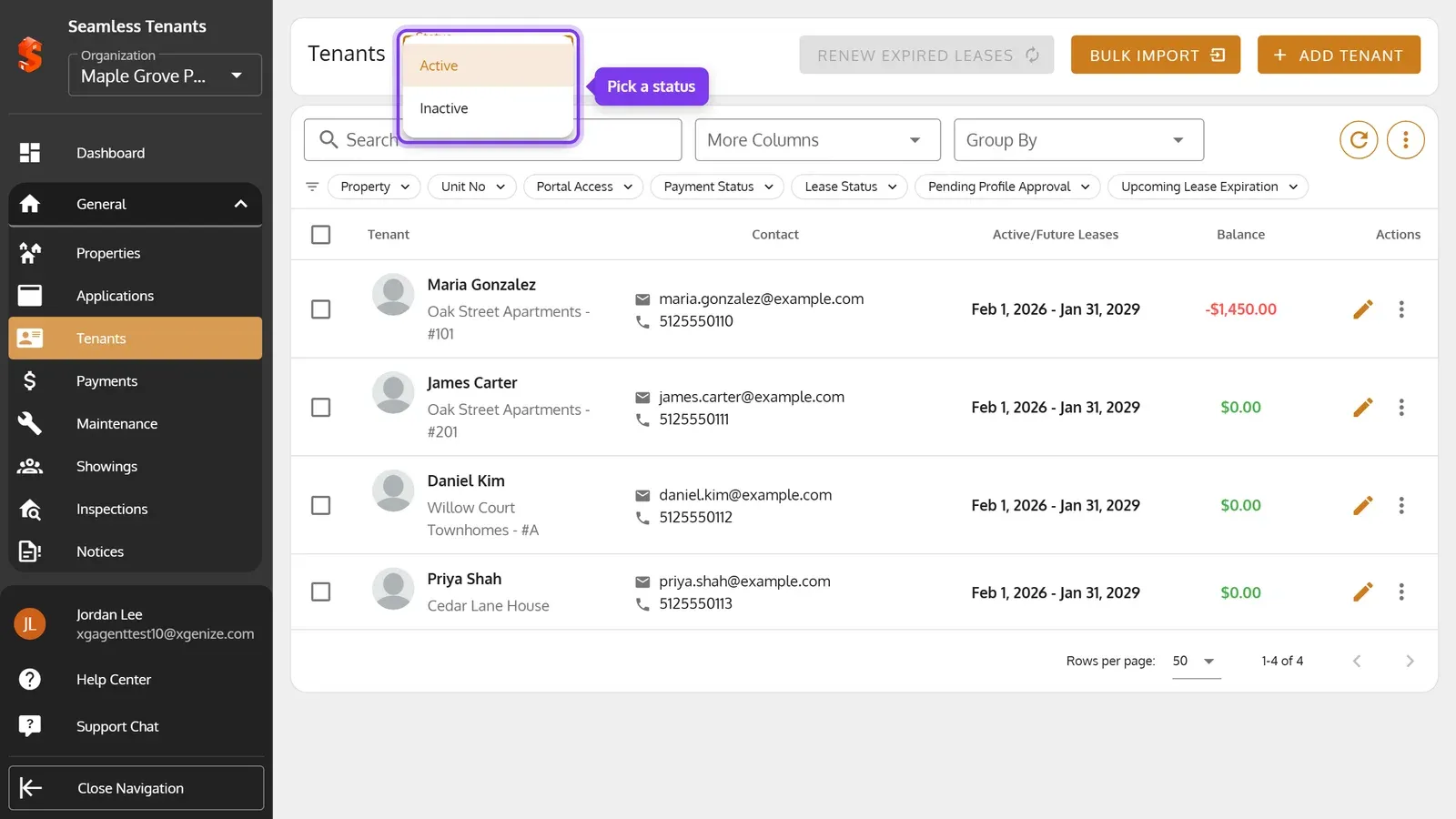
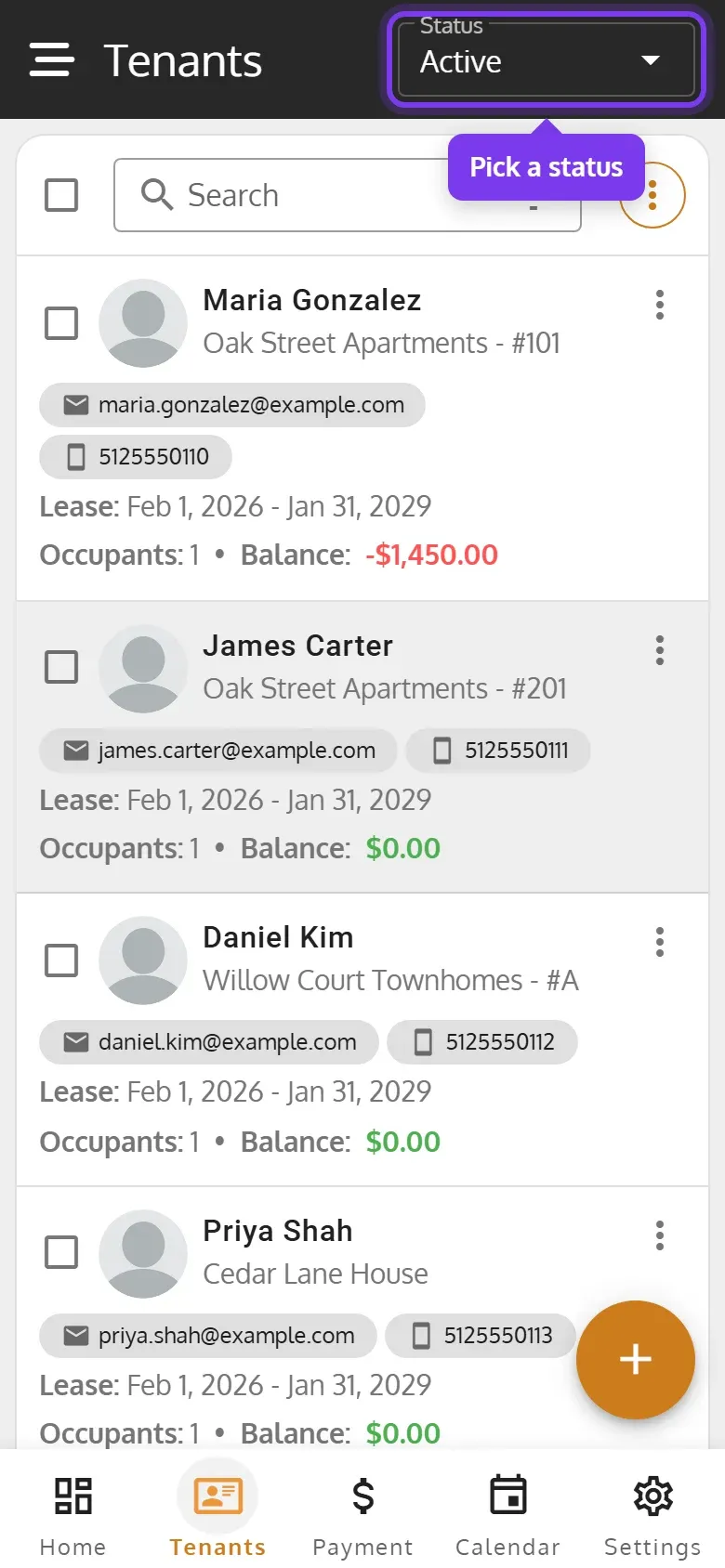
The page lists primary tenants, with their property and unit, contact details, lease dates and balance. A red balance is what the tenant owes: click or tap it to see their payments. To open a tenant, click their pencil, or tap their card on a phone.
Active and inactive tenants
Section titled “Active and inactive tenants”-
Pick Active or Inactive in Status. Inactive tenants have moved out.
-
Pick Active or Inactive in Status at the top. Inactive tenants have moved out.
Search and filter
Section titled “Search and filter”-
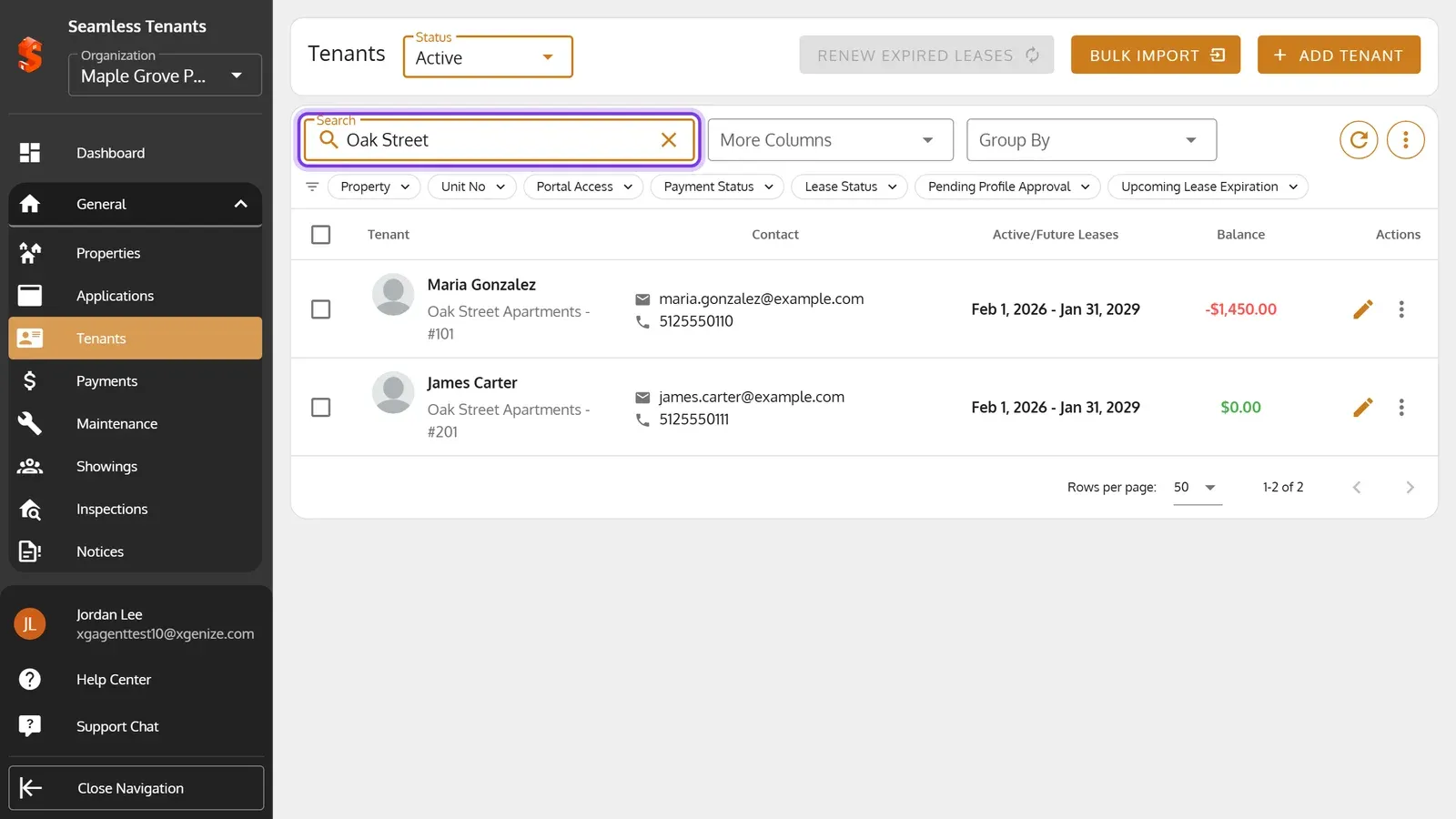
To search, type in Search: part of a tenant’s name or property, or a whole email, phone number or unit number.
-
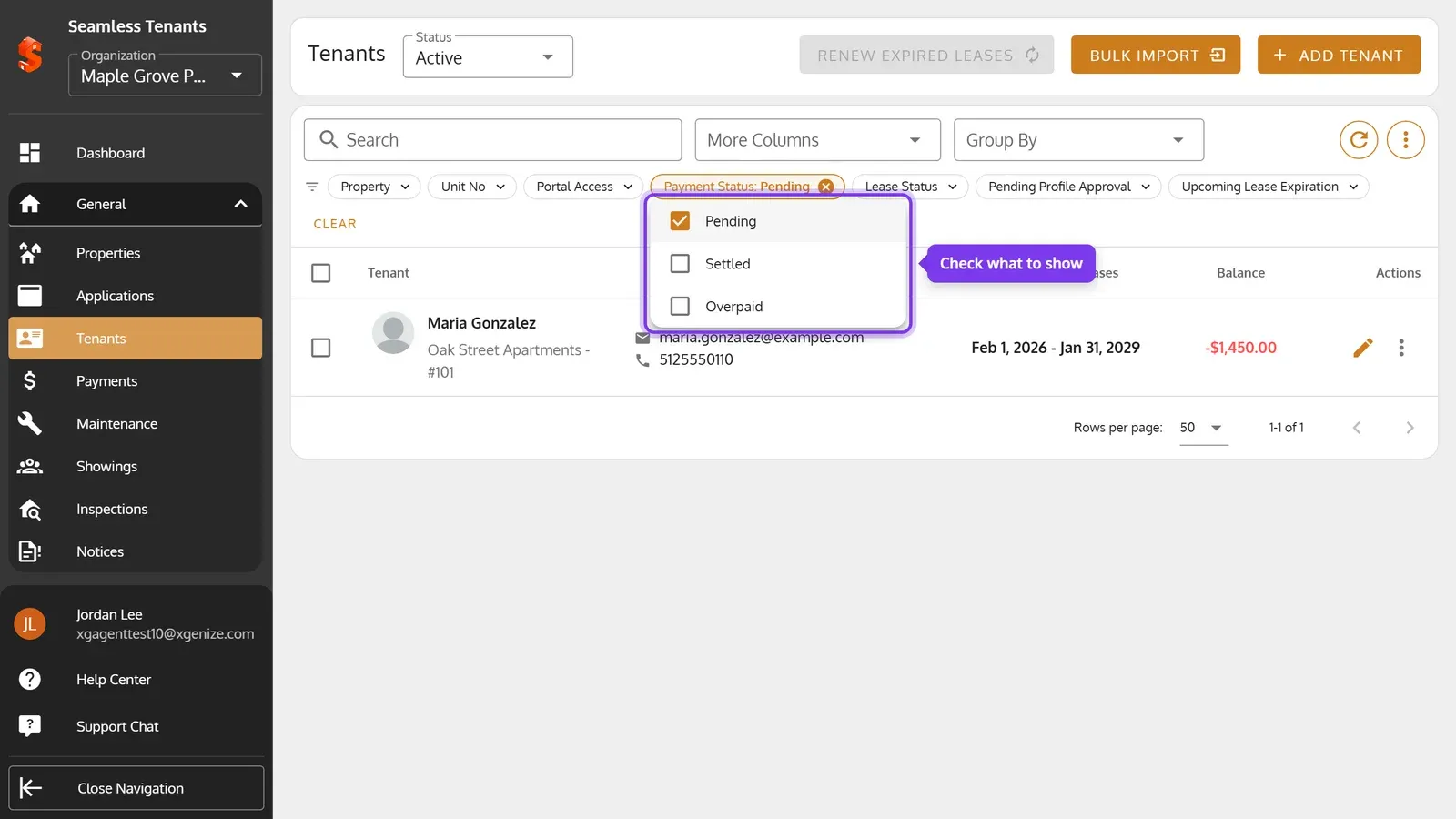
To filter, click a filter under the search, such as Payment Status, and check what to show. To clear it, click its ×, or click Clear to clear them all.
-
To search, type in Search: part of a tenant’s name or property, or a whole email, phone number or unit number.
-
To filter, tap the filter button in the search box, then a filter, such as Payment Status. Check what to show, then tap Done. To clear a filter, tap the × on it under the search.
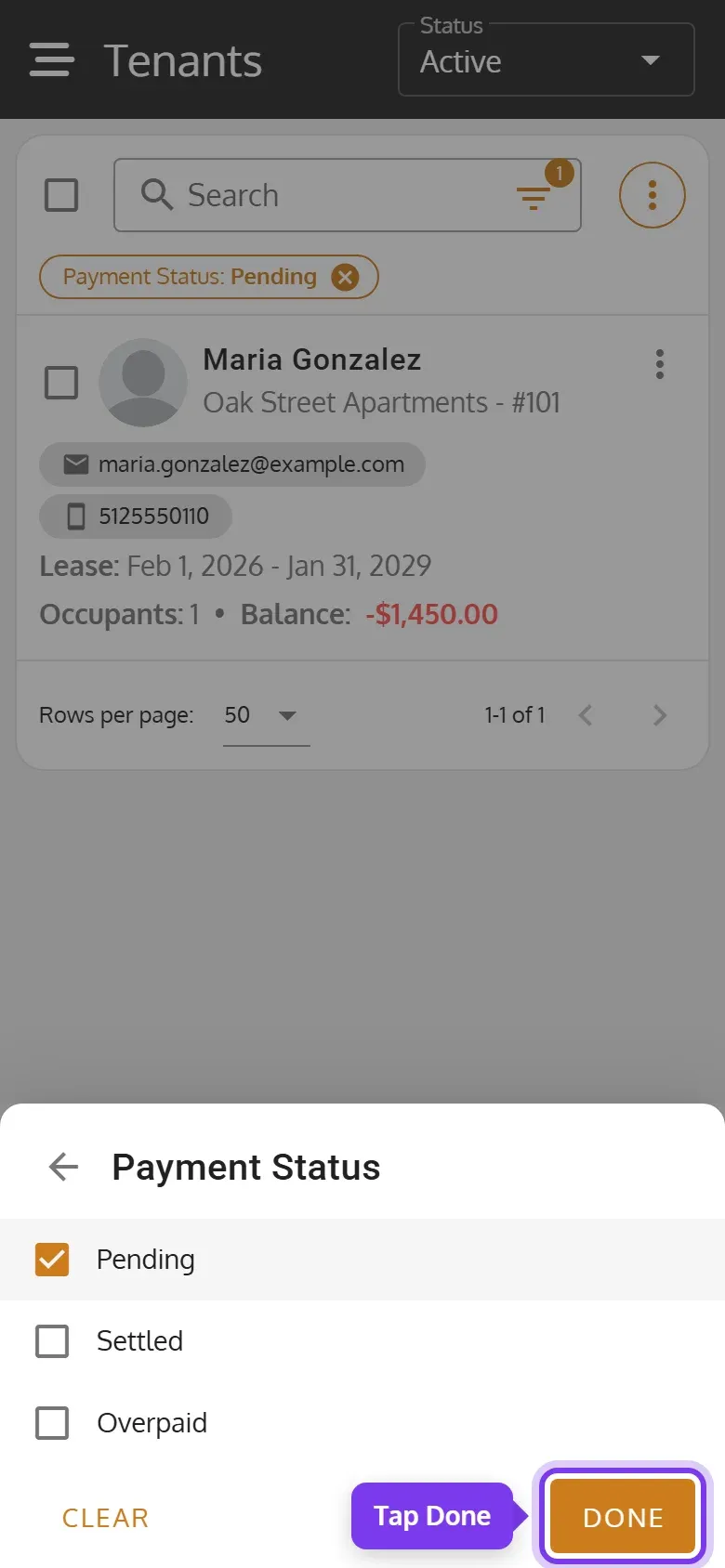
- Payment Status: Pending when the tenant owes money, Settled when they owe nothing, Overpaid when they’ve paid ahead.
- Pending Profile Approval: the tenant asked in the Tenant Portal to add or change their pets, vehicles and so on, and it waits for you.
- Upcoming Lease Expiration: the lease ends within a month, has no upcoming lease, and isn’t already running month-to-month.
- Lease Status: Active when a lease covers today, Upcoming when the next one hasn’t started, otherwise Inactive.
- You can also filter by Property, Unit No and Portal Access.
More Columns adds columns such as Current Rent, # of Occupants and Payment Status, and Group By groups the tenants by property or payment status. On a phone, both are in the ⋮ menu. To download or email the list, use ⋮ > Export as.
Download a tenant’s PDF or lease documents
Section titled “Download a tenant’s PDF or lease documents”-
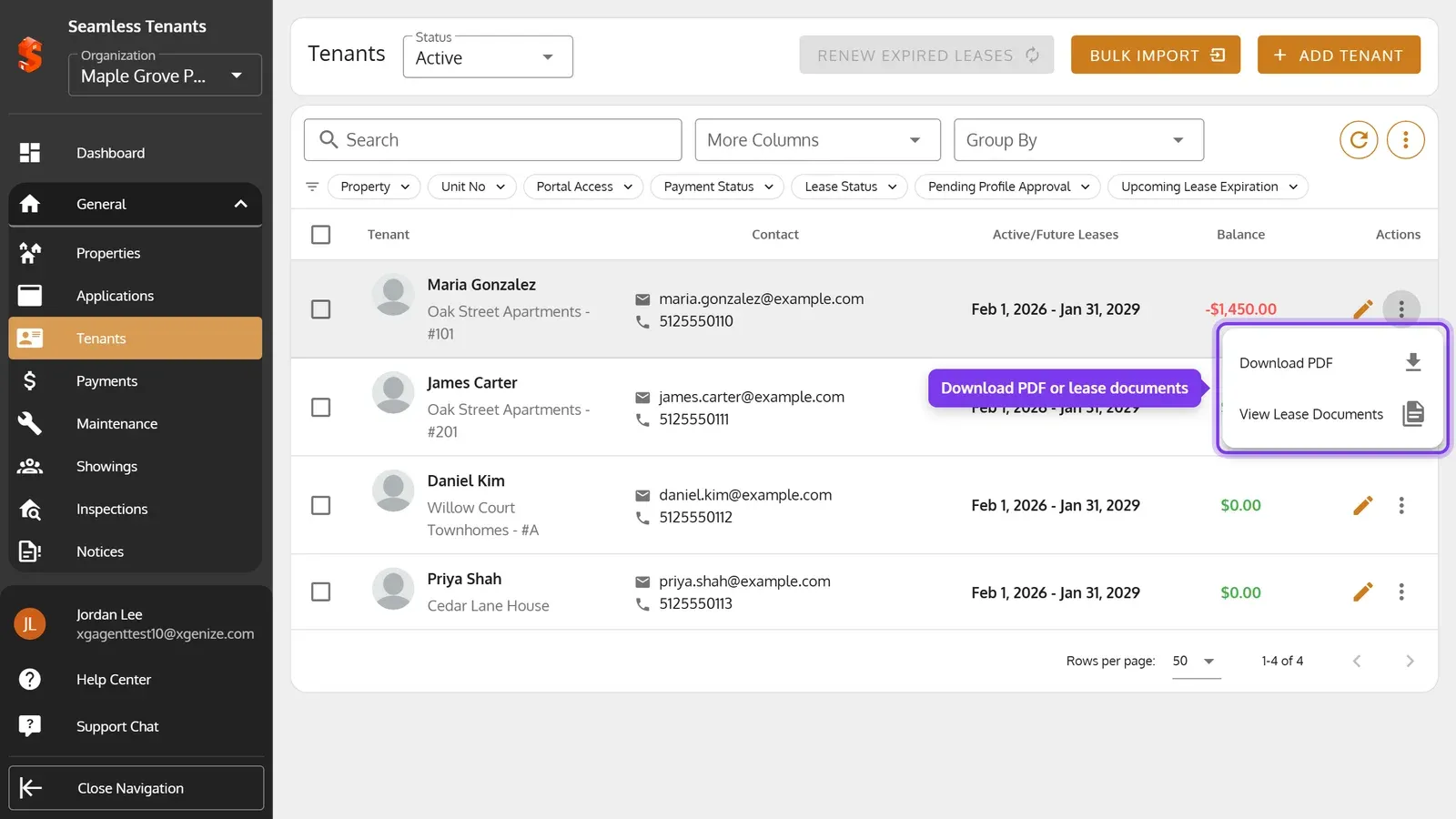
Click the tenant’s ⋮, then Download PDF for their details, or View Lease Documents.
-
Tap the ⋮ on the tenant’s card, then Download PDF for their details, or View Lease Documents.
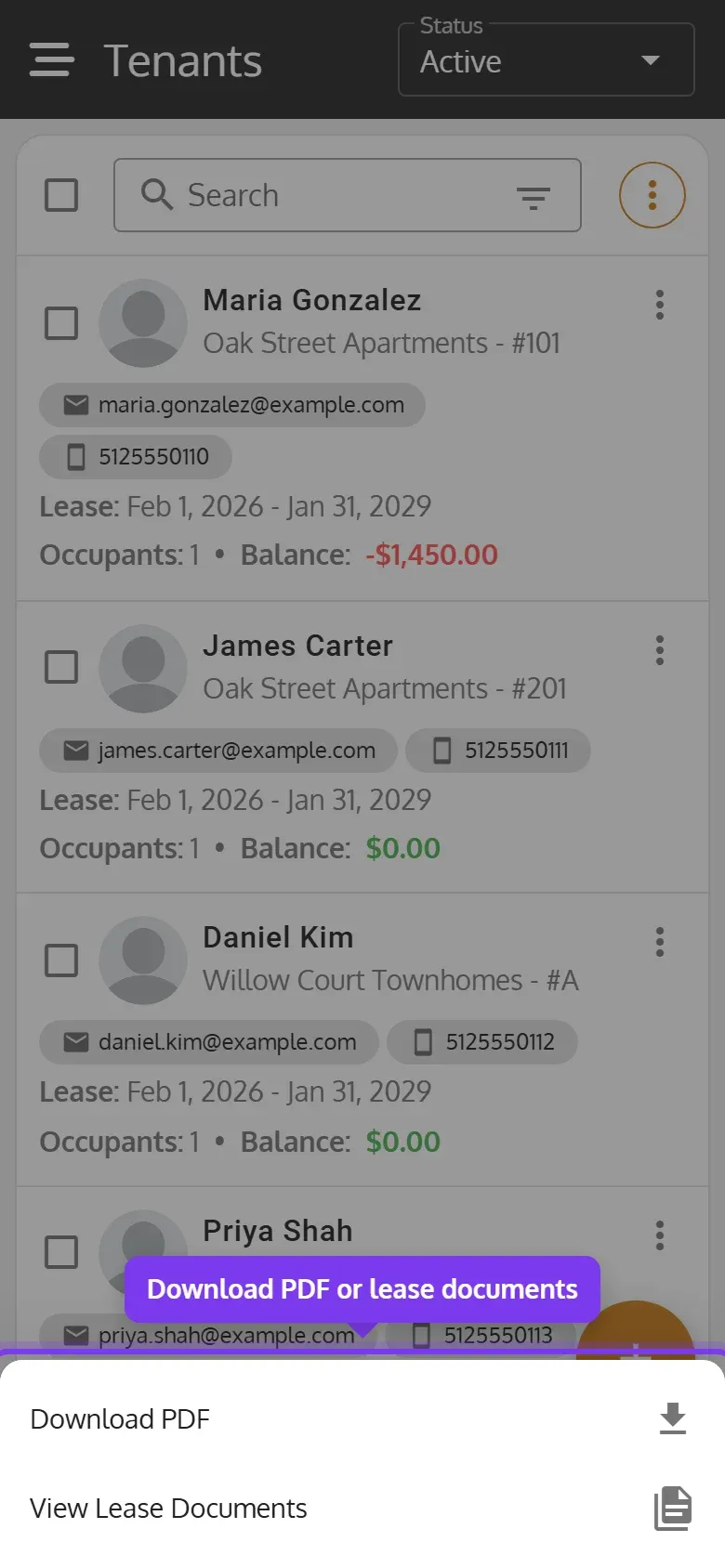
View Lease Documents lists each of the tenant’s leases with its documents, which you can view, print or email.
Work with several tenants
Section titled “Work with several tenants”Check the boxes of the tenants you want, and a bar shows what you can do with them all: Renew Leases (see Create, Edit and Renew Leases), and Pay Wallets, Adjust Wallets and Check Deposits for payments.