
Move a Tenant Out
A tenant’s Move Out tab plans their move-out and confirms it. Moving out the primary tenant moves out their co-tenants too.
Plan a move-out
Section titled “Plan a move-out”-
Open the tenant’s Move Out tab and click Prepare to Move Out.
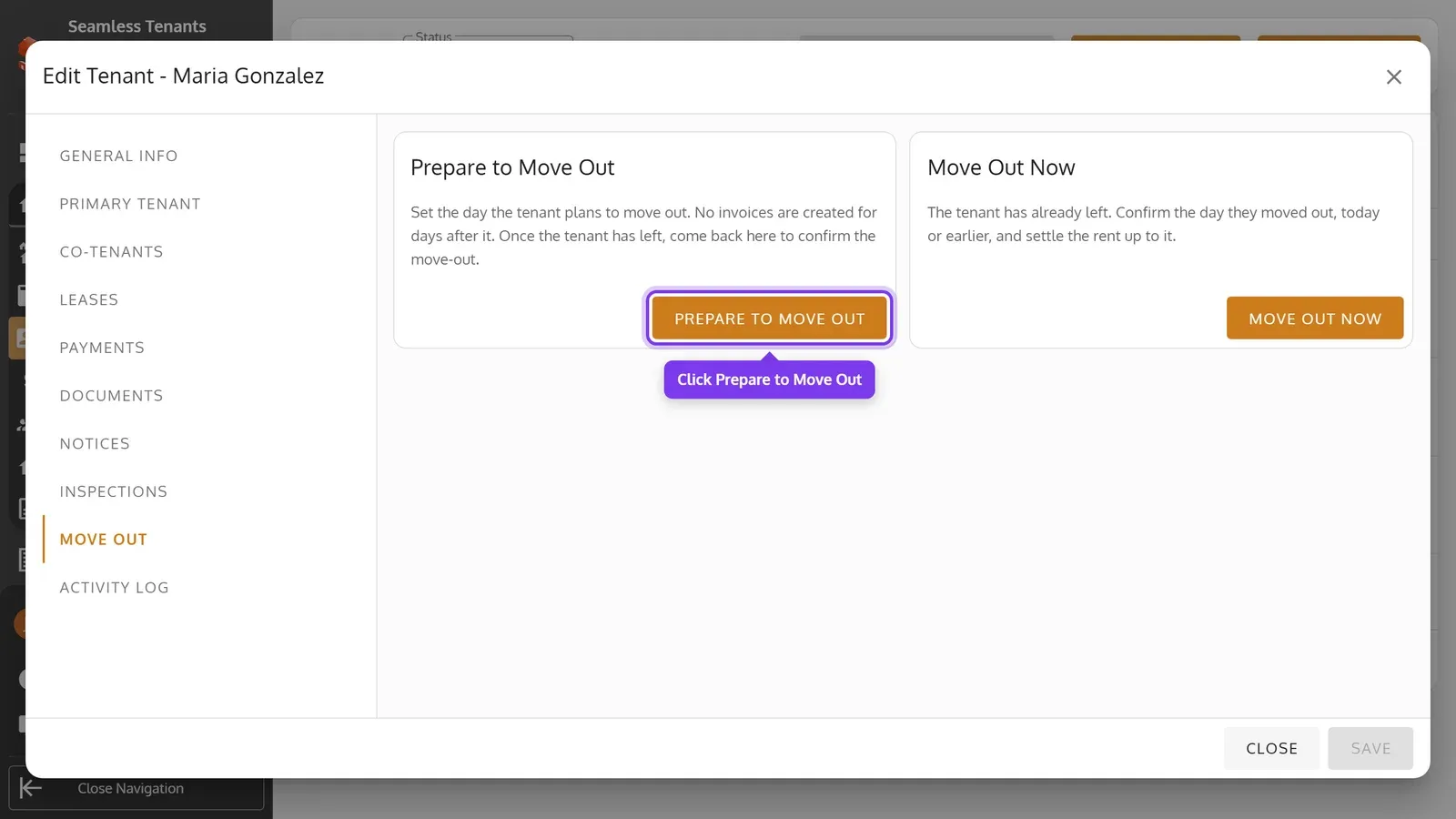
-
Pick the Planned Move-Out Date, and enter a Move Out Reason if you like. Then click Save.
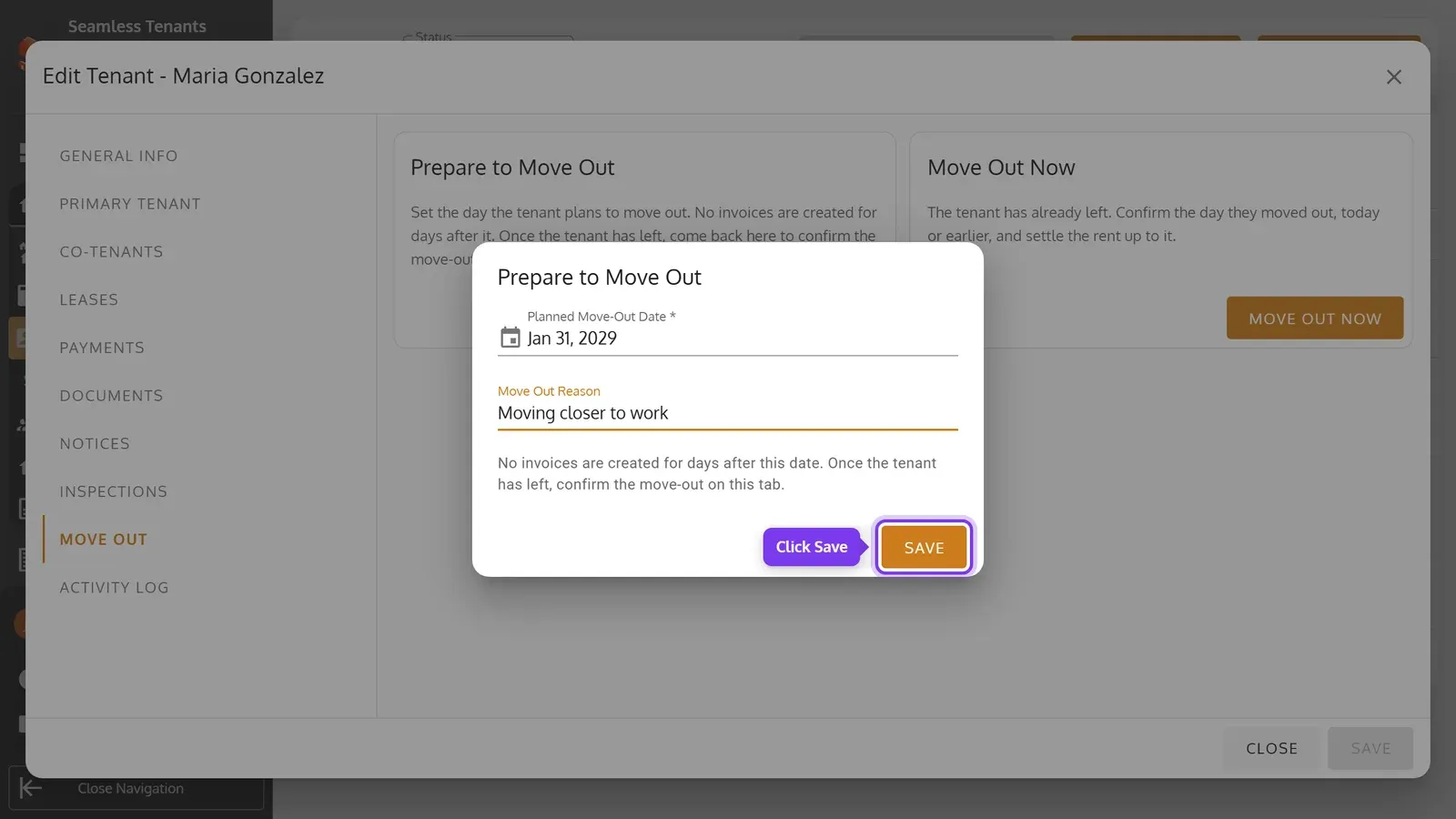
-
Swipe the tenant’s tabs and tap Move Out, then Prepare to Move Out.
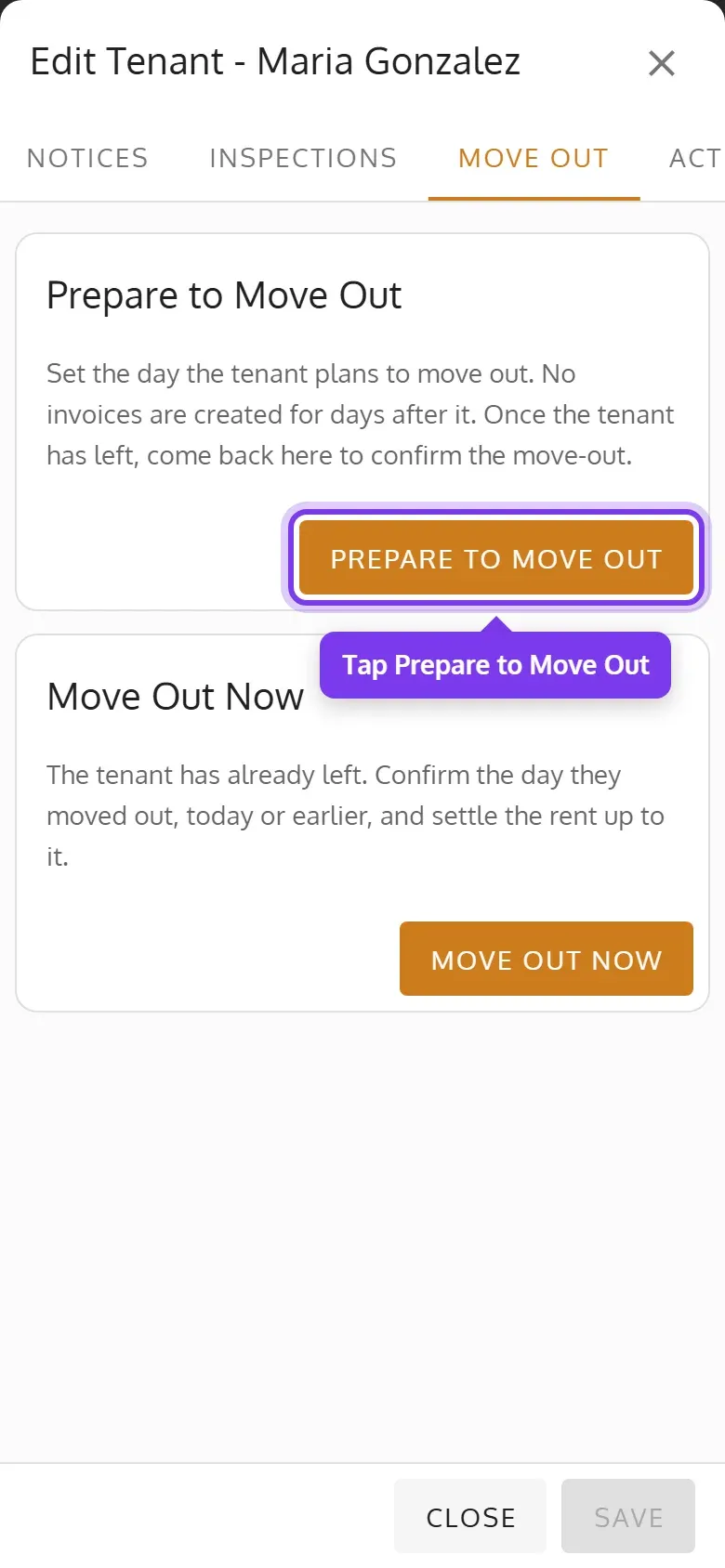
-
Pick the Planned Move-Out Date, and enter a Move Out Reason if you like. Then tap Save.
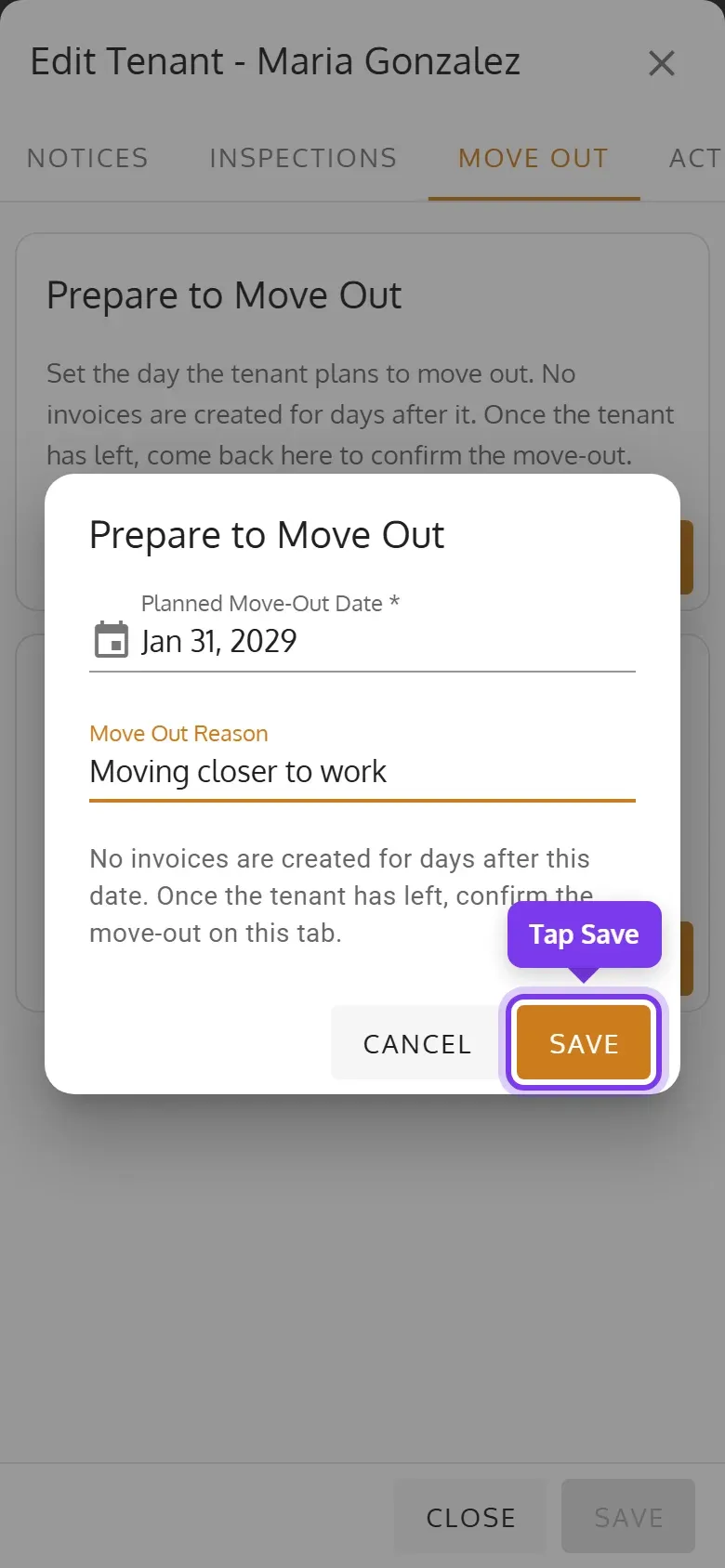
No invoices are made for days after the planned date. The tenant stays active, and the unit stays occupied, until you confirm the move-out. To change the plan, use Edit on the Planned Move-Out card, and to drop it, Cancel.
Confirm the move-out
Section titled “Confirm the move-out”-
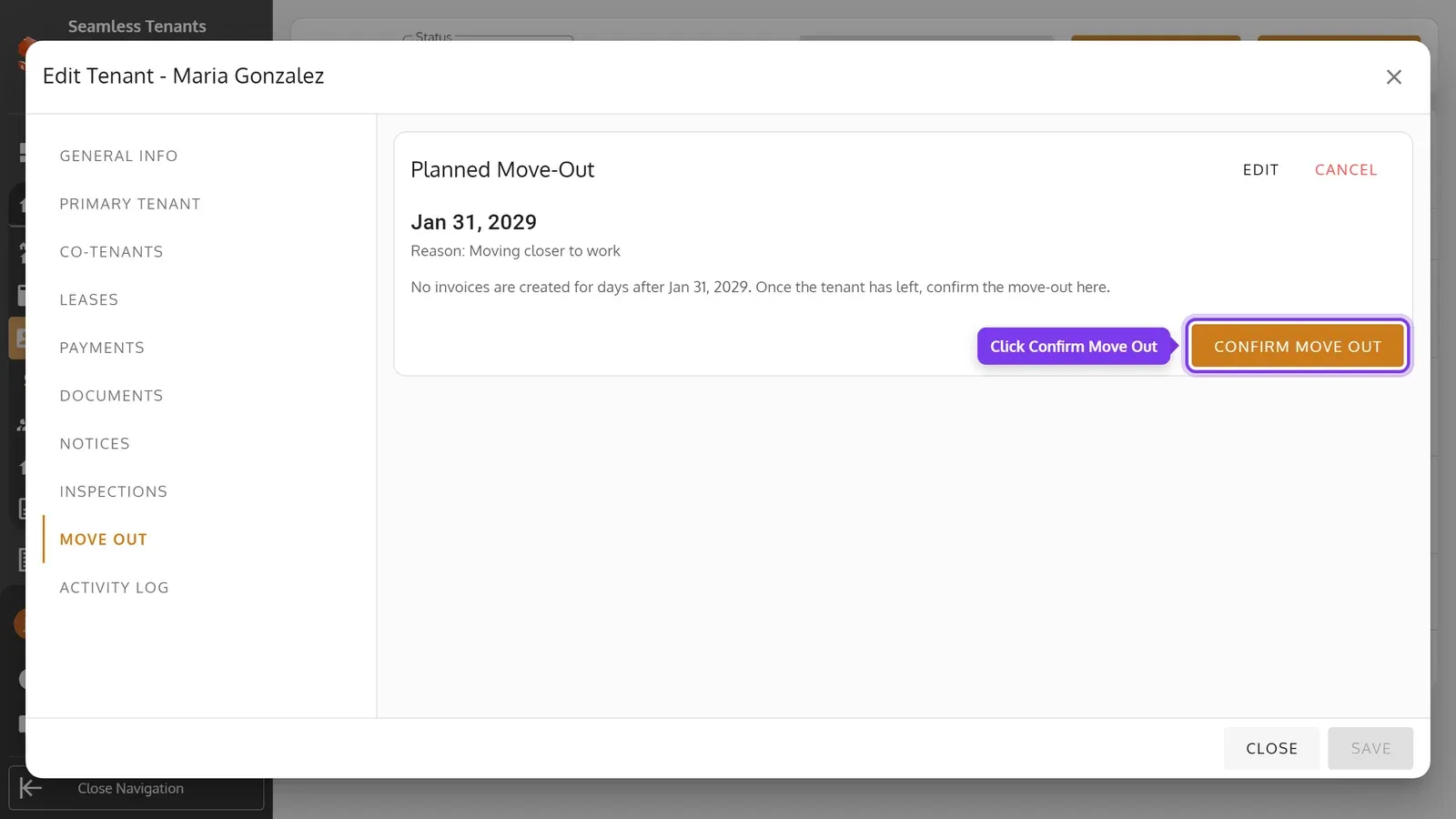
Once the tenant has left, click Confirm Move Out on the Planned Move-Out card. If they left without a plan, click Move Out Now instead.
-
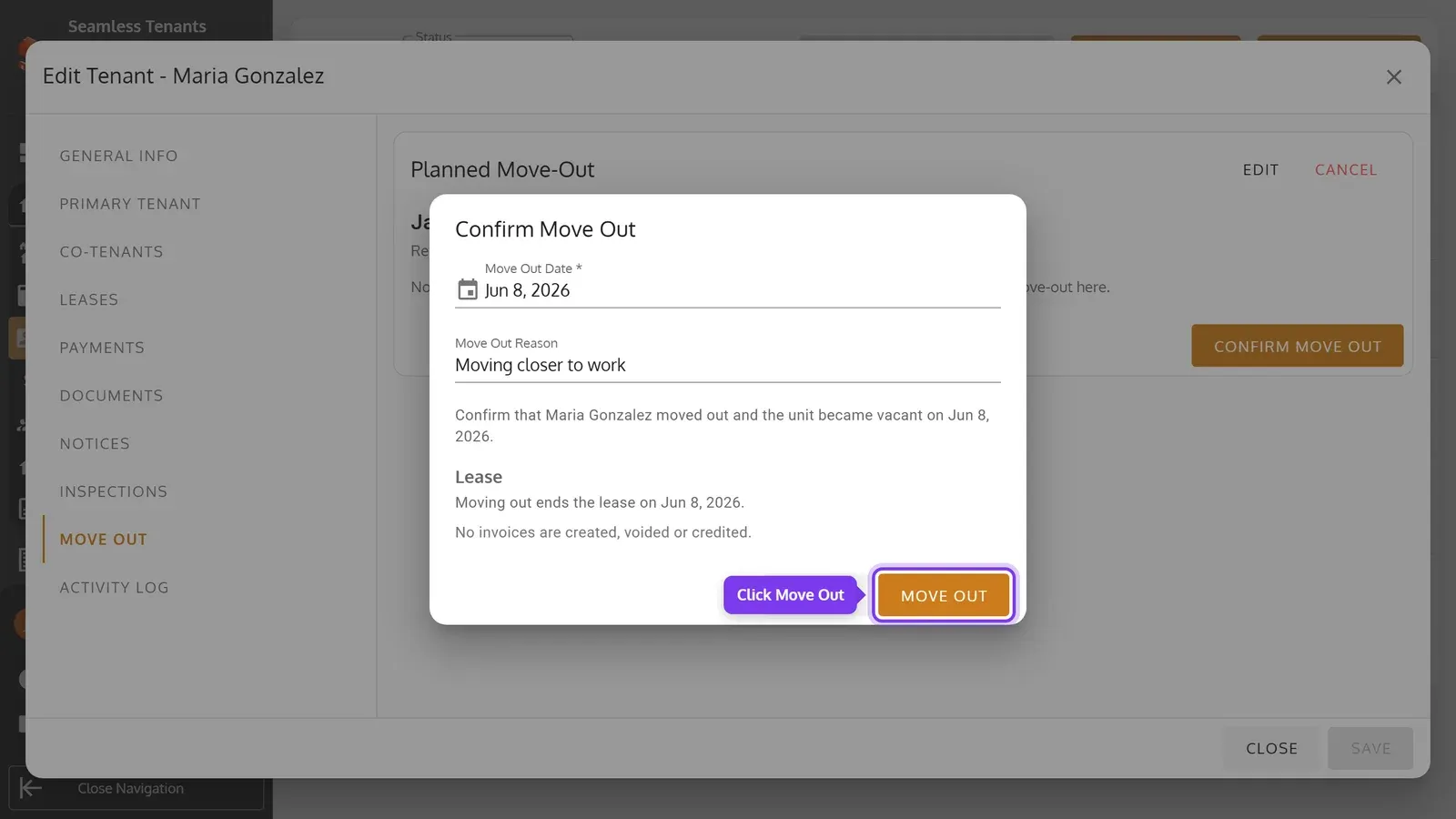
Check the Move Out Date, today or earlier, and the Move Out Reason. If asked, choose how to bill the rent up to the move-out. Then click Move Out.
-
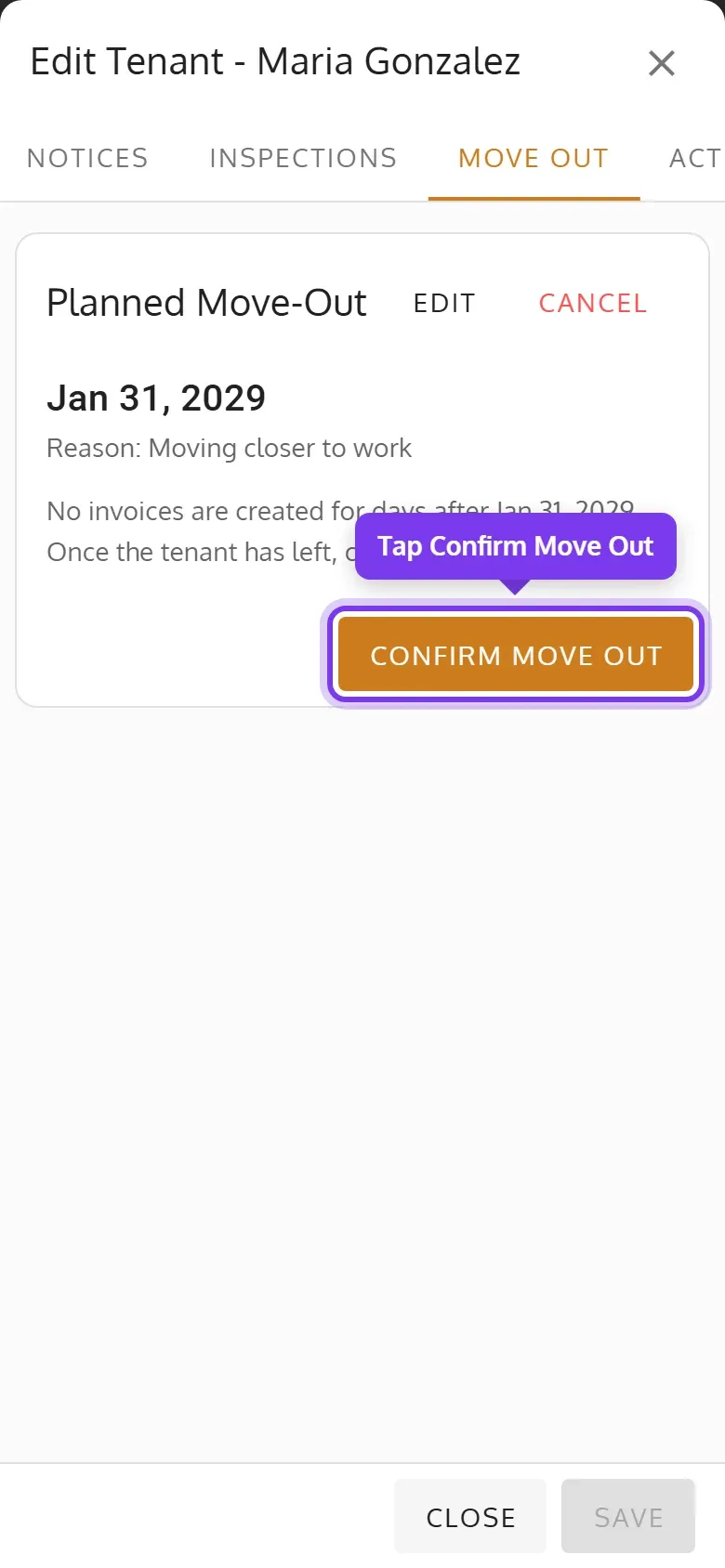
Once the tenant has left, tap Confirm Move Out on the Planned Move-Out card. If they left without a plan, tap Move Out Now instead.
-
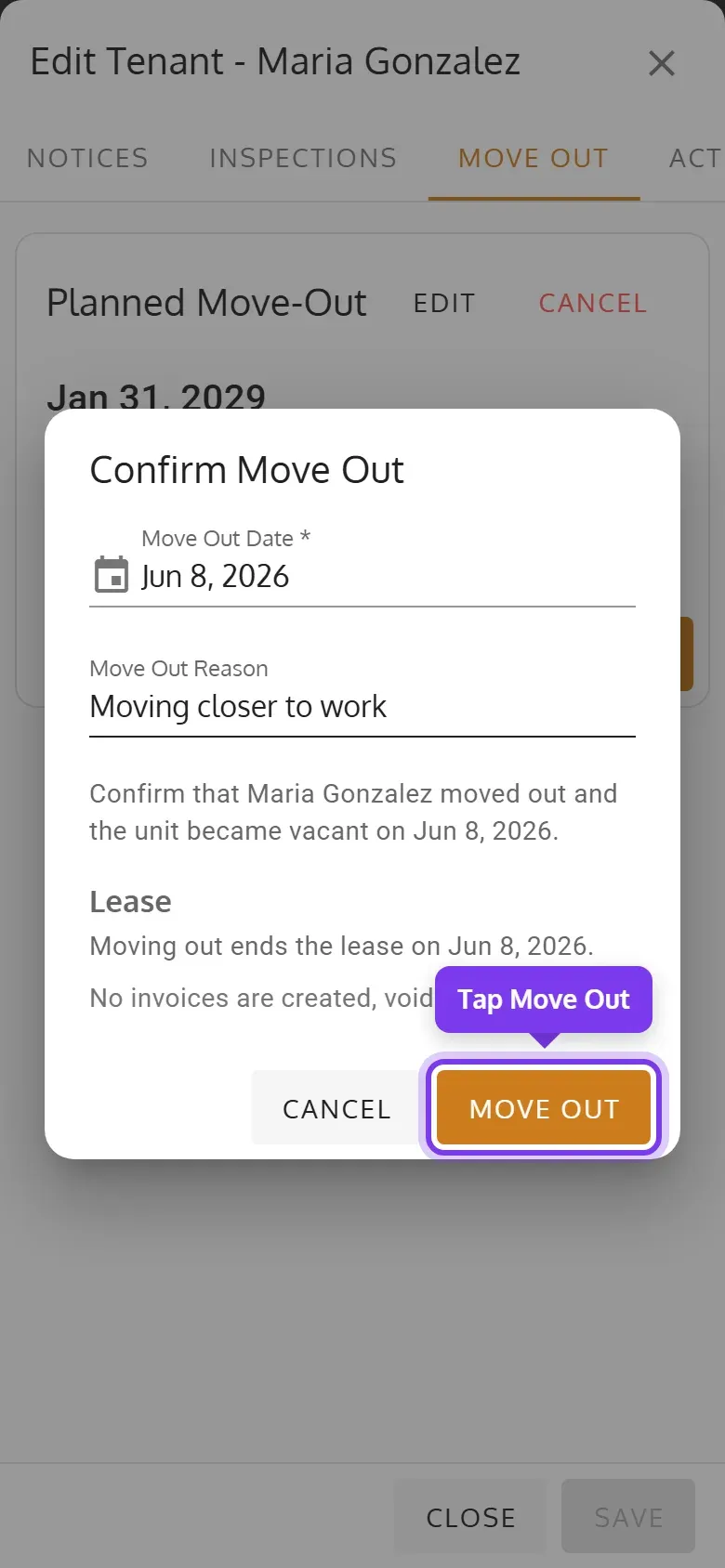
Check the Move Out Date, today or earlier, and the Move Out Reason. If asked, choose how to bill the rent up to the move-out. Then tap Move Out.
What moving out does
Section titled “What moving out does”- The tenant and their co-tenants become Inactive. You can’t undo it.
- Their lease ends on the move-out date, or on the planned date if you choose not to bill after it. A lease that already ended stays as it is. The last period is billed for its days up to that date, anything billed after it is voided, and what the tenant paid on those invoices goes to their balance.
- The unit becomes Vacant if no one else lives there.
- Invoices the tenant still hasn’t paid 30 days after moving out go to Collection.
Moving out doesn’t touch the tenant’s deposit: settle it on their Payments tab.