
Create, Edit and Renew Leases
A tenant’s leases are on their Leases tab: the current lease at the top, with its buttons, and every lease and revision under Lease History. How a Lease Bills explains the fields.
Edit a lease
Section titled “Edit a lease”-
Open the tenant’s Leases tab and click Edit Lease.
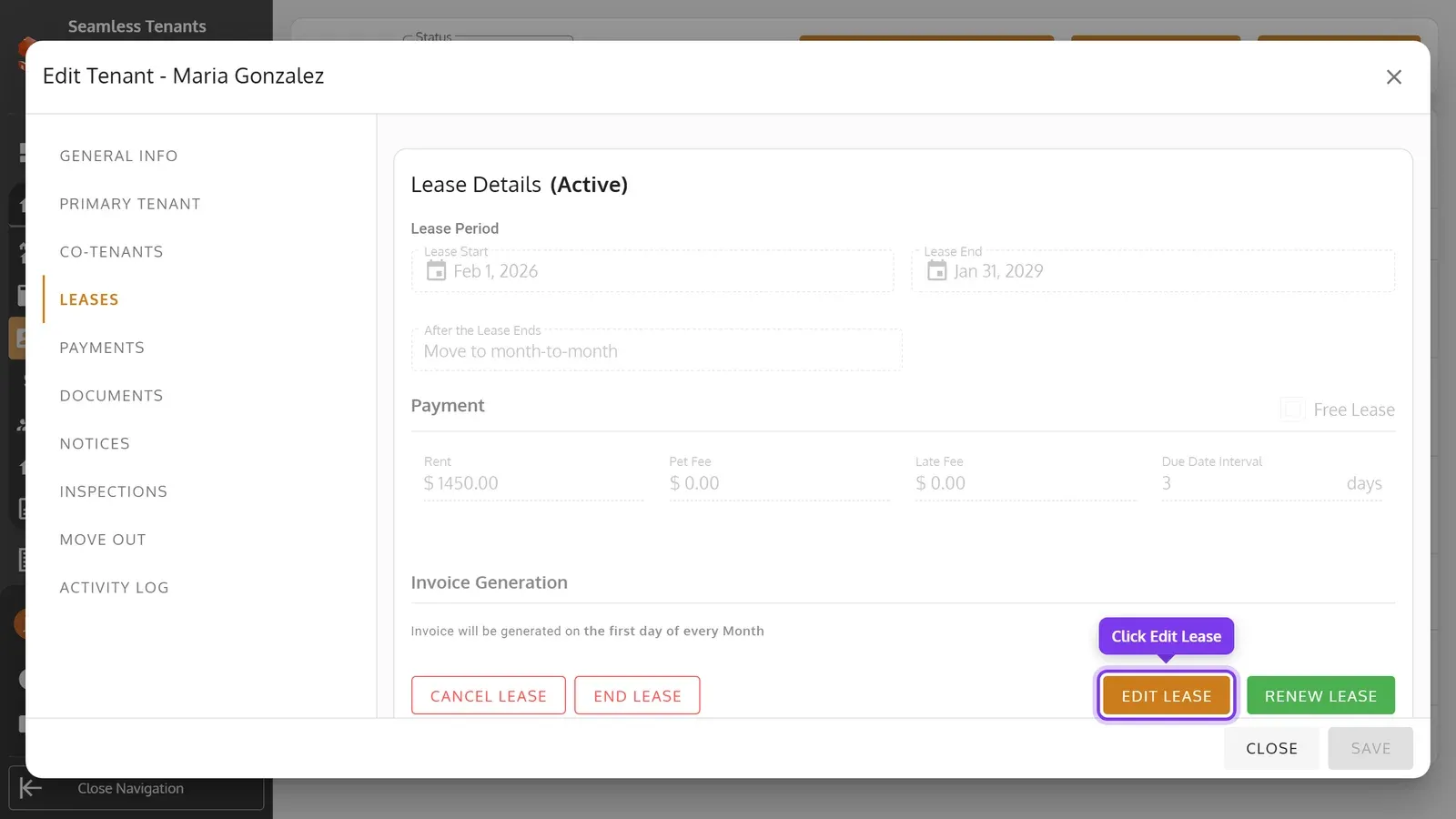
-
Change the terms, such as the rent. Under Effective Date, choose when the change starts, then click Save Changes.
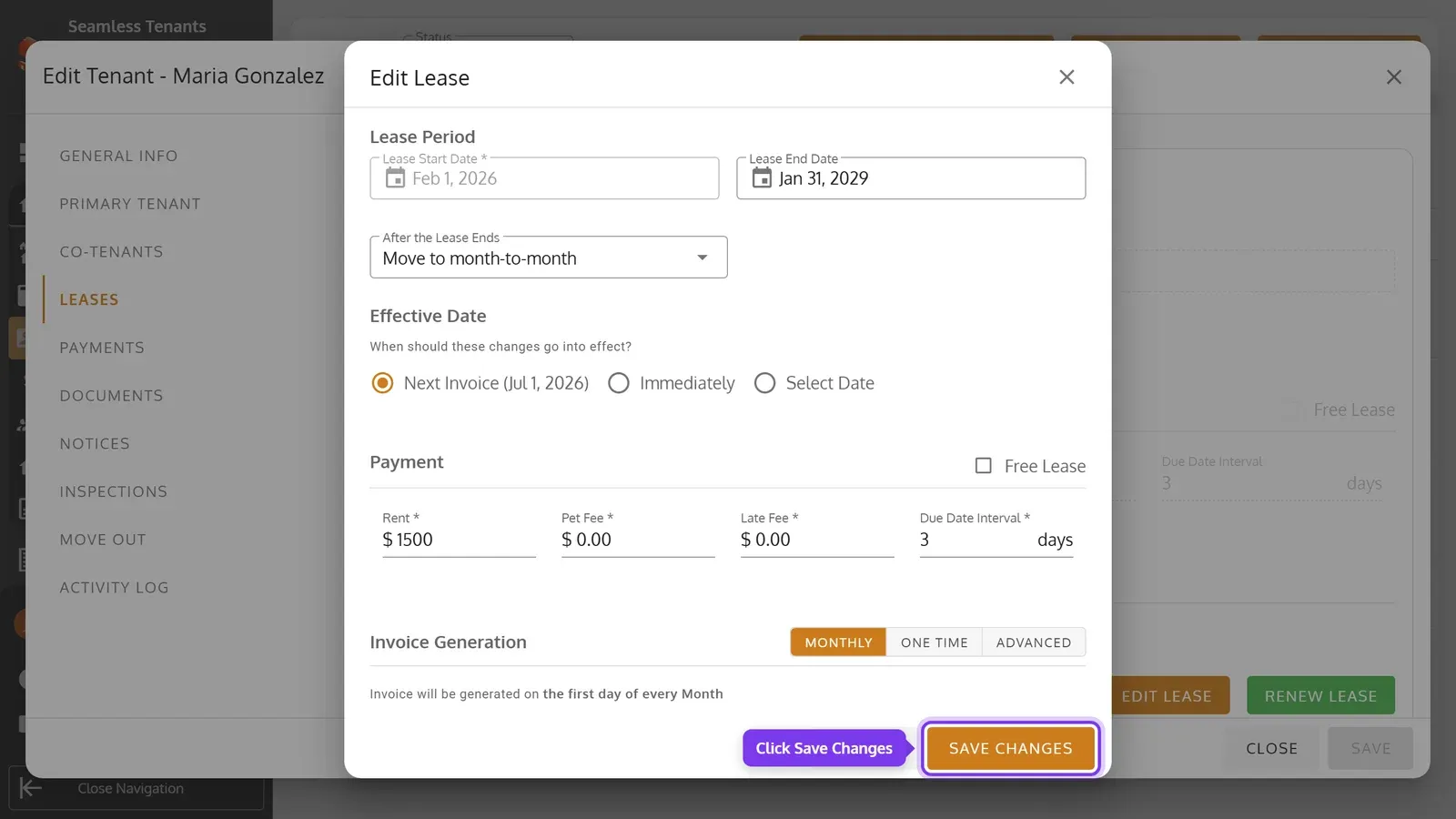
-
If the change affects invoices already made, review what it will do, then click Confirm Changes.
-
Swipe the tenant’s tabs and tap Leases, then Edit Lease.
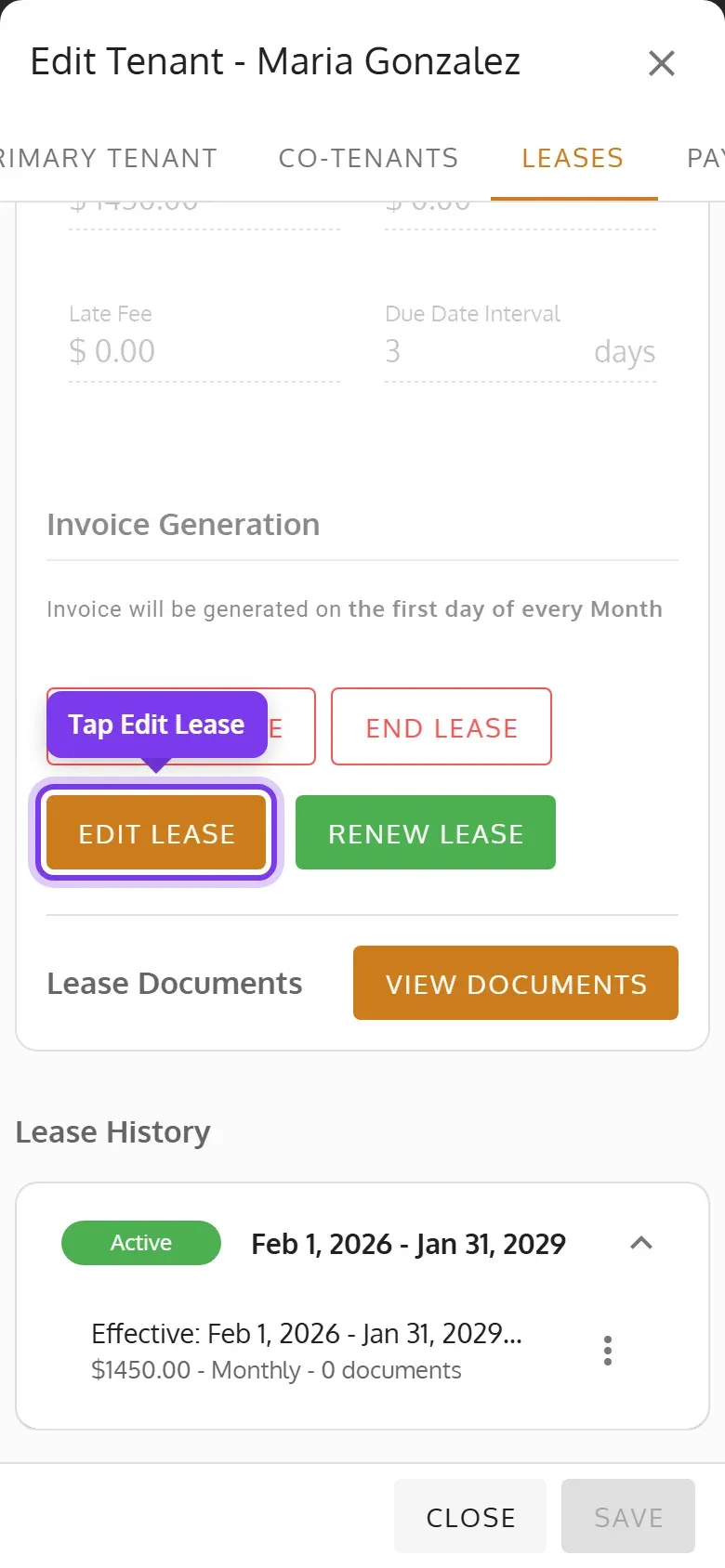
-
Change the terms, such as the rent. Under Effective Date, choose when the change starts, then tap Save Changes.
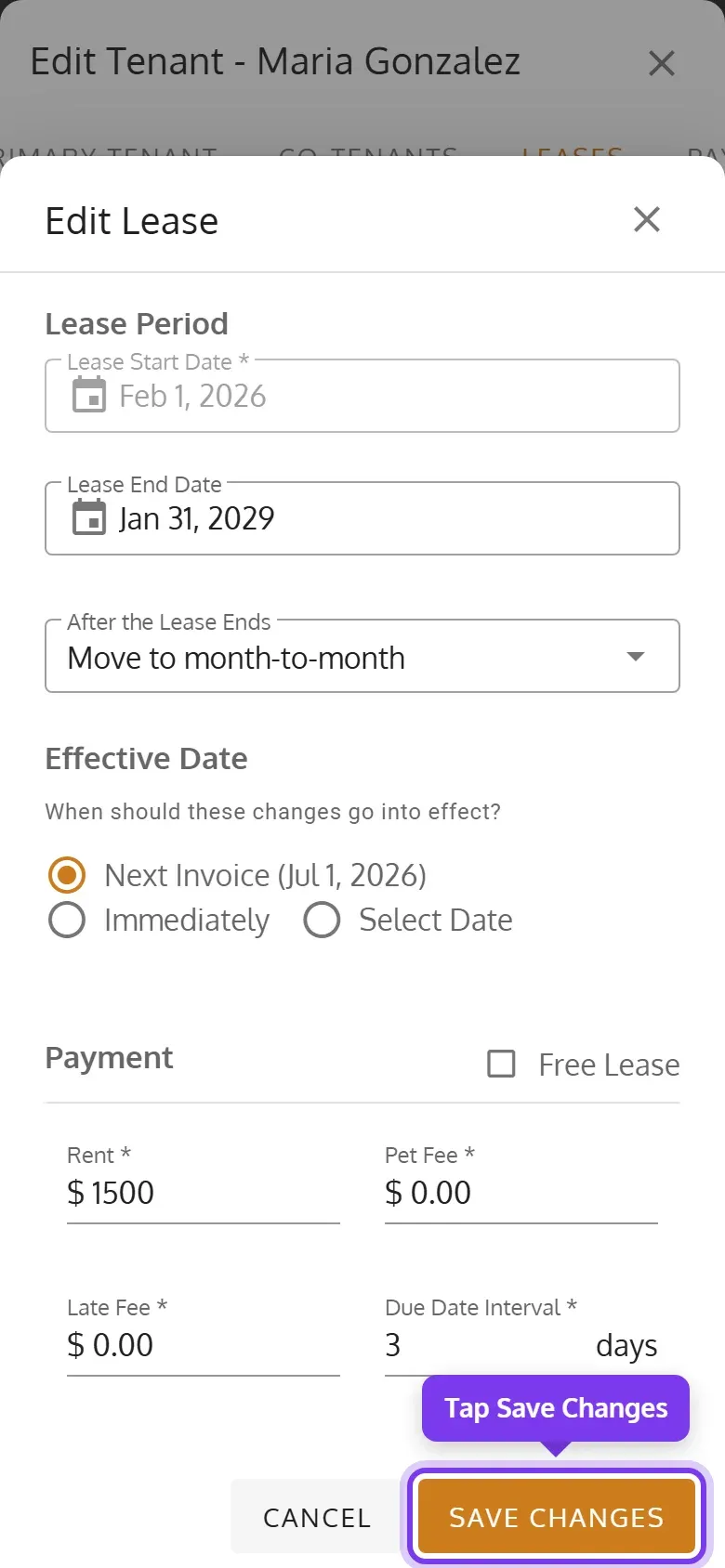
-
If the change affects invoices already made, review what it will do, then tap Confirm Changes.
- Effective Date: Next Invoice, the default, starts the change with the next invoice, so nothing already billed changes. Immediately starts it today, and Select Date on a date you pick.
- When the new terms start inside a period that’s already billed, you choose how to bill that period: New terms start next period, Bill or credit the difference, or Void and re-bill. What this change does lists the invoices that will be voided, credited or made.
- The lease’s start date can’t change. Its end date can’t change on a month-to-month lease: end the lease instead.
Each edit adds a revision to the lease, which you can undo, unless it only changes After the Lease Ends.
Renew a lease
Section titled “Renew a lease”-
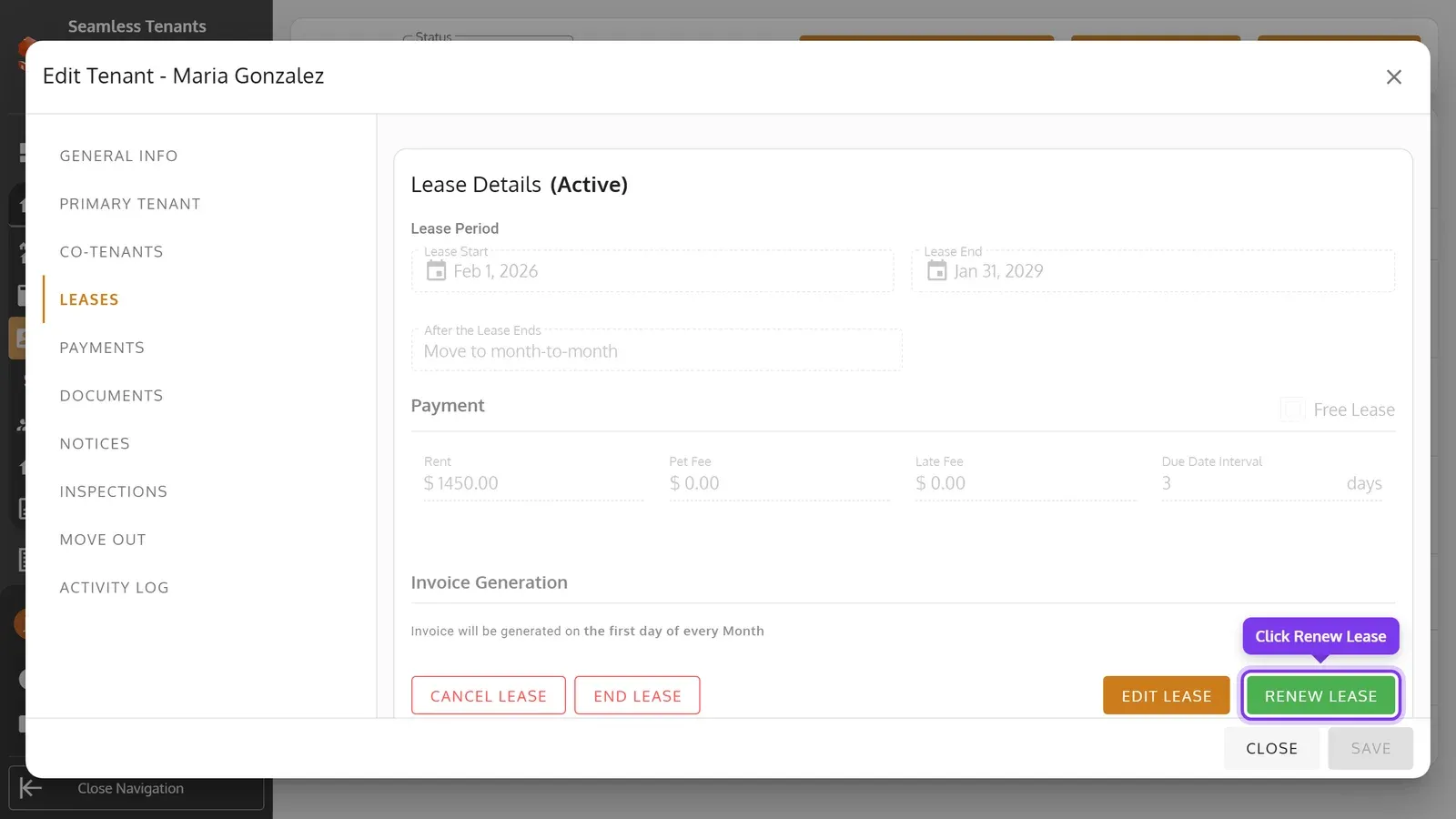
On the tenant’s Leases tab, click Renew Lease.
-
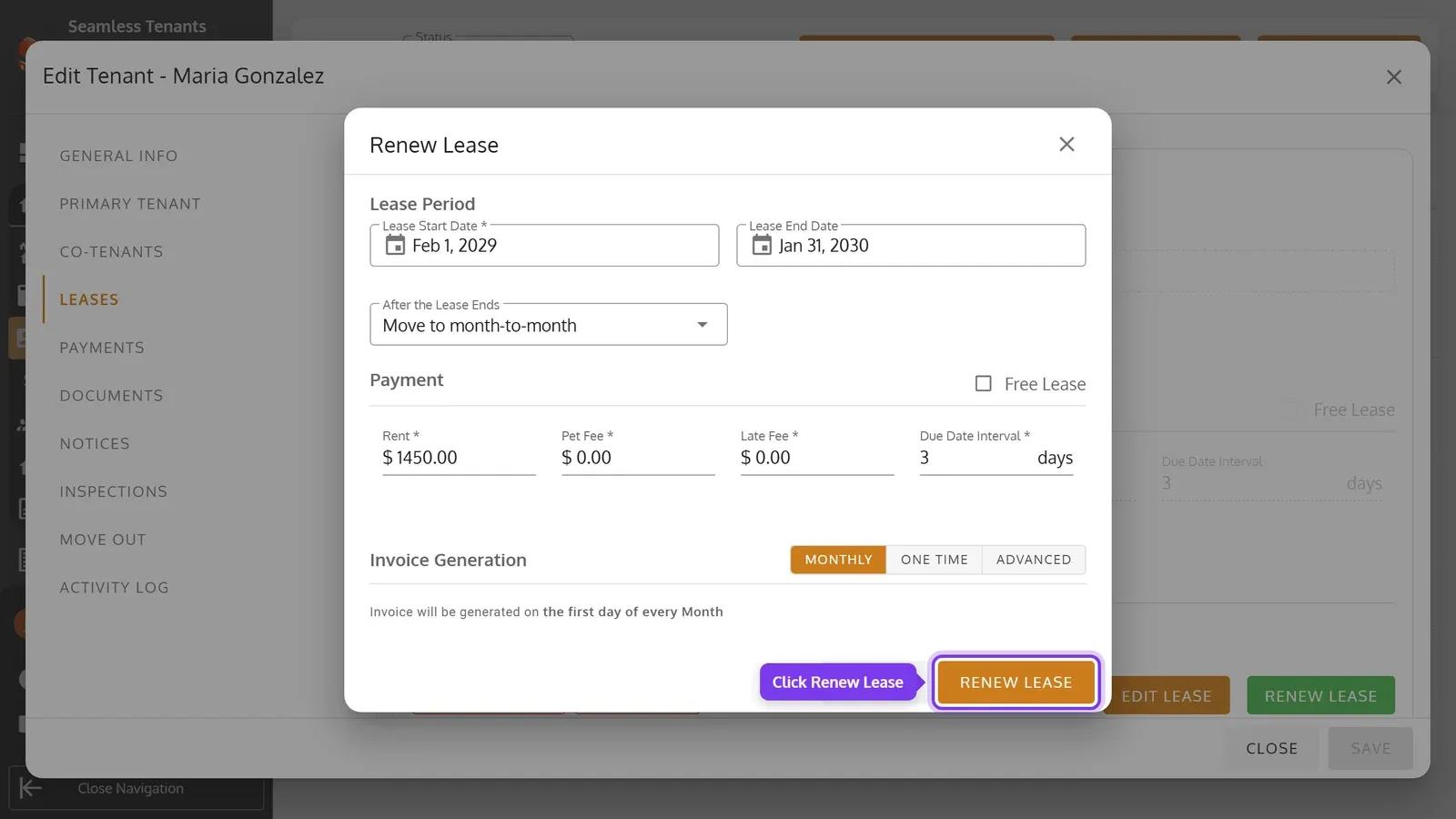
Check the new lease’s dates and terms, then click Renew Lease. If invoices are due right away, review them, then click Confirm Renewal.
-
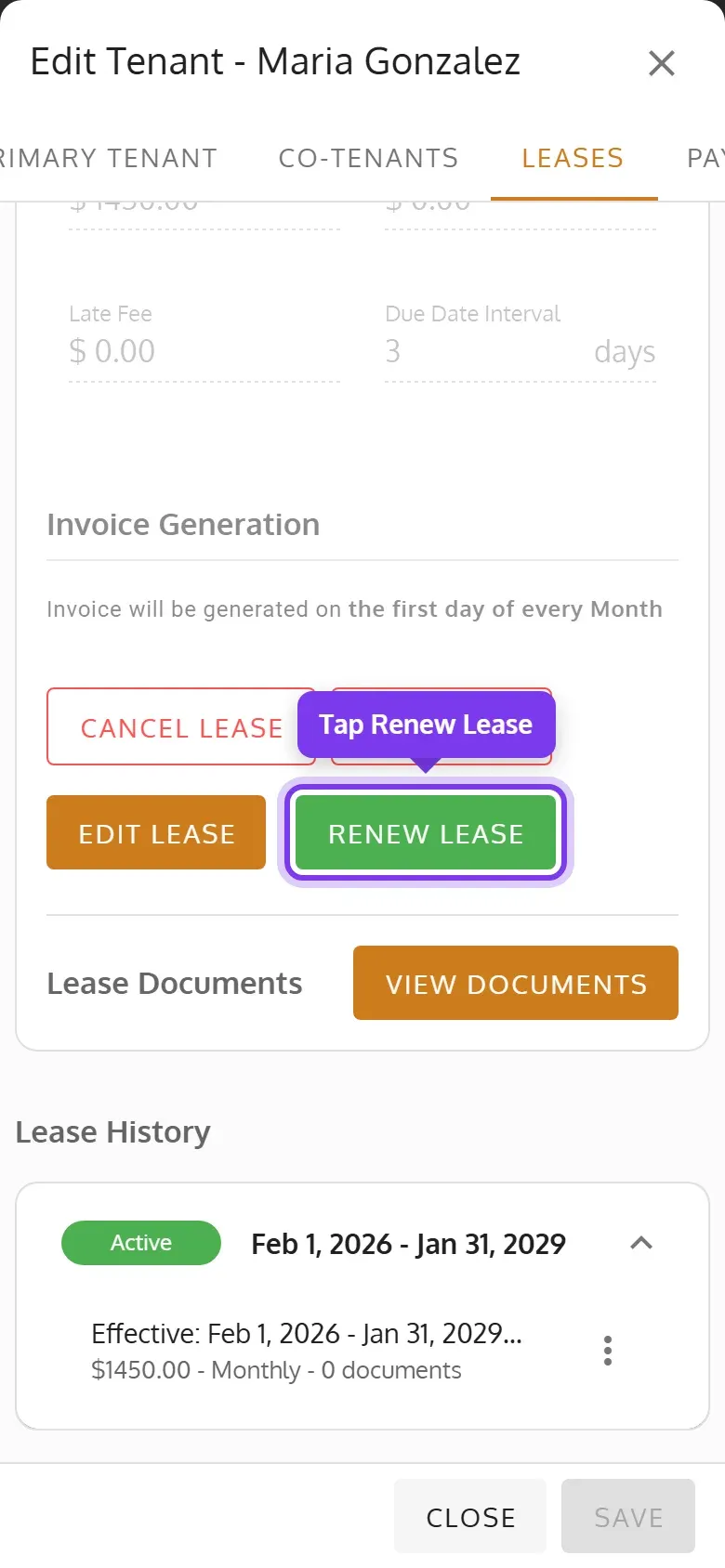
On the tenant’s Leases tab, scroll down and tap Renew Lease.
-
Check the new lease’s dates and terms, then tap Renew Lease. If invoices are due right away, review them, then tap Confirm Renewal.
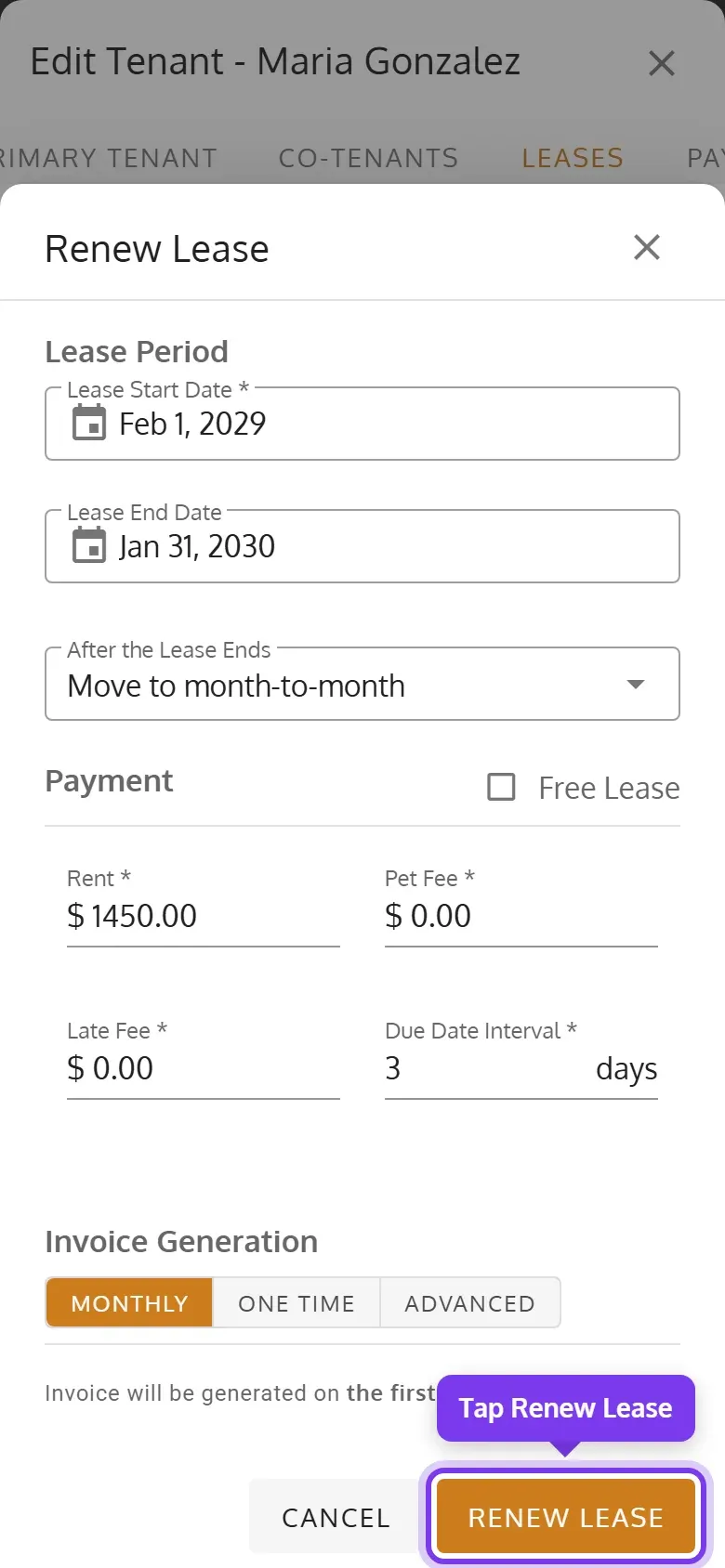
The new lease copies the current one’s terms, and starts the day after it ends, for a year. It must start after the current lease ends, or after a month-to-month lease’s current period. If you clear First Invoice Date on a lease that started before this month, you’re first asked whether to bill every period since then or start billing from a date you pick.
Renew several leases
Section titled “Renew several leases”-
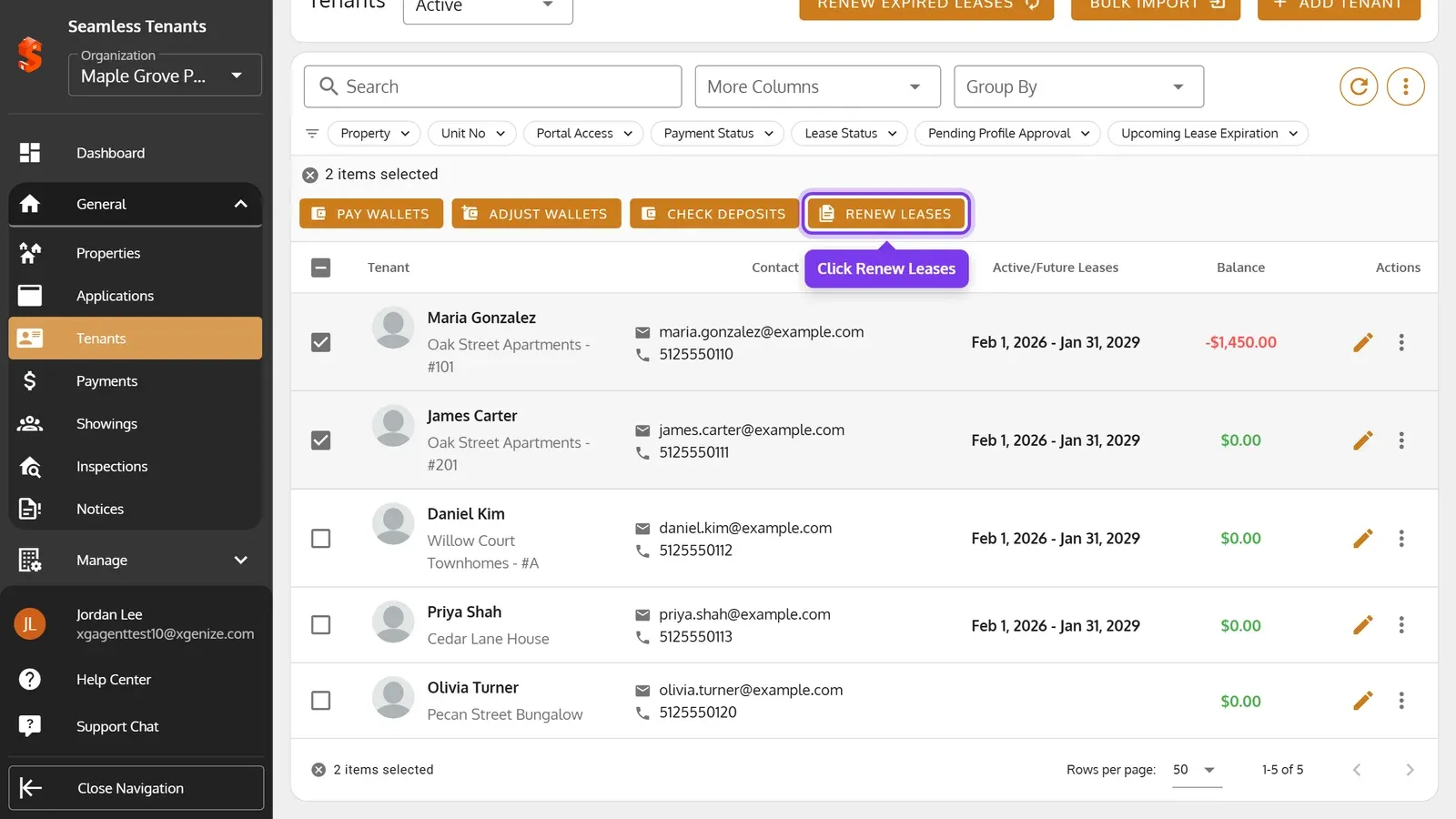
On the Tenants page, click Renew Expired Leases to renew every lease that has ended. Or check the tenants you want, including ones on a month-to-month lease, then click Renew Leases in the bar that appears.
-
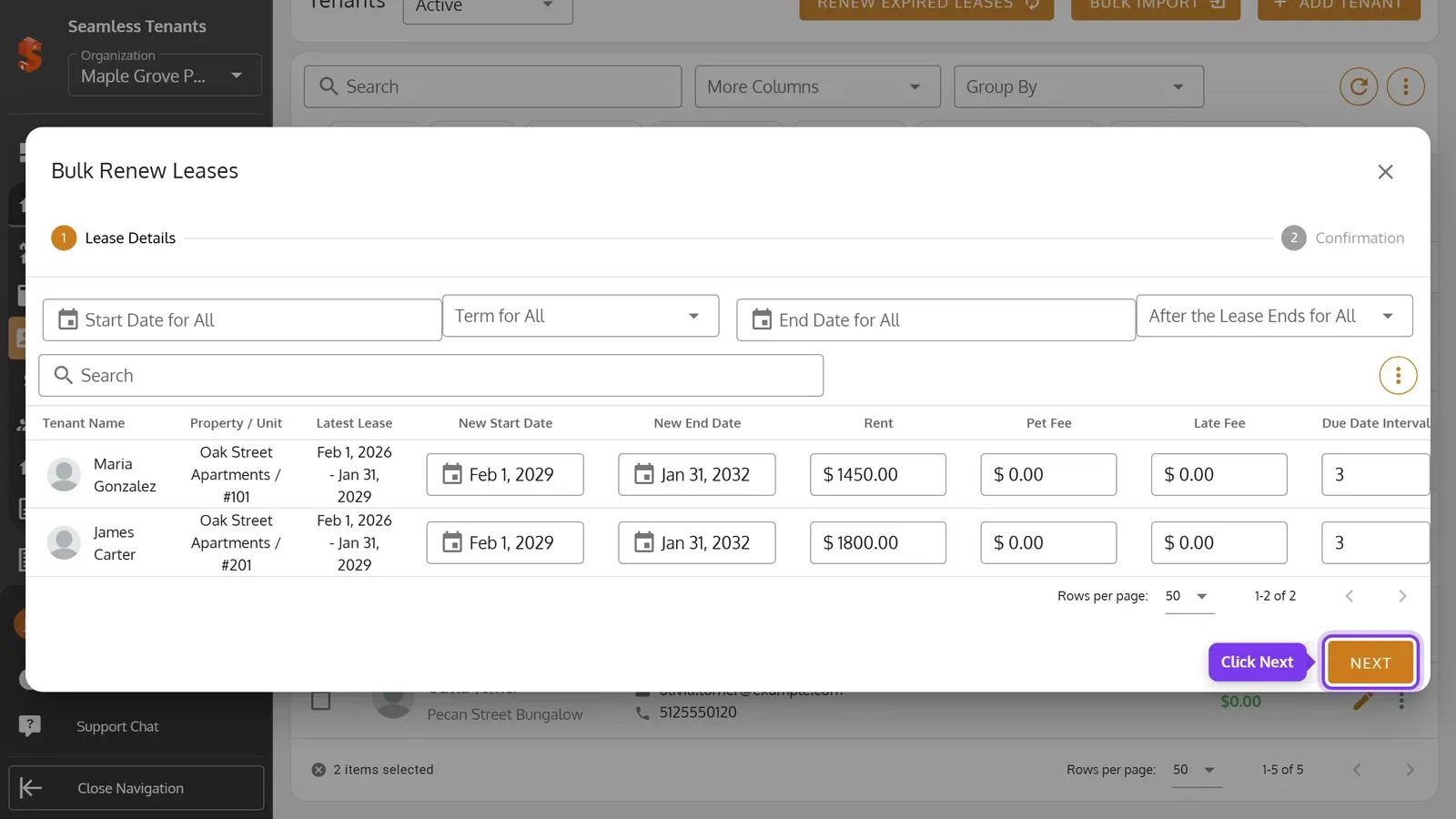
Set the new leases’ dates and terms, for all of them at once or for each one, then click Next.
-
Check the changes and the invoices due now, then click Confirm Changes, then Renew.
-
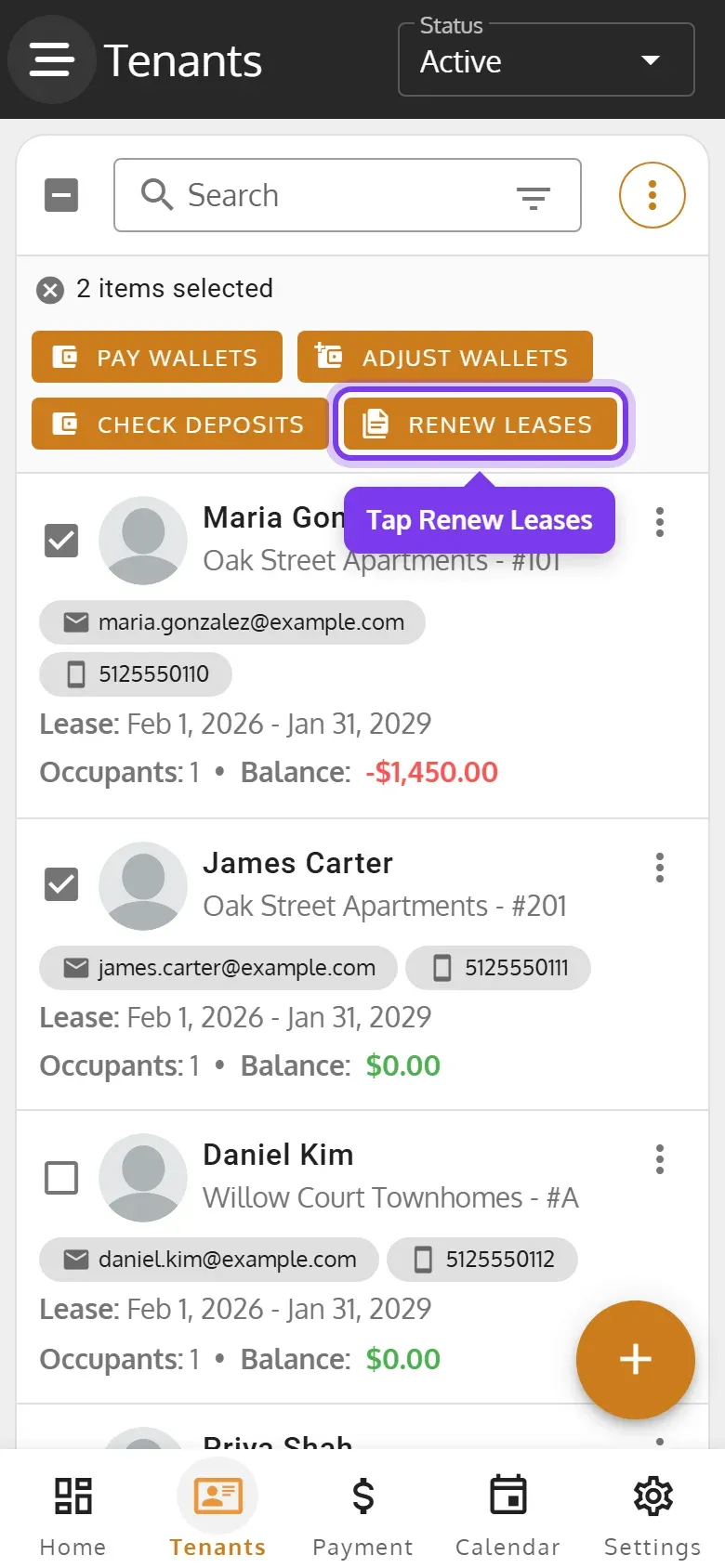
On the Tenants page, check the tenants’ cards, then tap Renew Leases in the bar that appears.
-
Set the new leases’ dates and terms, for all of them at once or for each one, then tap Next.
-
Check the changes and the invoices due now, then tap Confirm Changes, then Renew.
Start Date for All, Term for All, End Date for All and After the Lease Ends for All set every row. To remove a tenant, scroll to the end of their row and use its ×. If some leases can’t be renewed, they stay in the list, marked with an error.
Create a lease
Section titled “Create a lease”-
When a tenant has no current lease, their Leases tab says so. Click Create New Lease.
-
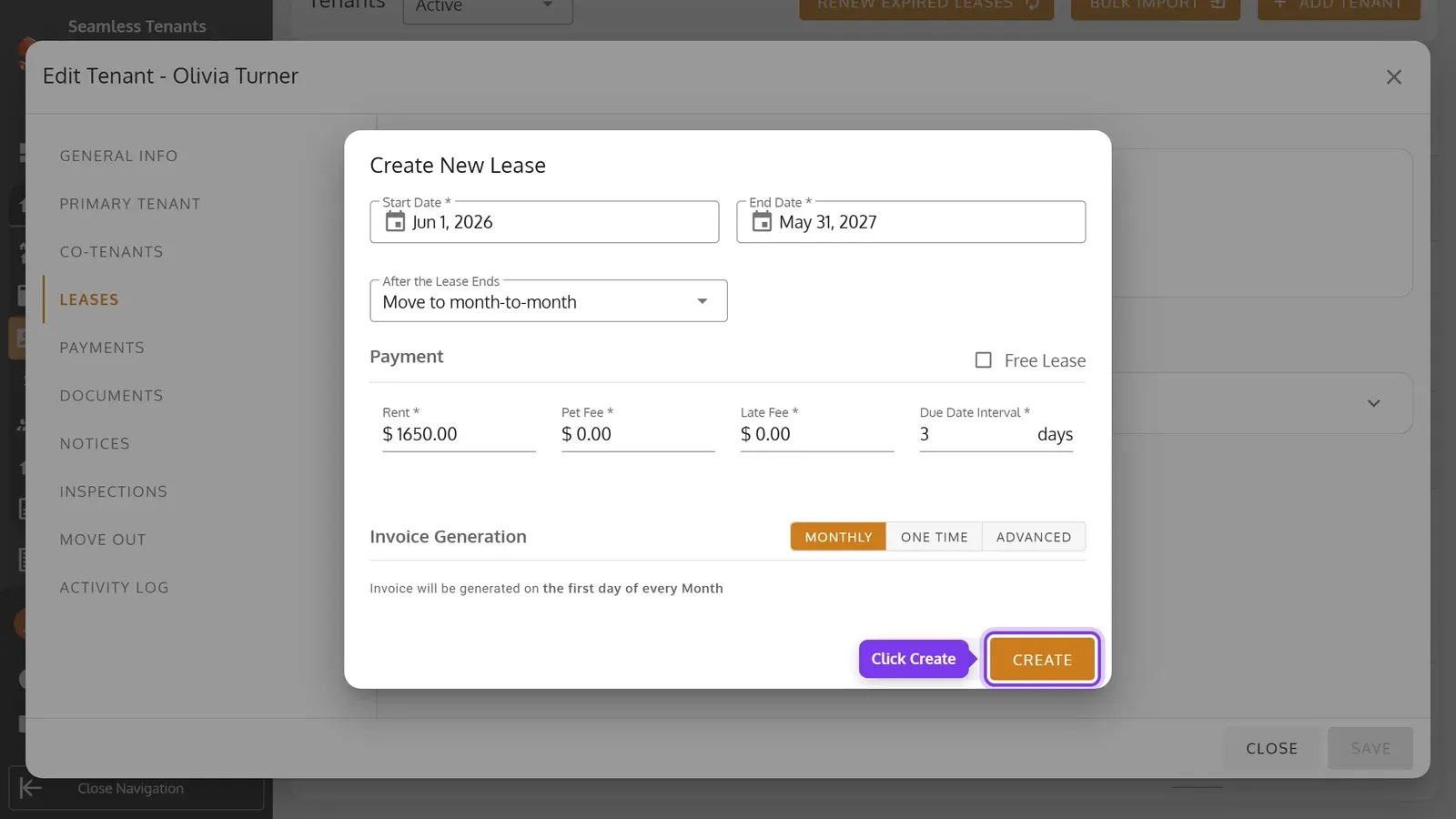
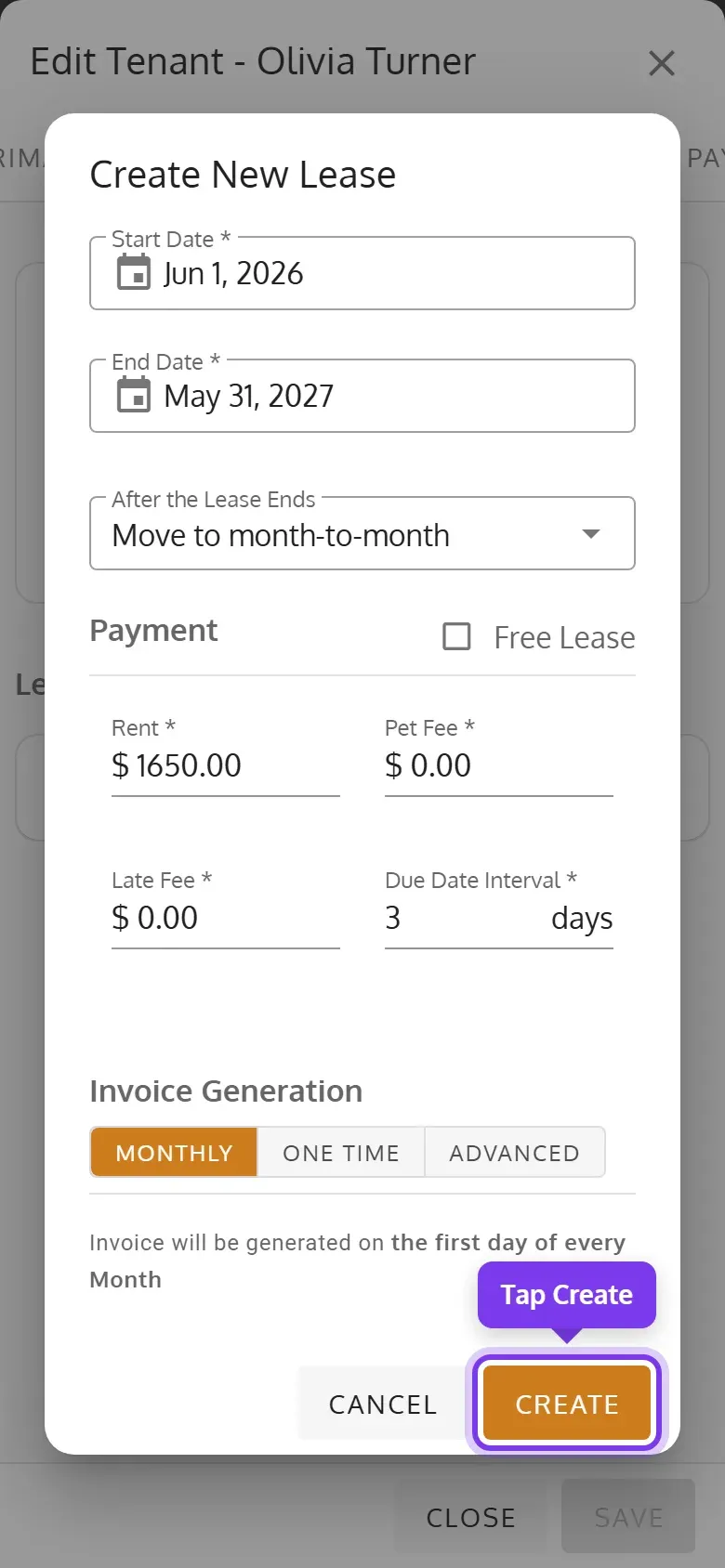
Set the lease’s dates and terms, then click Create. It must start after their last lease ended. If you clear First Invoice Date on a lease that started before this month, you’re first asked whether to bill every period since then or start billing from a date you pick.
-
When a tenant has no current lease, their Leases tab says so. Tap Create New Lease.
-
Set the lease’s dates and terms, then tap Create. It must start after their last lease ended. If you clear First Invoice Date on a lease that started before this month, you’re first asked whether to bill every period since then or start billing from a date you pick.
Undo a change or cancel a lease
Section titled “Undo a change or cancel a lease”-
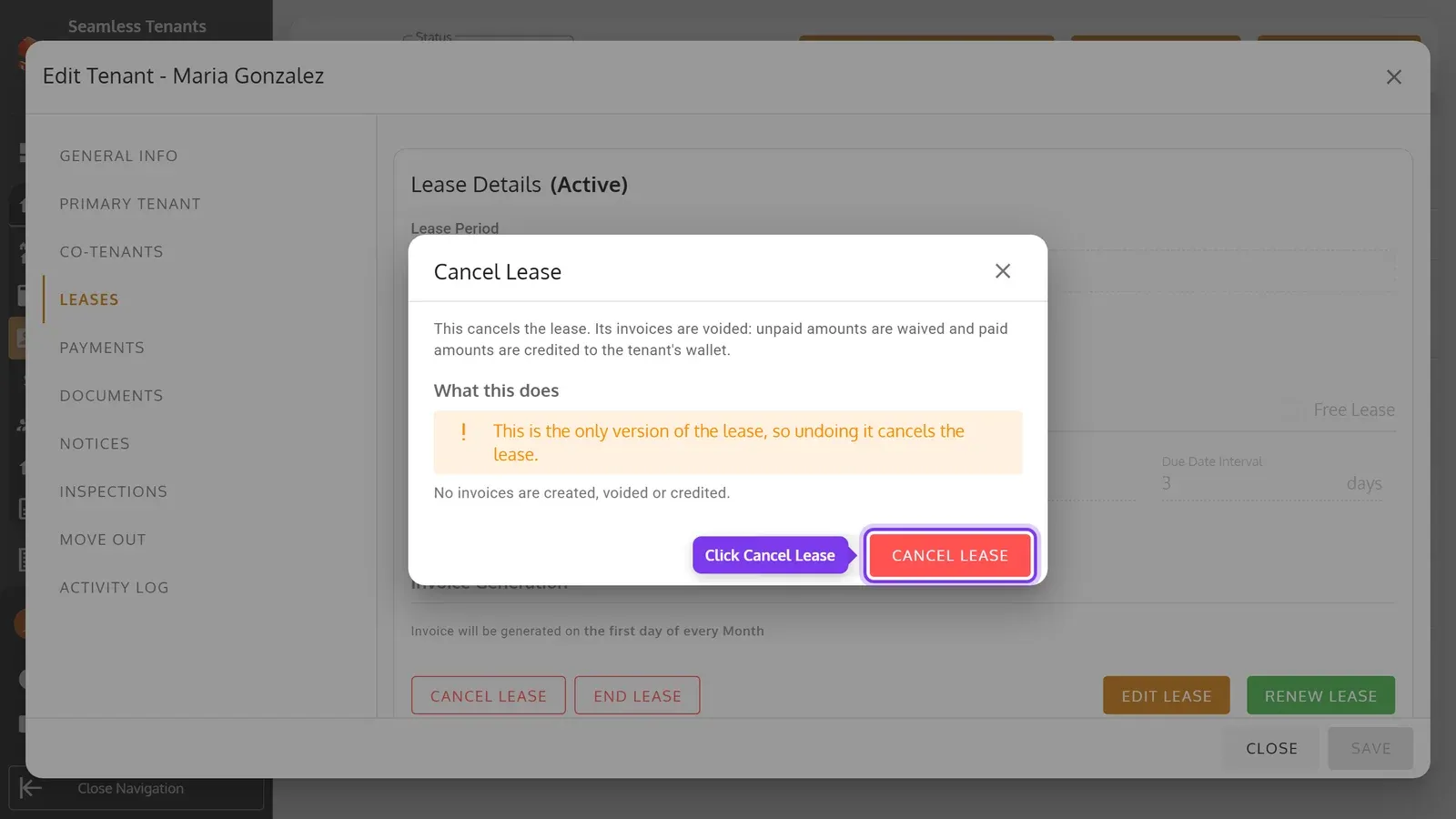
On the Leases tab, click Undo Change to undo the change in effect. On a lease that was never edited, the button is Cancel Lease.
-
The dialog says what happens to the invoices. Click Undo Change or Cancel Lease to confirm, or Keep It.
-
On the Leases tab, tap Undo Change to undo the change in effect. On a lease that was never edited, the button is Cancel Lease.
-
The dialog says what happens to the invoices. Tap Undo Change or Cancel Lease to confirm, or Keep It.
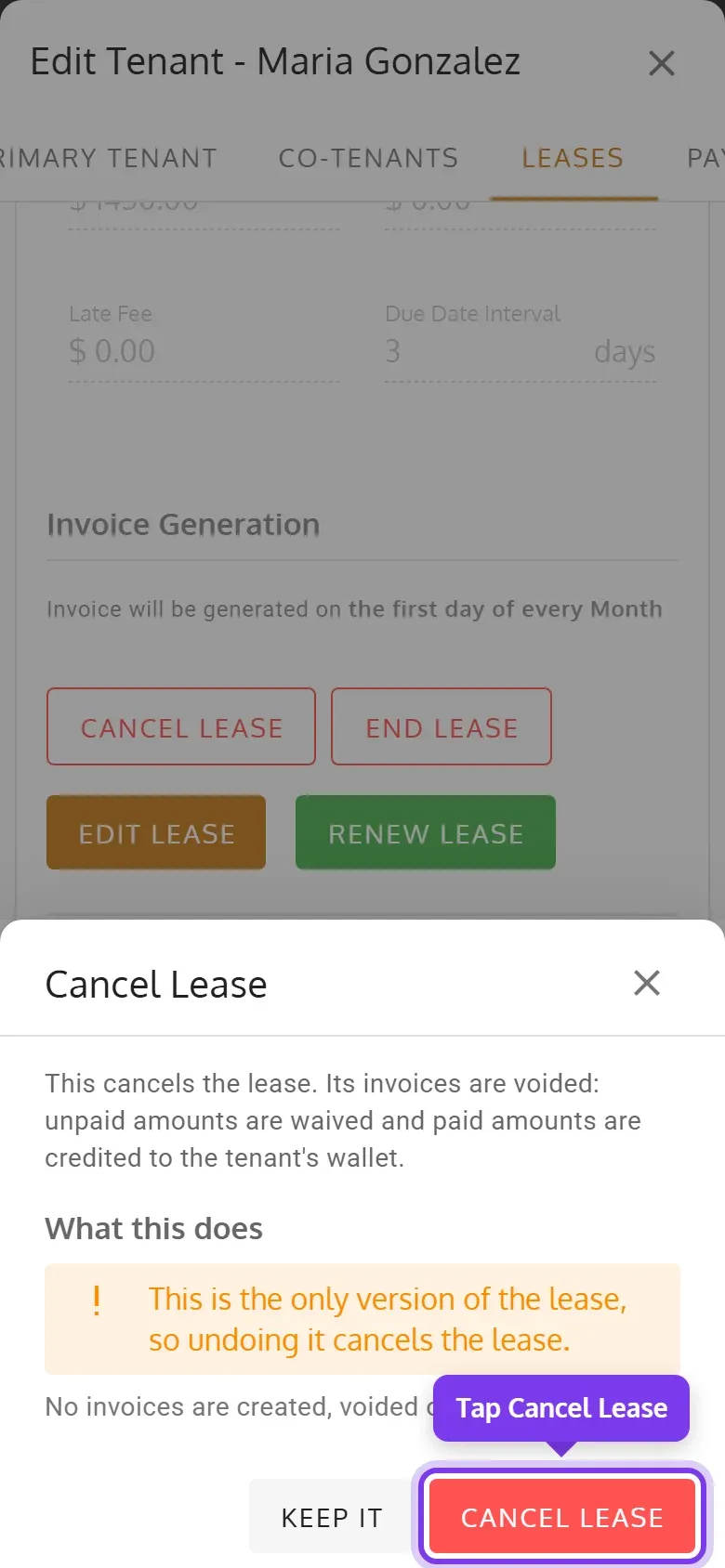
The invoices of the undone change or cancelled lease are voided, and what the tenant paid on them goes to their balance. In Lease History, Undo does the same for that revision, including one that hasn’t started.
End a lease
Section titled “End a lease”-
On the Leases tab, click End Lease.
-
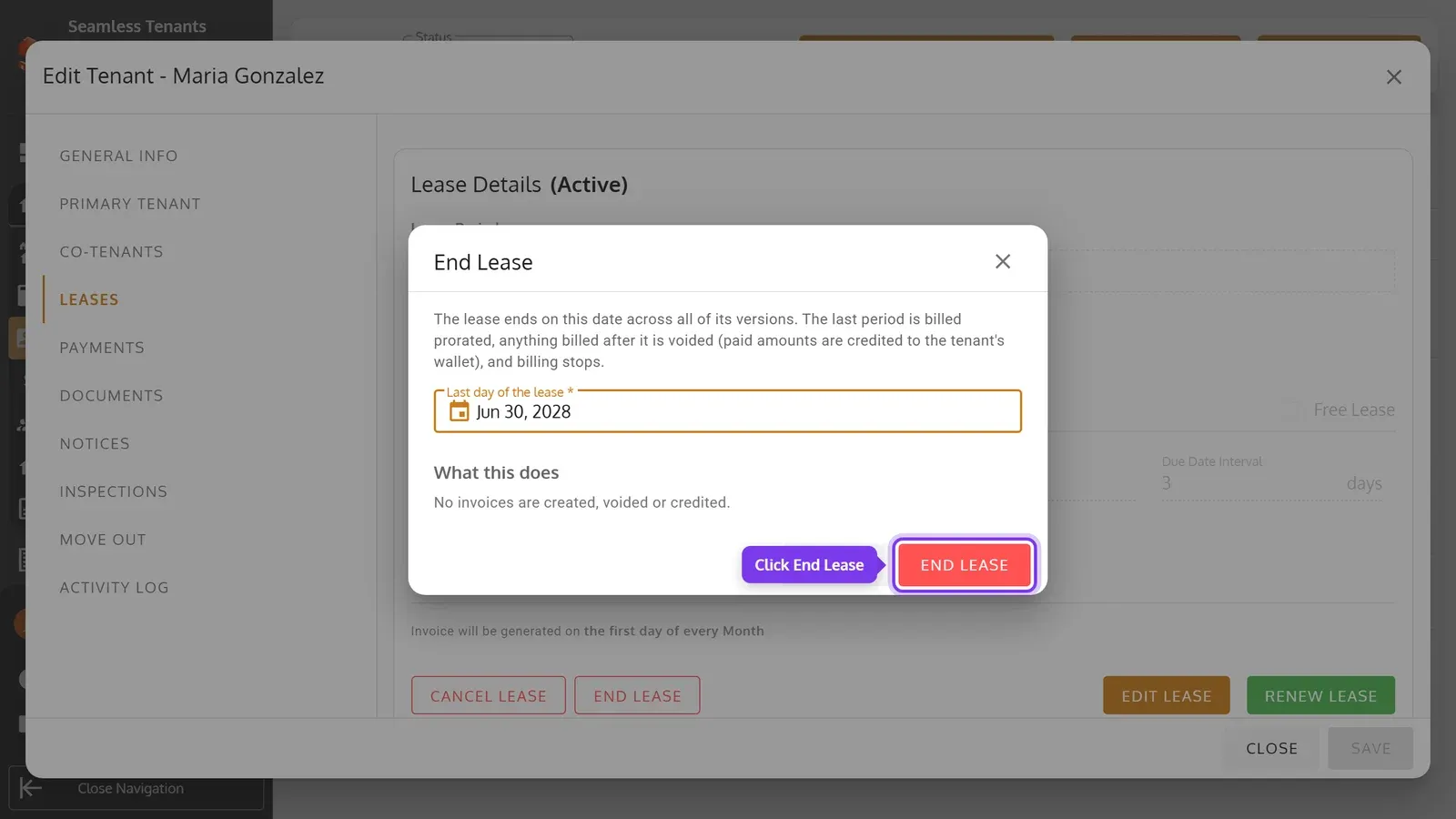
Pick the Last day of the lease, then click End Lease.
-
On the Leases tab, tap End Lease.
-
Pick the Last day of the lease, then tap End Lease.
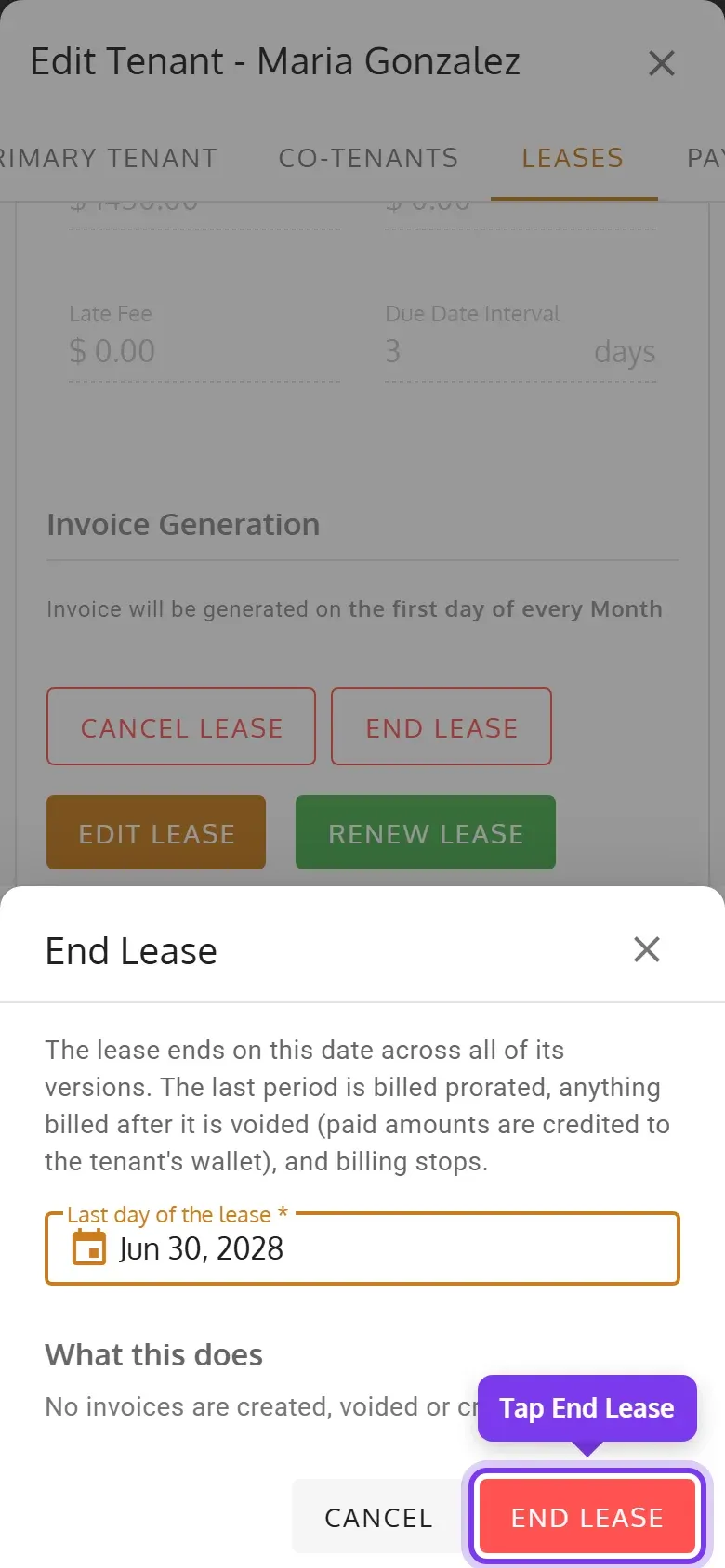
The last period is billed for its days up to that date, anything billed after it is voided, and billing stops. To end a lease because the tenant is leaving, move the tenant out instead: moving out ends the lease too.
Lease history and documents
Section titled “Lease history and documents”Lease History lists each lease as Active, Upcoming, Past or Cancelled, with its revisions, rent and documents. A current or upcoming revision has Edit and Undo buttons, or on a phone, those are in its ⋮ menu. ⋮ > View Information shows all of a revision’s terms, and View Documents its documents.