
Edit or Delete a Property
Edit its details
Section titled “Edit its details”-
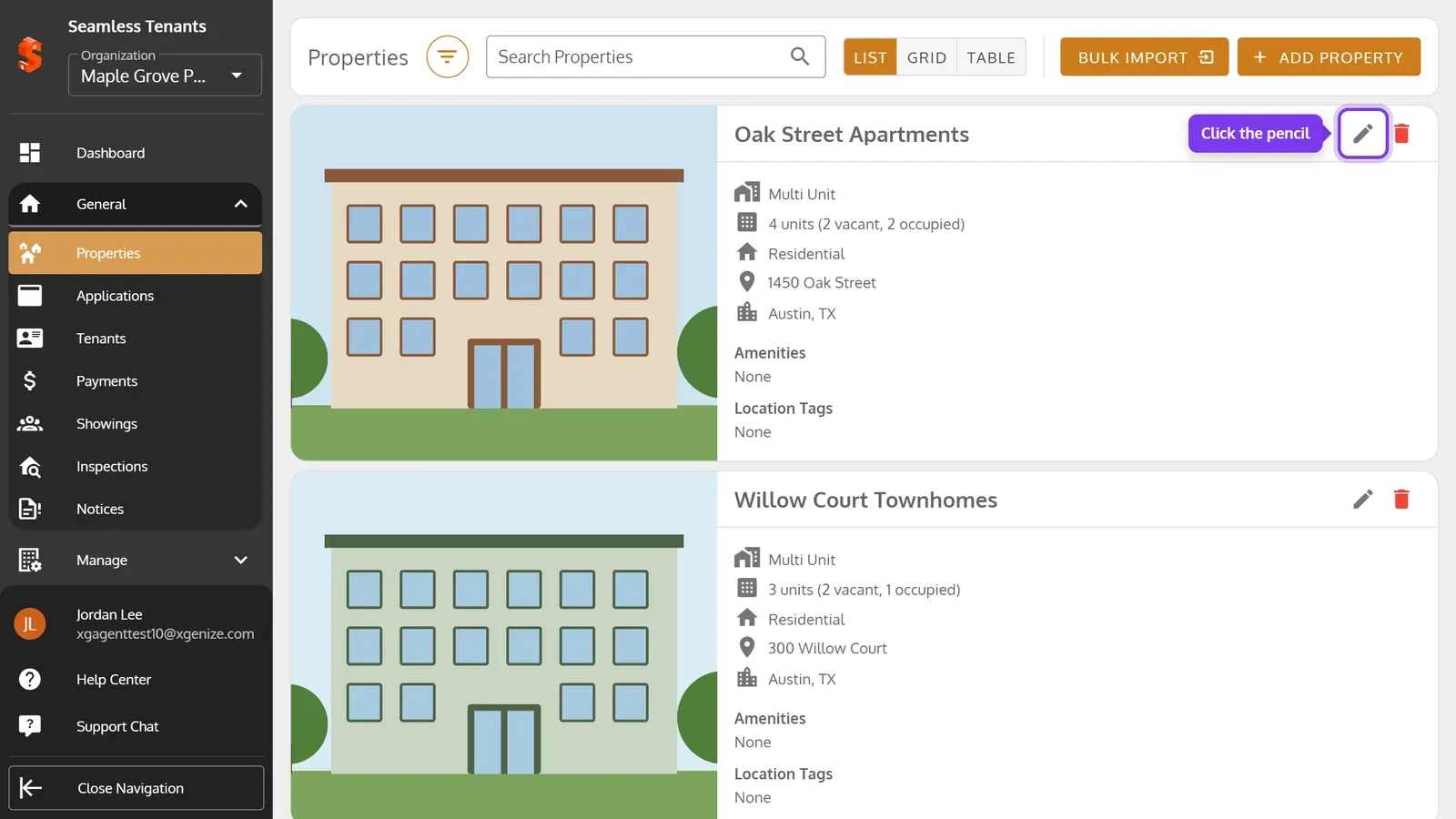
On the Properties page, click the property’s pencil, or its card.
-
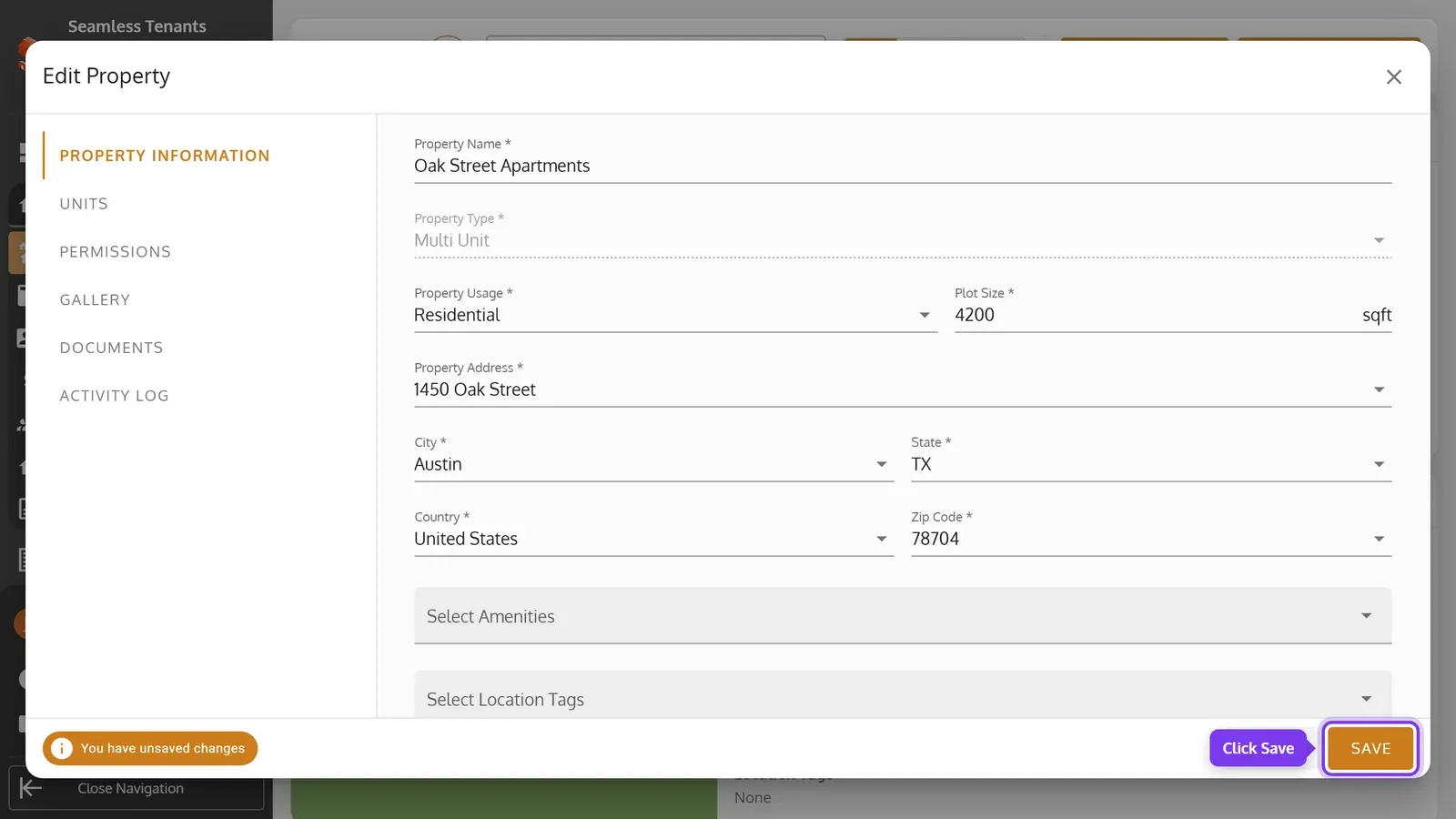
Change its details on Property Information, then click Save.
-
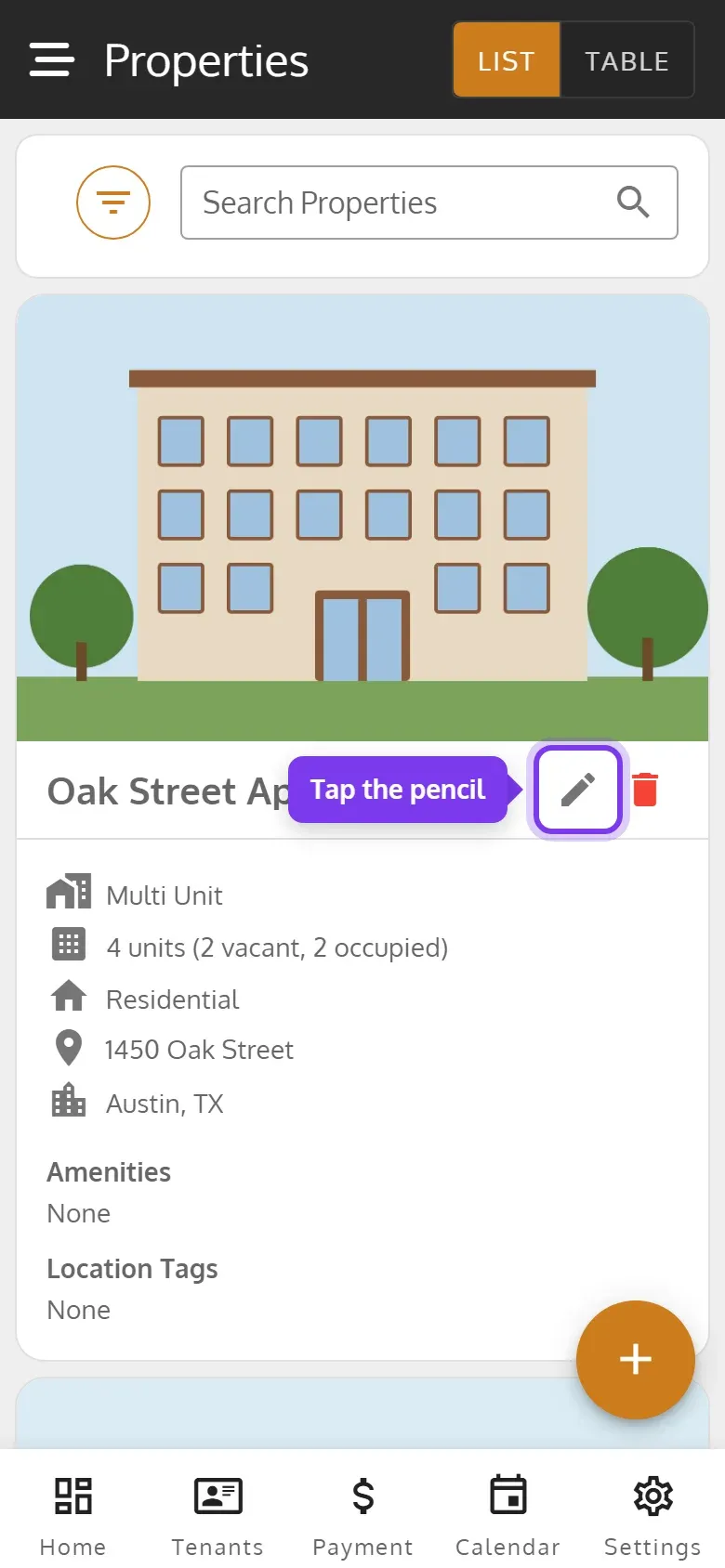
On the Properties page, tap the property’s pencil, or its card.
-
Change its details on Property Information, then tap Save.
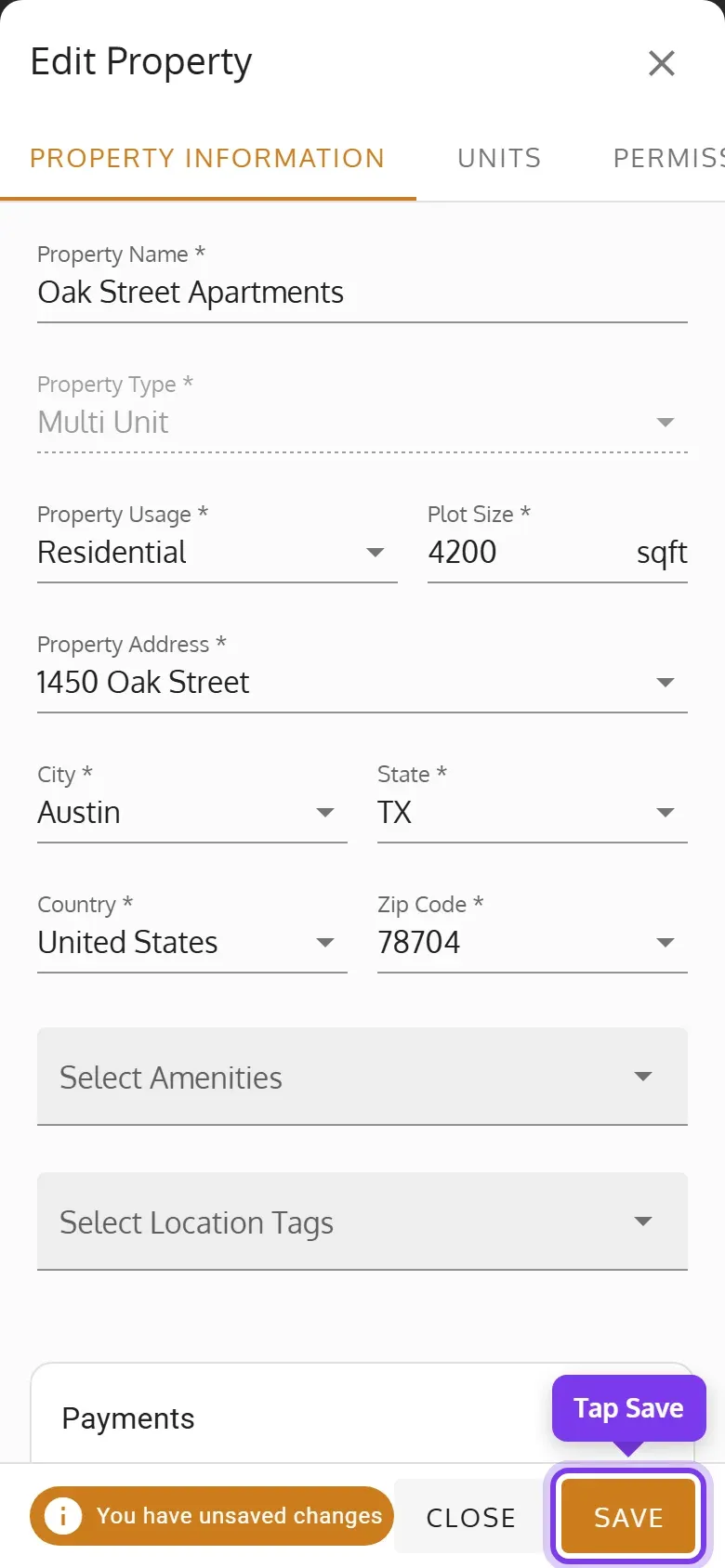
- Save stays off until you change something. If you close the property with changes you haven’t saved, you’re asked whether to discard them.
- Property Type can change while the property has one unit or none. Properties and Units explains each field.
- The other tabs have the property’s units, photos and documents.
Choose who can see it
Section titled “Choose who can see it”If your plan includes it, a property’s Permissions tab gives members roles for that property alone, on top of the roles they have in your organization.
-
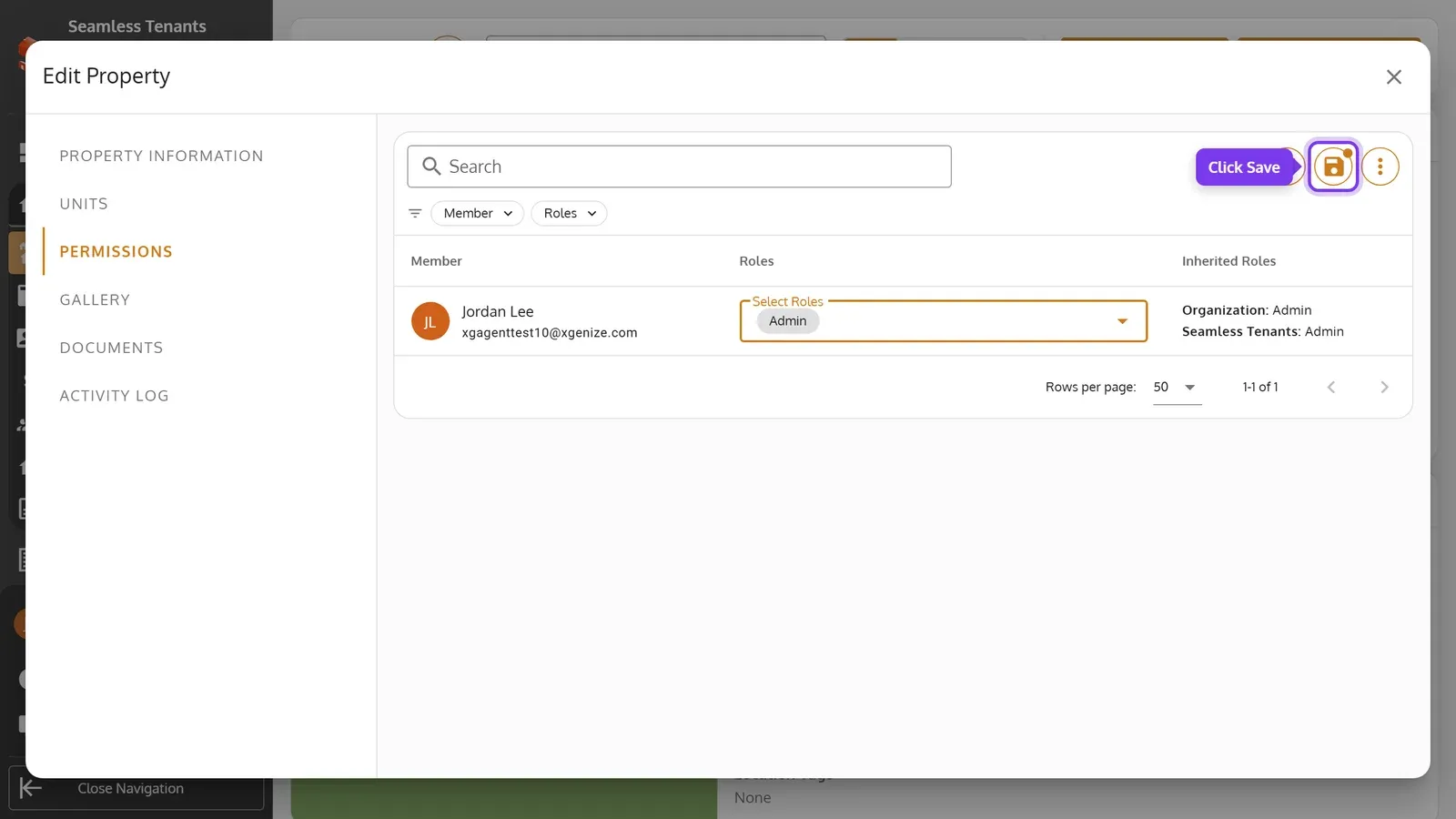
Open the property’s Permissions tab.
-
In a member’s row, pick their roles in Select Roles. Inherited Roles shows the roles they already have in the organization.
-
Click the save button at the top right.
-
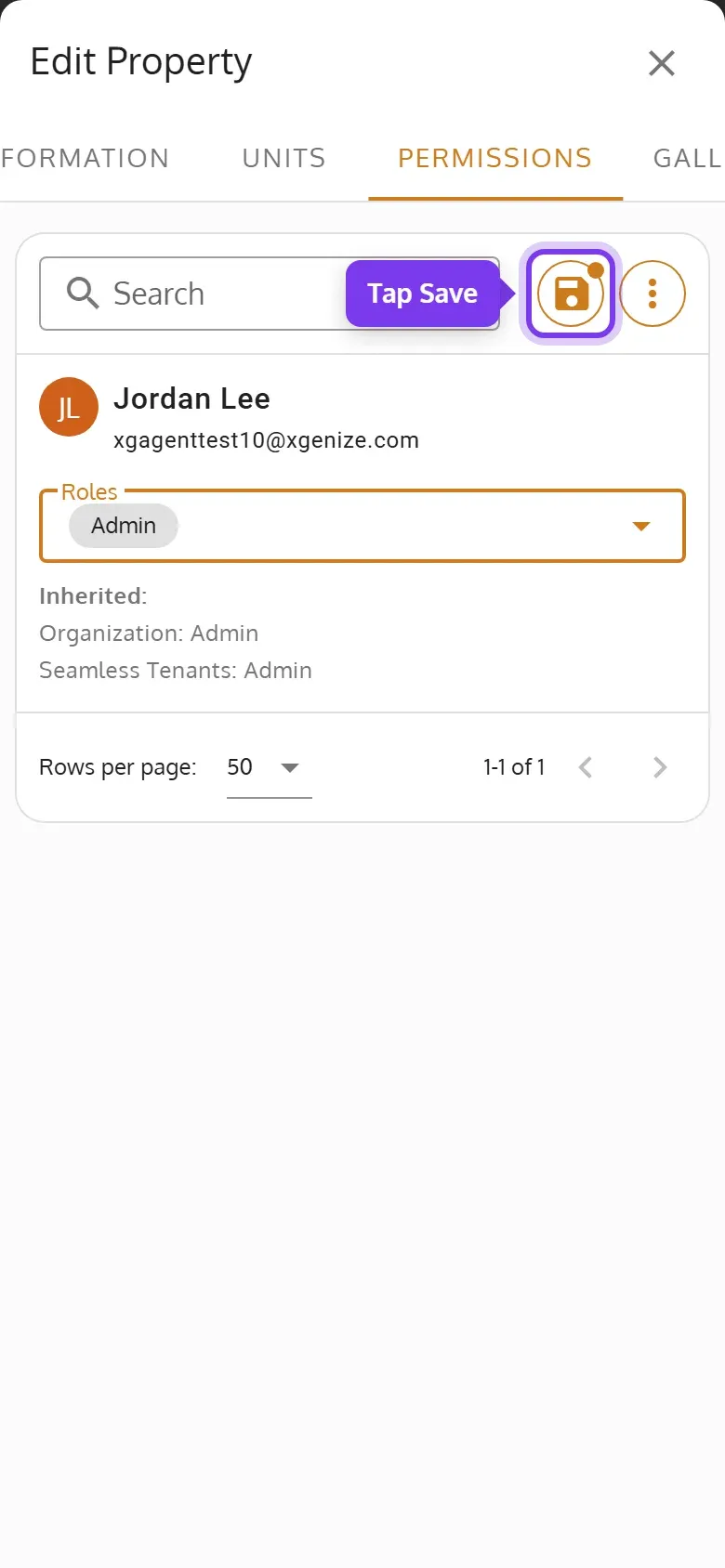
Swipe the property’s tabs and tap Permissions.
-
Under a member, pick their roles in Roles. Inherited shows the roles they already have in the organization.
-
Tap the save button at the top right.
More about members and roles: Assign, Update Members(Hosts), User Roles and Permissions.
See its history
Section titled “See its history”If your plan includes it, a property’s Activity Log tab lists every change to the property and its units, with who made it and when. Search it, or pick a From Date and To Date. To leave a note for your team, type it in Leave a comment and click Submit.
Delete a property
Section titled “Delete a property”-
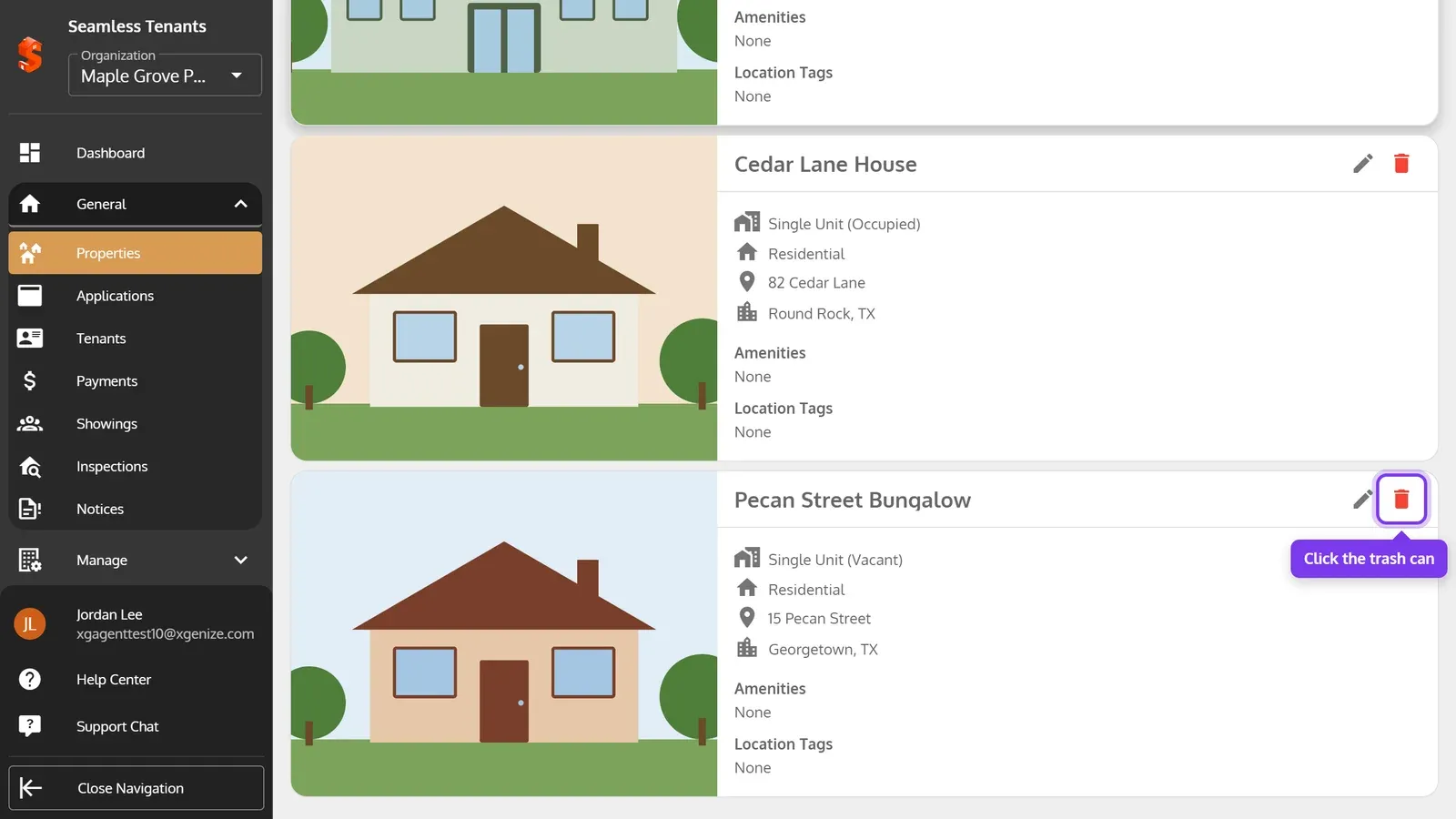
On the Properties page, click the property’s red trash can.
-
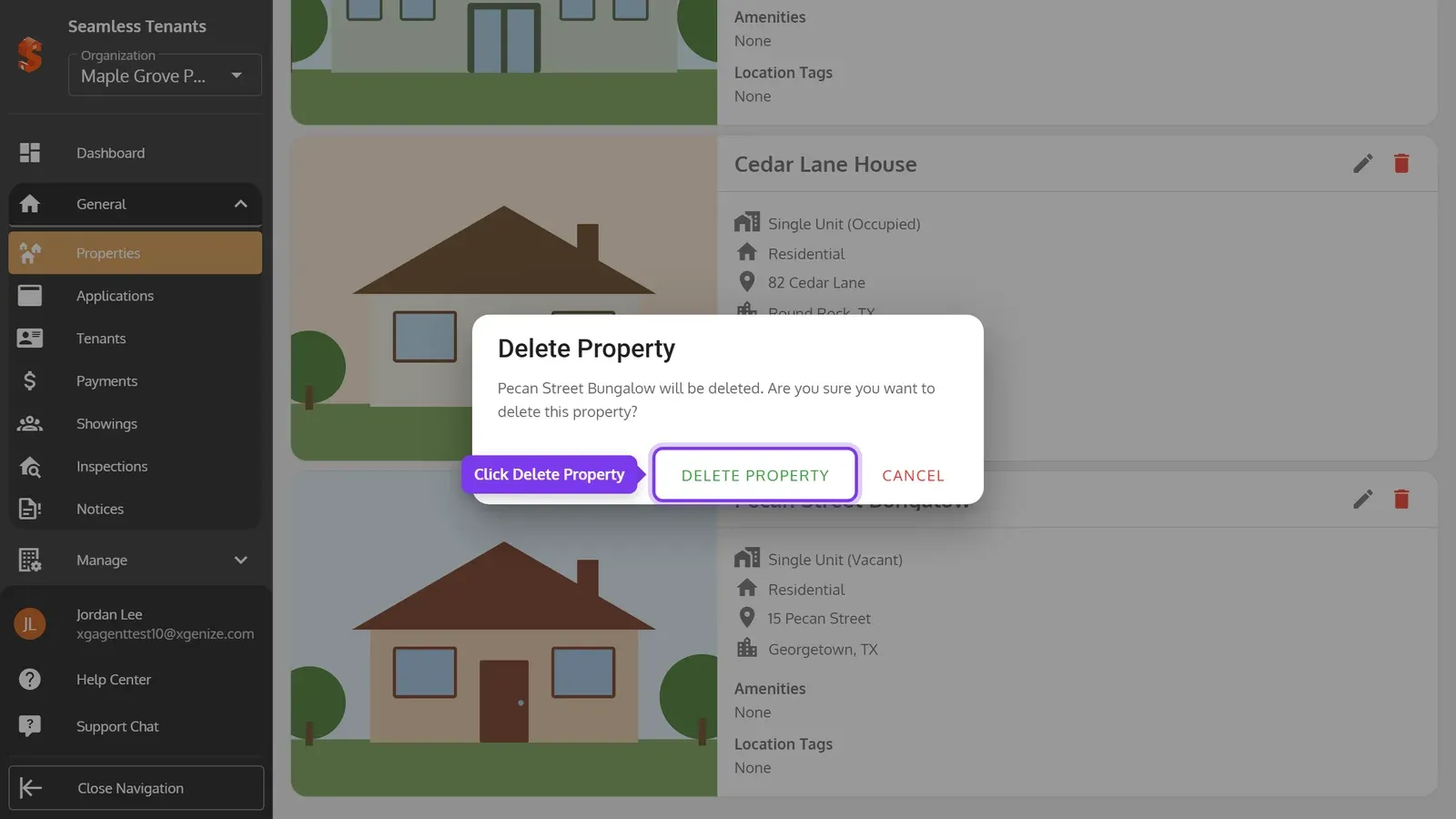
Click Delete Property.
-
On the Properties page, tap the property’s red trash can.
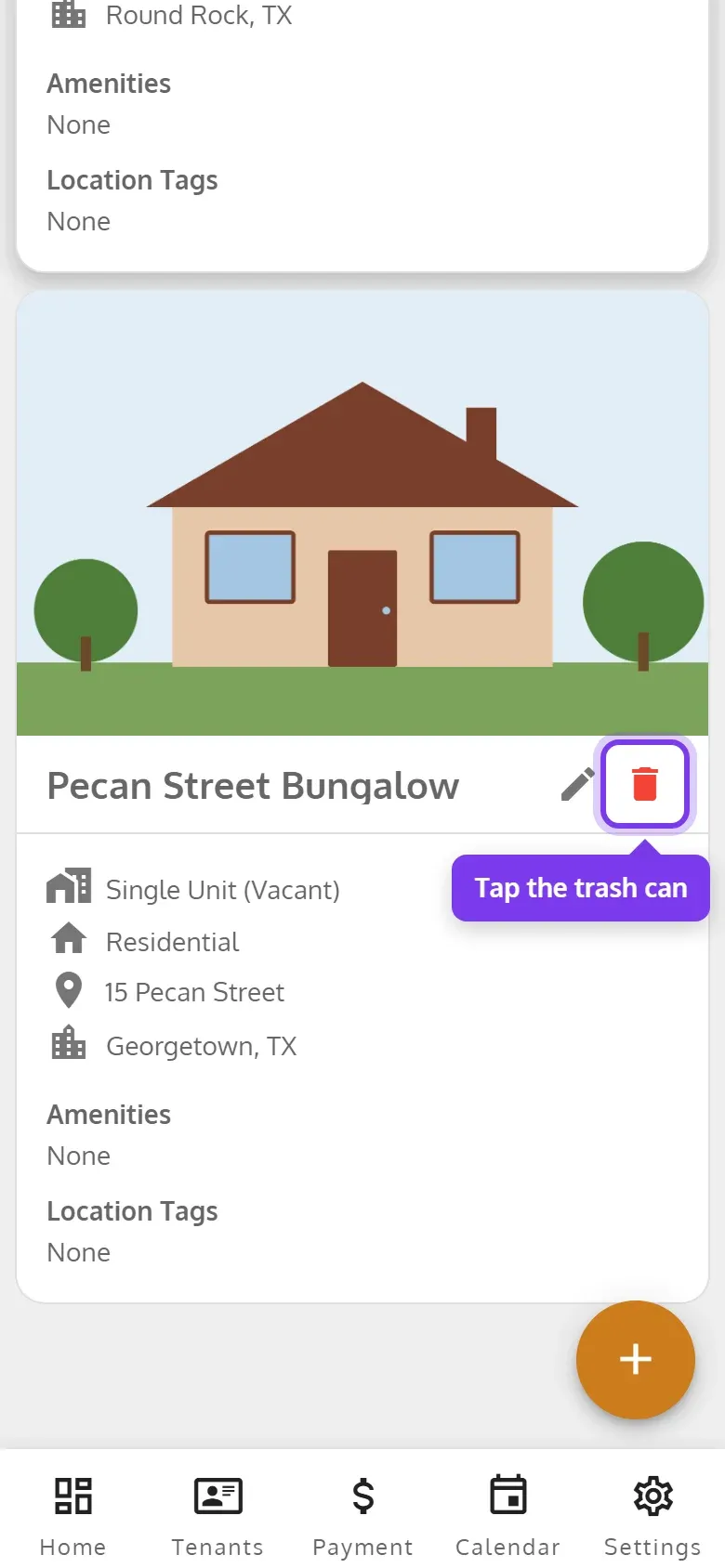
-
Tap Delete Property.
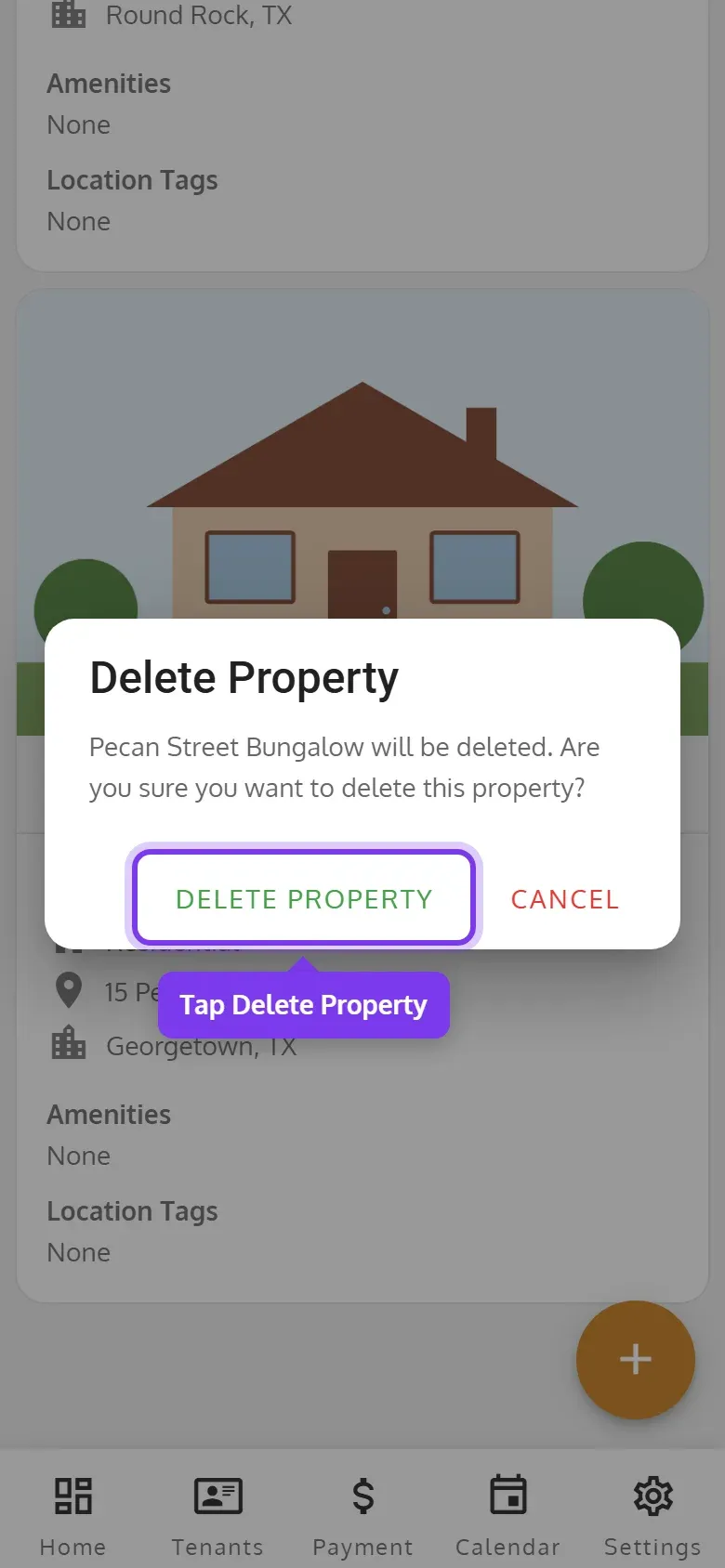
You can’t delete a property while it has any of these. Seamless Tenants says which ones and what to do first:
- A tenant who hasn’t moved out, or a former tenant with unpaid invoices. Move the tenant out, or record the payments or waive the invoices.
- An open application. Approve, reject or delete it.
- An open work order. Complete or cancel it.
- A scheduled showing. Cancel it, which tells its visitors.
Deleting a property deletes its units too, and they no longer add to your bill. Its inspections and its closed applications, work orders and showings are deleted with it, and the confirmation says how many. Its invoices, payments and documents stay. Its former tenants no longer show in Tenants or reports. You can’t undo it, but you can give a new property the same name.