
Find Applications
Open Applications
Section titled “Open Applications”-
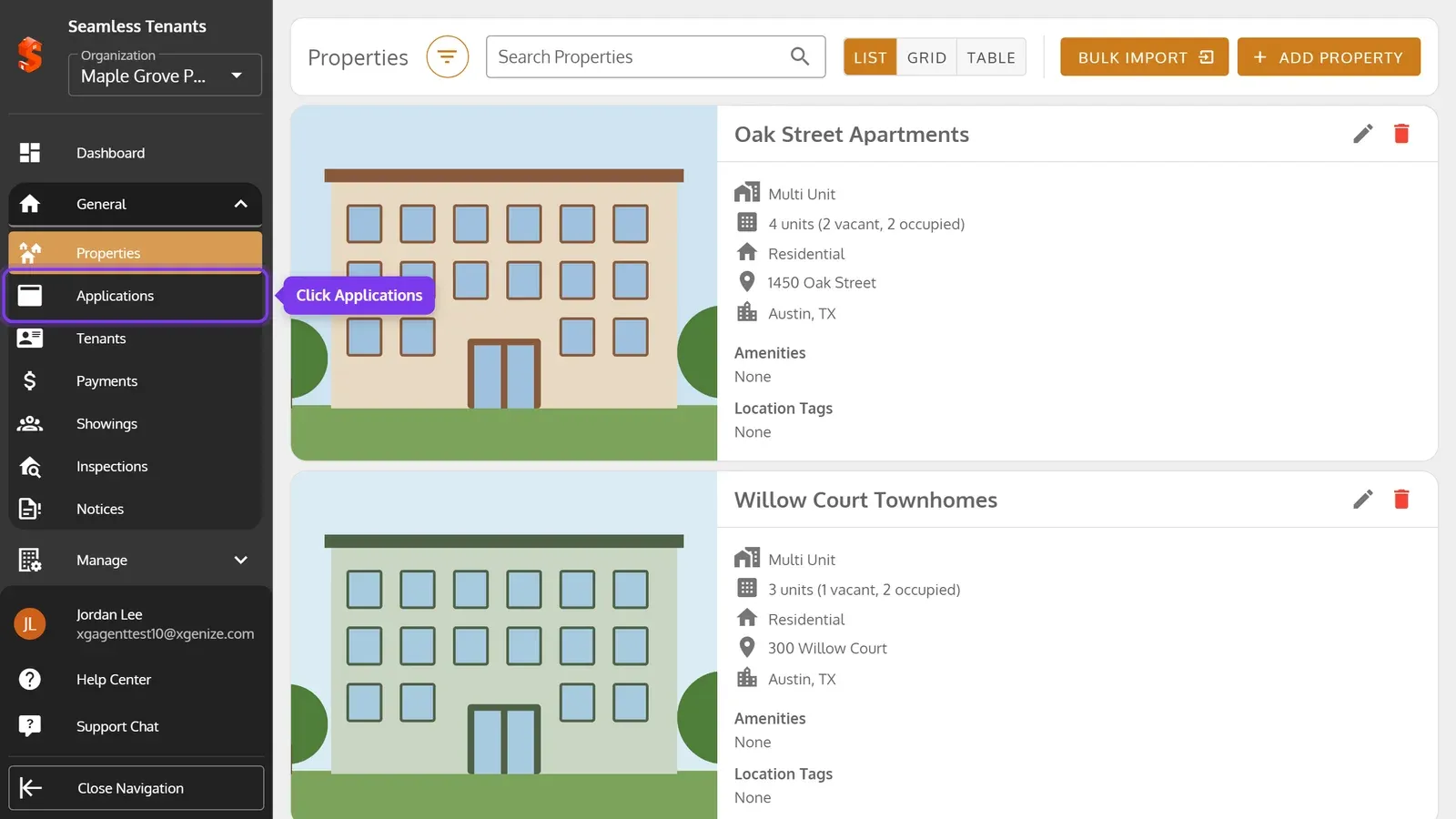
In the sidebar, click General, then Applications.
-
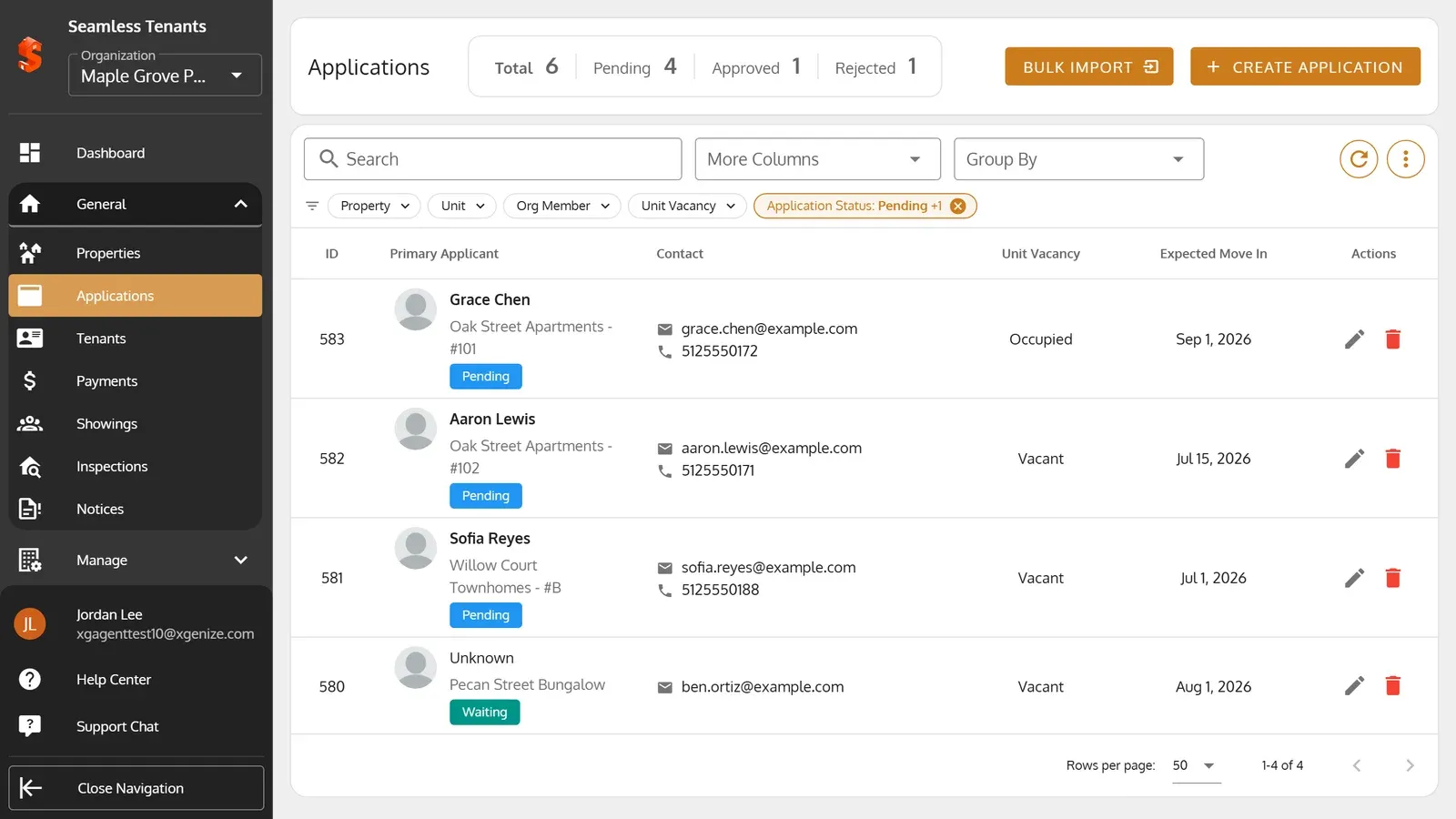
The page shows how many applications you have by status, and lists them. Pending counts those waiting for the applicant too.
-
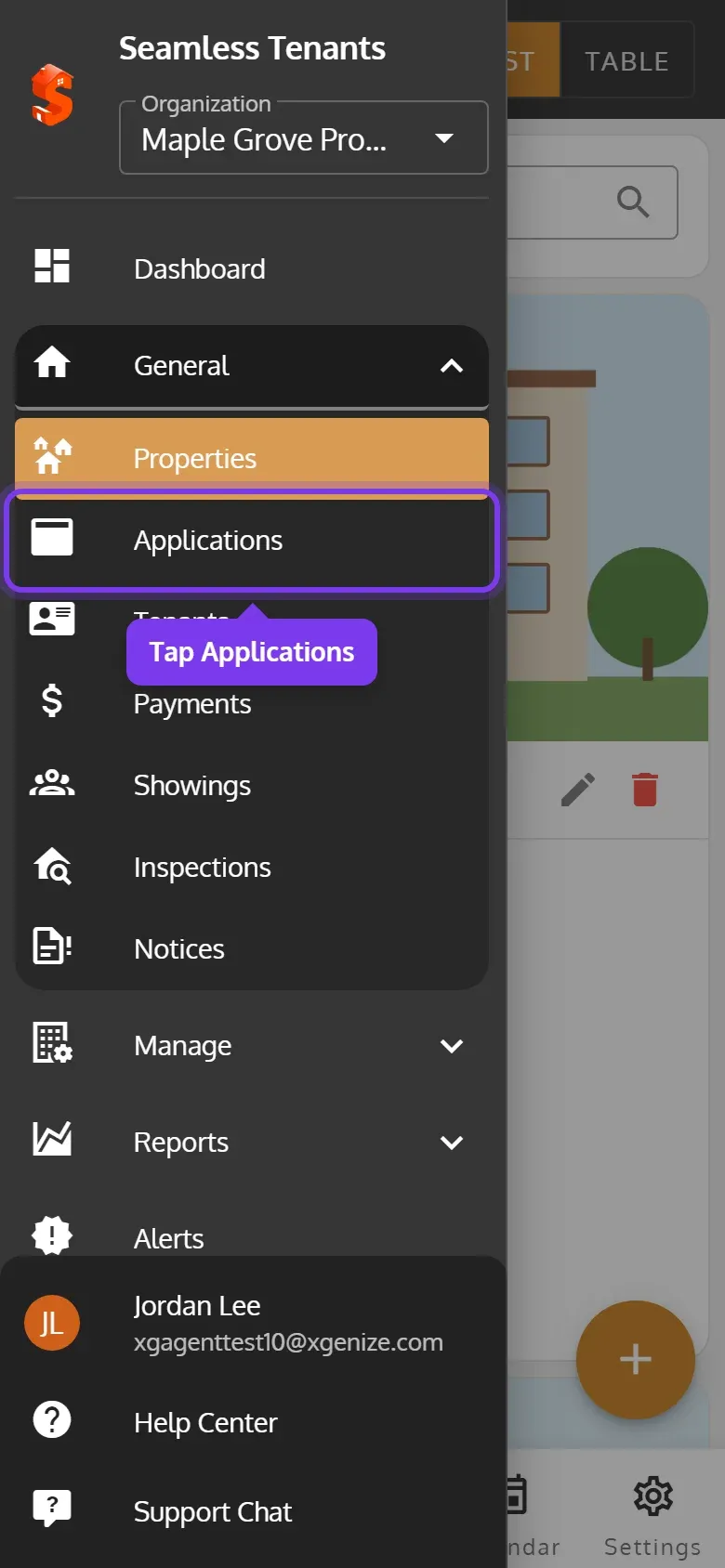
Tap the menu at the top left, then General, then Applications.
-
Each application is a card.
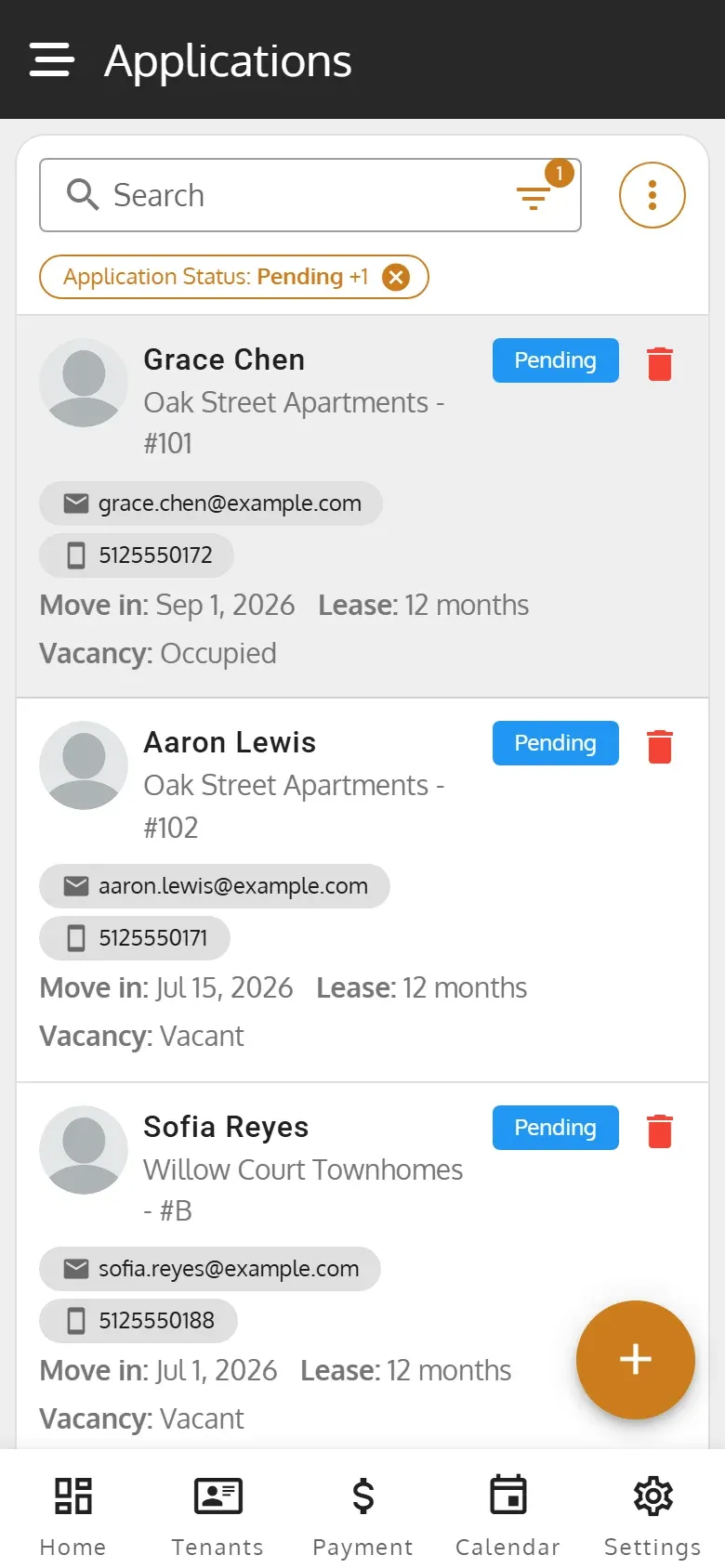
Each application shows its primary applicant, its property and unit, its status, and whether the unit is vacant. Unknown means no one has filled in the applicant yet. To open an application, click its pencil, or tap its card on a phone.
See approved and rejected applications
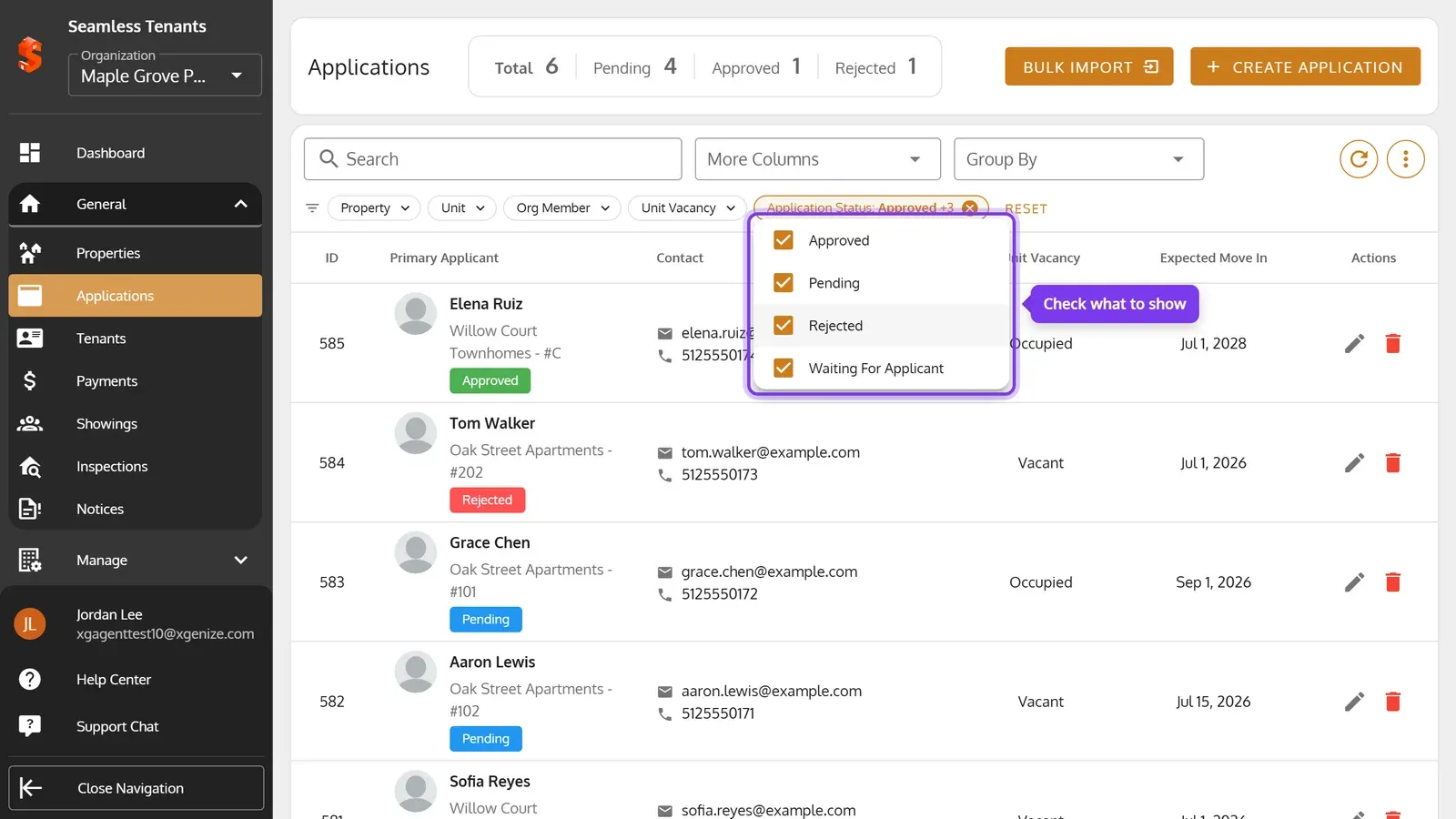
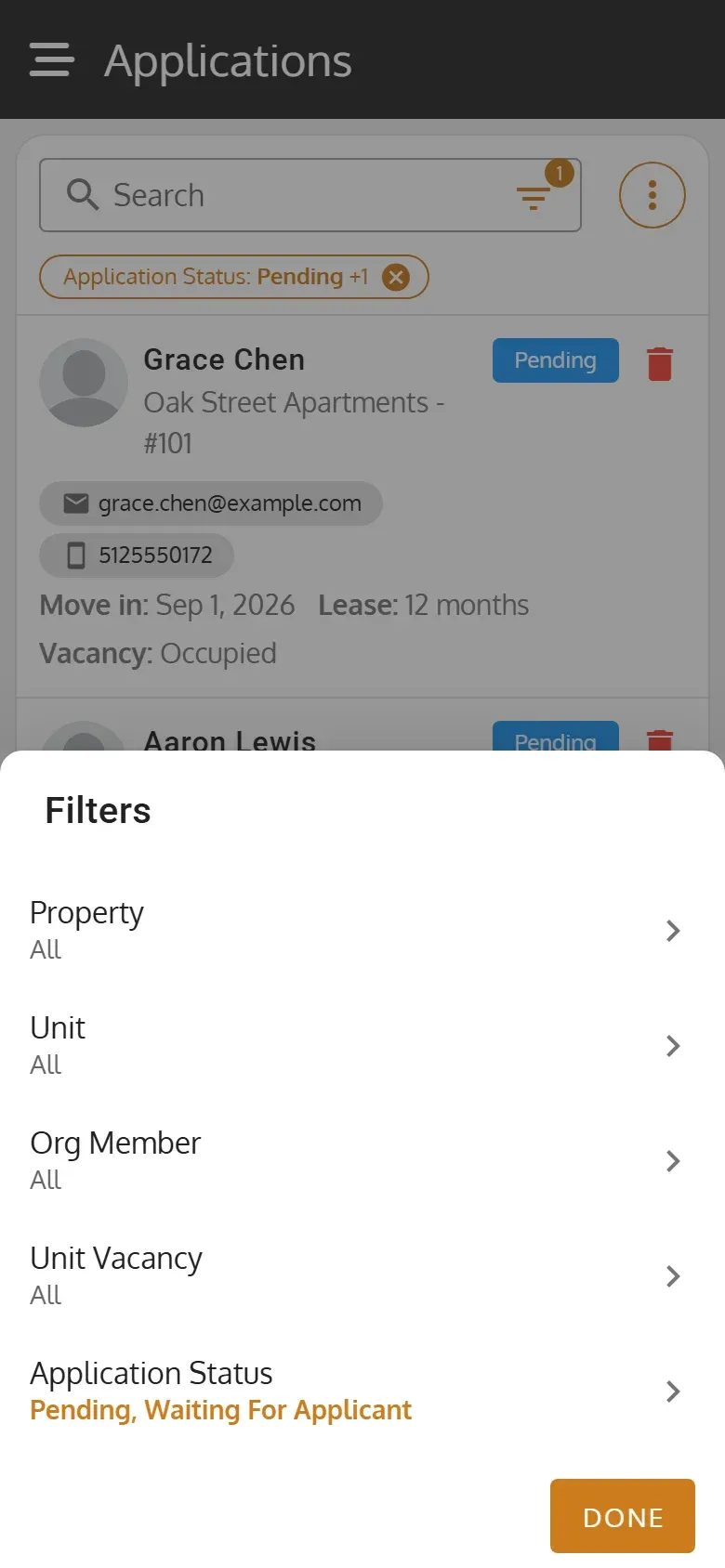
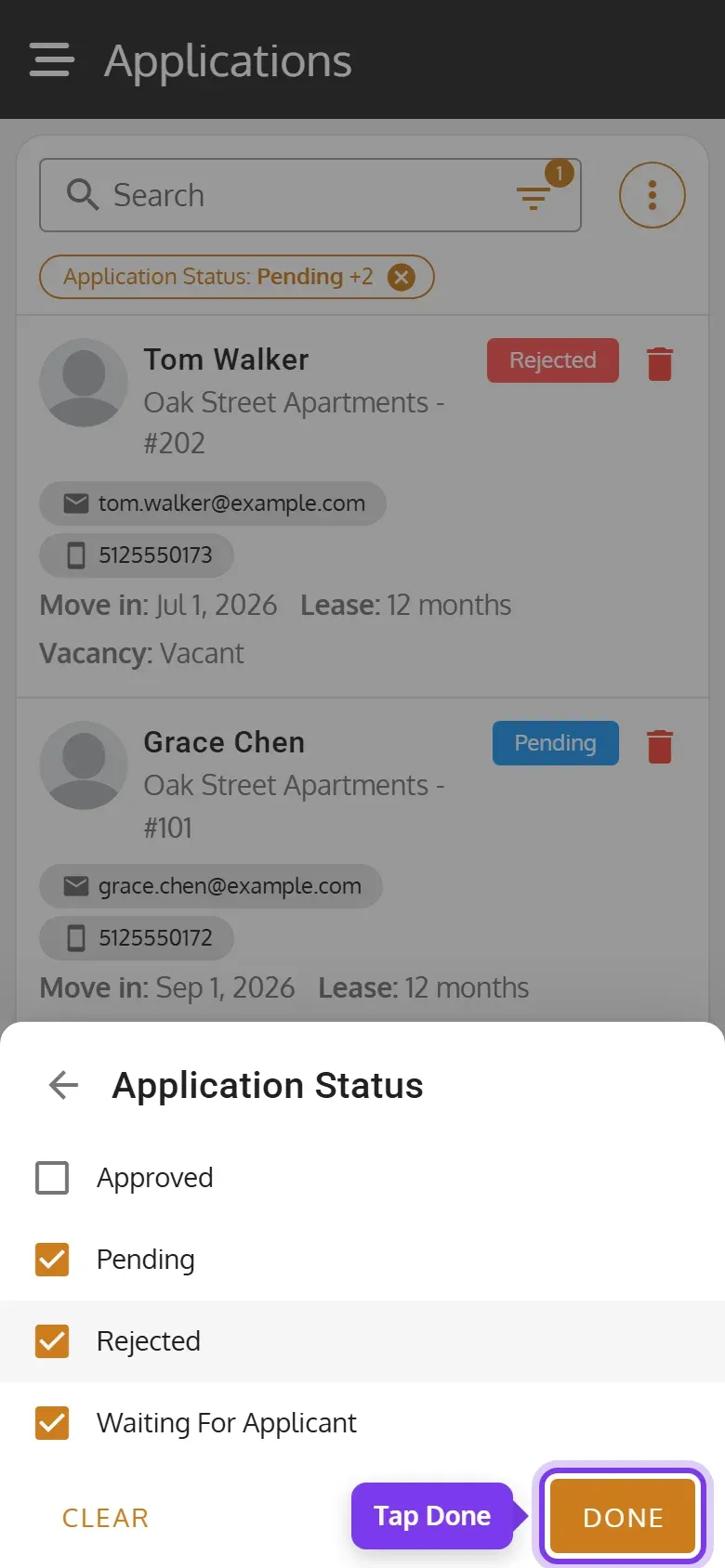
Section titled “See approved and rejected applications”The list starts with Pending and Waiting For Applicant applications only, so approved and rejected ones are hidden until you change the Application Status filter.
-
Click Application Status, and check the statuses to show.
-
Tap the filter icon in the search box, then Application Status.
-
Check the statuses to show, then tap Done.
Search and filter
Section titled “Search and filter”Search finds an application by the start of the primary applicant’s first, middle or last name, their full name, their exact email, phone number or SSN, or the application’s ID. An application waiting for its applicant is found by its ID, or the email the form went to. Search only looks through the statuses checked in Application Status.
The filters narrow the list by Property, Unit, Org Member, Unit Vacancy and Application Status. Org Member also offers @Me and Unassigned. To clear a filter, click or tap its ×. On a computer, Reset puts the filters back as they started.
More Columns adds Total Applicants, Org Member and Lease Period on a computer. Group By groups the applications by property, org member, unit vacancy or status. On a phone, it’s in the ⋮ menu. To download or email the list, use ⋮ > Export as.