Add & View all Reports
Discover how to access and filter key property, tenant, and bank reports to monitor occupancy and financial data.
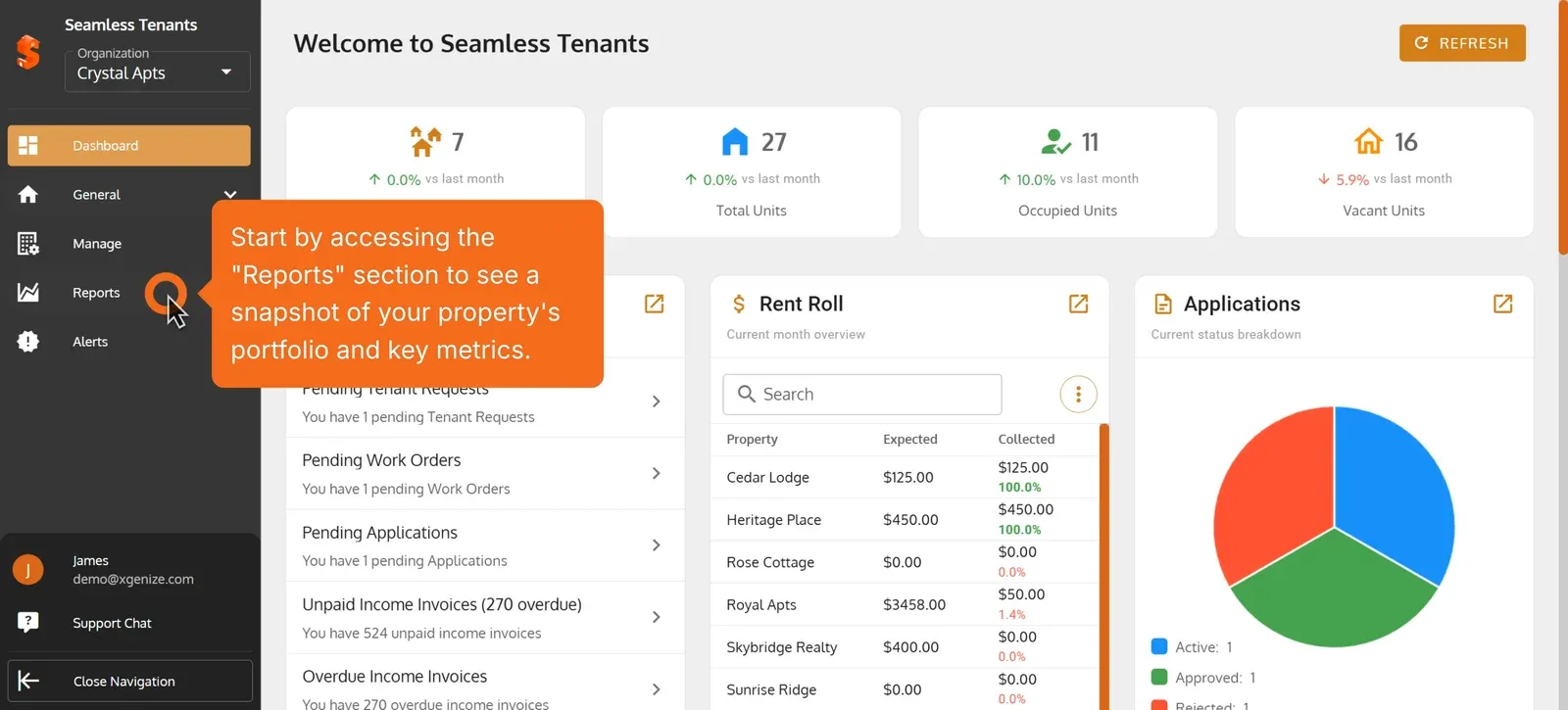
1. Start by Accessing the ‘Reports’ section to see a snapshot of your property’s portfolio and key metrics.
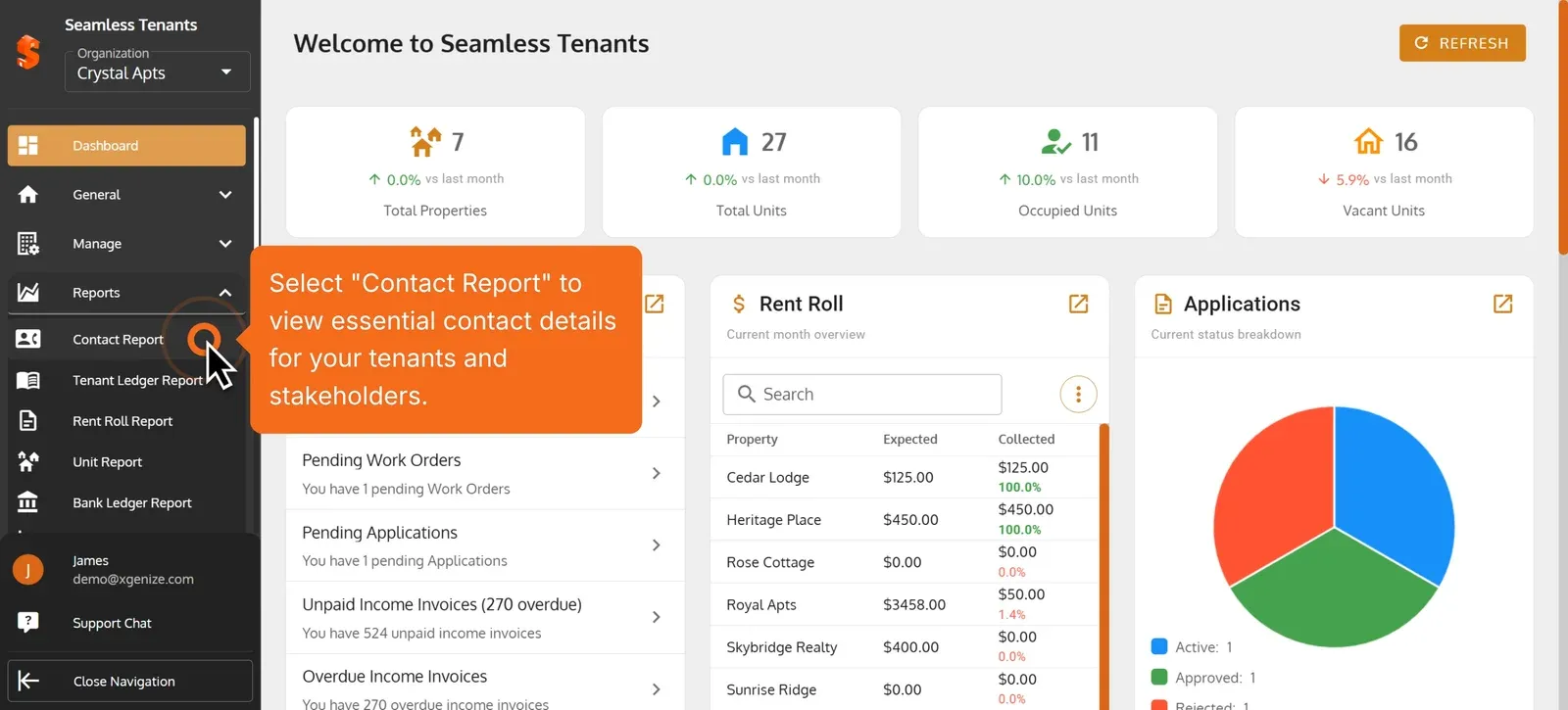
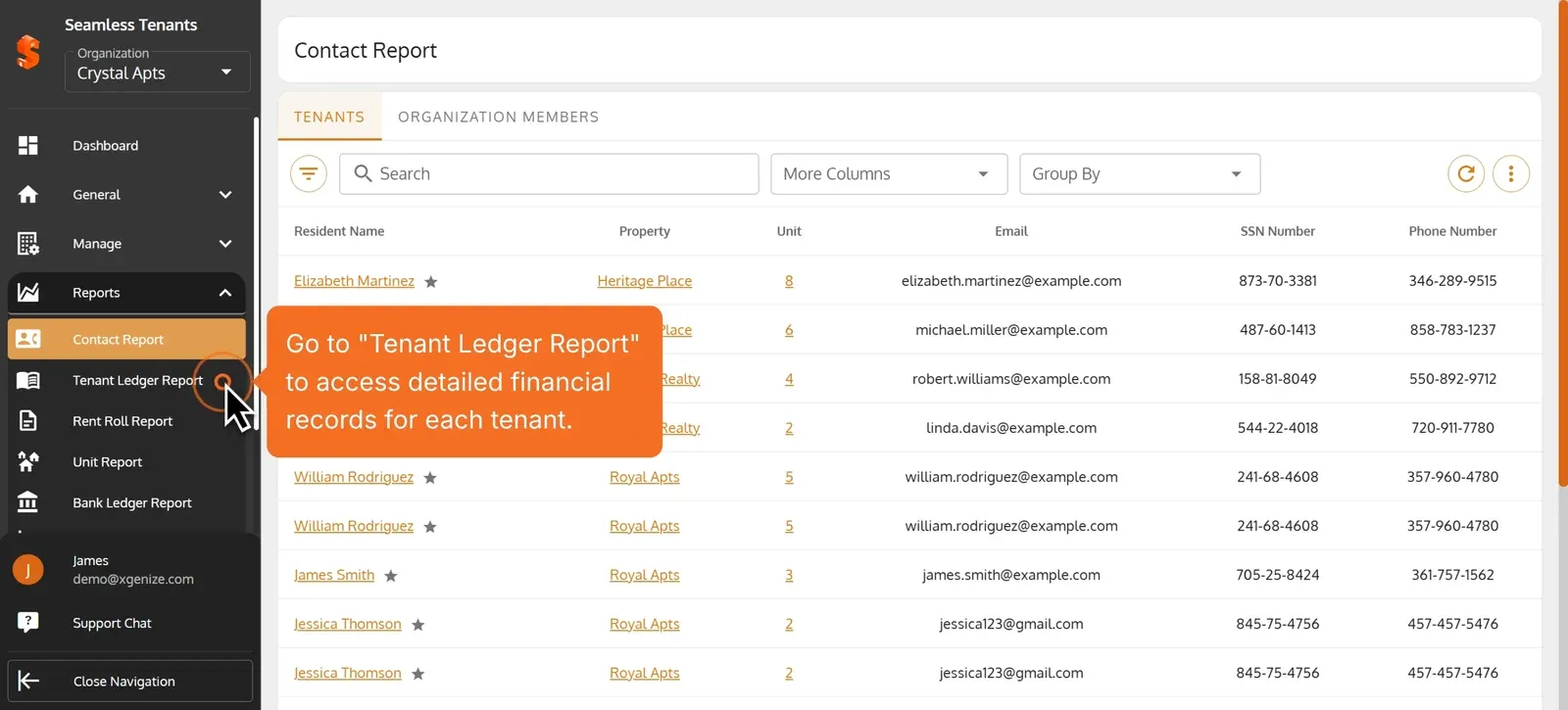
2. Select “Contact Report” to view essential contact details for your tenants and stakeholders.
- Switch to the “Organization Members” tab for team members contact details.
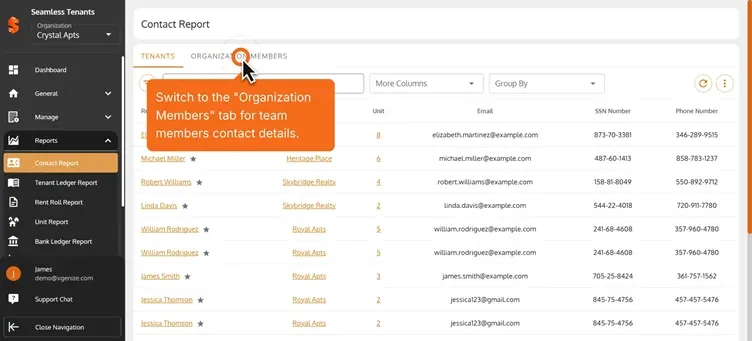
- Click on the “Tenants” tab to manage all tenant contact details.
- Go to “Tenant Ledger Report” to access detailed financial records for each tenant.
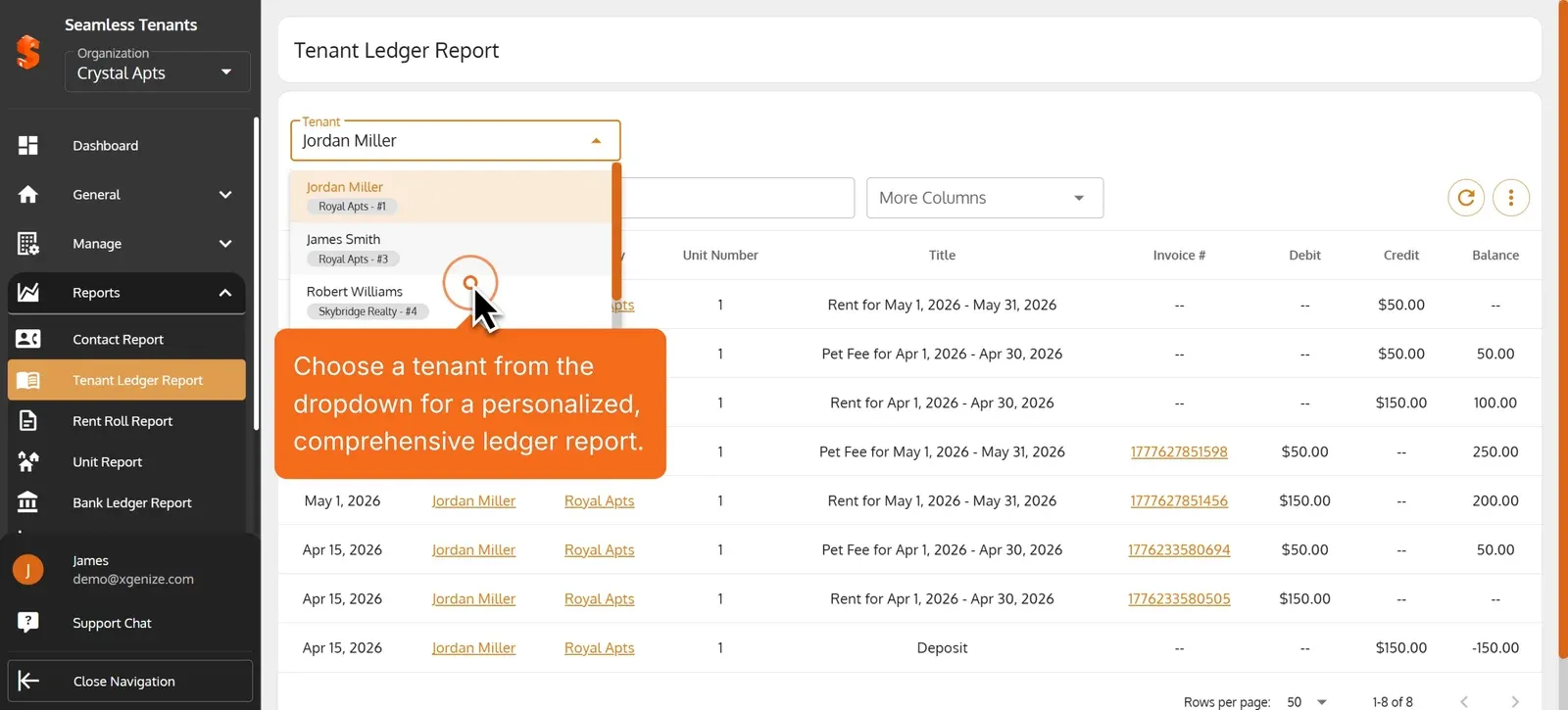
6. Use the tenant dropdown to quickly select whose financial transactions you’d like to review.
- Choose a tenant from the dropdown for a personalized, comprehensive ledger report.
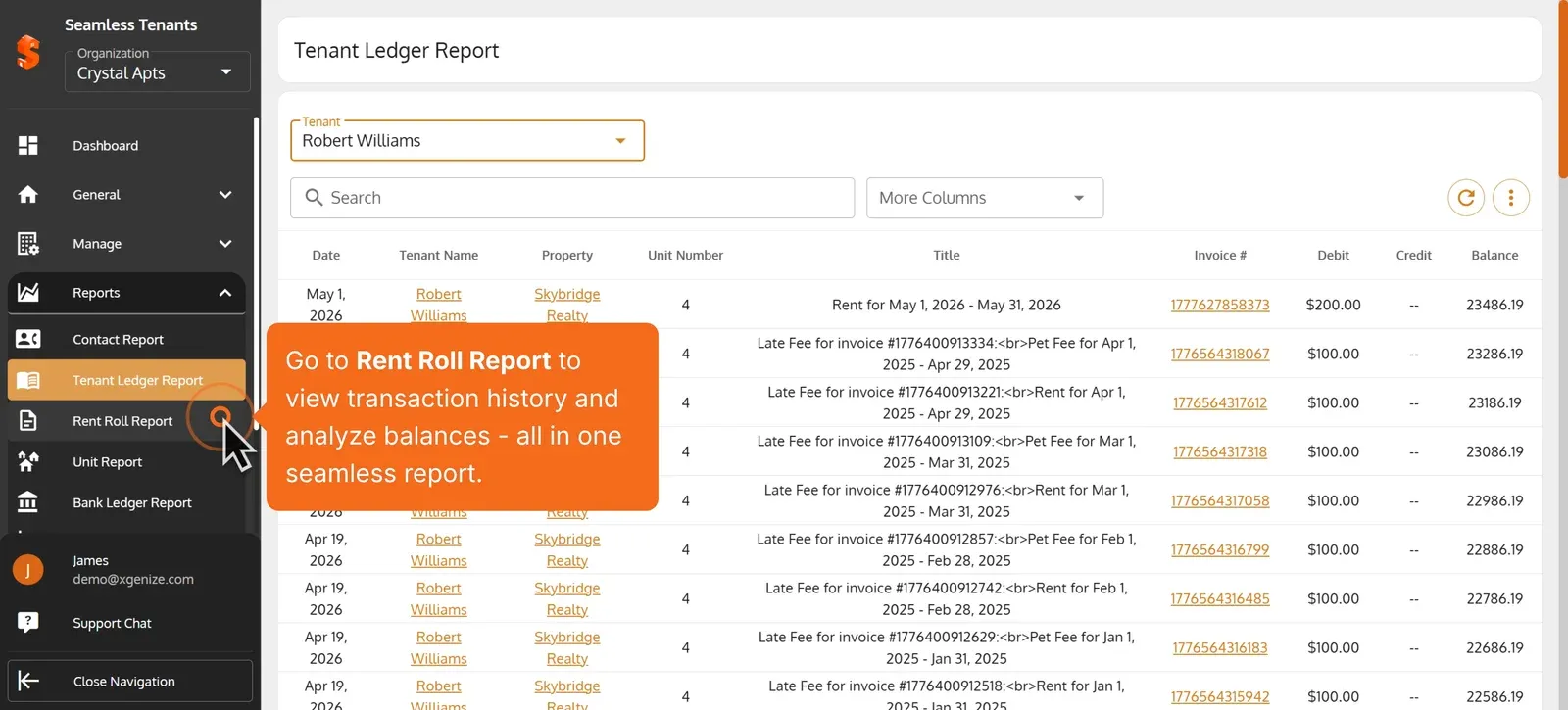
- Go to Rent Roll Report to view transaction history and analyze balances - all in one seamless report.
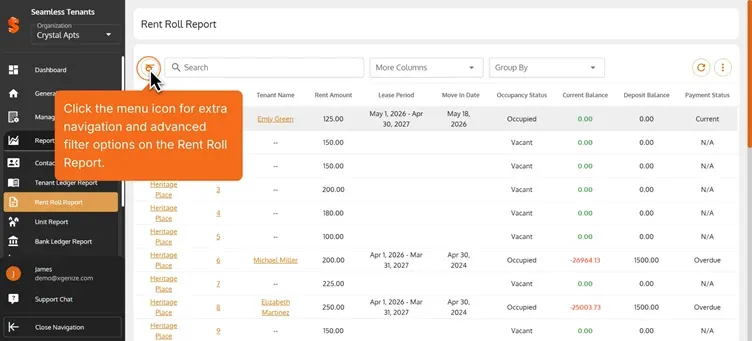
- Click the menu icon for extra navigation and advanced filter options on the Rent Roll Report.
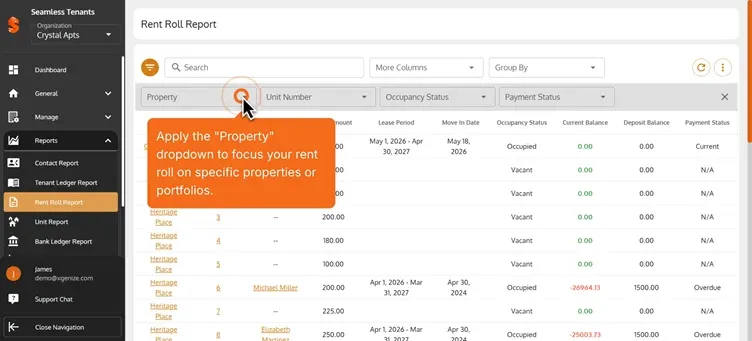
- Apply the “Property” dropdown to focus your rent roll on specific properties or portfolios.
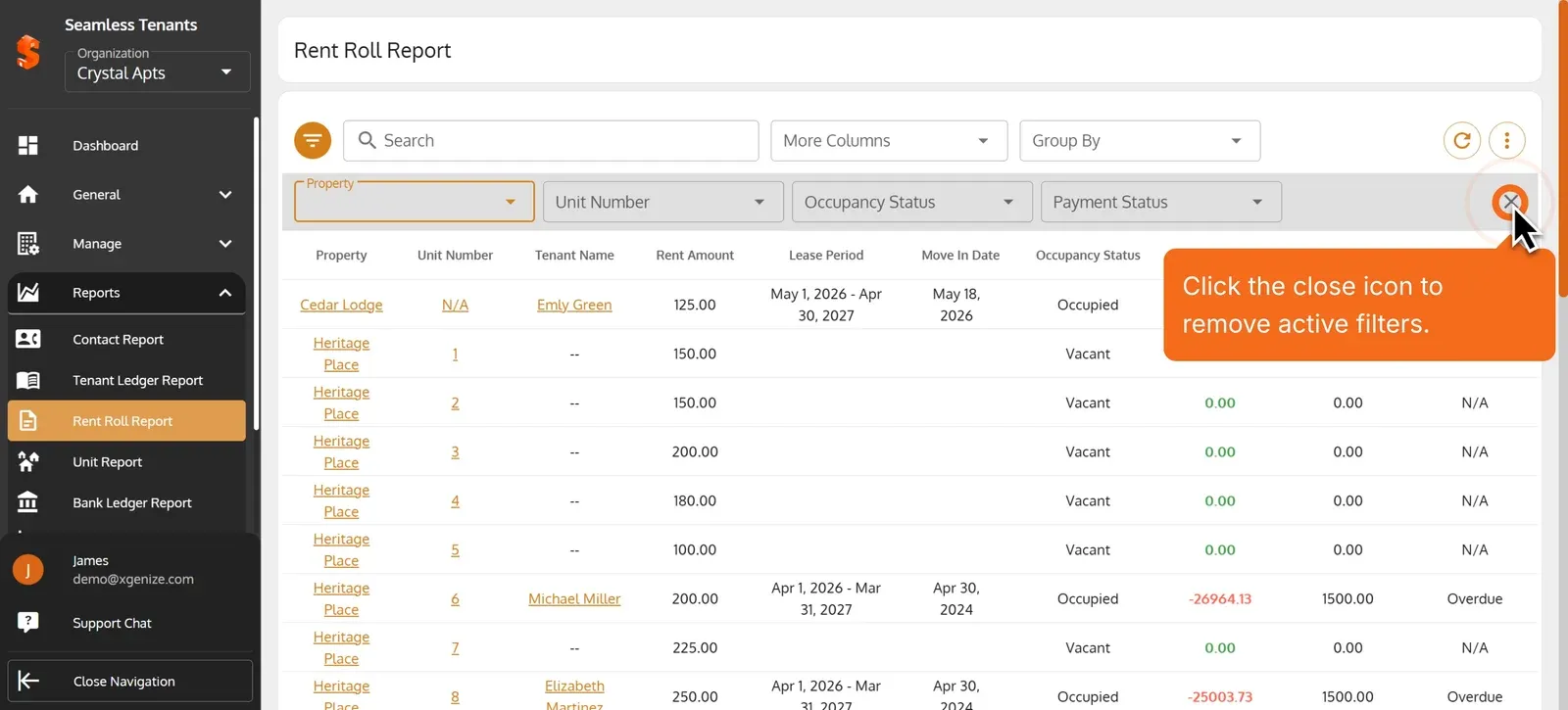
- Click the close icon to remove active filters.
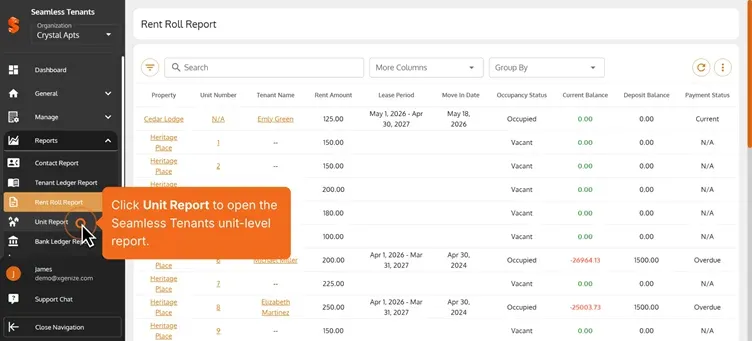
- Click Unit Report to open the Seamless Tenants unit-level report.
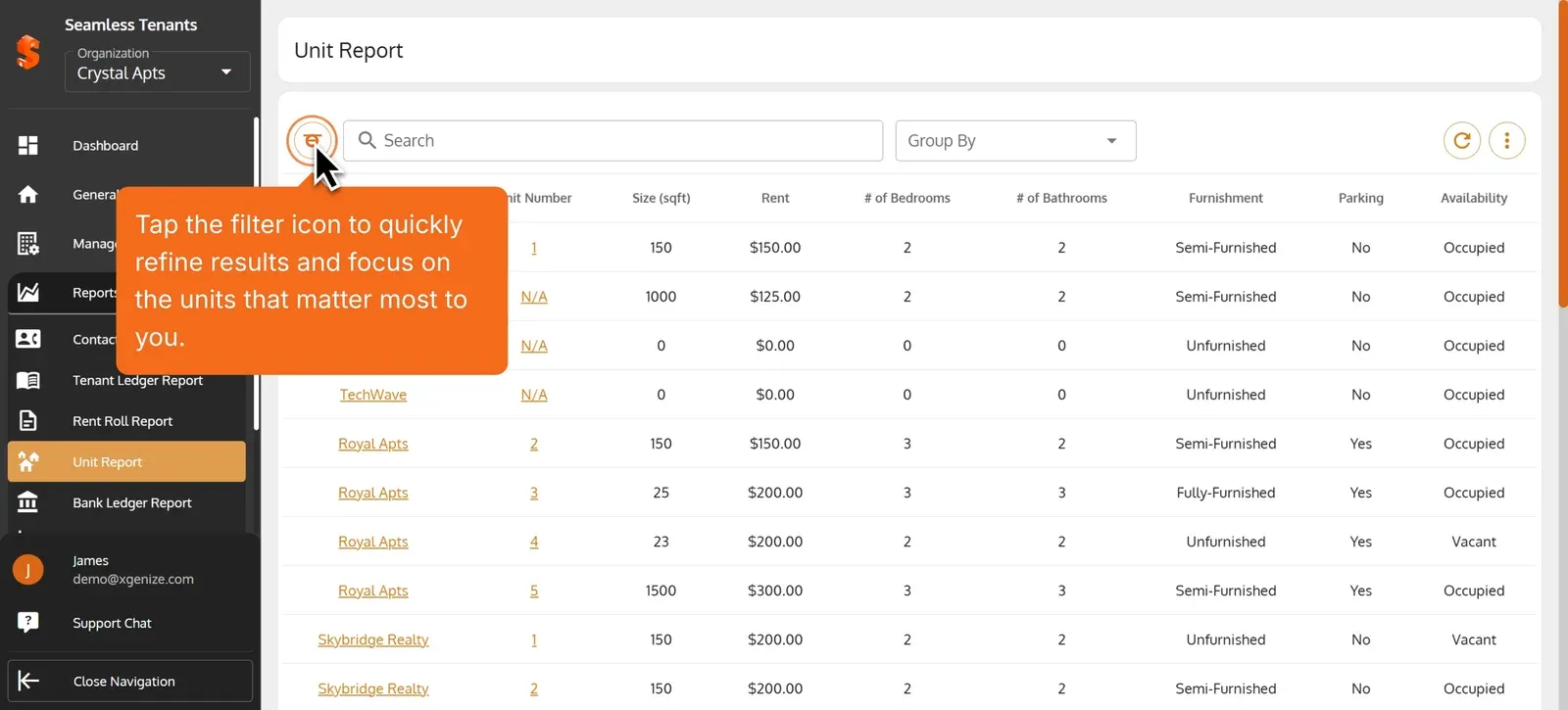
- Tap the filter icon to quickly refine results and focus on the units that matter most to you.
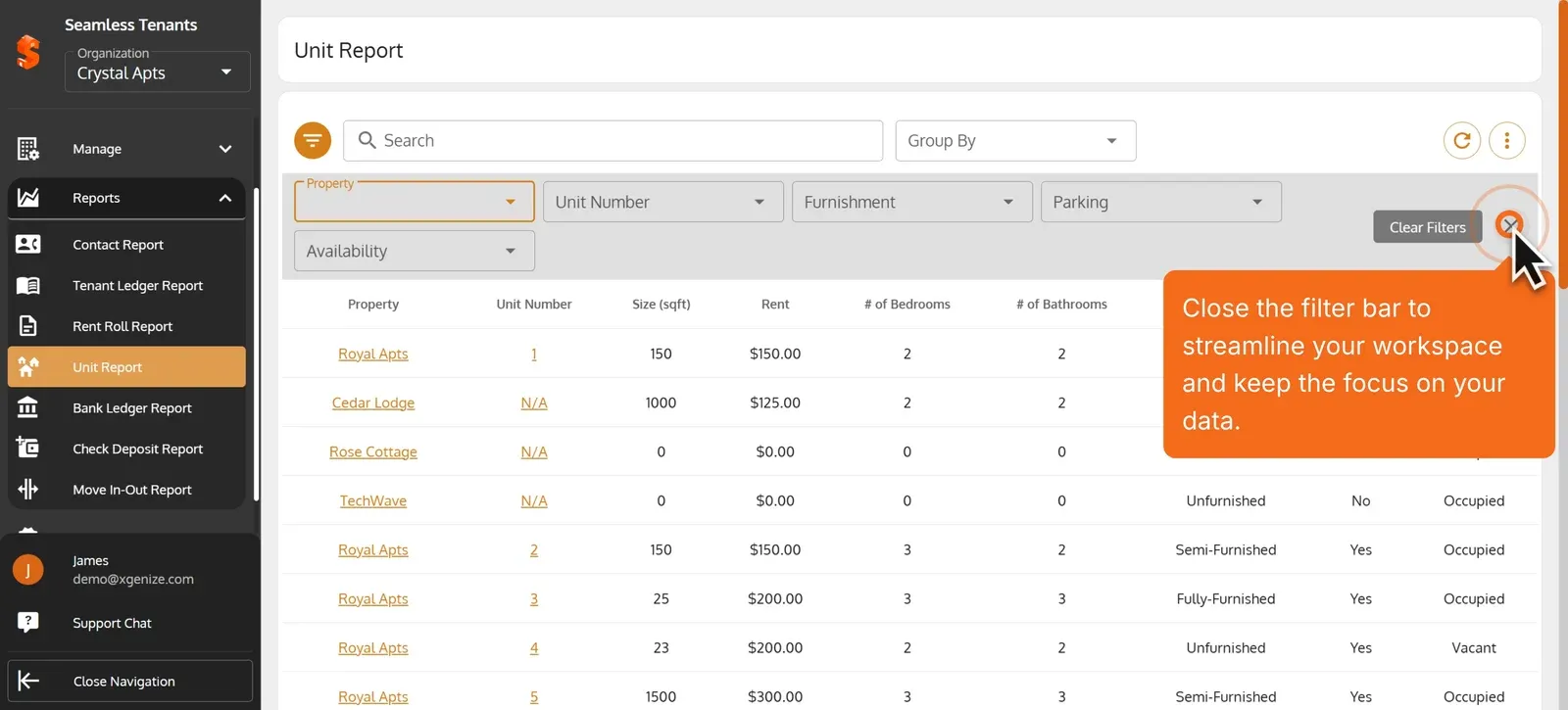
- Close the filter bar to streamline your workspace and keep the focus on your data.
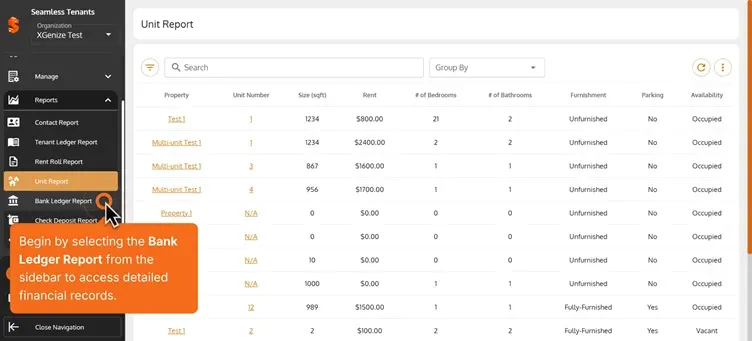
- Begin by selecting the Bank Ledger Report from the sidebar to access detailed financial records.
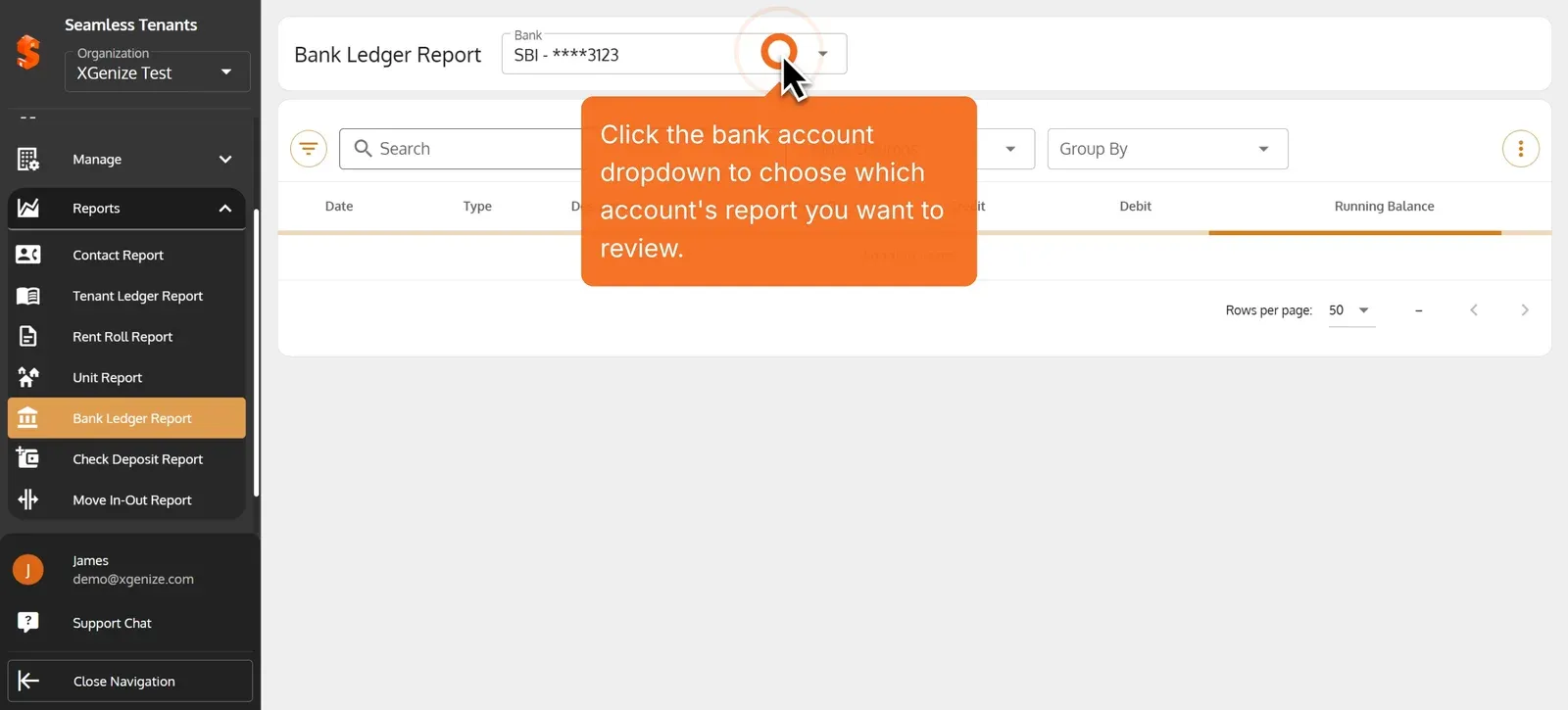
- Click the bank account dropdown to choose which account’s report you want to review.
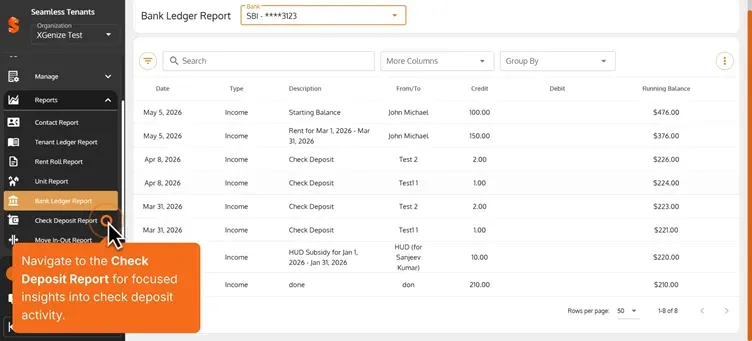
- Navigate to the Check Deposit Report for focused insights into check deposit activity.
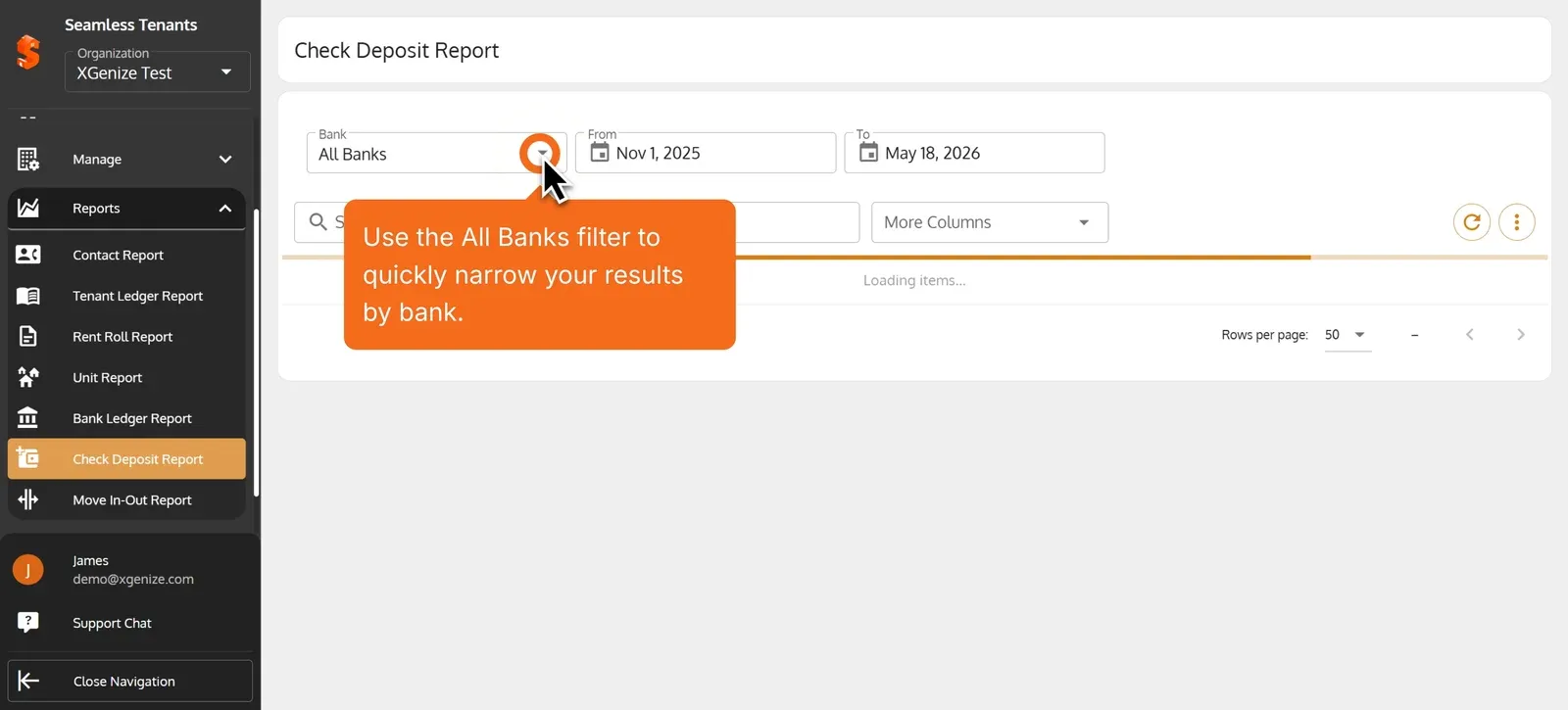
- Use the All Banks filter to quickly narrow your results by bank.
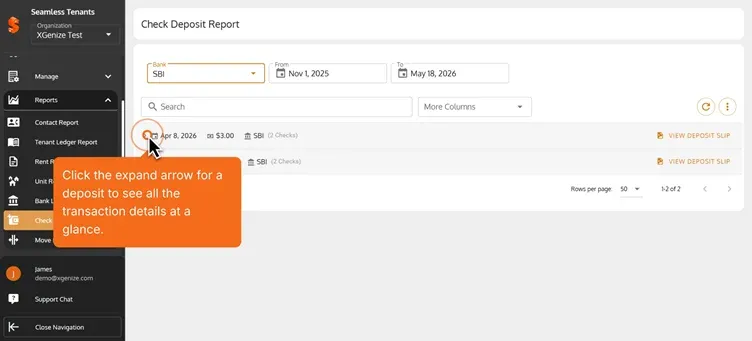
- Click the expand arrow for a deposit to see all the transaction details at a glance.
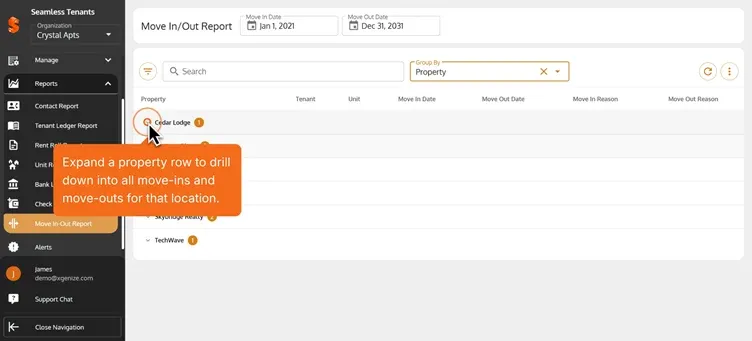
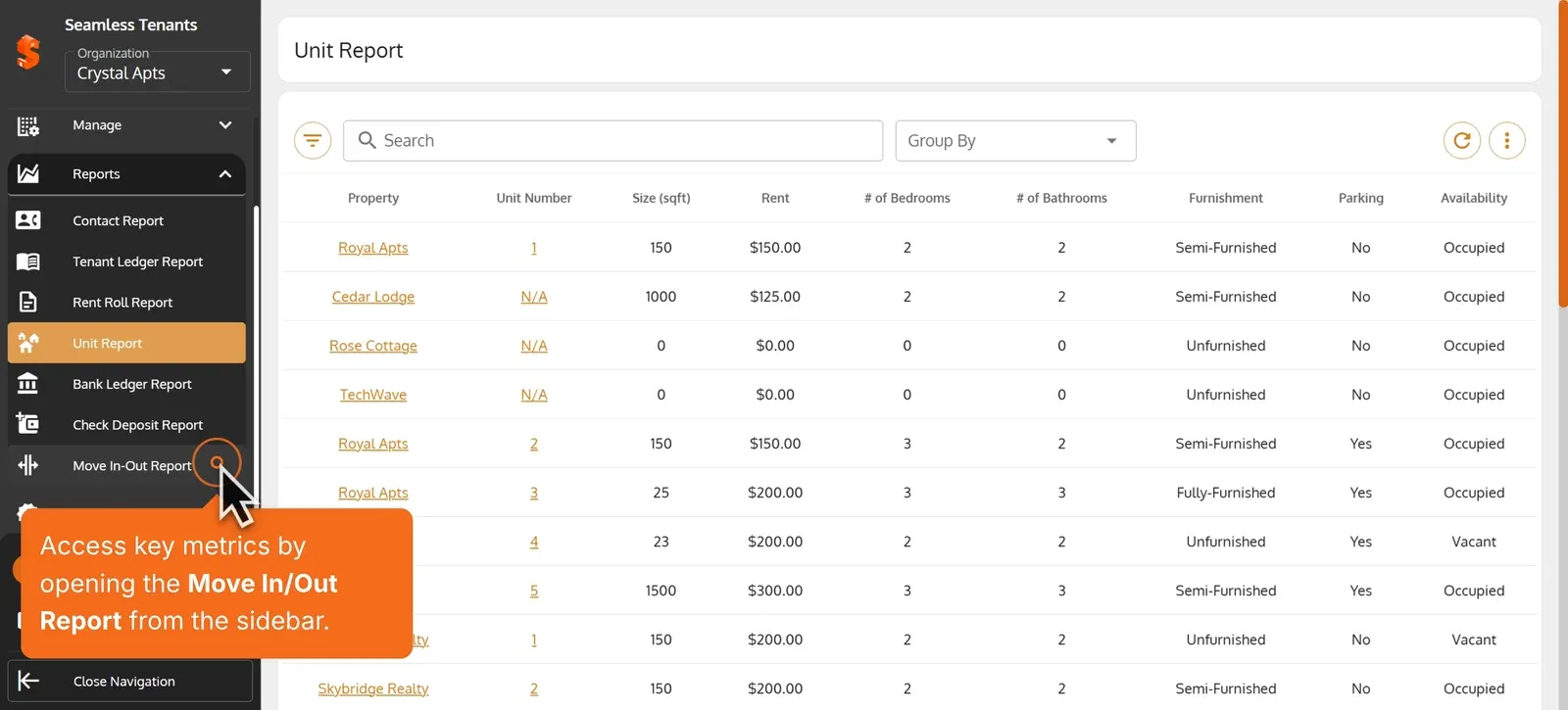
- Access key metrics by opening the Move In/Out Report from the sidebar.
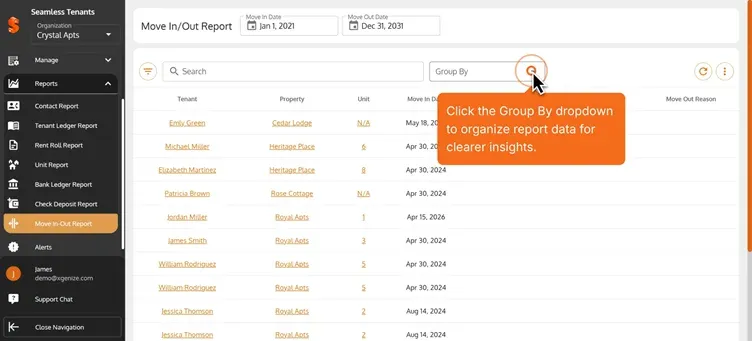
- Click the Group By dropdown to organize report data for clearer insights.
- Expand a property row to drill down into all move-ins and move-outs for that location.