
Edit a Tenant
Change a tenant’s details
Section titled “Change a tenant’s details”-
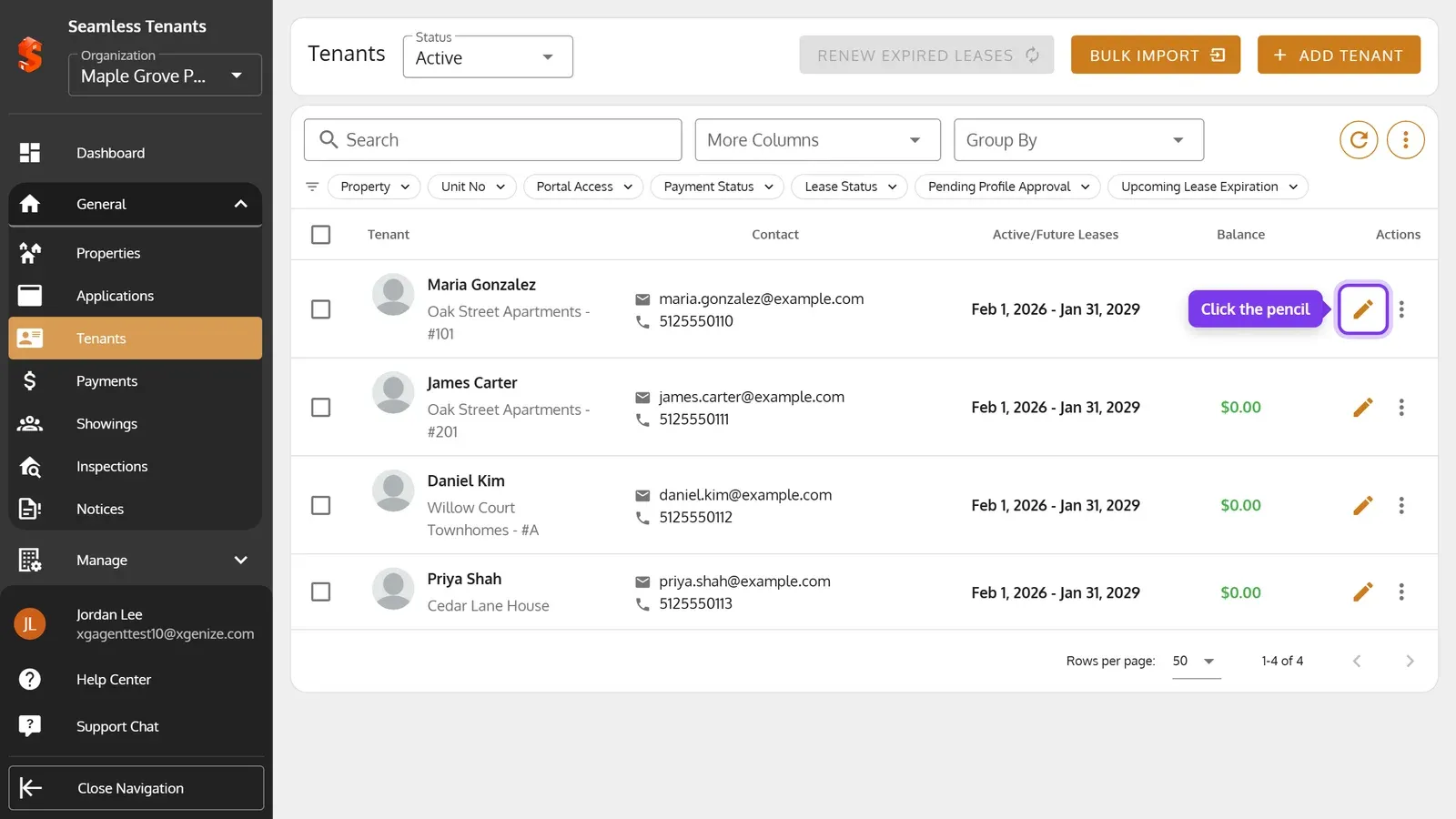
On the Tenants page, click the tenant’s pencil.
-
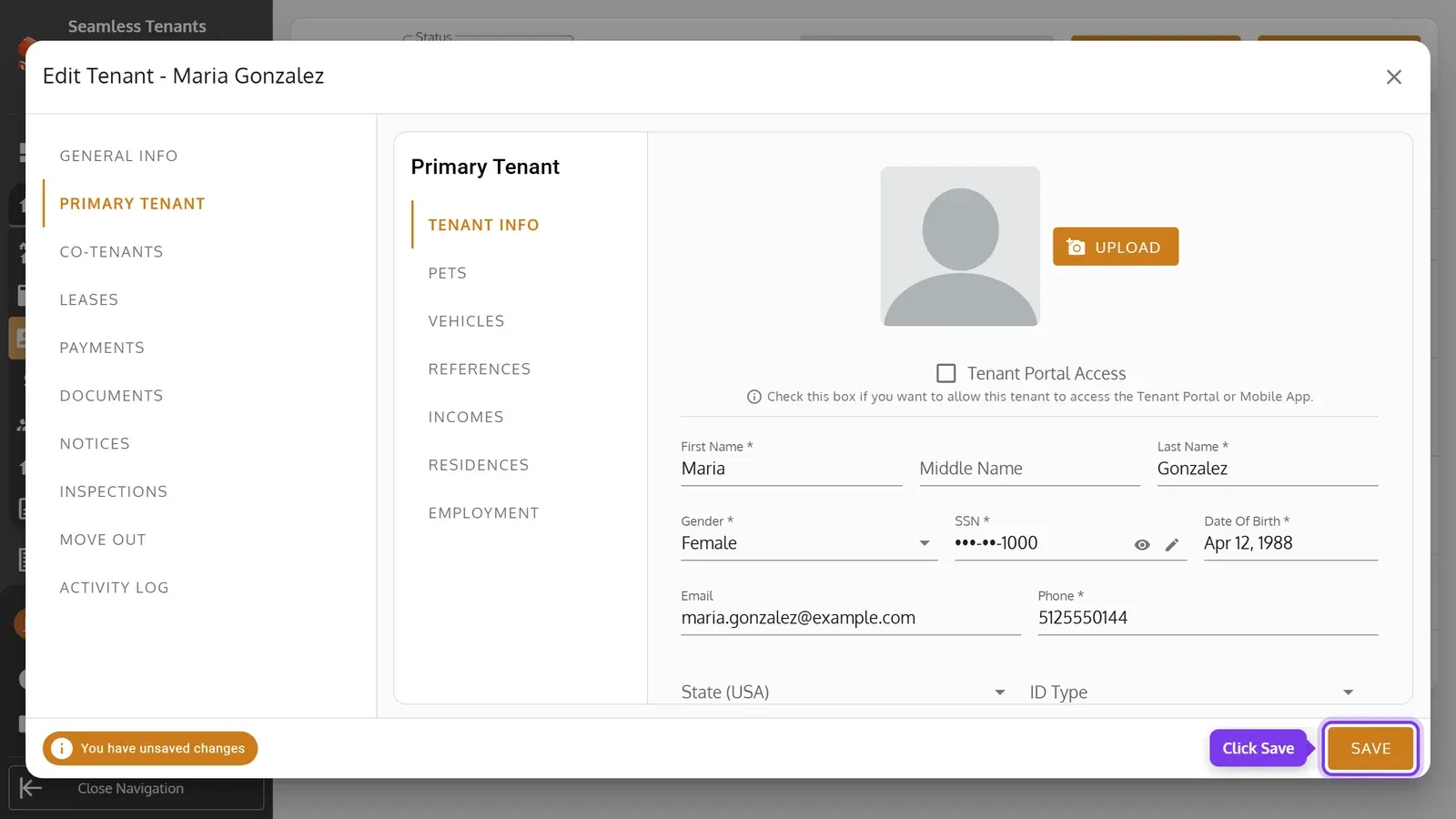
Open Primary Tenant, change their details, then click Save.
-
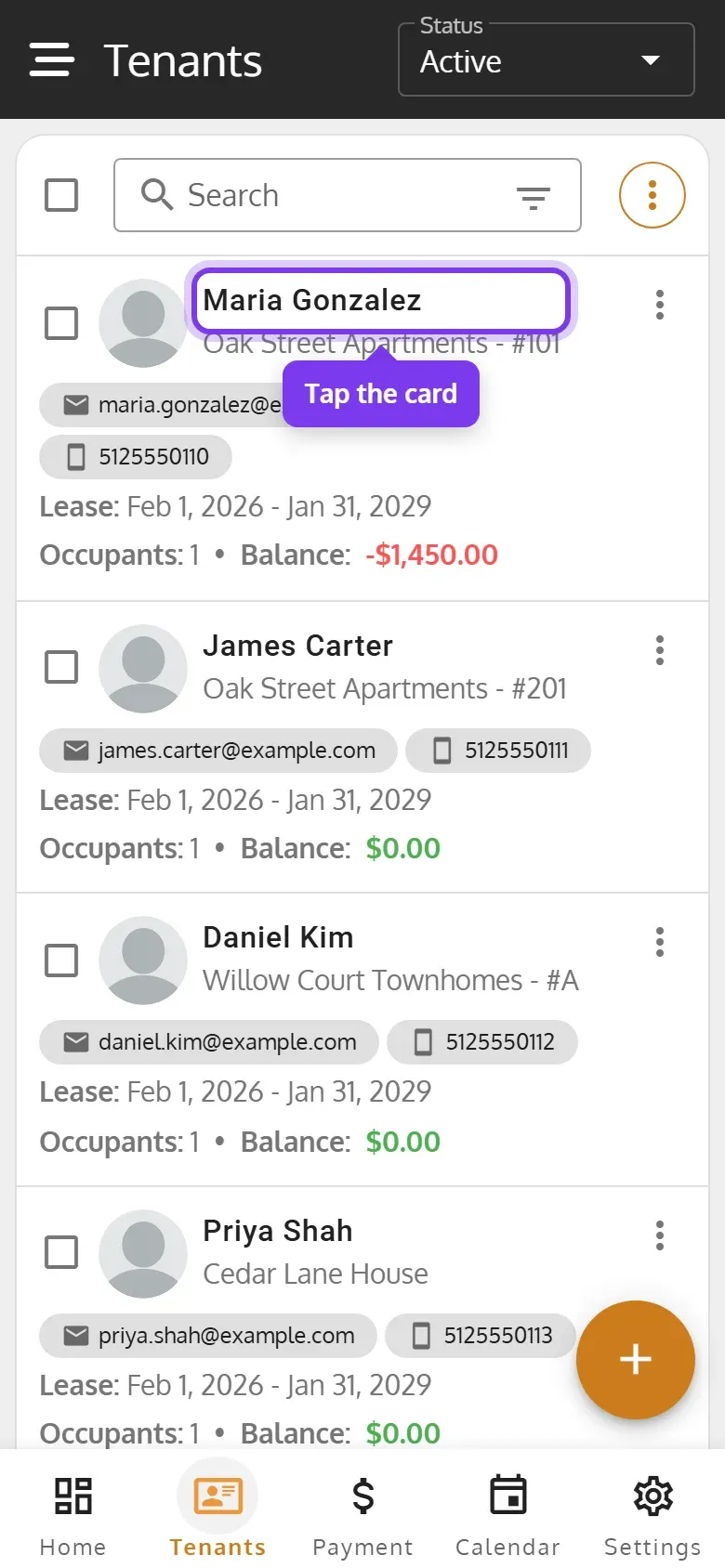
On the Tenants page, tap the tenant’s card.
-
Tap Primary Tenant, change their details, then tap Save.
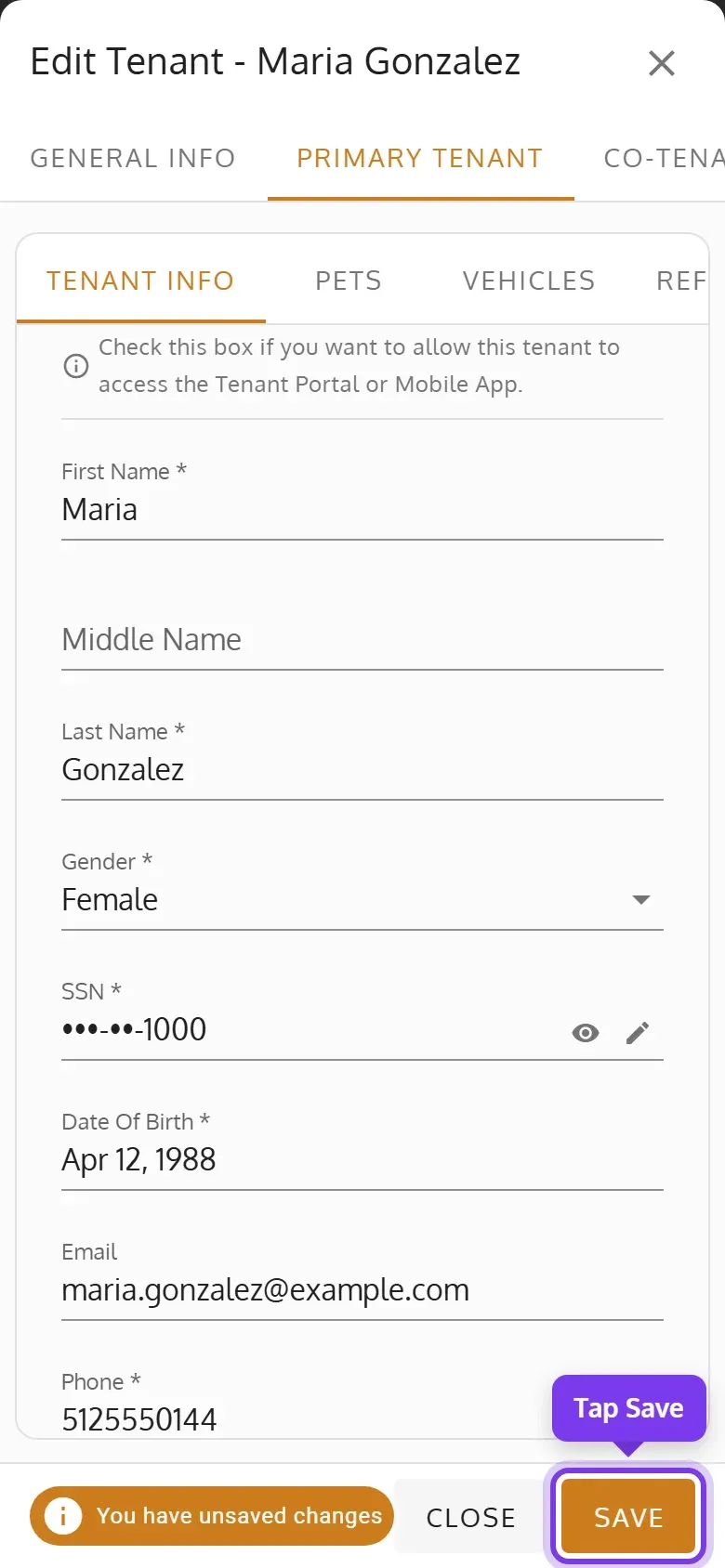
- Save stays off until you change something. If you close the tenant with changes you haven’t saved, you’re asked whether to discard them.
- The SSN and ID number show only their last digits. To replace one, click or tap the pencil beside it. If your role allows it, the eye beside it shows the whole number for 30 seconds.
- To add or change the tenant’s photo, click or tap Upload above their details, choose a picture, then Upload. Remove takes it off.
- General Info has the Move In Date, which you can only change to a date within the tenant’s leases, and their payment reminders. A tenant’s property and unit can’t change.
The tenant’s other tabs have their co-tenants, leases, payments, documents, notices, inspections and move-out. Activity Log lists every change to the tenant, if your plan includes it.
Add pets, vehicles and more
Section titled “Add pets, vehicles and more”-
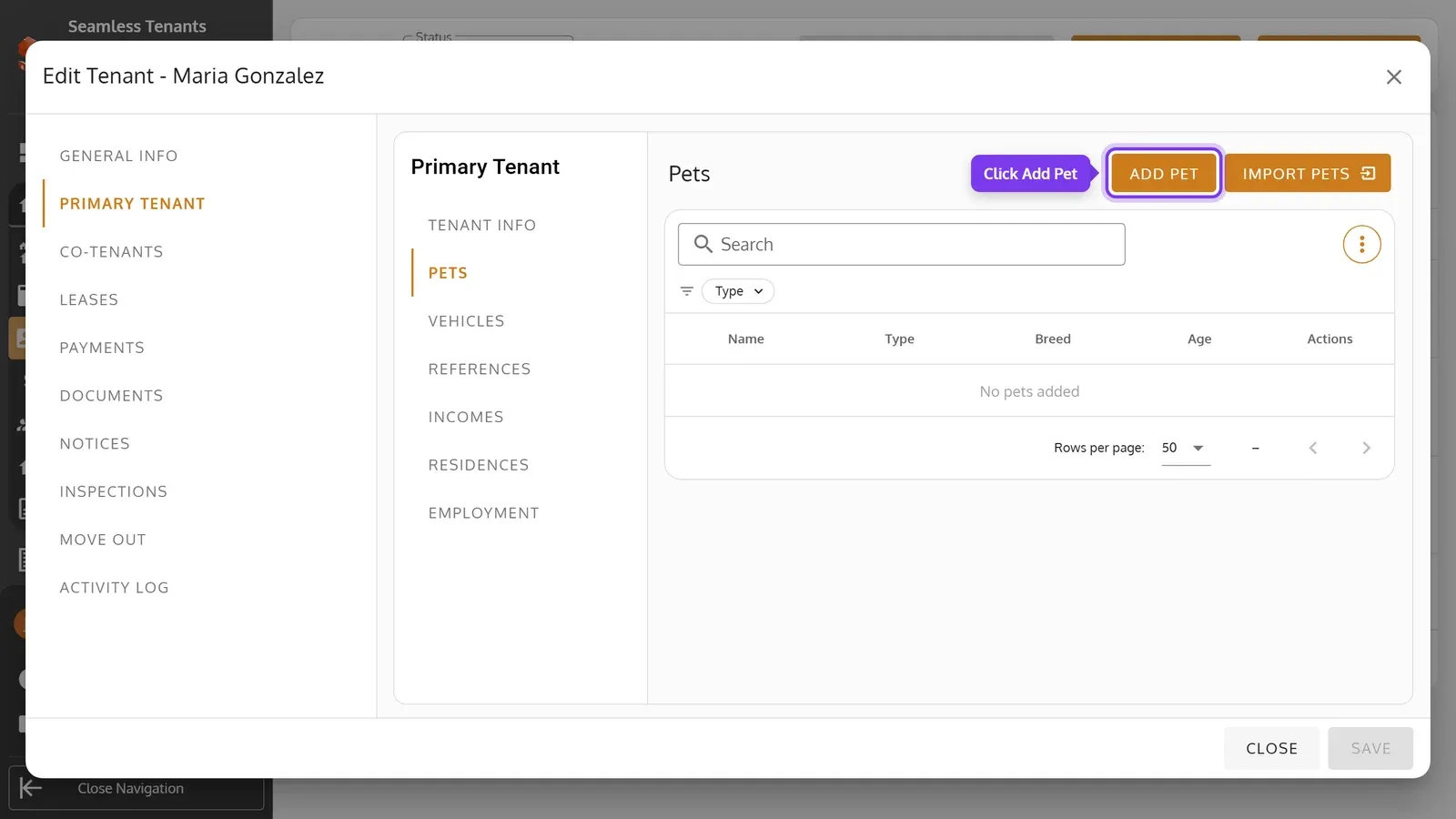
On Primary Tenant, open Pets, Vehicles, References, Incomes, Residences or Employment, and click its add button, such as Add Pet.
-
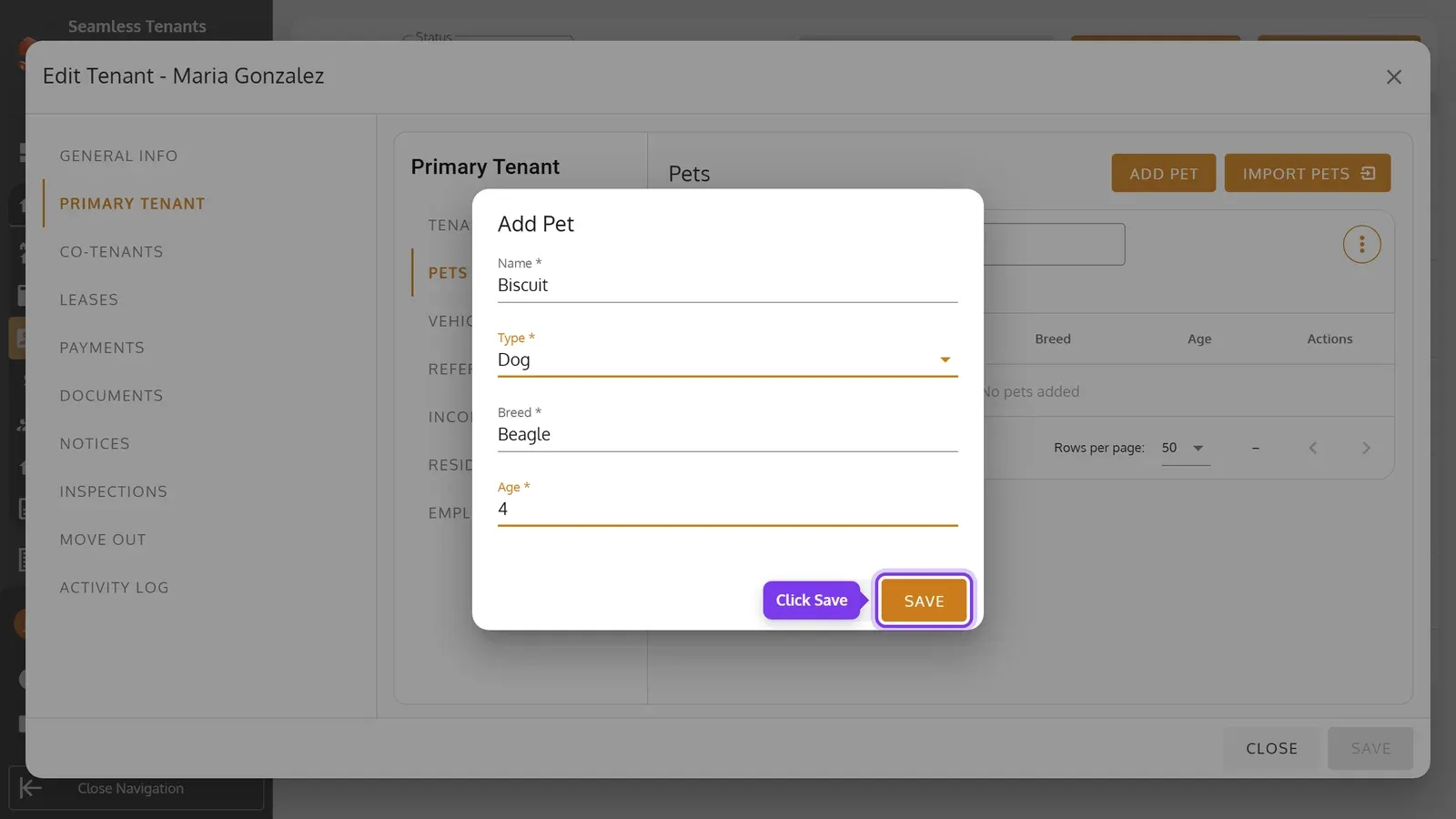
Fill in the form, then click Save.
-
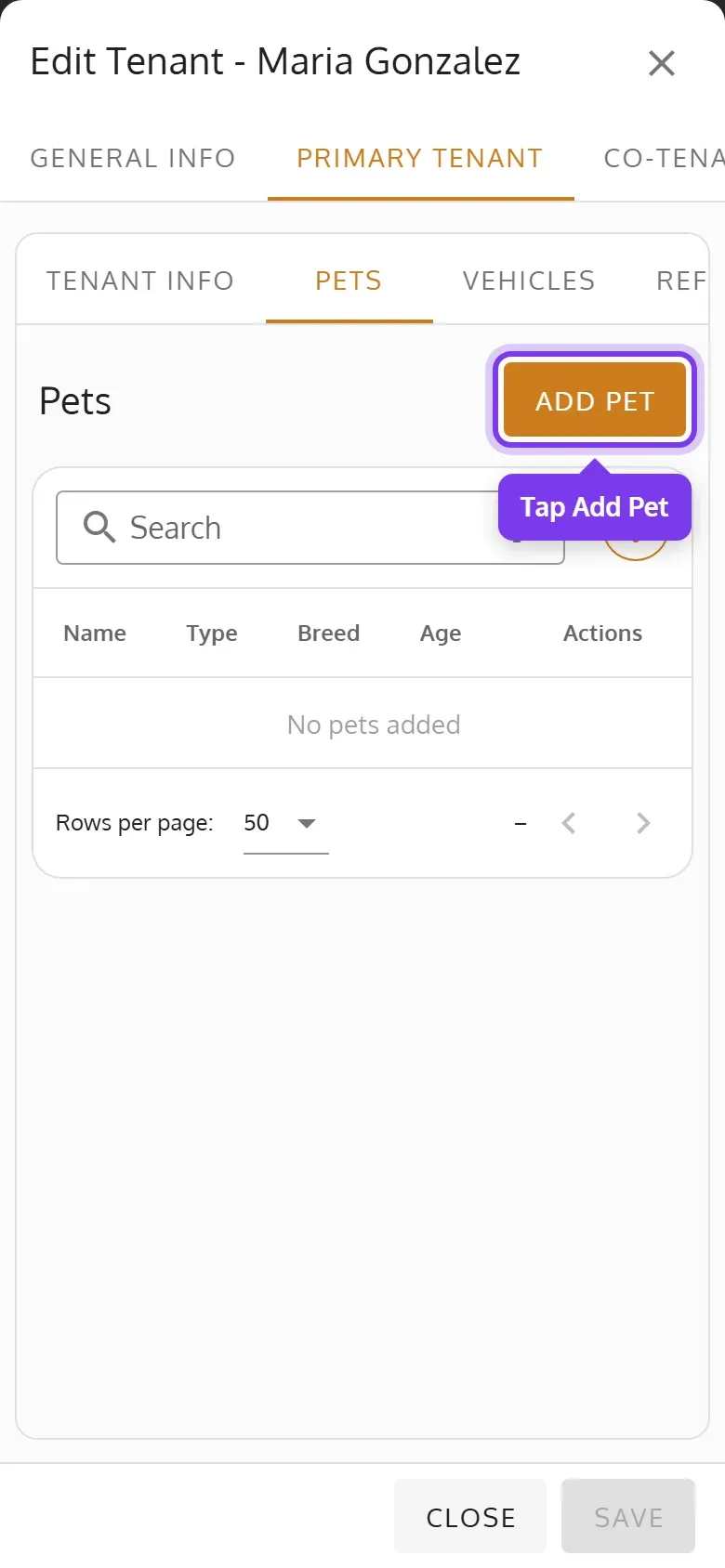
On Primary Tenant, swipe the tabs under it and tap Pets, Vehicles, References, Incomes, Residences or Employment. Then tap its add button, such as Add Pet.
-
Fill in the form, then tap Save.
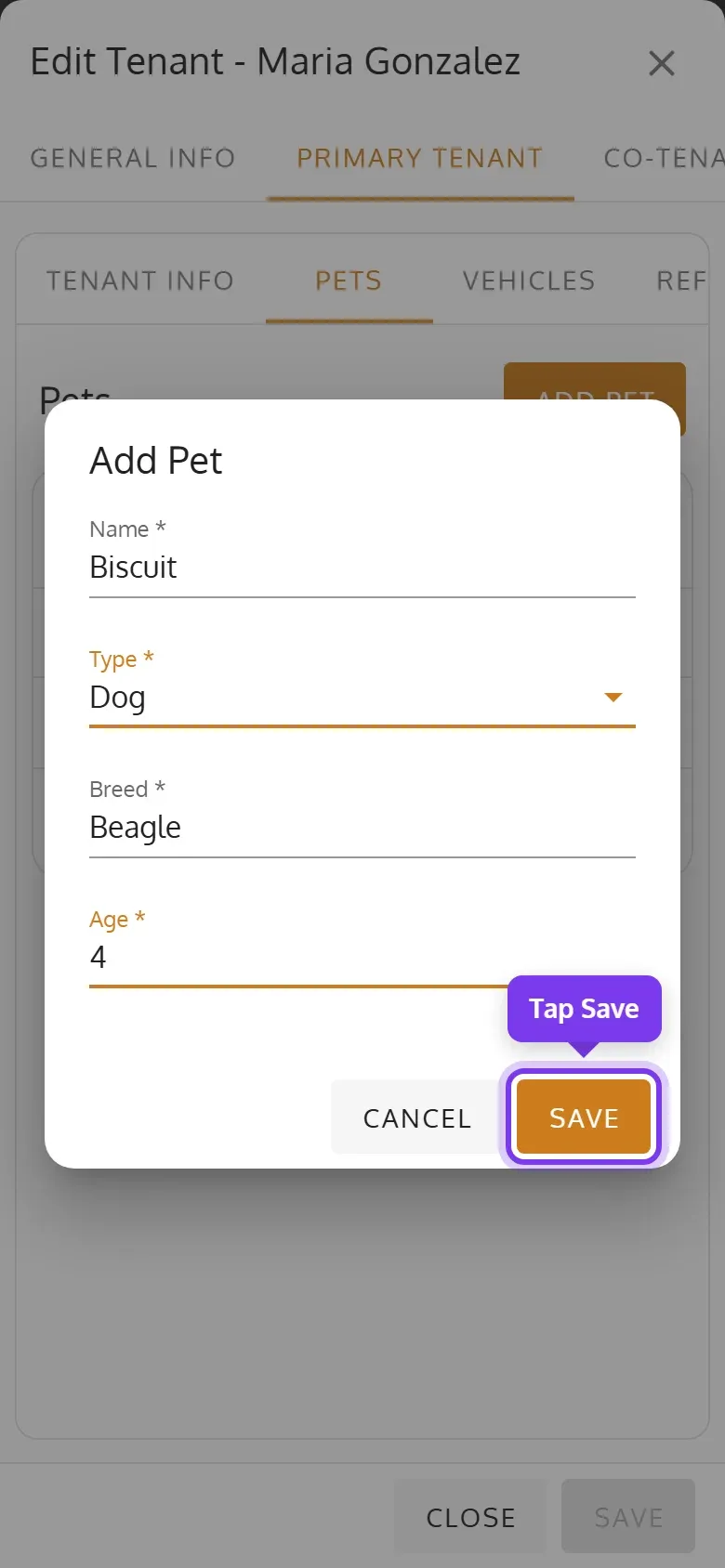
Saving a pet or anything else here saves just that, right away. Other changes to the tenant stay unsaved until you save them. To change one, use its pencil. To delete one, use its trash can.
Approve a tenant’s requests
Section titled “Approve a tenant’s requests”Tenants with Tenant Portal access can ask to add or change their pets, vehicles, references, incomes, residences and employment. Their requests show under Pending Requests on that tab. Approve a request with its check mark, or edit or delete it.
To find tenants with requests waiting, filter the Tenants page by Pending Profile Approval.
Give a tenant Tenant Portal access
Section titled “Give a tenant Tenant Portal access”-
On Primary Tenant, check Tenant Portal Access, and make sure the tenant has an Email.
-
Save. The tenant gets an email to set up their account, or to sign in if it’s already set up.
Tenant Portal Access only shows when your organization has the Tenant Portal on, under Manage > My Organization > Tenant Settings. Changing the email of a tenant with access moves it to the new address. To remove a tenant’s access, uncheck Tenant Portal Access and save.