
Add and Manage Units
A Multi Unit property lists its units on its Units tab. A Single Unit property has one unit, which you edit on its House Details tab instead: change its details there, then click or tap Save. Properties and Units explains each field.
Add a unit
Section titled “Add a unit”-
On the Properties page, click the property’s card to open it.
-
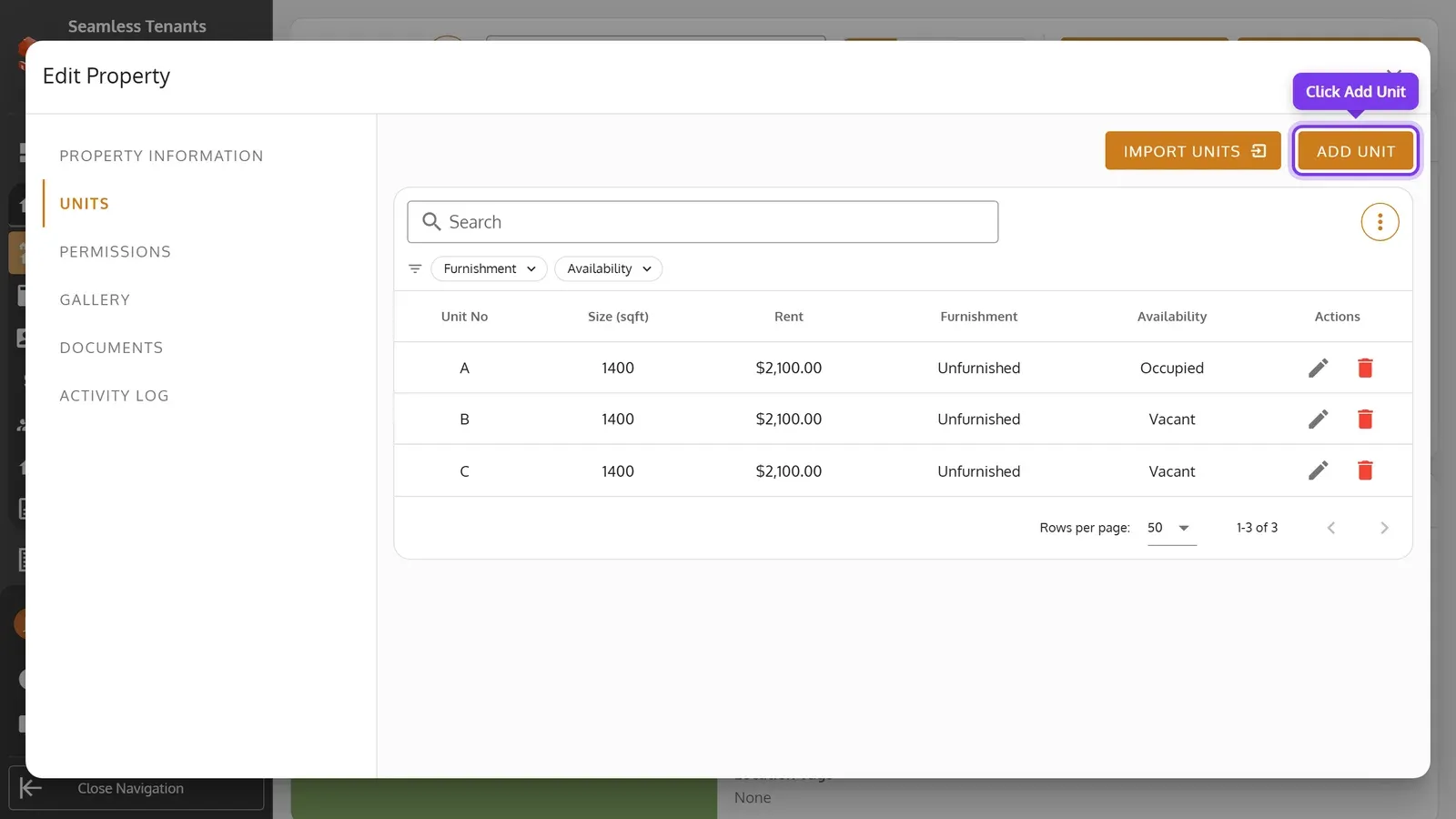
Open the Units tab and click Add Unit.
-
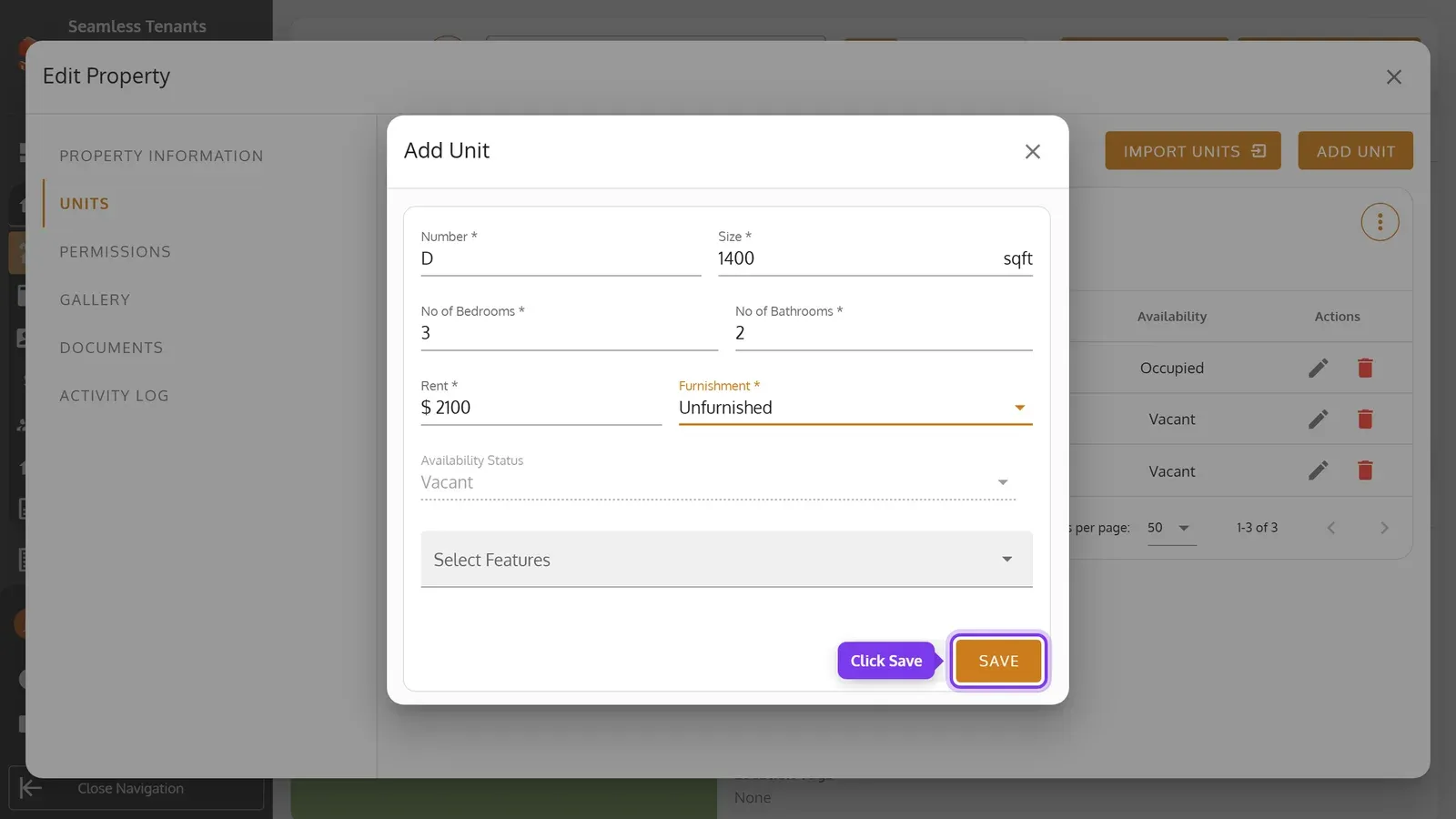
Enter the unit’s Number, Size, No of Bedrooms, No of Bathrooms, Rent and Furnishment, then click Save.
-
On the Properties page, tap the property’s card to open it.
-
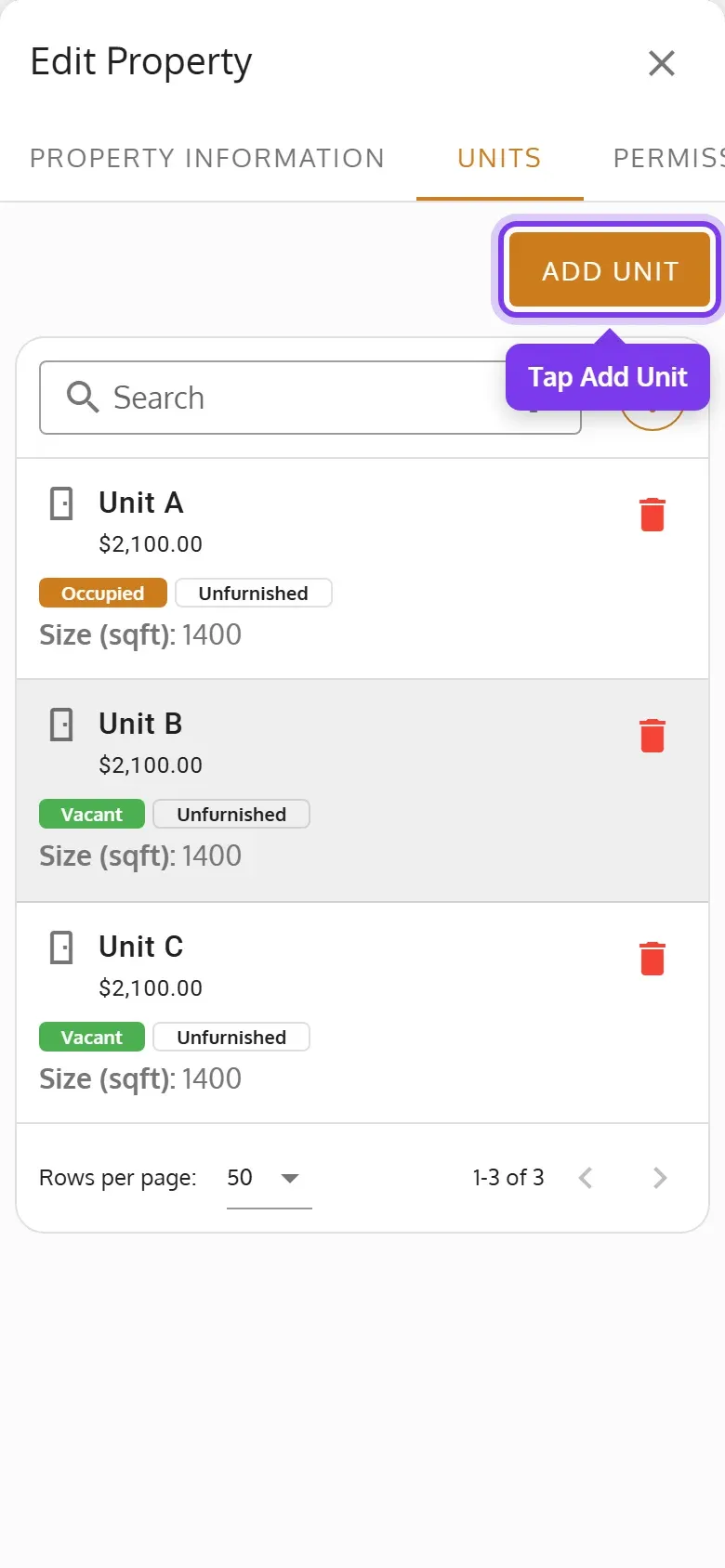
Tap the Units tab, then Add Unit.
-
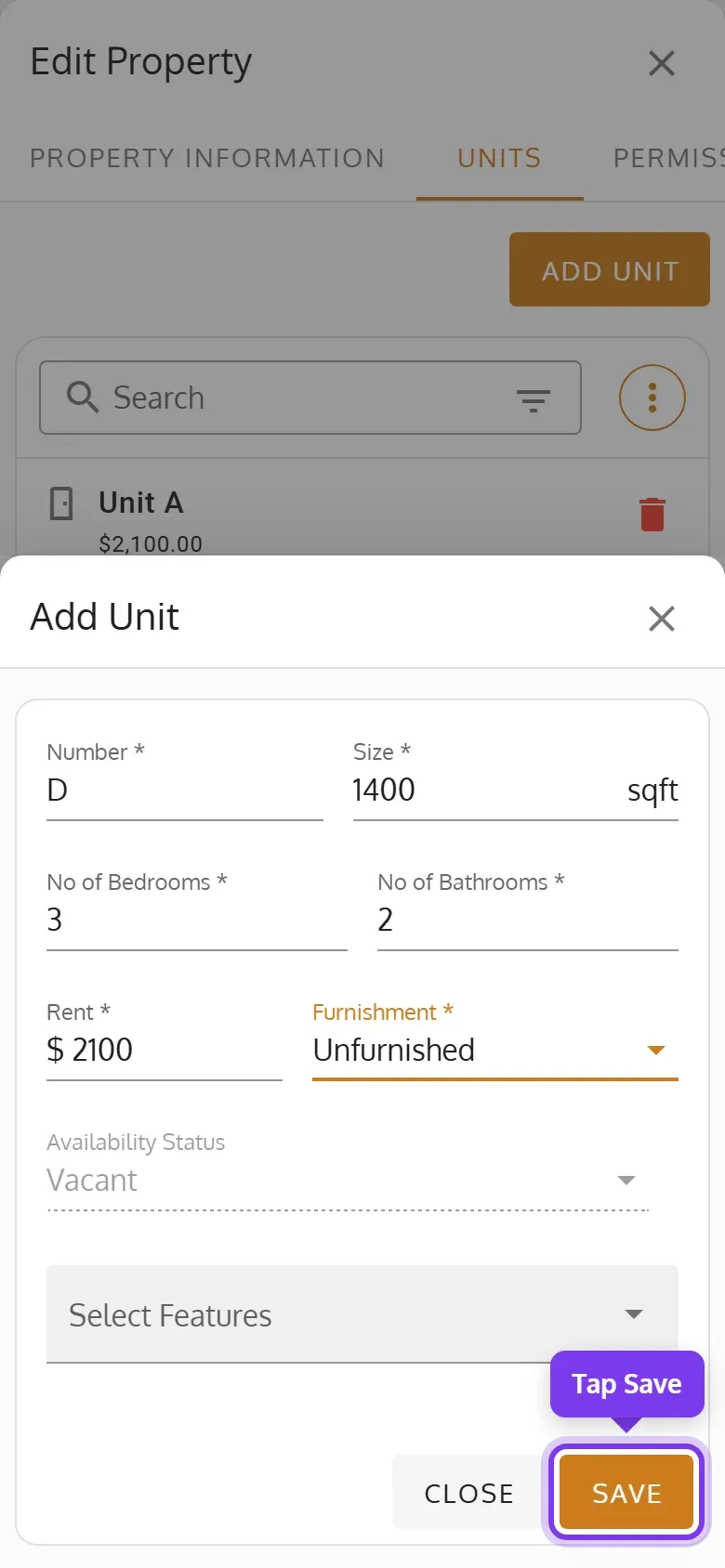
Enter the unit’s Number, Size, No of Bedrooms, No of Bathrooms, Rent and Furnishment, then tap Save.
- Each unit in a property needs its own number.
- When the unit adds to your bill, Seamless Tenants says how much and asks you to confirm.
- To add many units at once on a computer, use Import Units. See Import Properties and Units.
Edit a unit
Section titled “Edit a unit”-
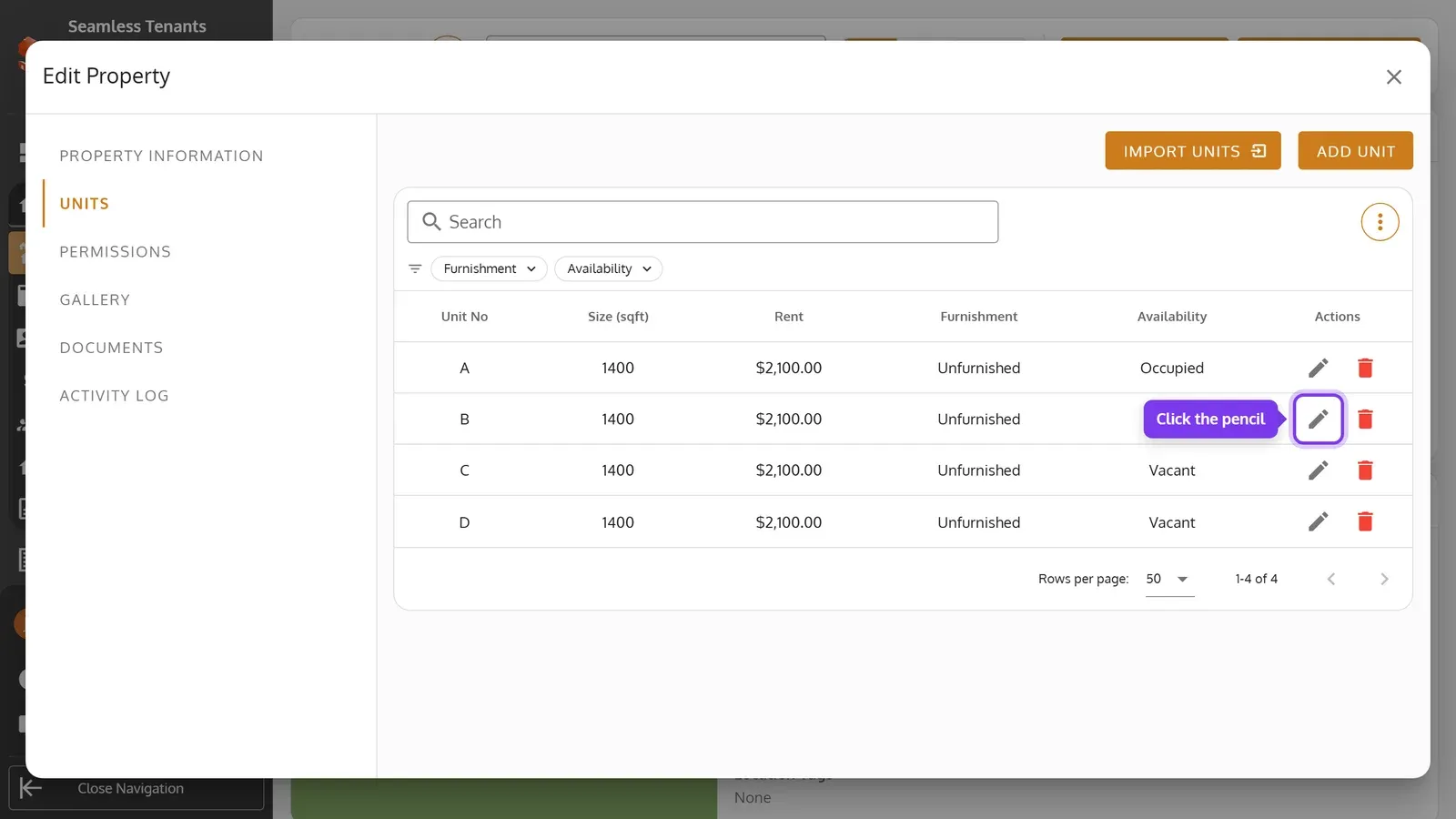
On the property’s Units tab, click the unit’s pencil.
-
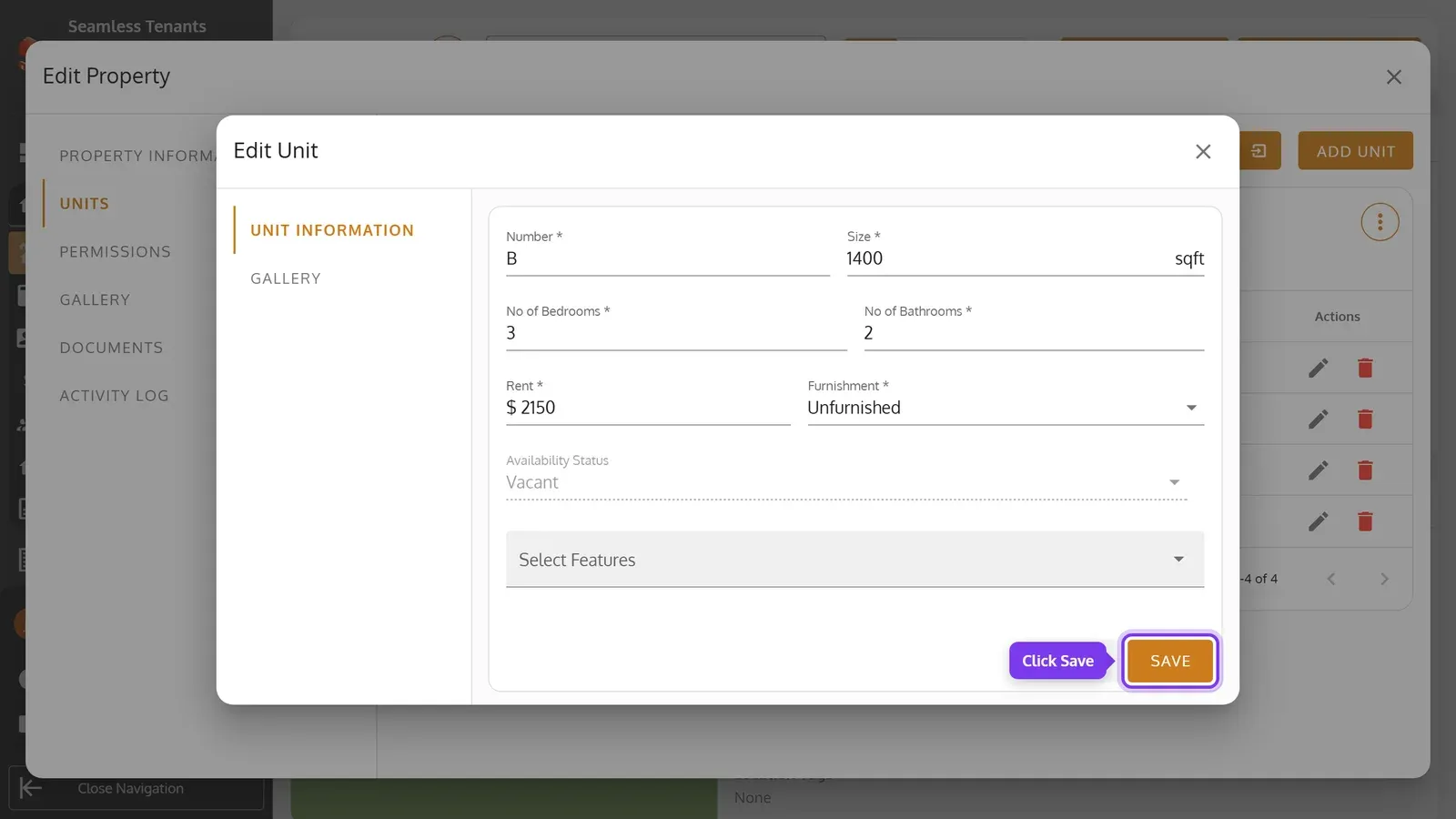
Change its details, then click Save.
-
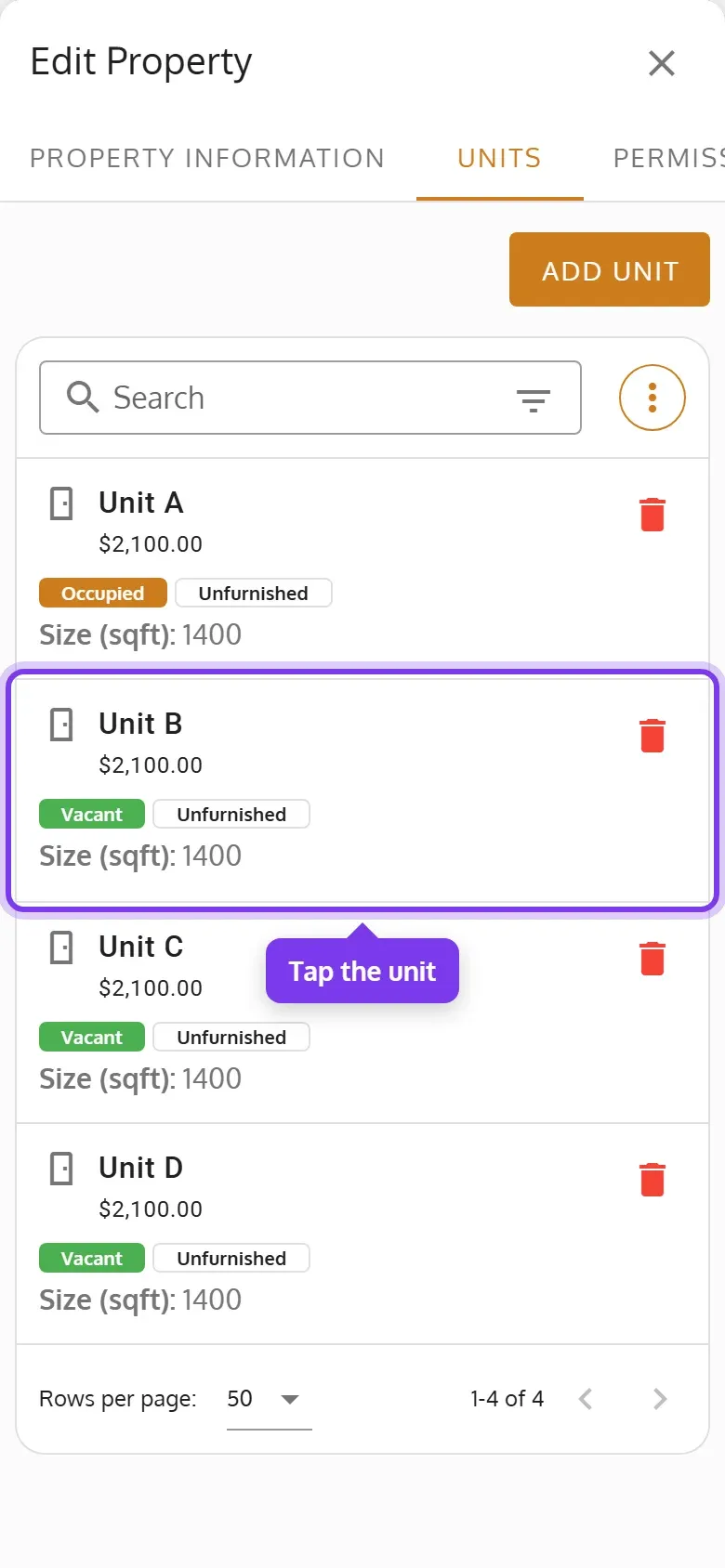
On the property’s Units tab, tap the unit.
-
Change its details, then tap Save.
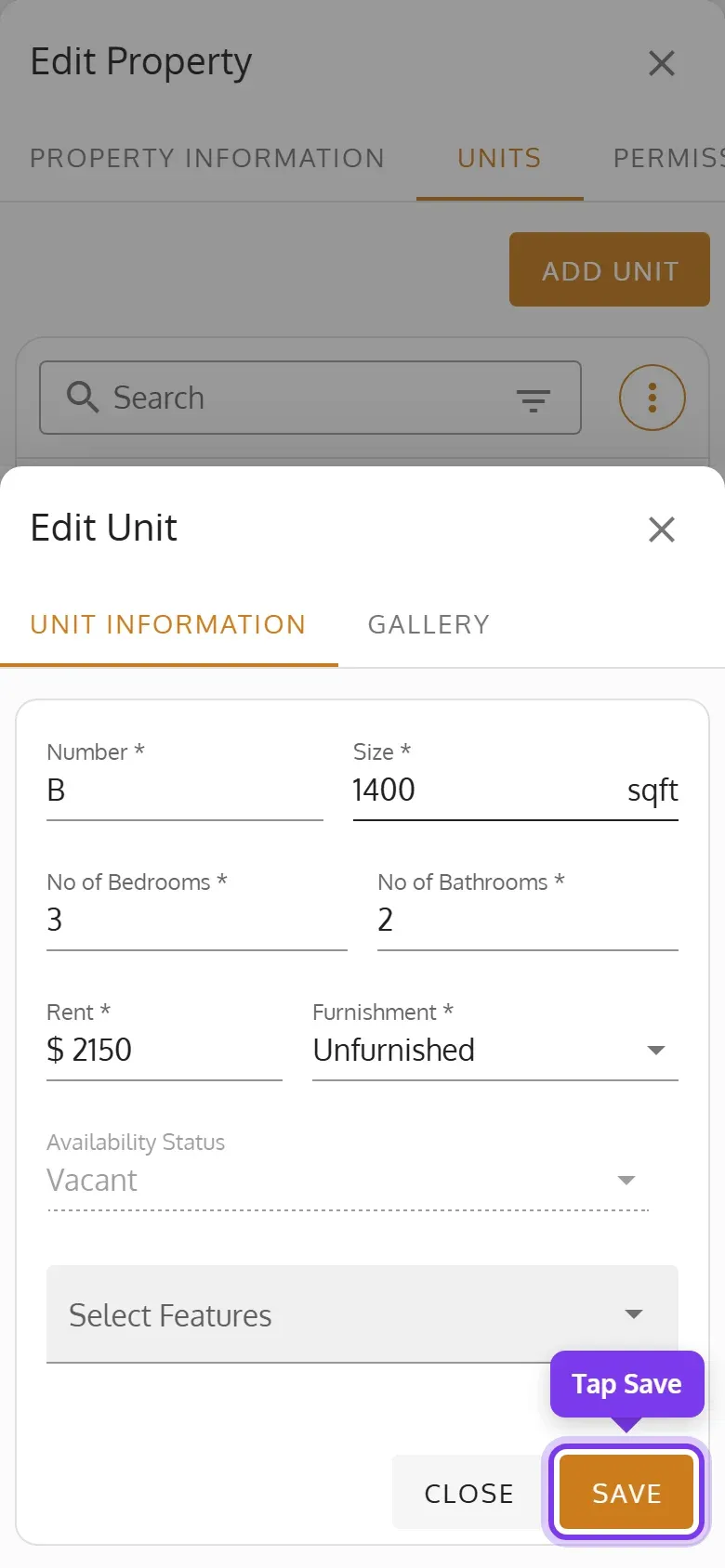
Availability Status is set by the unit’s tenants, so you can’t change it here.
Add a unit’s photos
Section titled “Add a unit’s photos”A unit can have photos of its own, apart from the property’s.
-
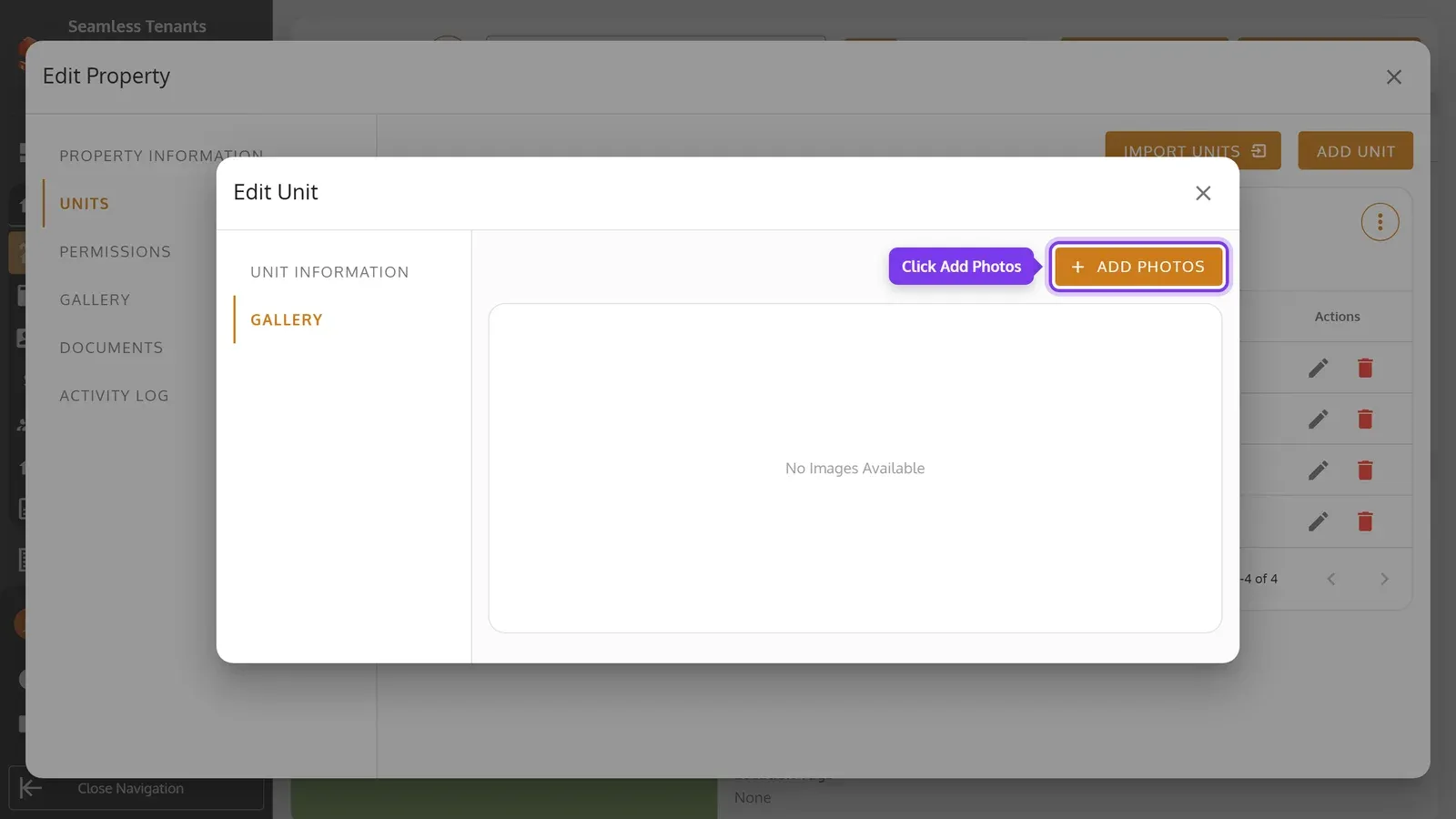
Open the unit with its pencil, then open its Gallery tab and click Add Photos.
-
Click Select Images and choose the photos, or drag them onto it. Then click Upload.
-
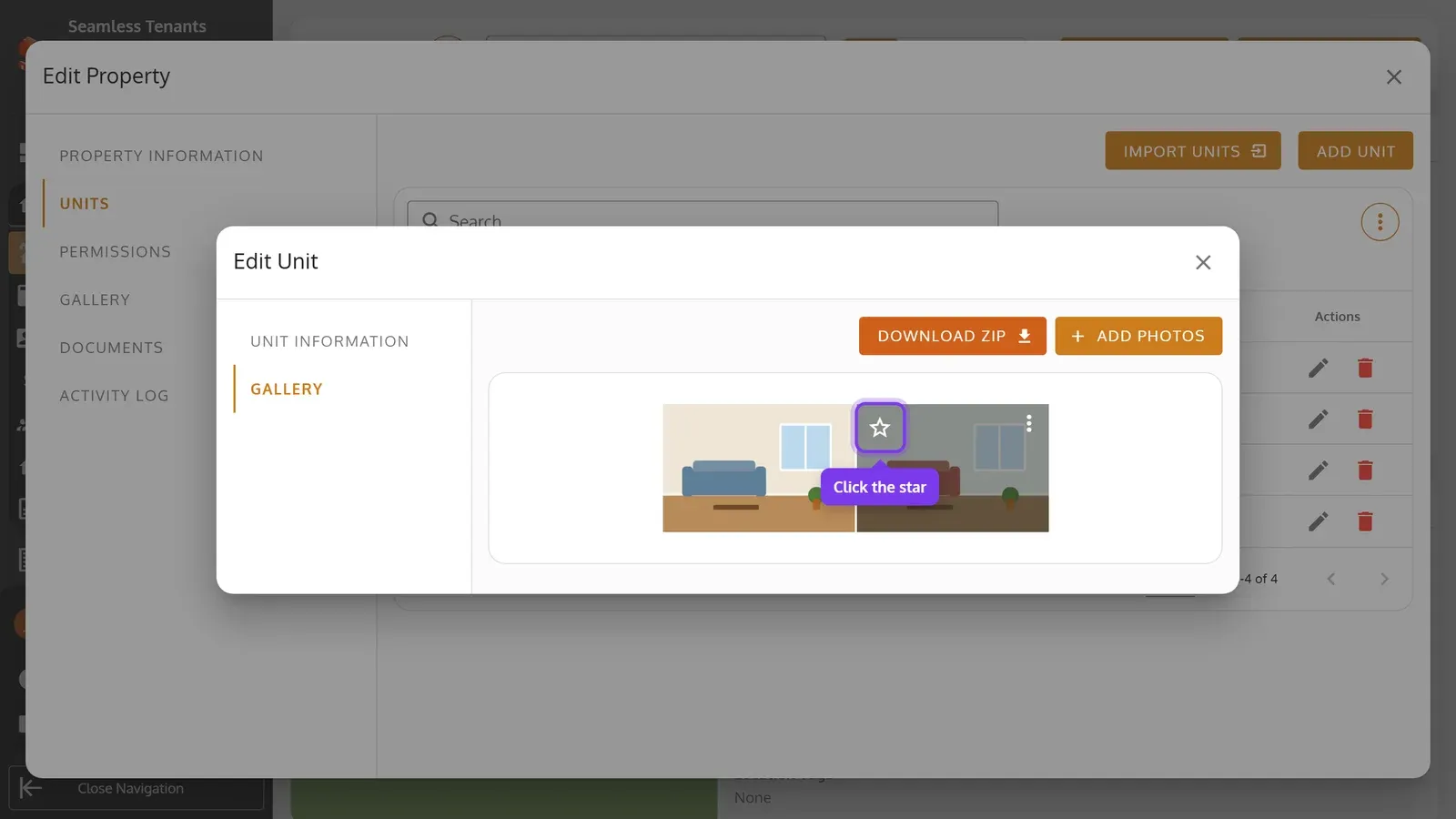
To mark the unit’s main photo, point to it and click its star.
-
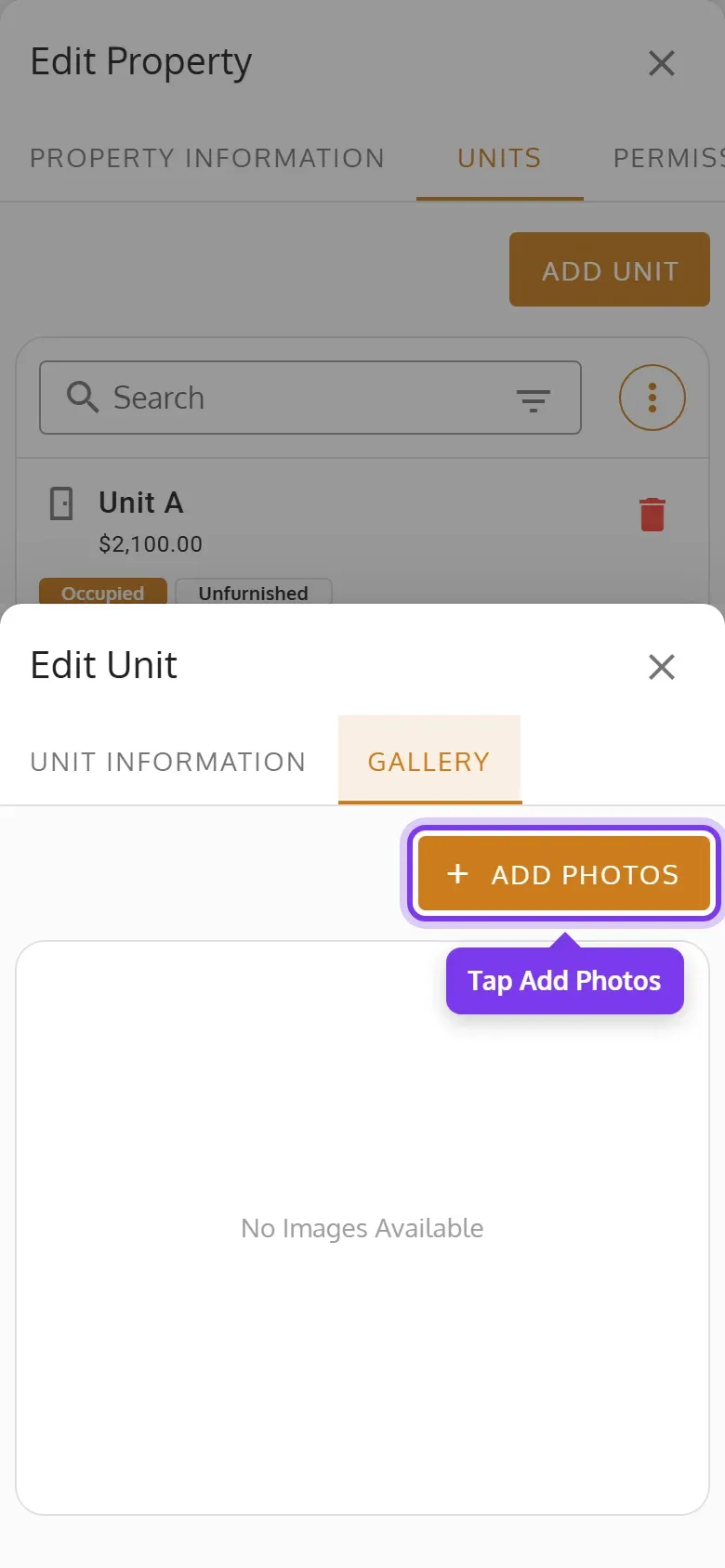
Tap the unit, then its Gallery tab, then Add Photos.
-
Tap Select Images and choose the photos, then tap Upload.
-
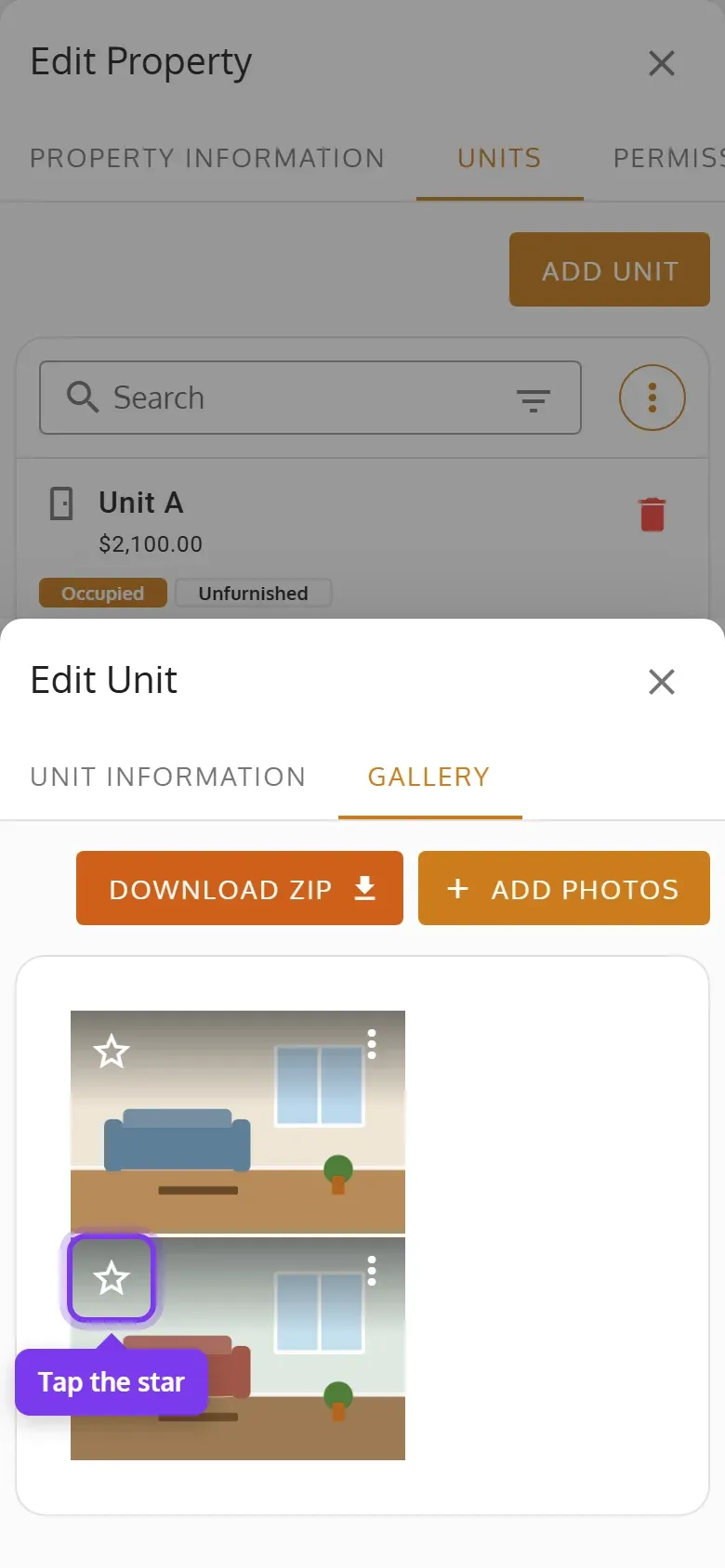
To mark the unit’s main photo, tap its star.
A unit’s photos work like a property’s: see Property Photos and Documents to download or delete them.
Delete a unit
Section titled “Delete a unit”-
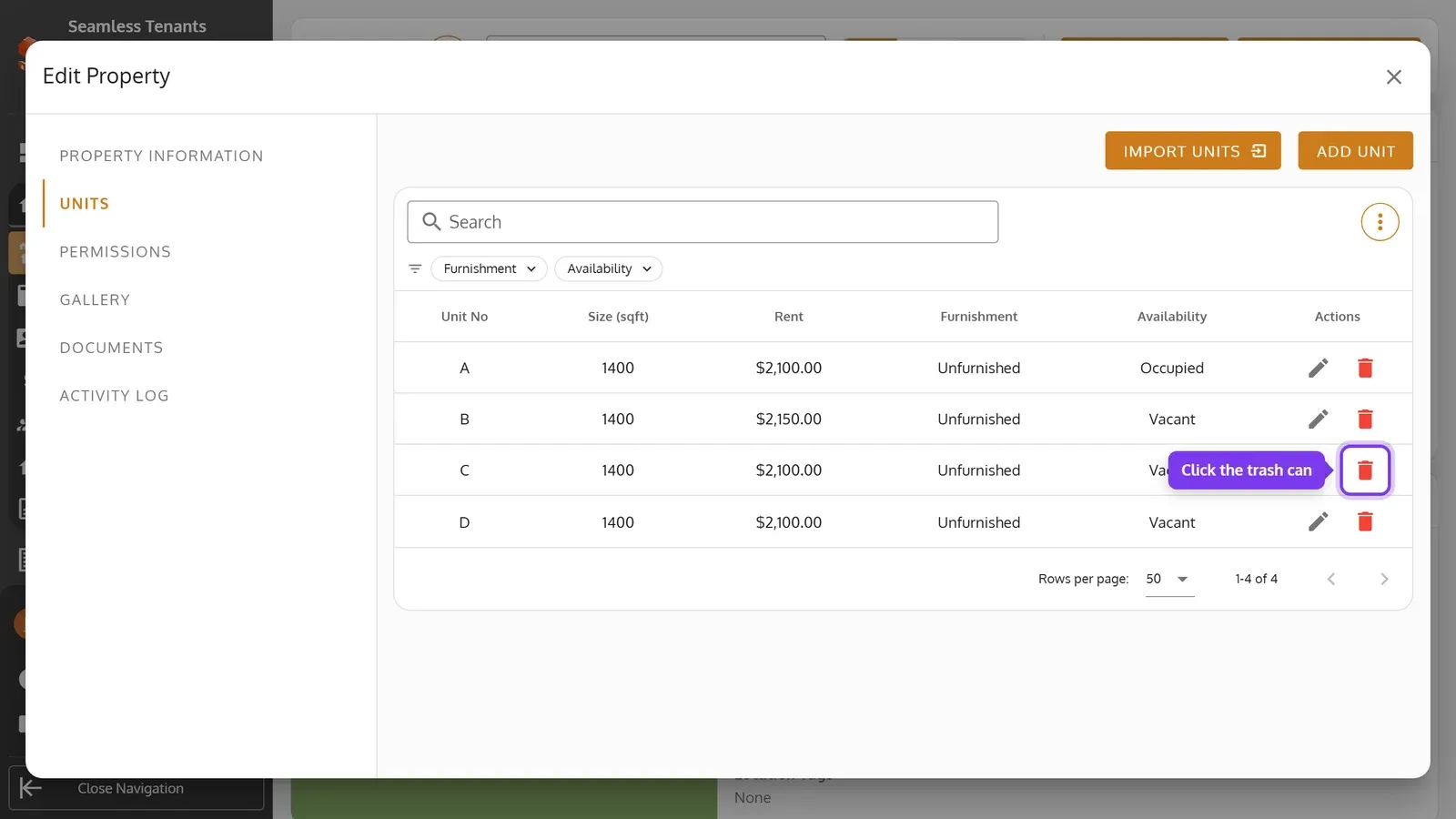
On the property’s Units tab, click the unit’s red trash can.
-
Click Delete Unit.
-
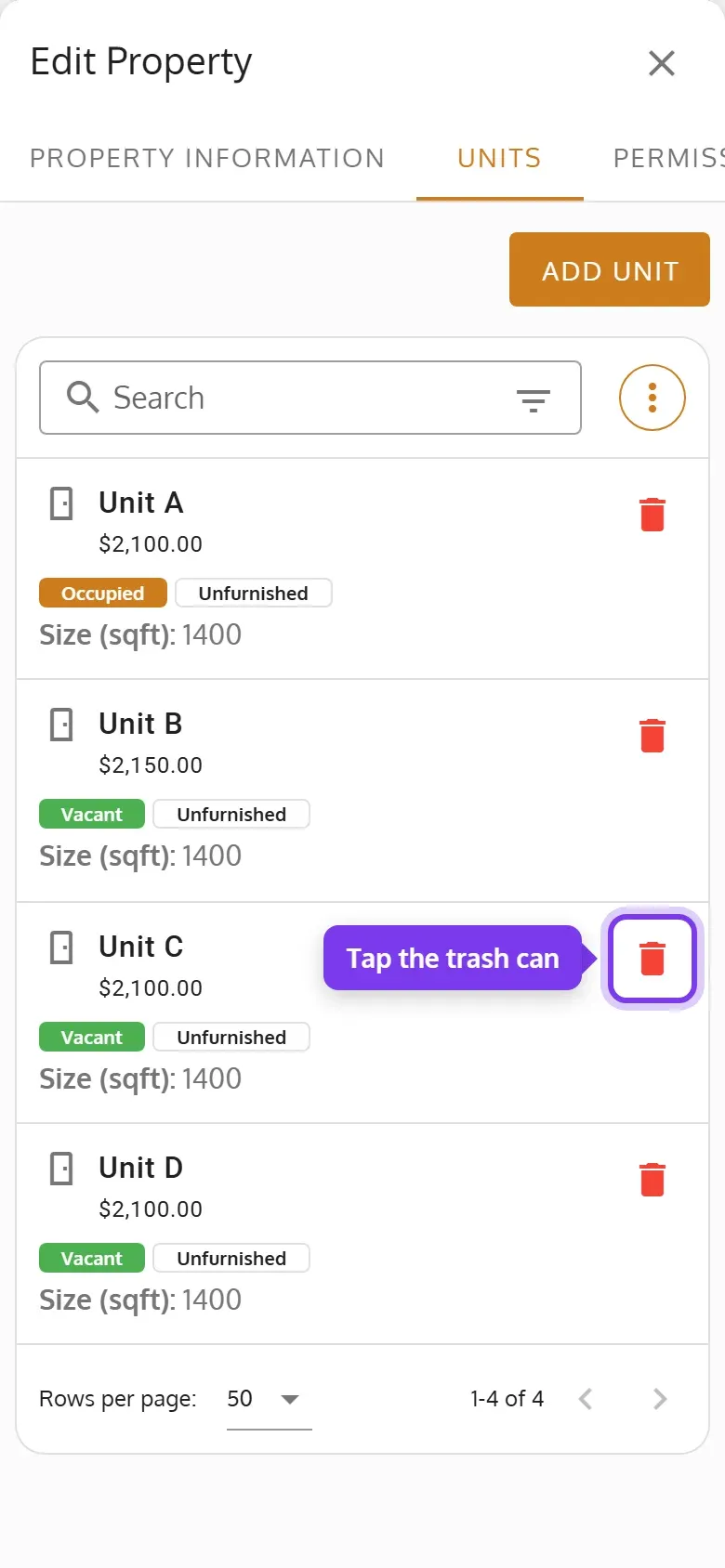
On the property’s Units tab, tap the unit’s red trash can.
-
Tap Delete Unit.
You can’t delete a unit while it has any of these. Seamless Tenants says which ones and what to do first:
- A tenant who hasn’t moved out, or a former tenant with unpaid invoices. Move the tenant out, or record the payments or waive the invoices.
- An open application. Approve, reject or delete it.
- An open work order. Complete or cancel it.
- A scheduled showing. Cancel it, which tells its visitors.
A deleted unit no longer adds to your bill. Its inspections and its closed applications, work orders and showings are deleted with it, and the confirmation says how many. Its invoices, payments and documents stay. Its former tenants no longer show in Tenants or reports. You can’t undo it, but you can give a new unit the same number.
Find a unit
Section titled “Find a unit”The Units tab has a search box, and filters for Furnishment and Availability. They work like the Properties table’s: see Find and View Properties.