
Create an Application
Create the application
Section titled “Create the application”-
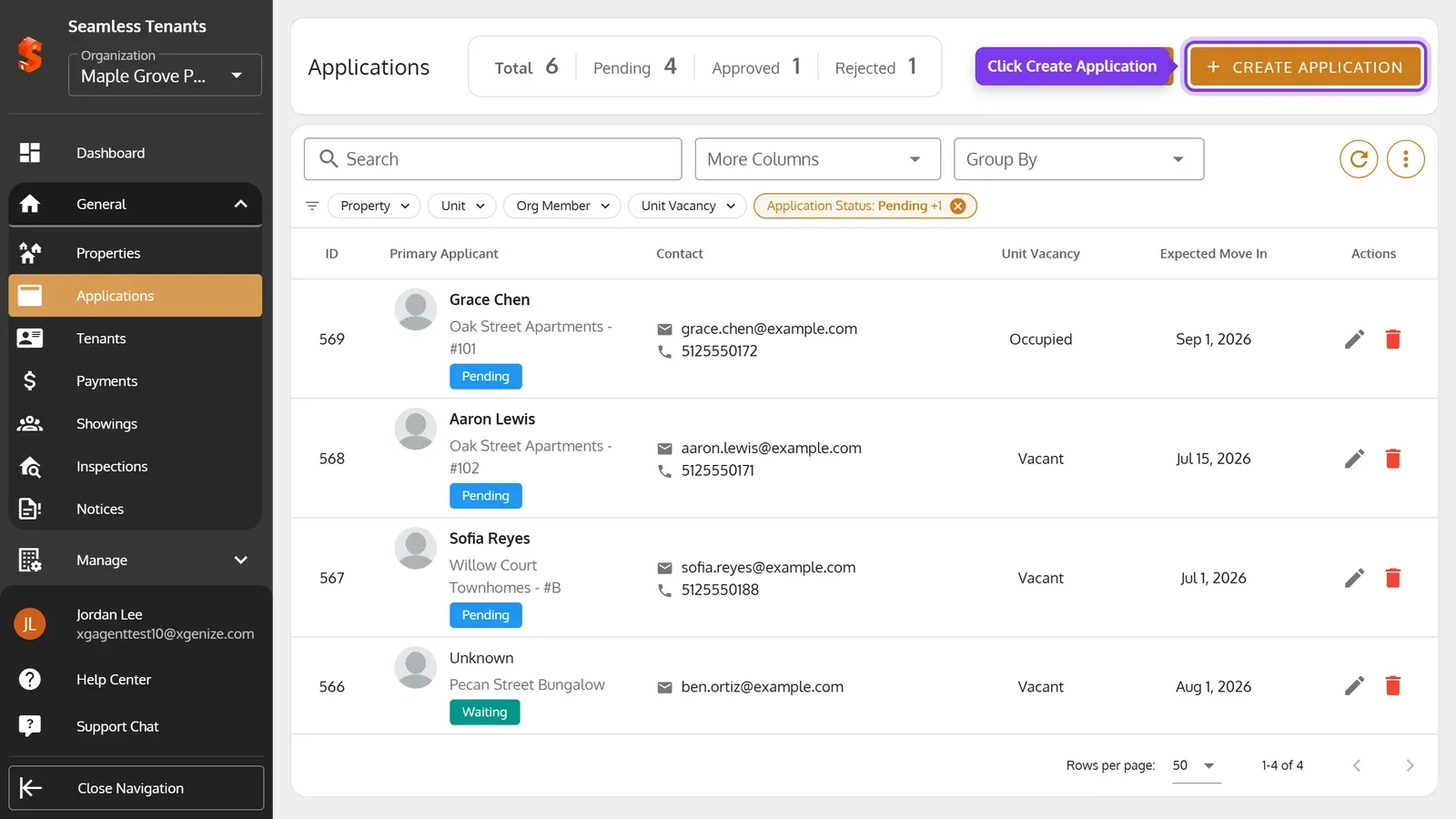
On the Applications page, click Create Application.
-
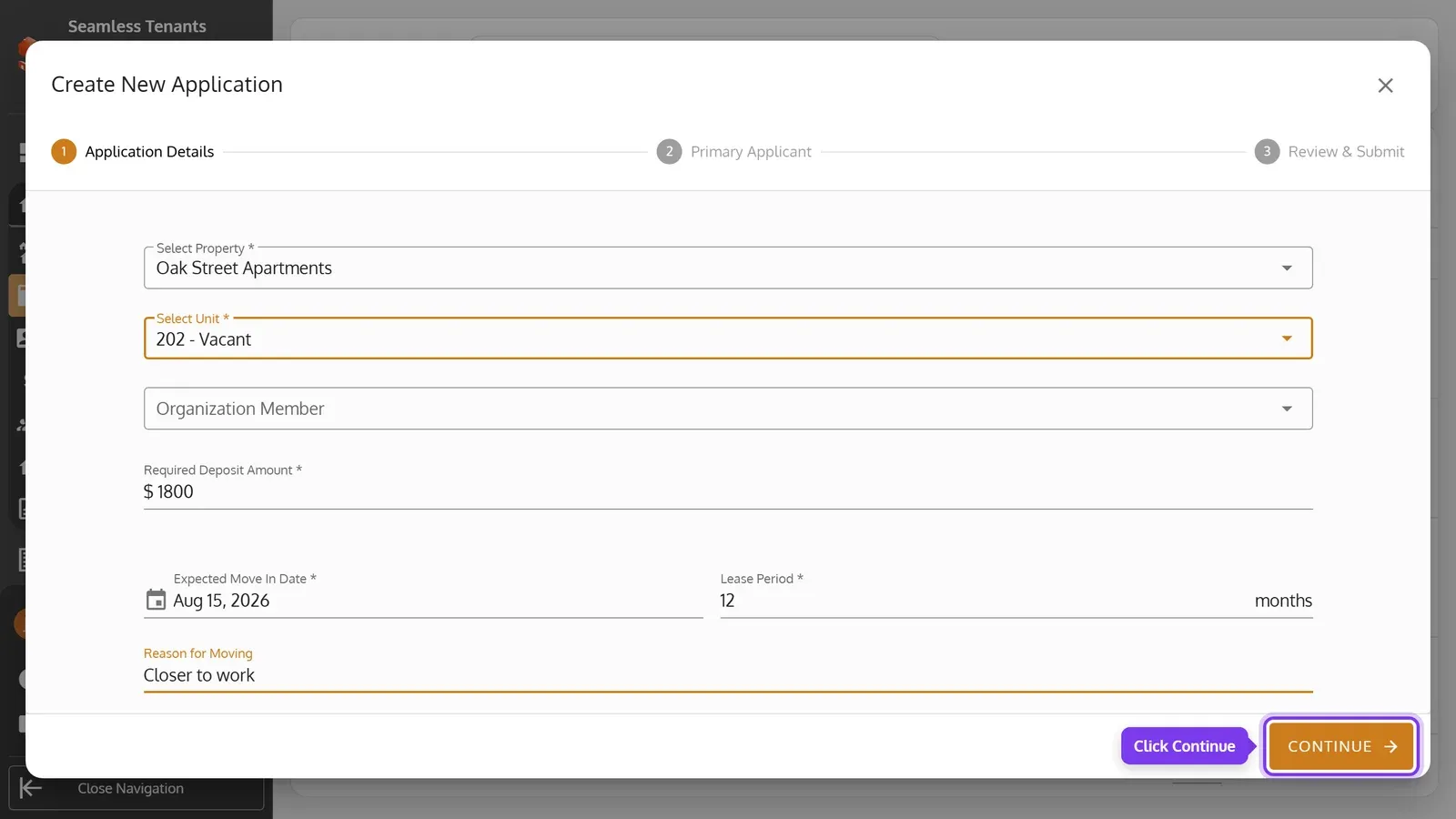
On Application Details, pick the property, and the unit for a Multi Unit property. Enter the Required Deposit Amount, the Expected Move In Date and the Lease Period. Then click Continue.
-
On Primary Applicant, choose how to get the applicant’s details:
-
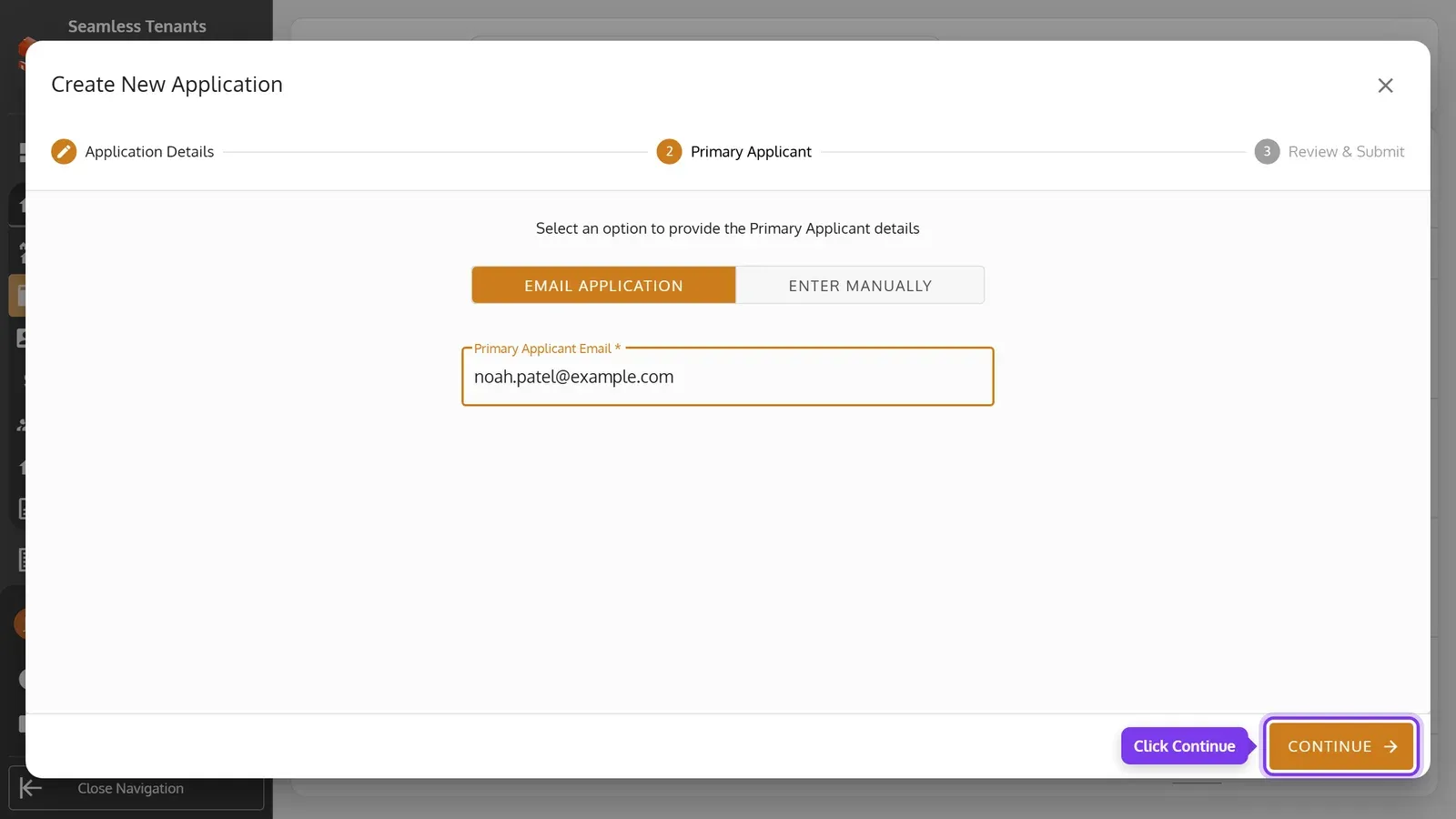
Email Application emails them a form to fill in. Enter their email in Primary Applicant Email.
-
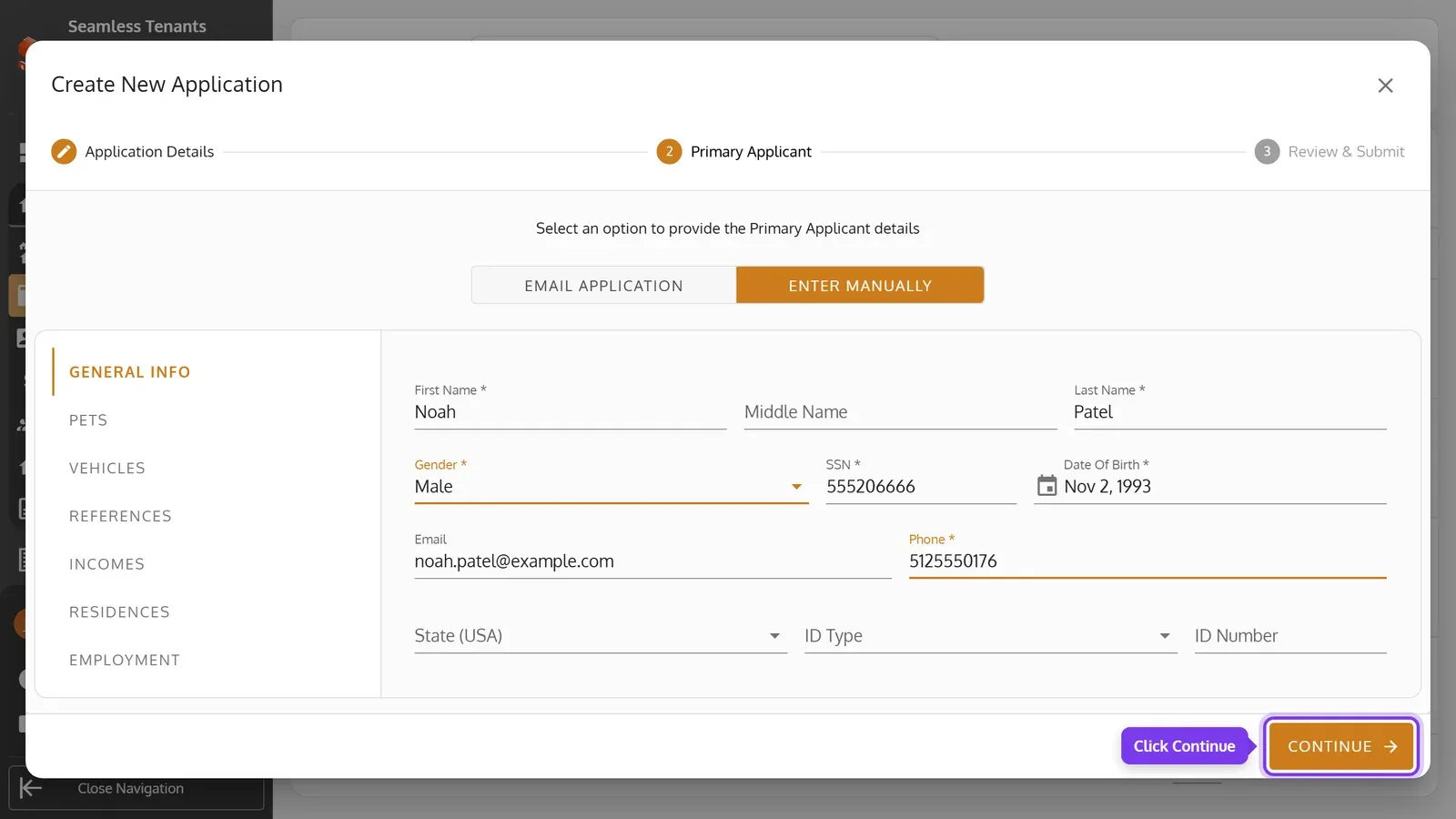
Enter manually lets you fill in their details yourself.
-
-
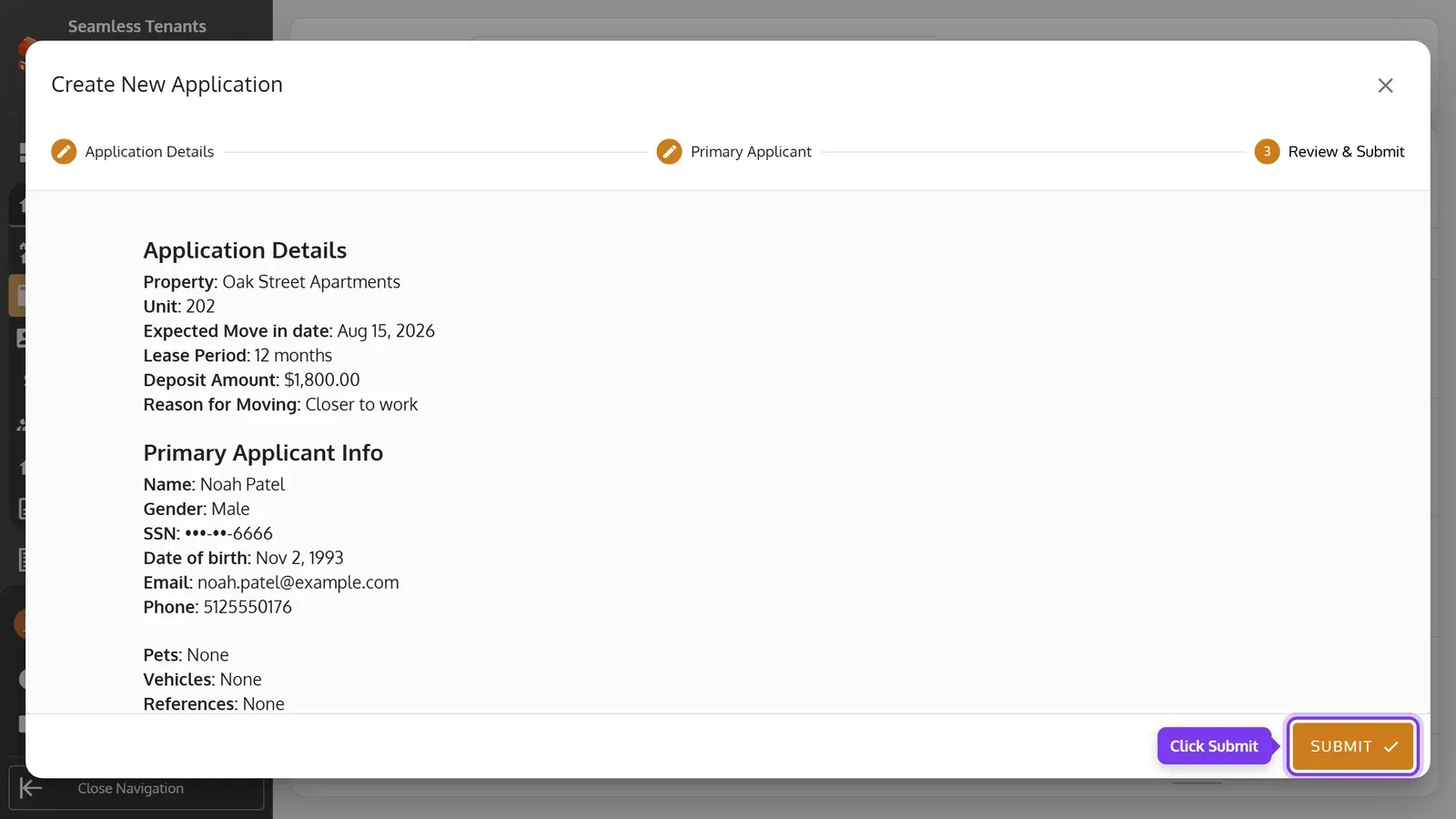
Click Continue, check everything on Review & Submit, then click Submit.
-
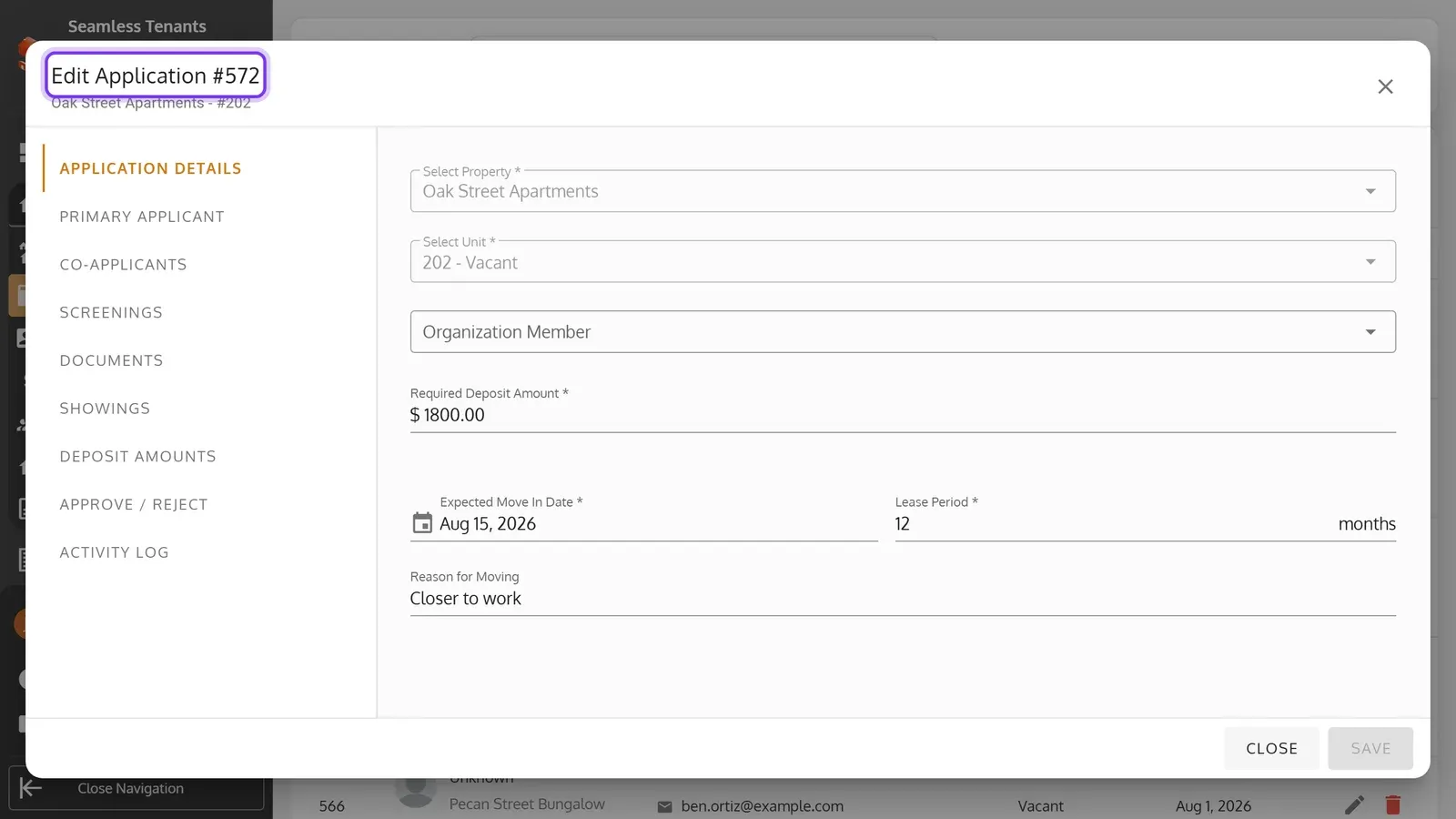
The new application opens.
-
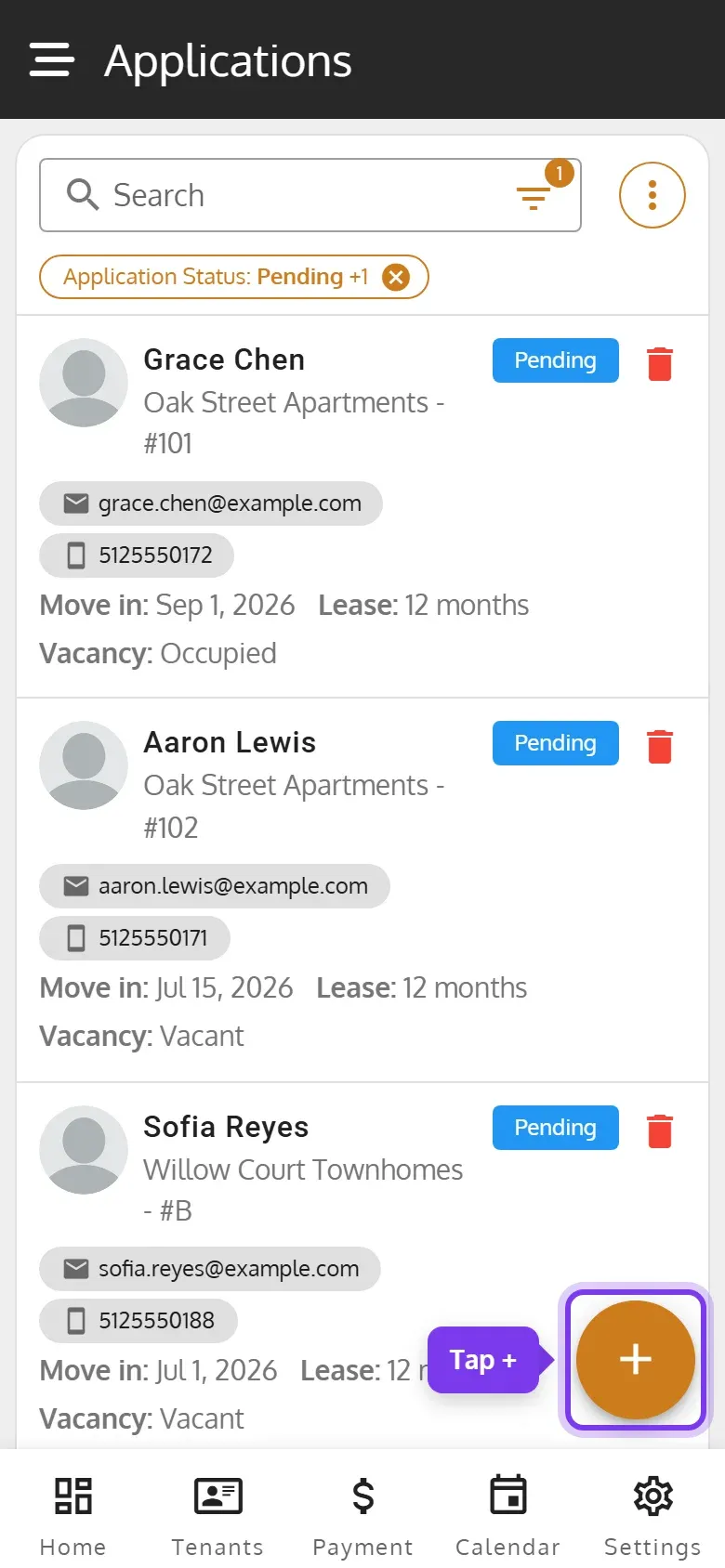
On the Applications page, tap + at the bottom right.
-
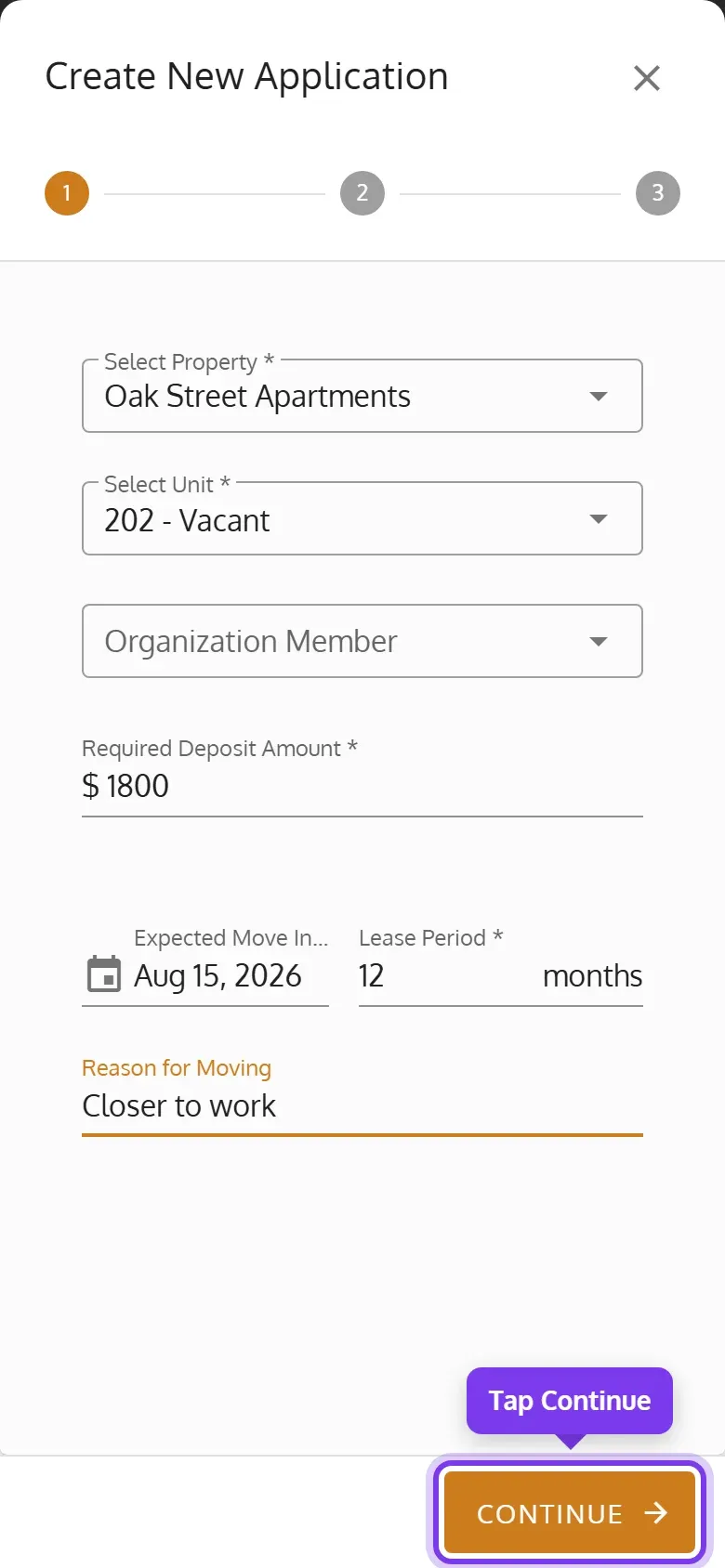
On step 1, Application Details, pick the property, and the unit for a Multi Unit property. Enter the Required Deposit Amount, the Expected Move In Date and the Lease Period. Then tap Continue.
-
On step 2, Primary Applicant, choose how to get the applicant’s details:
-
Email Application emails them a form to fill in. Enter their email in Primary Applicant Email.
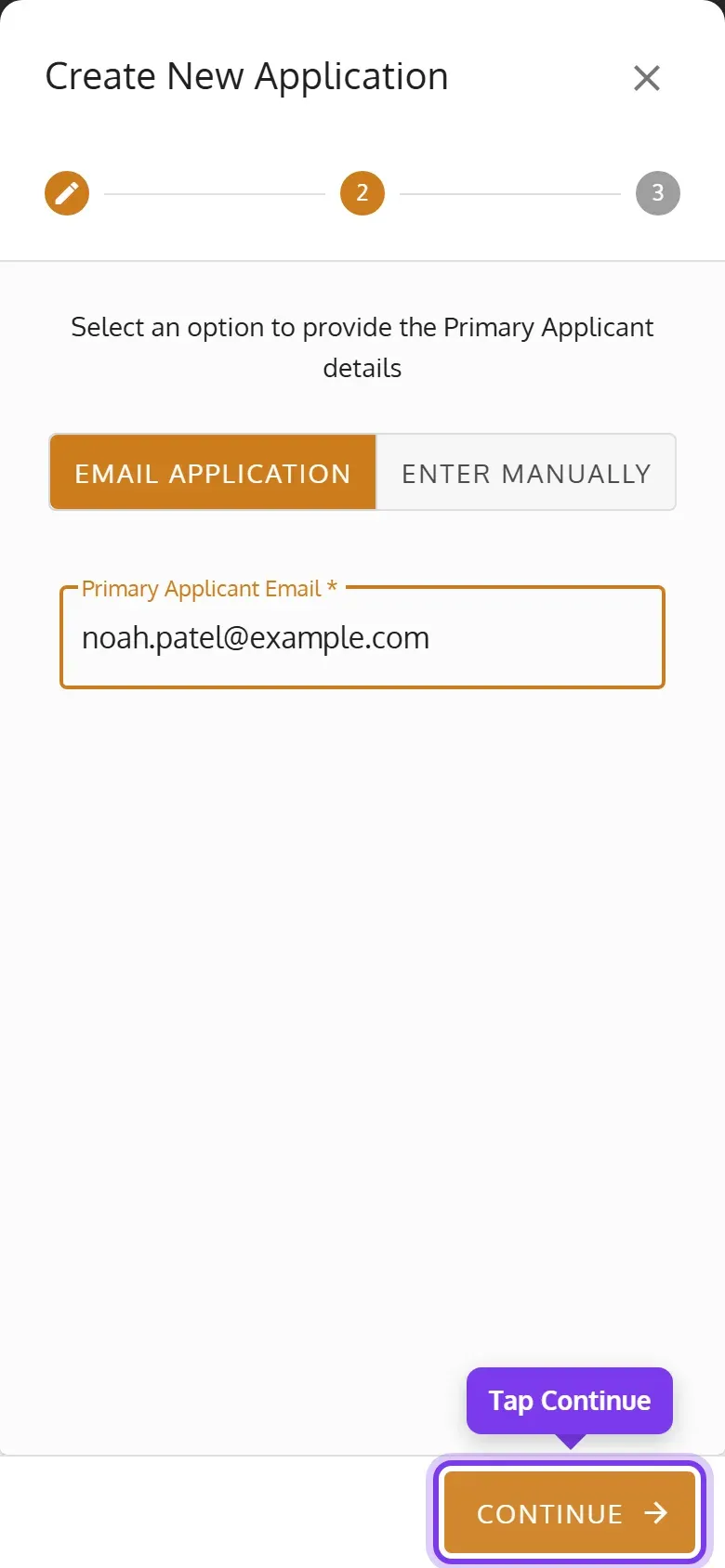
-
Enter manually lets you fill in their details yourself.
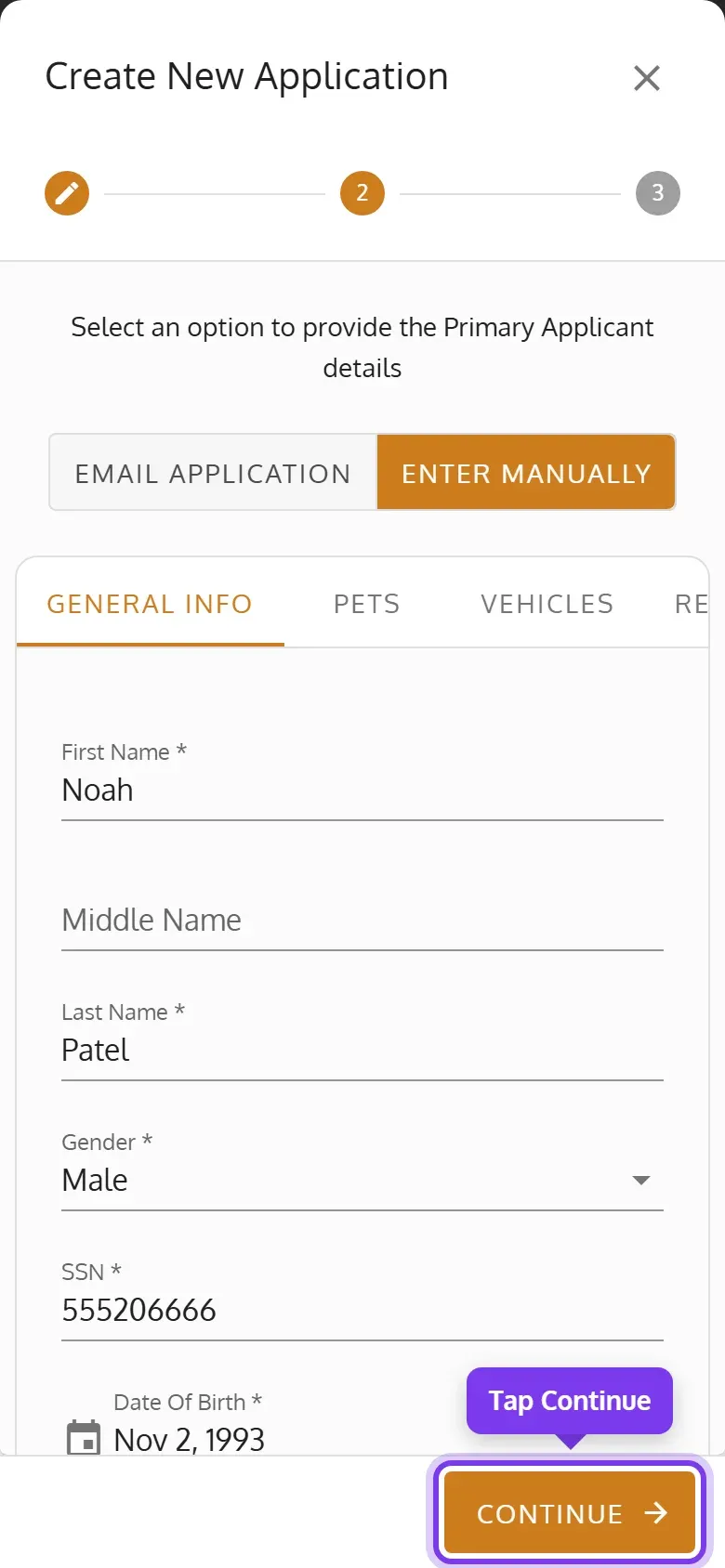
-
-
Tap Continue, check everything on step 3, Review & Submit, then tap Submit.
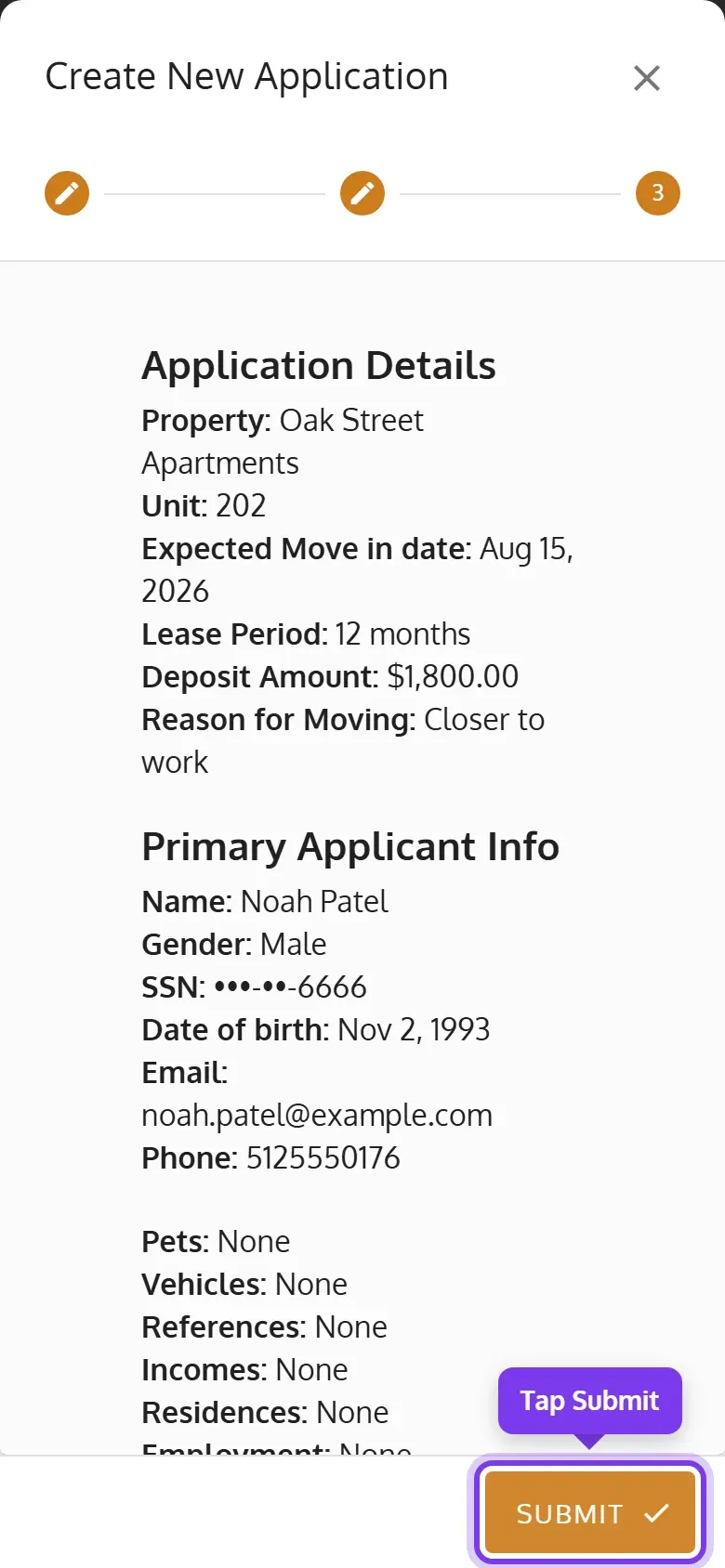
-
The new application opens.
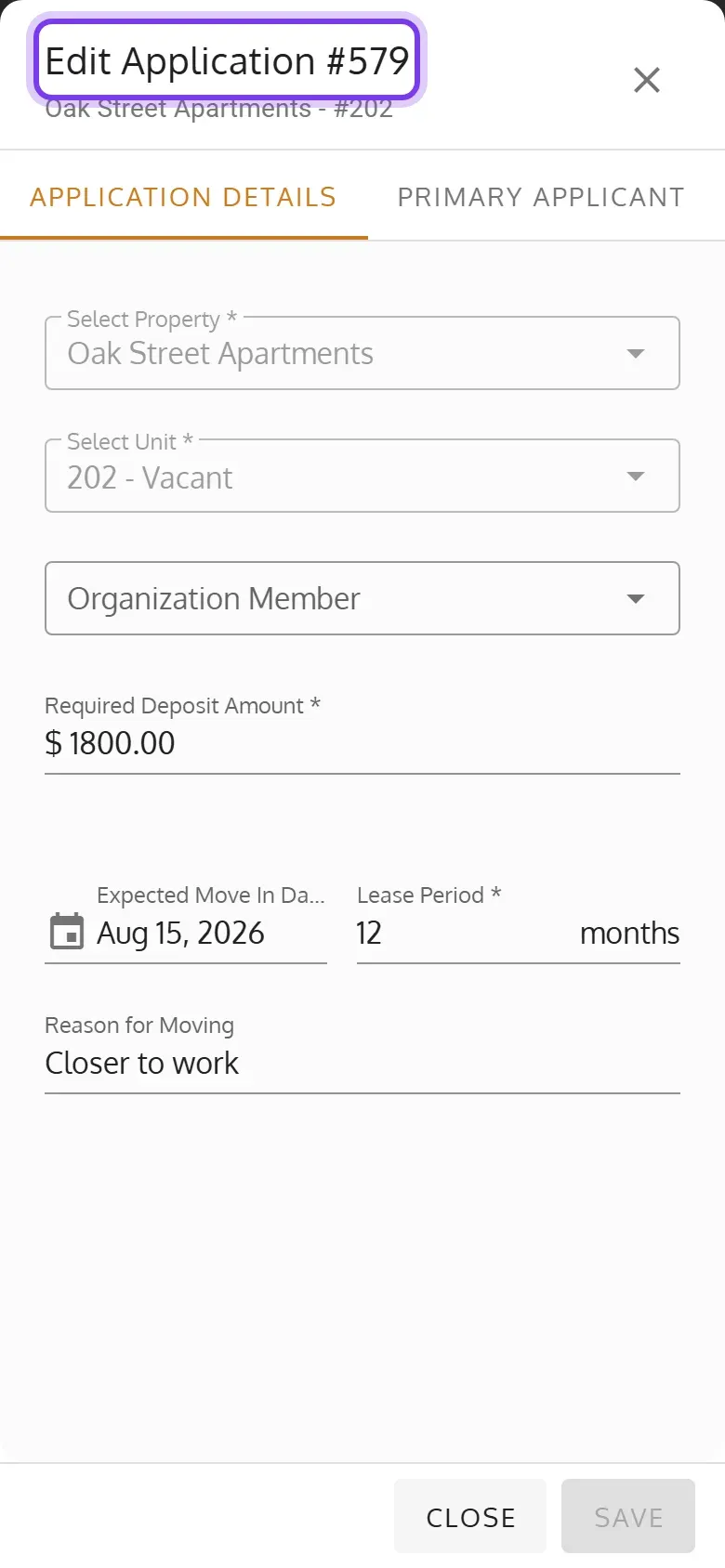
To go back to an earlier step, click its name at the top, or on a phone, tap its number.
What each step asks
Section titled “What each step asks”Application Details
- Select Property shows how many of each property’s units are vacant, and Select Unit shows each unit as vacant or occupied. You can create an application for an occupied unit, but it can’t be approved until the unit is vacant.
- To add a unit here, pick + Add unit in Select Unit.
- Organization Member is optional: who in your organization is handling the application.
- Required Deposit Amount is what you expect the applicant to pay. It’s for your records, and nothing is charged.
- Lease Period is in months, and starts as 12. When you approve the application, it sets the lease’s end date.
You can’t change the property or unit once the application is created, except from one of its showings.
Primary Applicant, when you enter them manually
- First Name, Last Name, Gender, SSN (9 digits), Date Of Birth and Phone are required.
- The tabs beside General Info add their Pets, Vehicles, References, Incomes, Residences and Employment. You can also add them later.
If a similar tenant already exists
Section titled “If a similar tenant already exists”When a tenant who owes you money has the same SSN, ID, name, phone or email as the applicant you entered, Review & Submit warns you. Submit then lists them under Existing tenant profiles found. Click or tap Accept & Submit Application to create it anyway, with an optional note for the activity log, or Cancel.
What happens when you submit
Section titled “What happens when you submit”- With Email Application, the application is Waiting For Applicant, and the form goes to the email you entered. See Send the Application Form.
- With Enter manually, the application is Pending. If the applicant has an email, they get one with a PDF of the details.
You can also create an application from a showing: open the showing and click or tap Create Application.