
Find and View Properties
Open Properties
Section titled “Open Properties”-
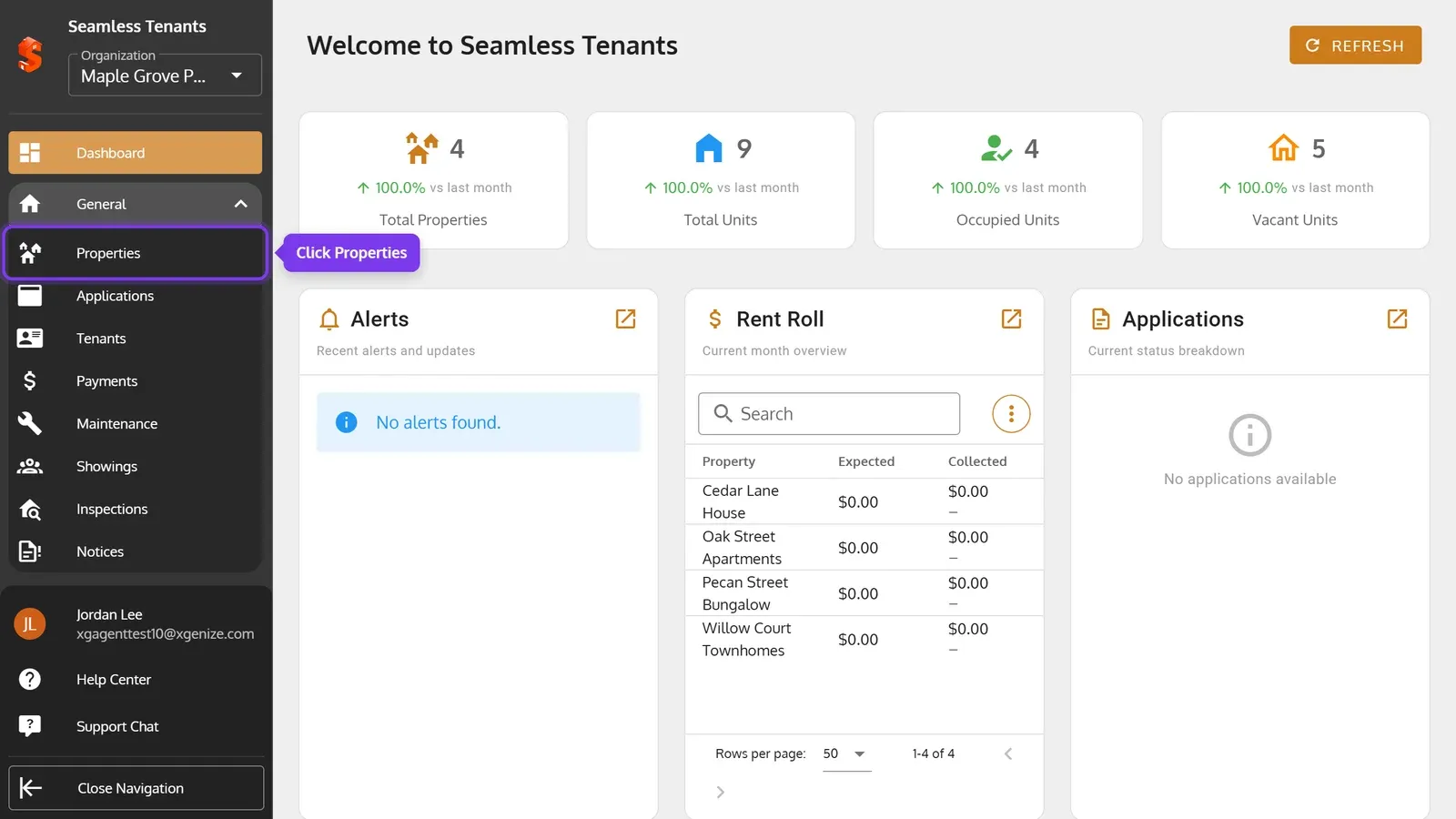
In the sidebar, click General, then Properties.
-
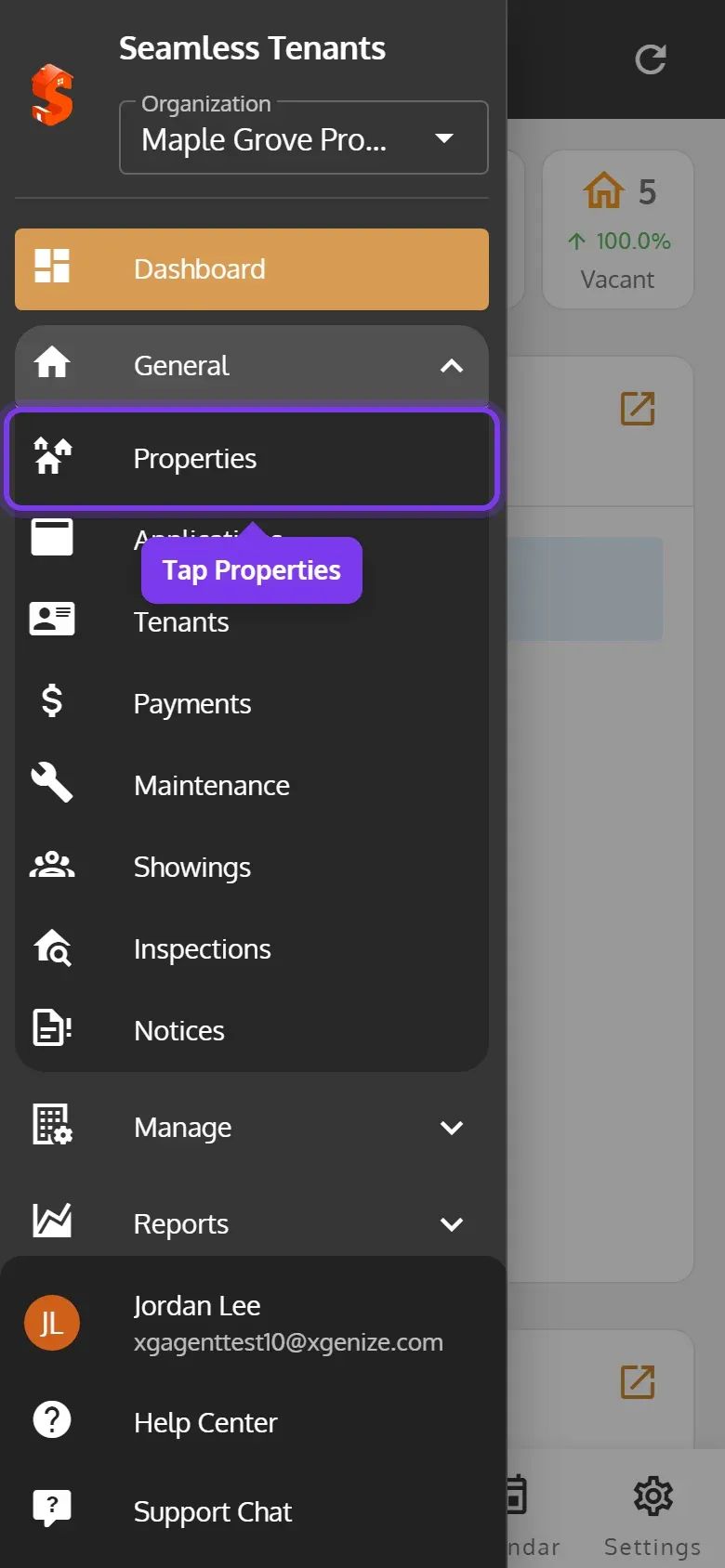
Tap the menu at the top left, then General, then Properties.
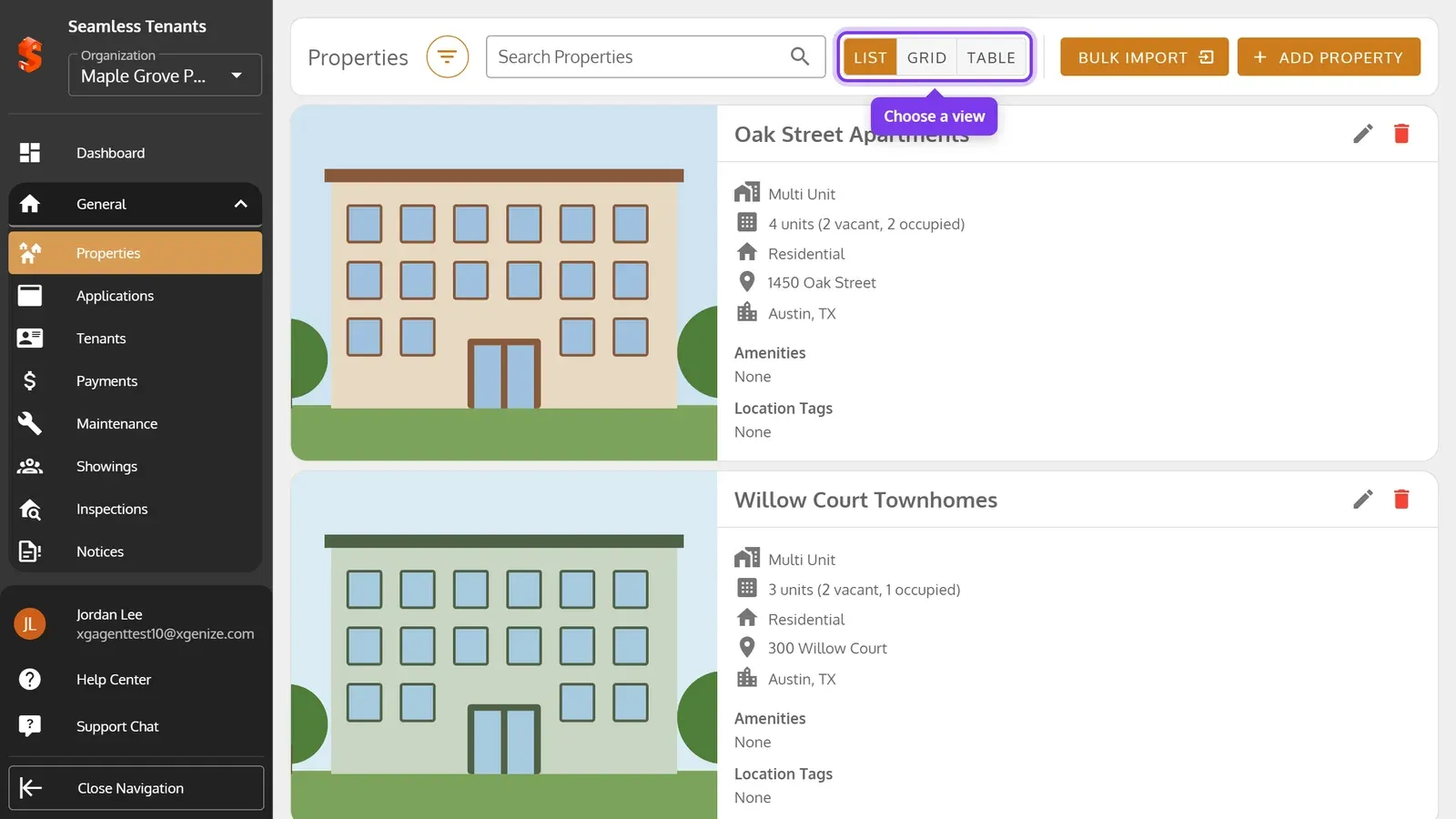
Each property’s card shows its type, how many of its units are vacant and occupied, its usage, address, amenities and location tags. Click or tap a card to open the property.
Choose a view
Section titled “Choose a view”-
Click List, Grid or Table.
-
Tap List or Table at the top.
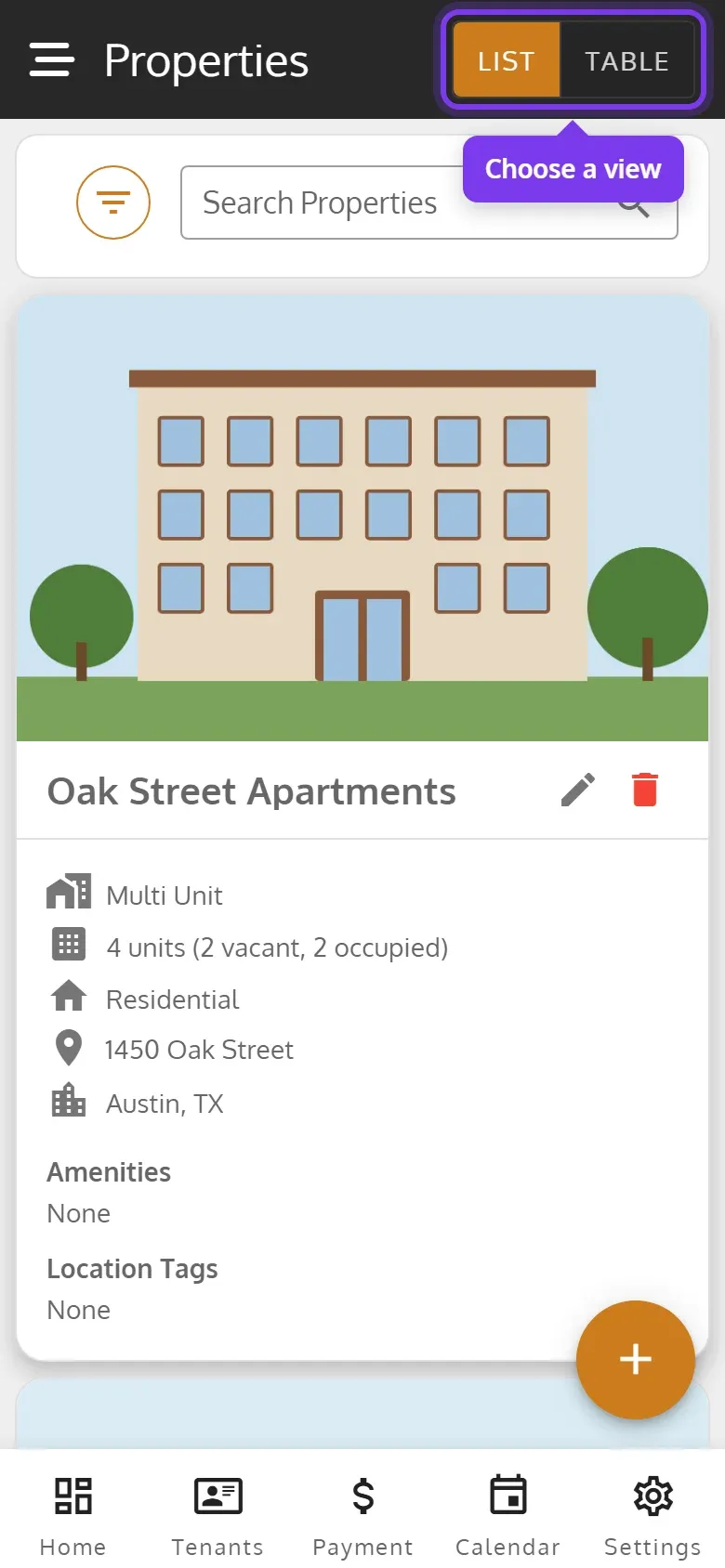
- List shows a large card for each property, and Grid shows smaller cards side by side. Grid isn’t on phones.
- Table shows a row for each property and how many of its units are vacant. On a computer it also shows each one’s type and units. You can add more columns, and download the table.
- The page opens in the view you used last on that device.
Search and filter the list
Section titled “Search and filter the list”In List and Grid:
-
To search, type a property’s name or address in Search Properties.
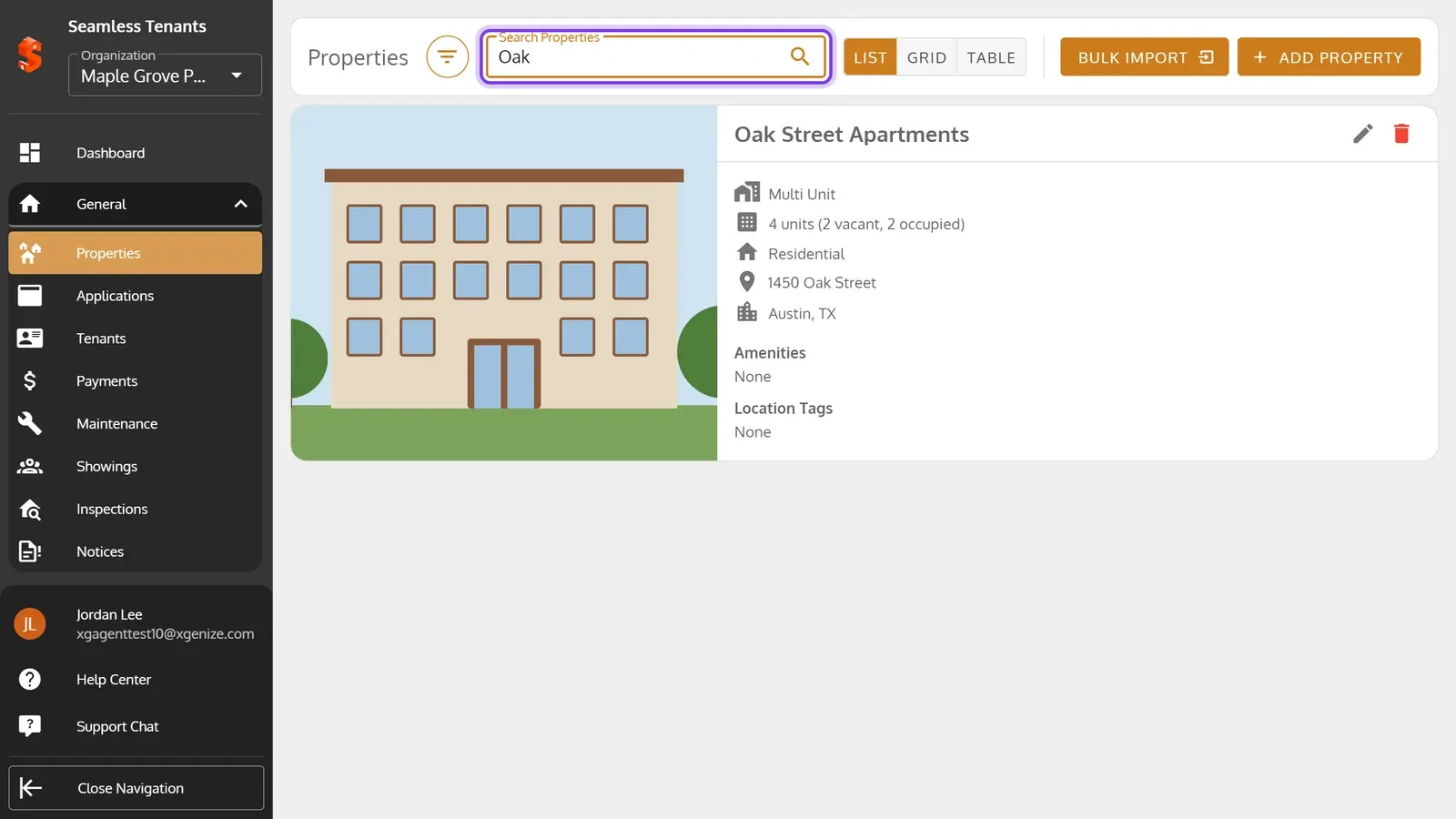
-
To filter, click the filter button beside the search, then pick a Property Type or Availability Status. To clear the filters, click the red ×.
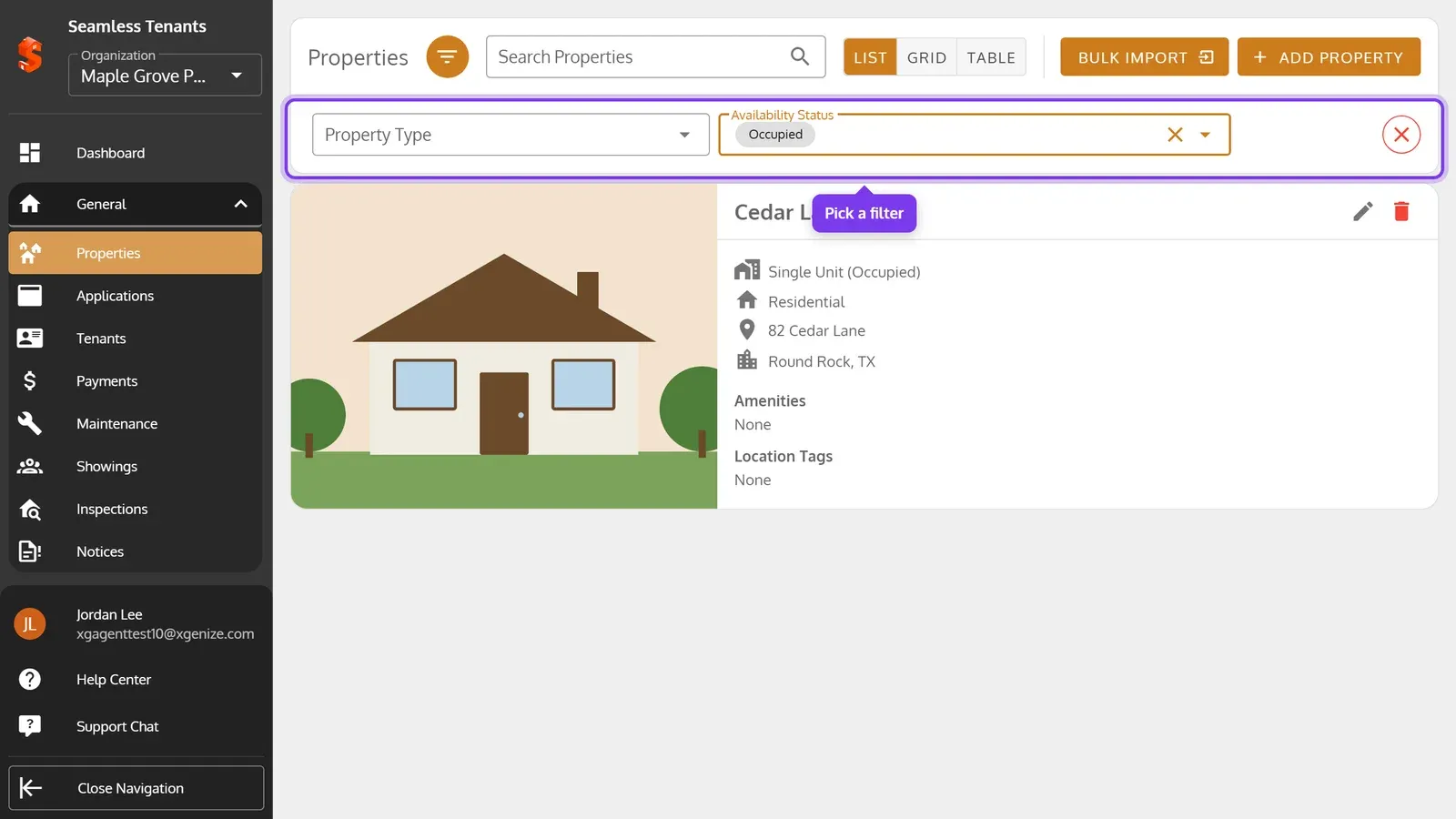
-
To search, type a property’s name or address in Search Properties.
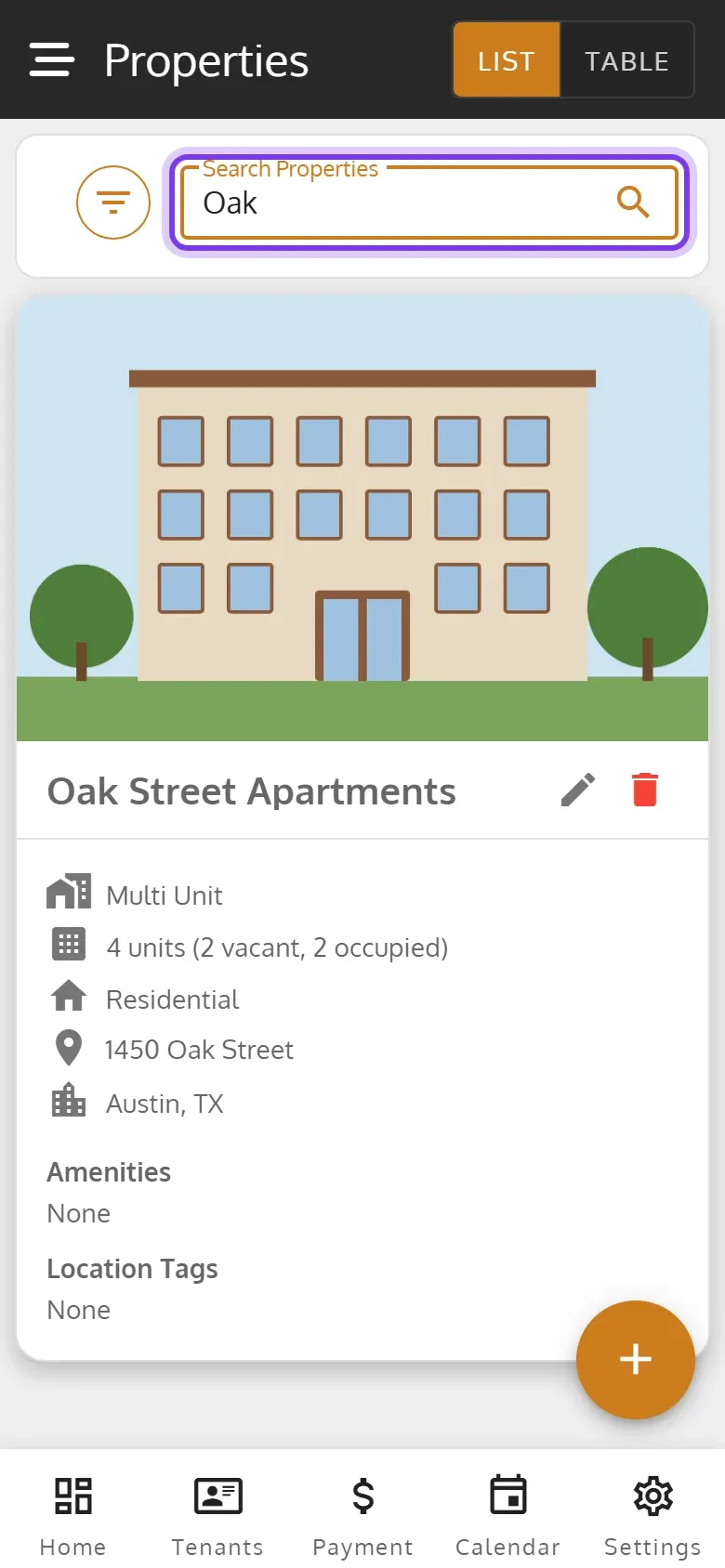
-
To filter, tap the filter button beside the search, then pick a Property Type or Availability Status. To clear the filters, tap the red ×.
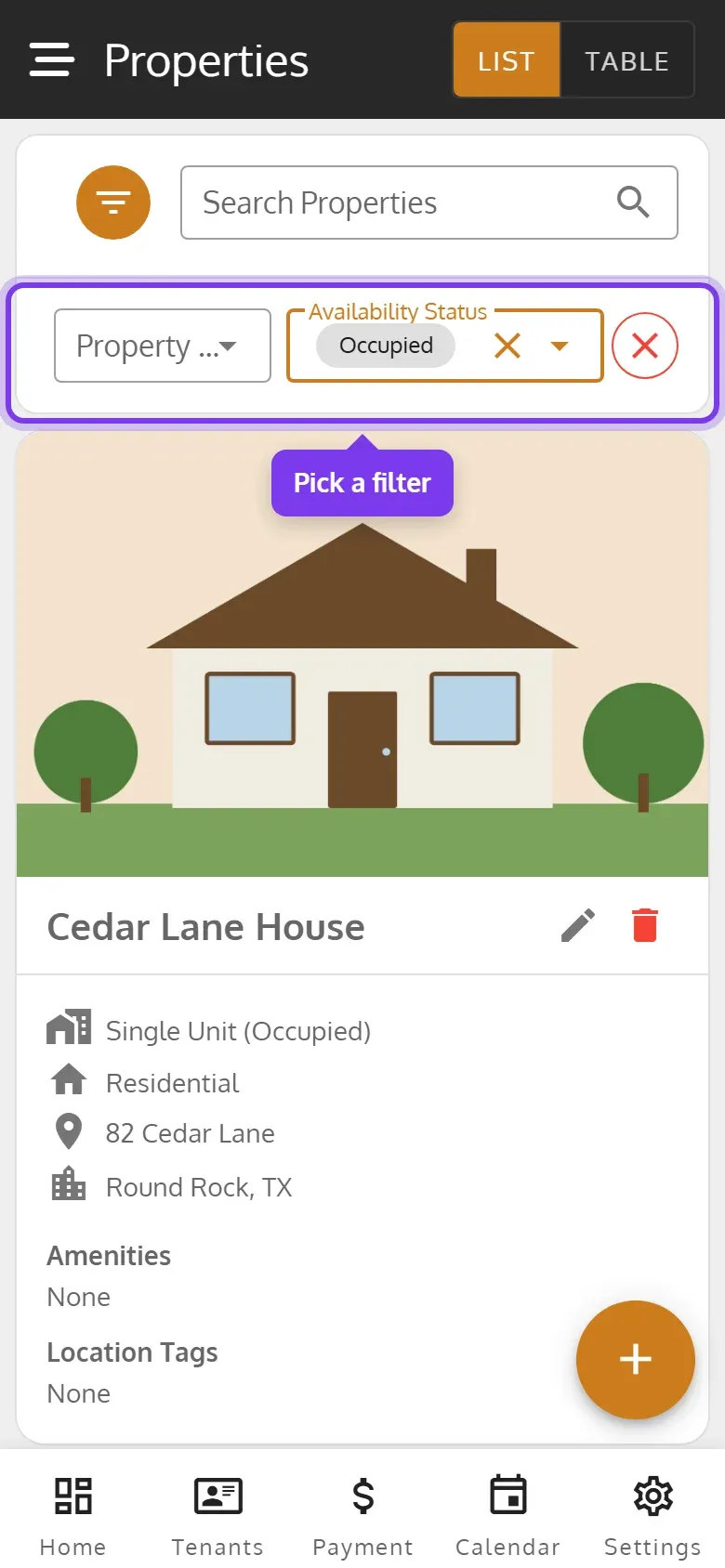
Availability Status Vacant shows the properties with at least one vacant unit, and Occupied those whose units are all occupied.
Search and filter the table
Section titled “Search and filter the table”In Table:
-
To search, type in Search.
-
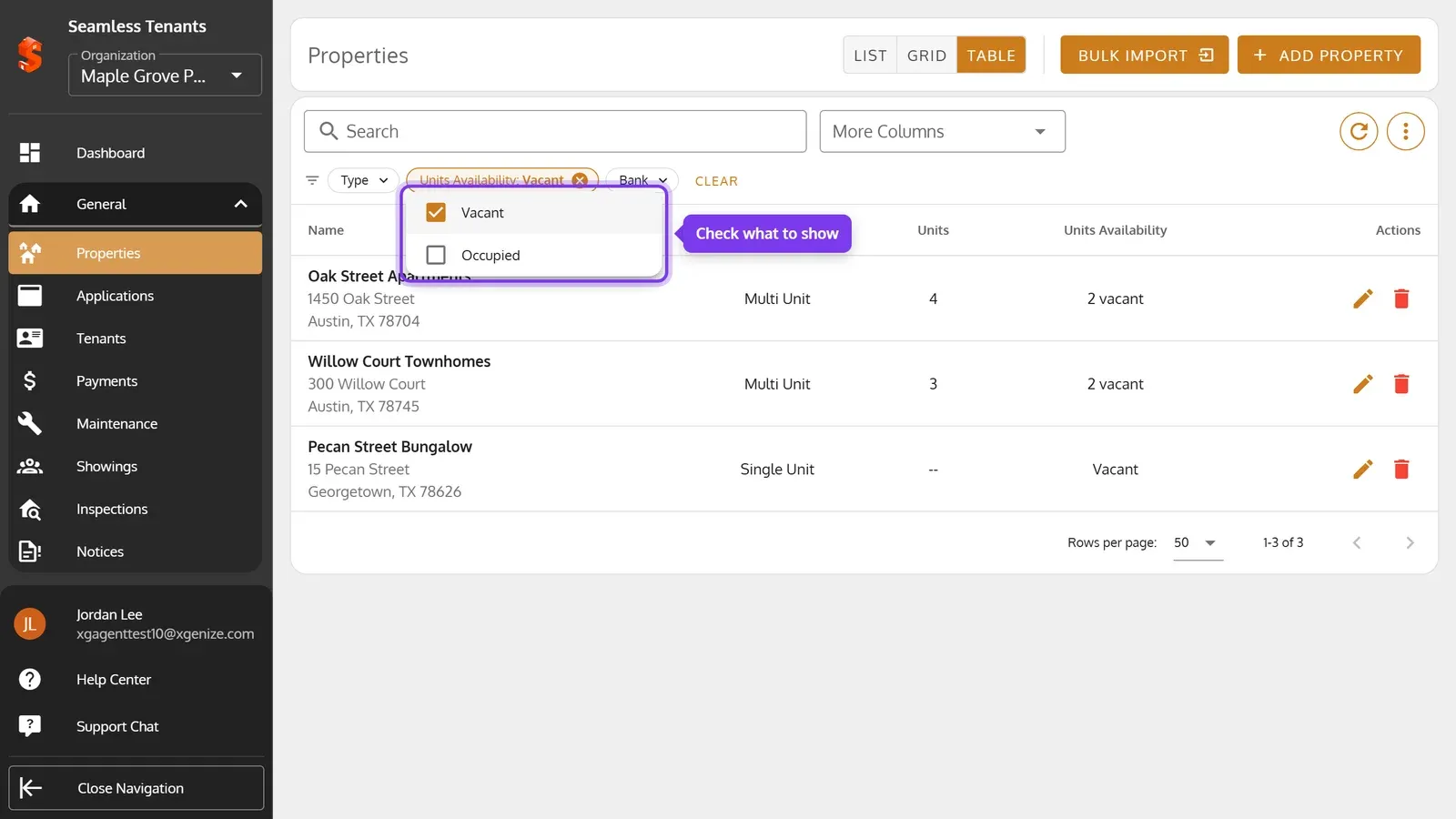
To filter, click a filter under the search, such as Units Availability, and check what to show. The filter then shows what it’s set to. To clear it, click its ×, or click Clear to clear them all.
-
To show more columns, such as Size (sqft) or Bank, pick them in More Columns.
-
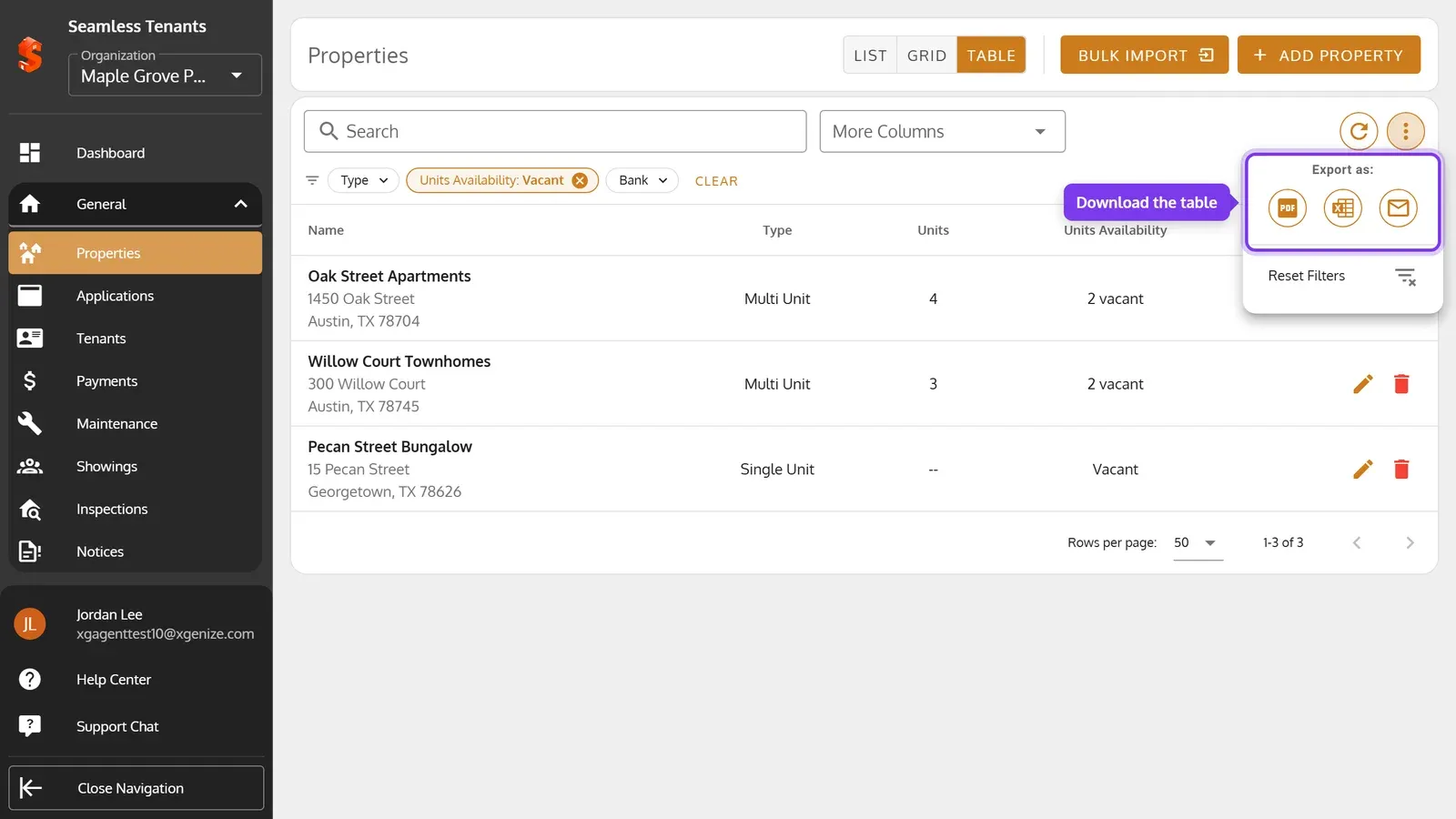
To download the table, click ⋮ at the top right. Under Export as, click the PDF icon or the spreadsheet icon for a CSV file. The envelope icon emails the table instead.
-
To search, type in Search.
-
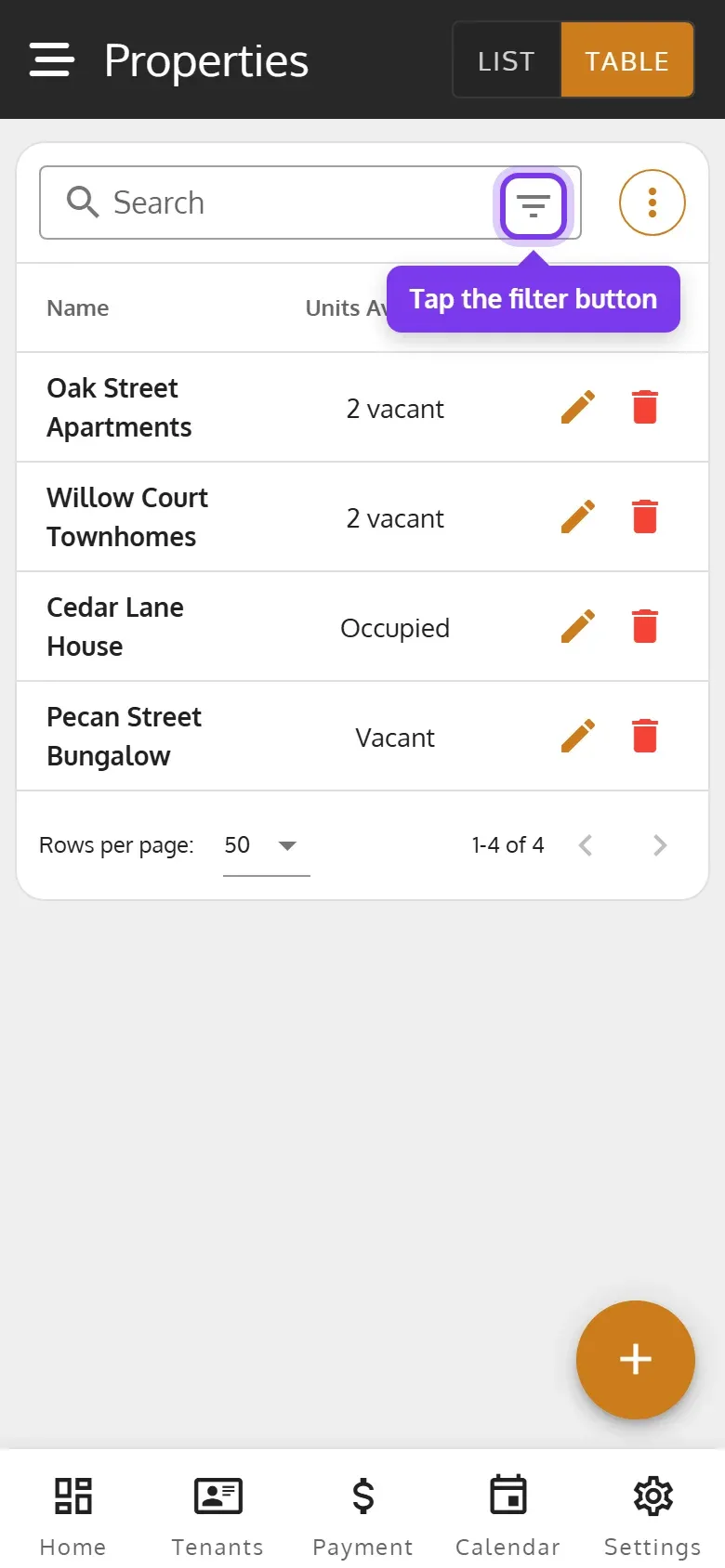
To filter, tap the filter button in the search box.
-
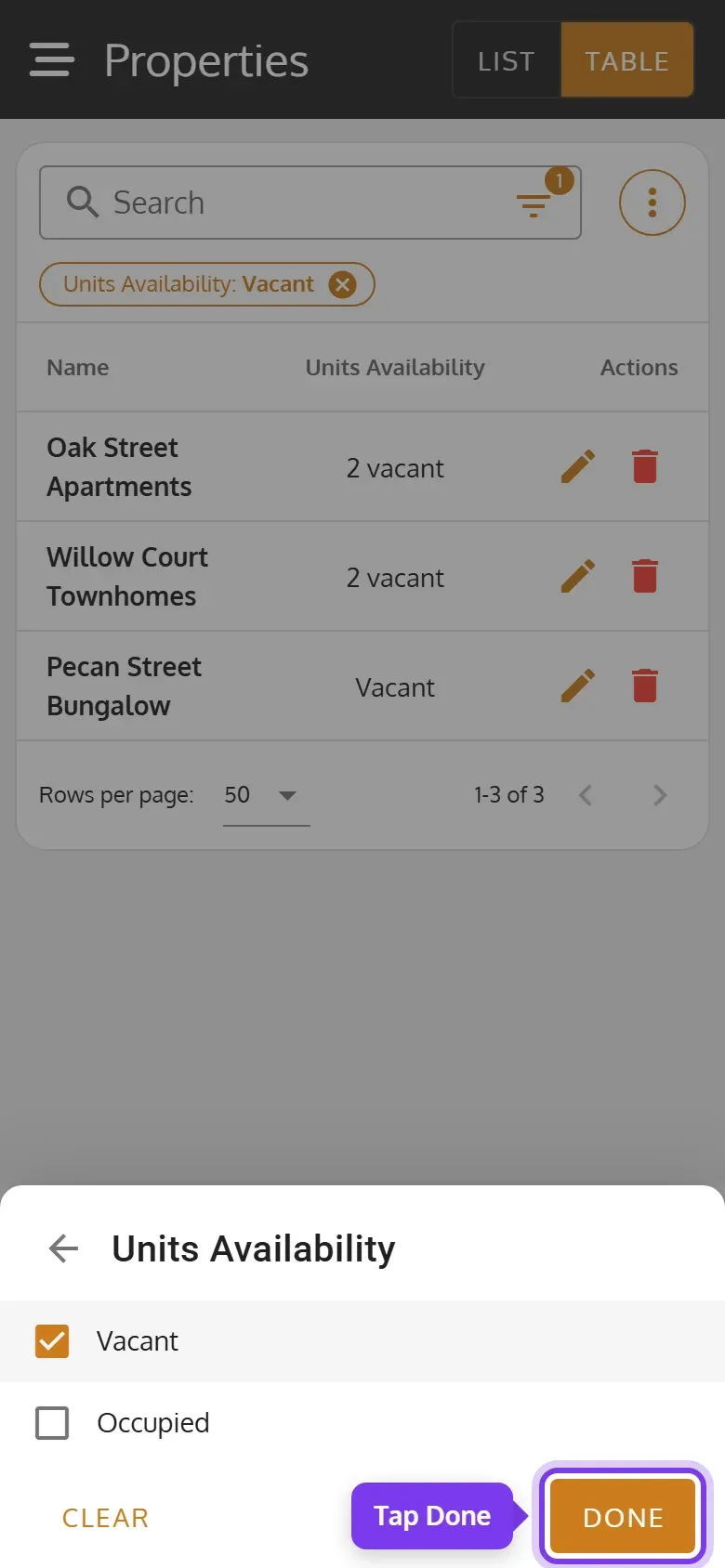
Tap a filter, such as Units Availability, check what to show, then tap Done.
-
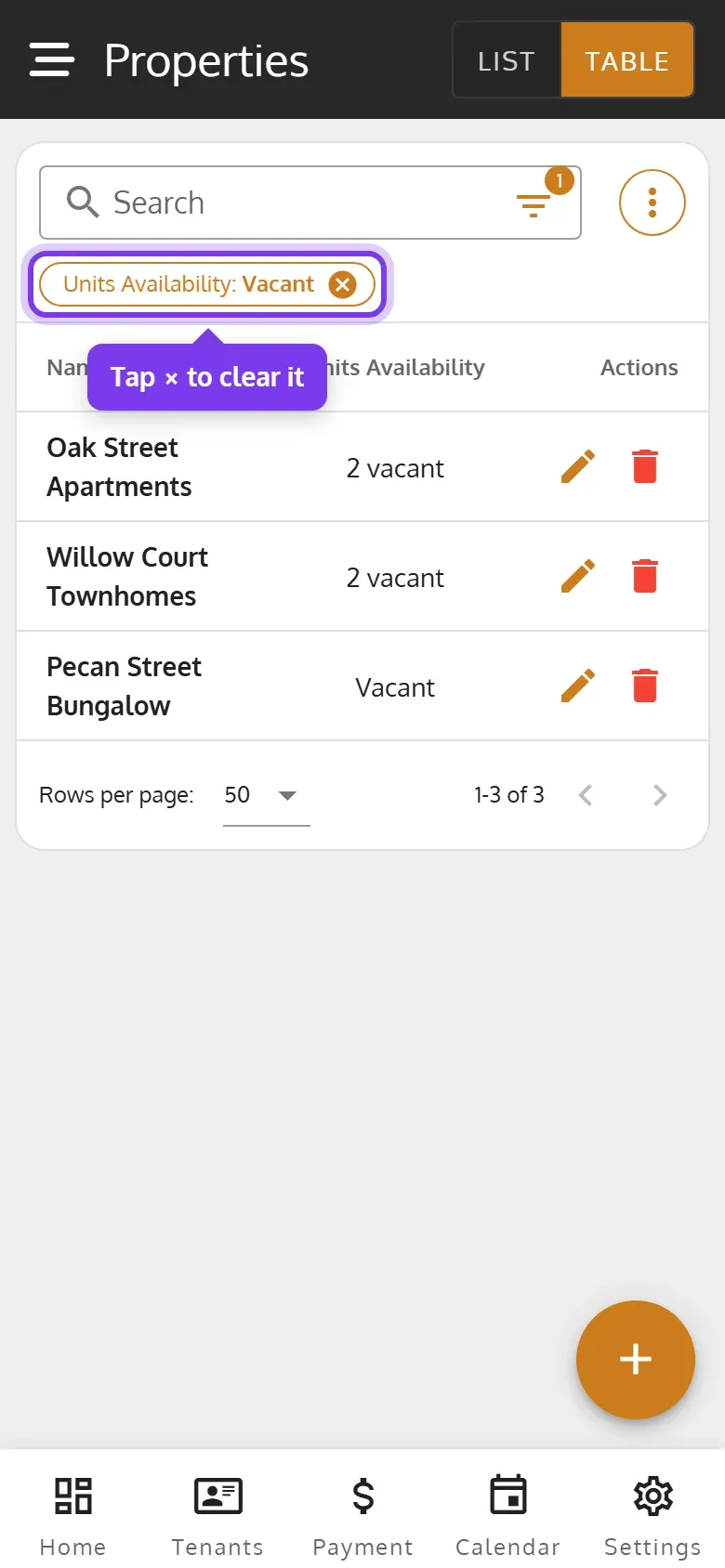
The filters that are on show under the search. To clear one, tap its ×.
-
To show more columns, such as Type or Units, tap ⋮, then More Columns.
-
To download the table, tap ⋮. Under Export as, tap the PDF icon or the spreadsheet icon for a CSV file. The envelope icon emails the table instead.
The table can also filter by Type and Bank.