
Add a Tenant
Add Tenant adds a household’s primary tenant, with their first lease. Add co-tenants afterwards, from the tenant’s Co-Tenants tab (Co-Tenants).
Add the tenant
Section titled “Add the tenant”-
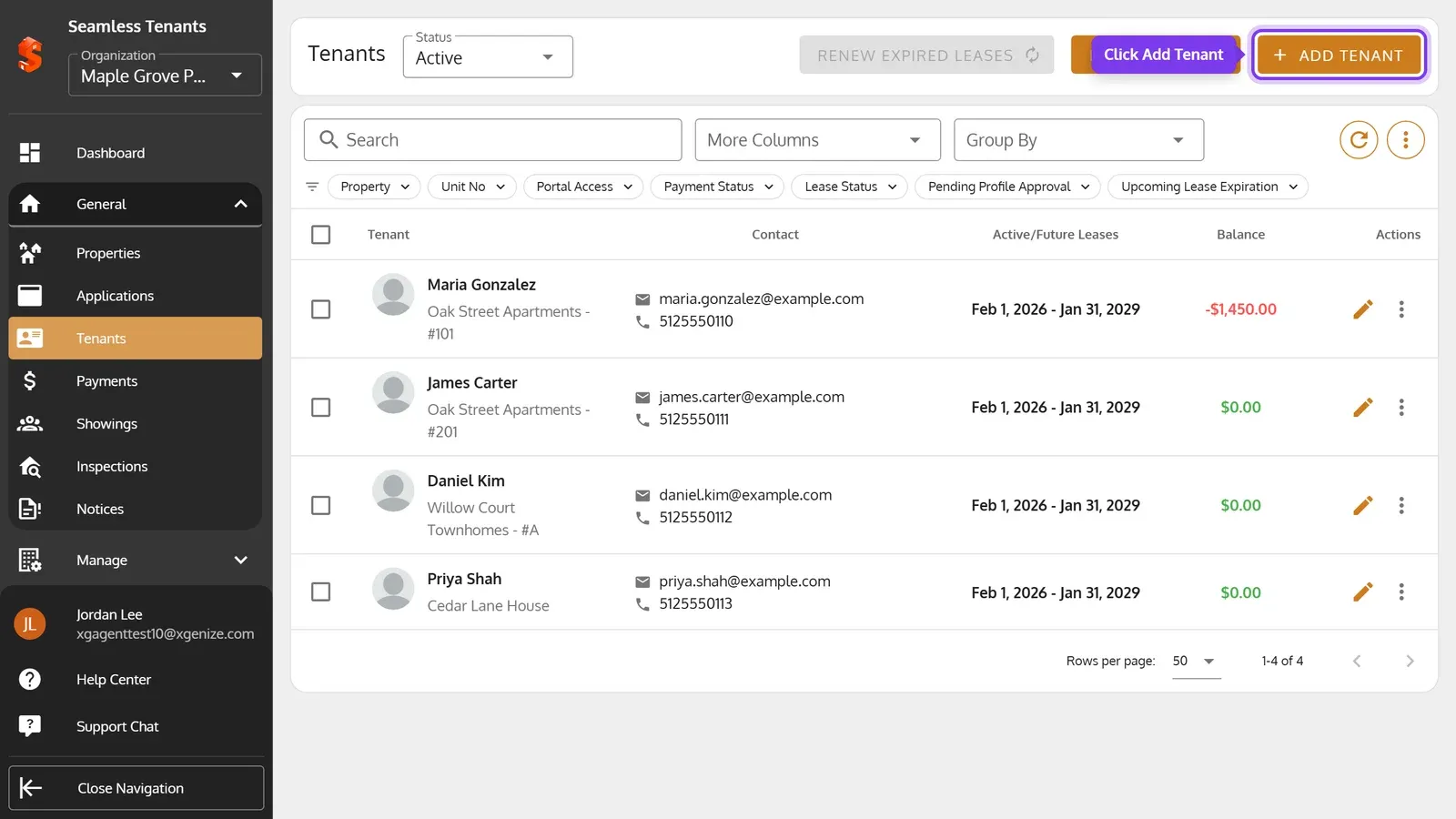
On the Tenants page, click Add Tenant.
-
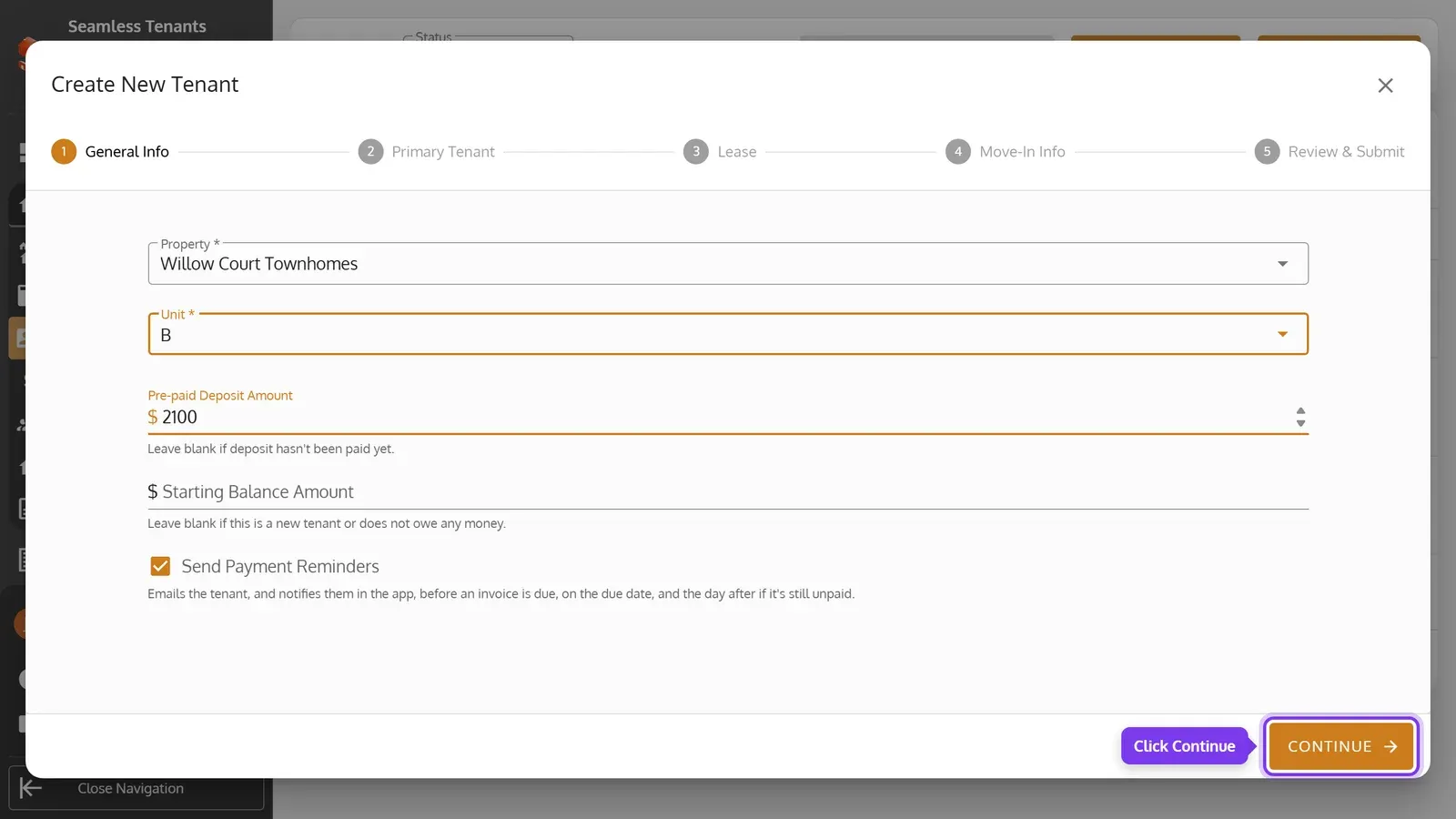
On General Info, pick the Property, and the Unit for a Multi Unit property. Then click Continue.
-
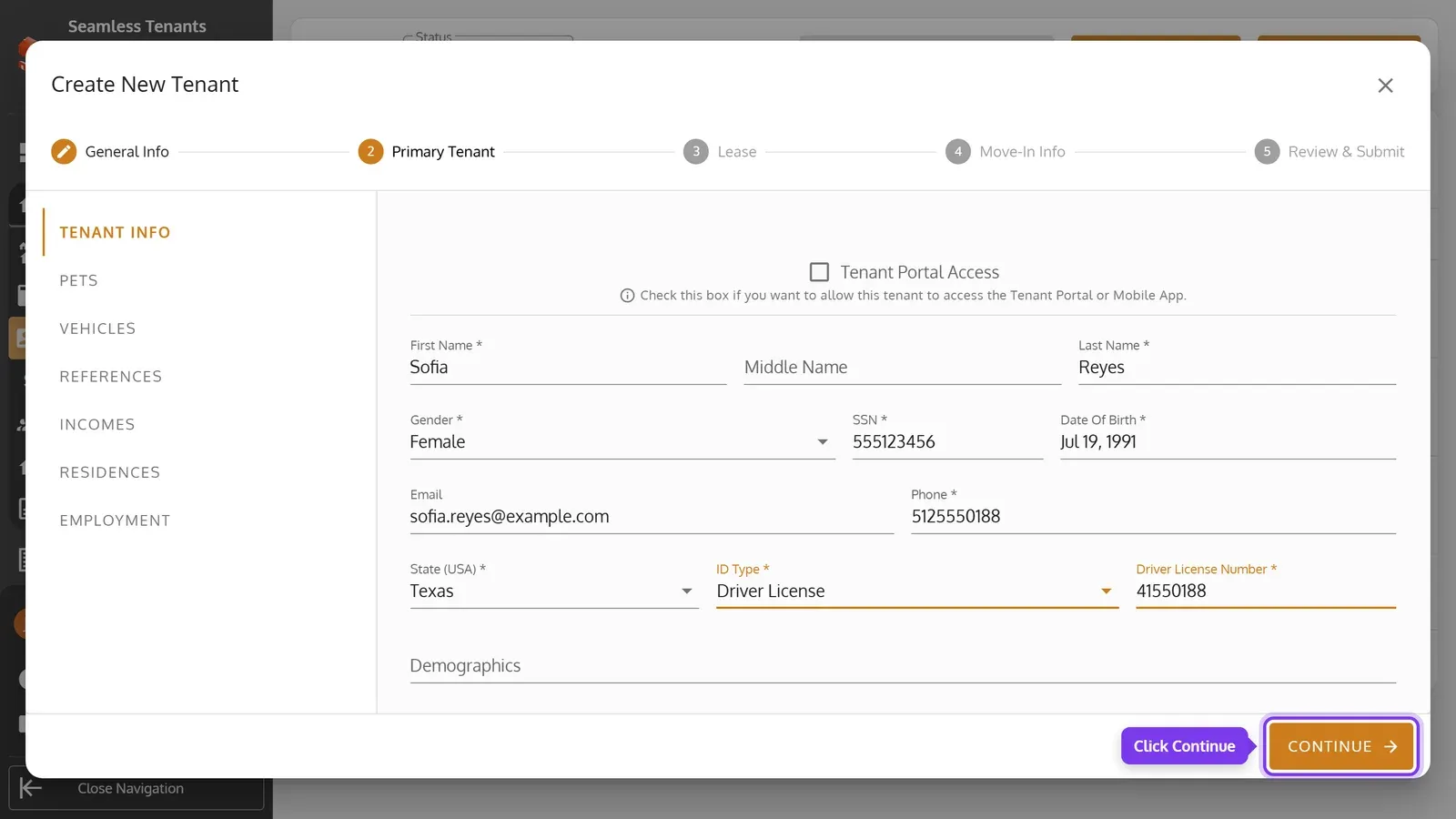
On Primary Tenant, enter the tenant’s details, then click Continue.
-
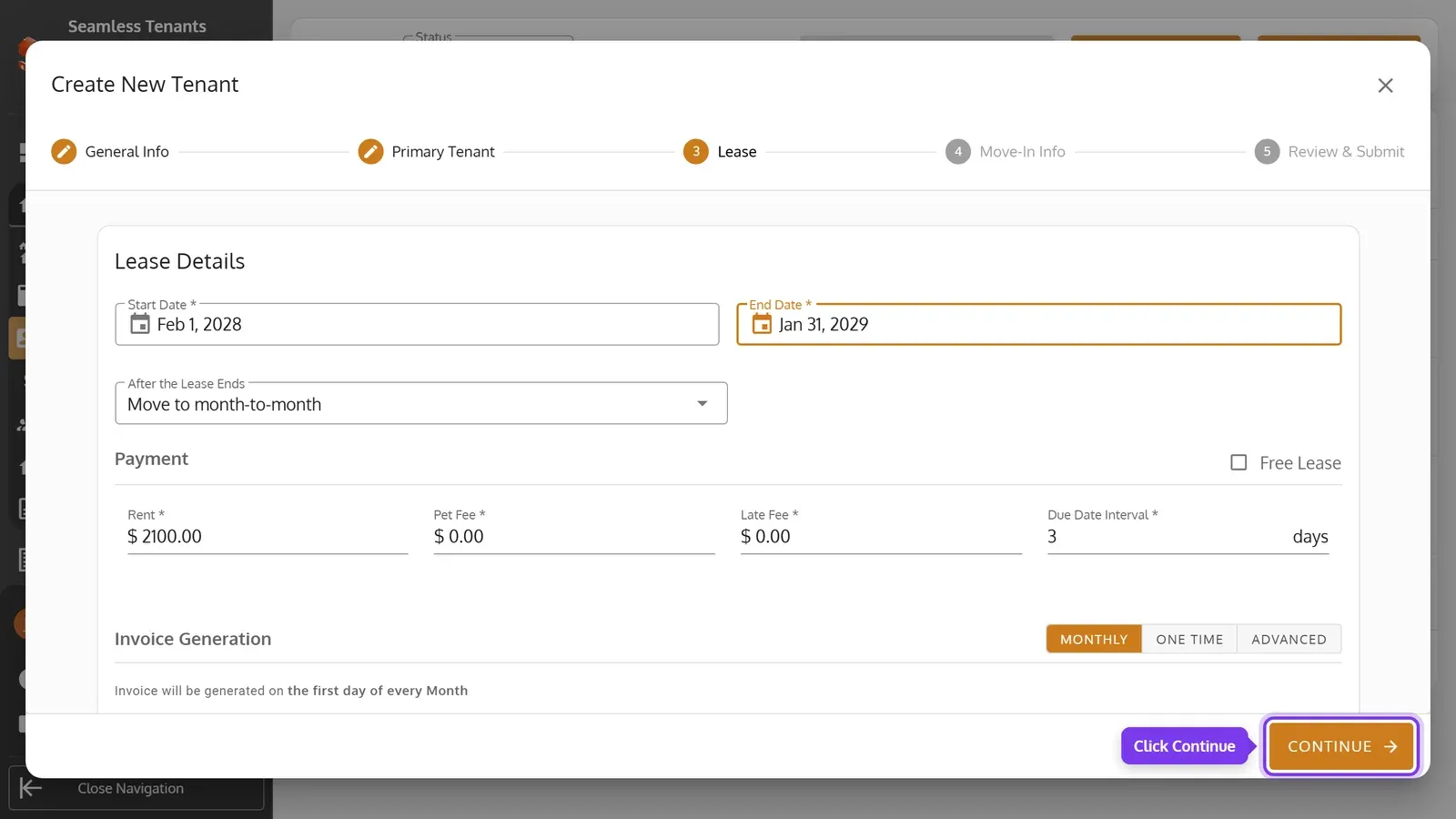
On Lease, set the lease’s dates, rent and fees, then click Continue.
-
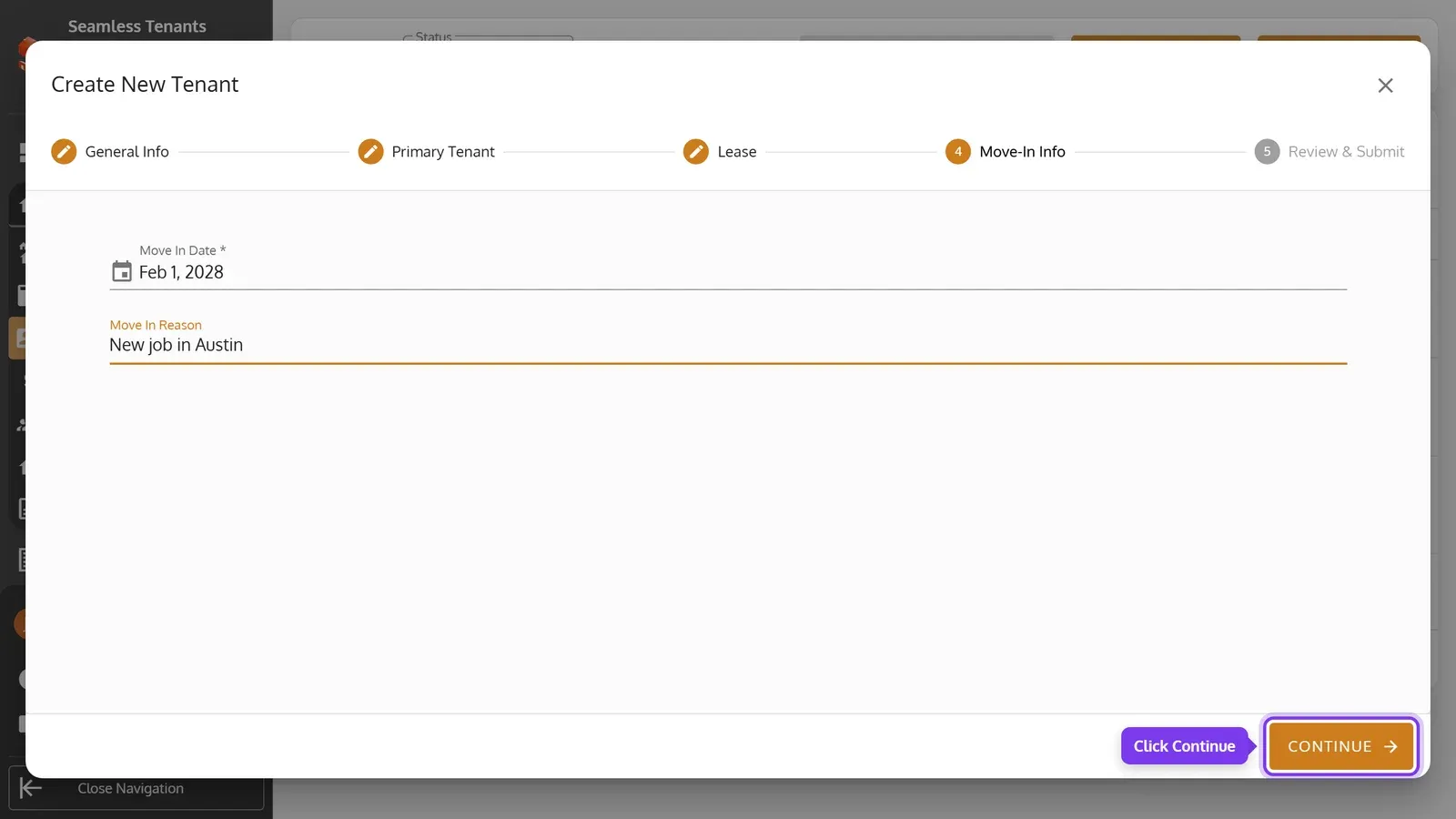
On Move-In Info, enter the Move In Date, then click Continue.
-
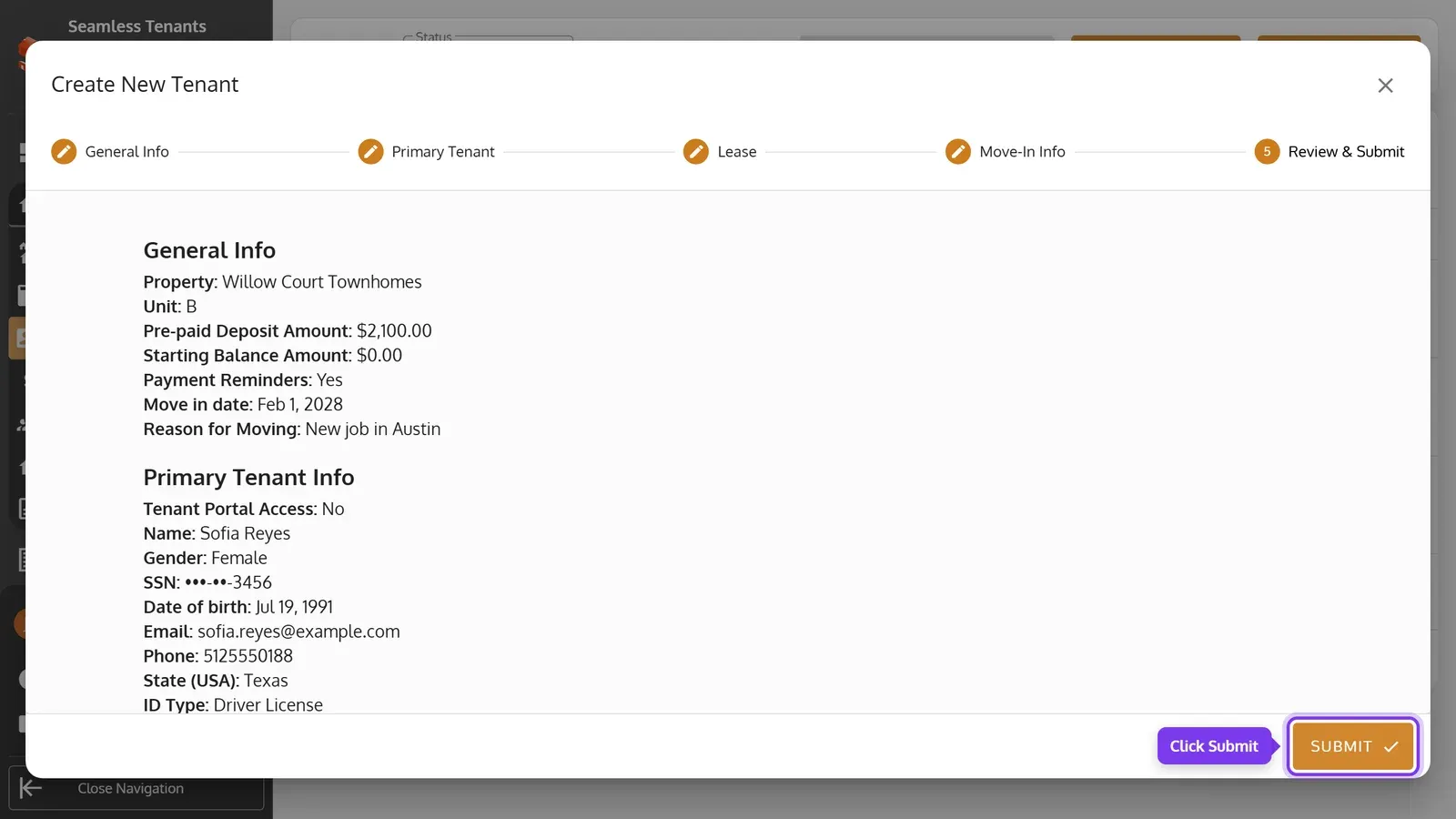
Check everything on Review & Submit, then click Submit.
-
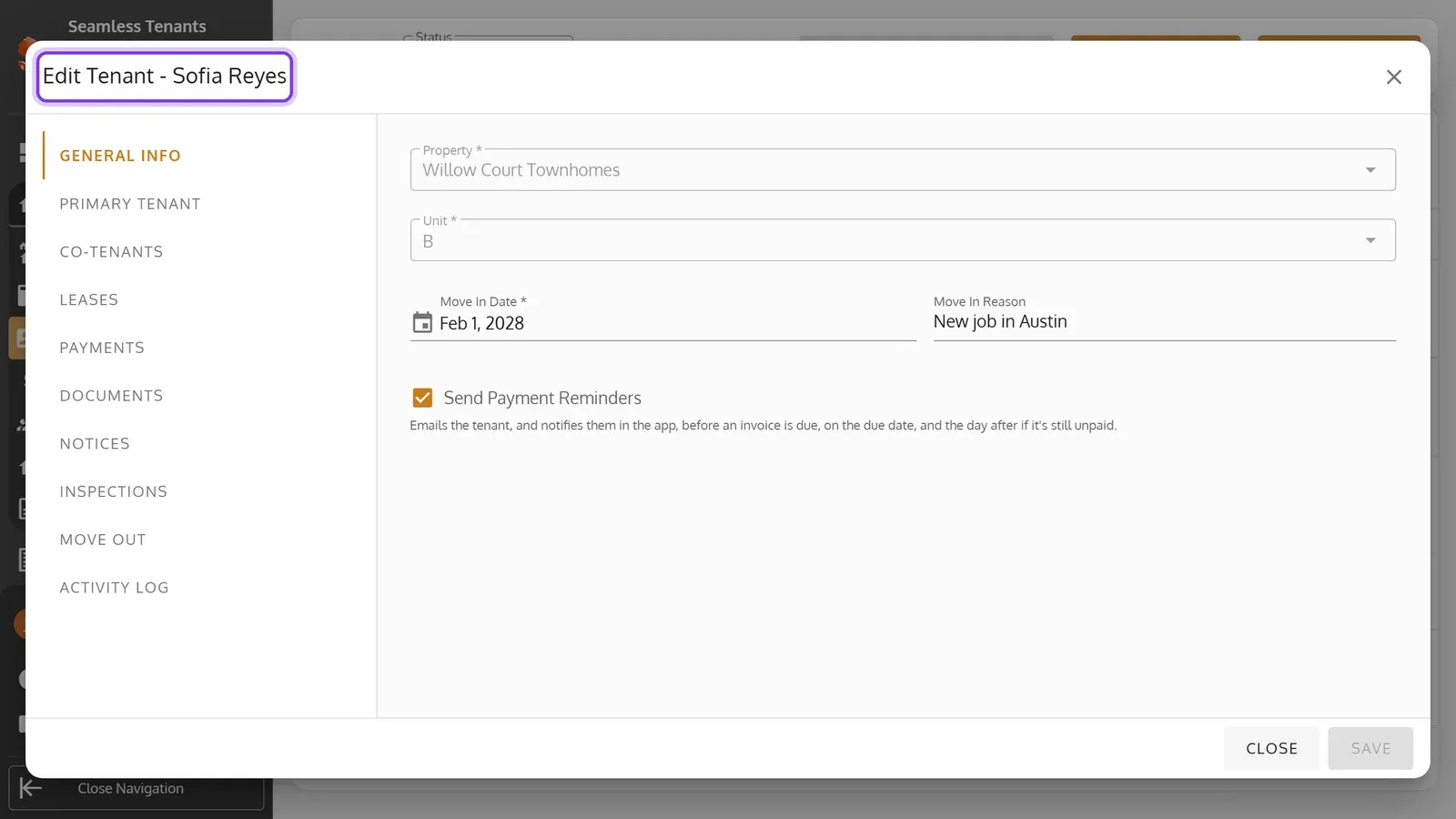
The tenant’s record opens.
-
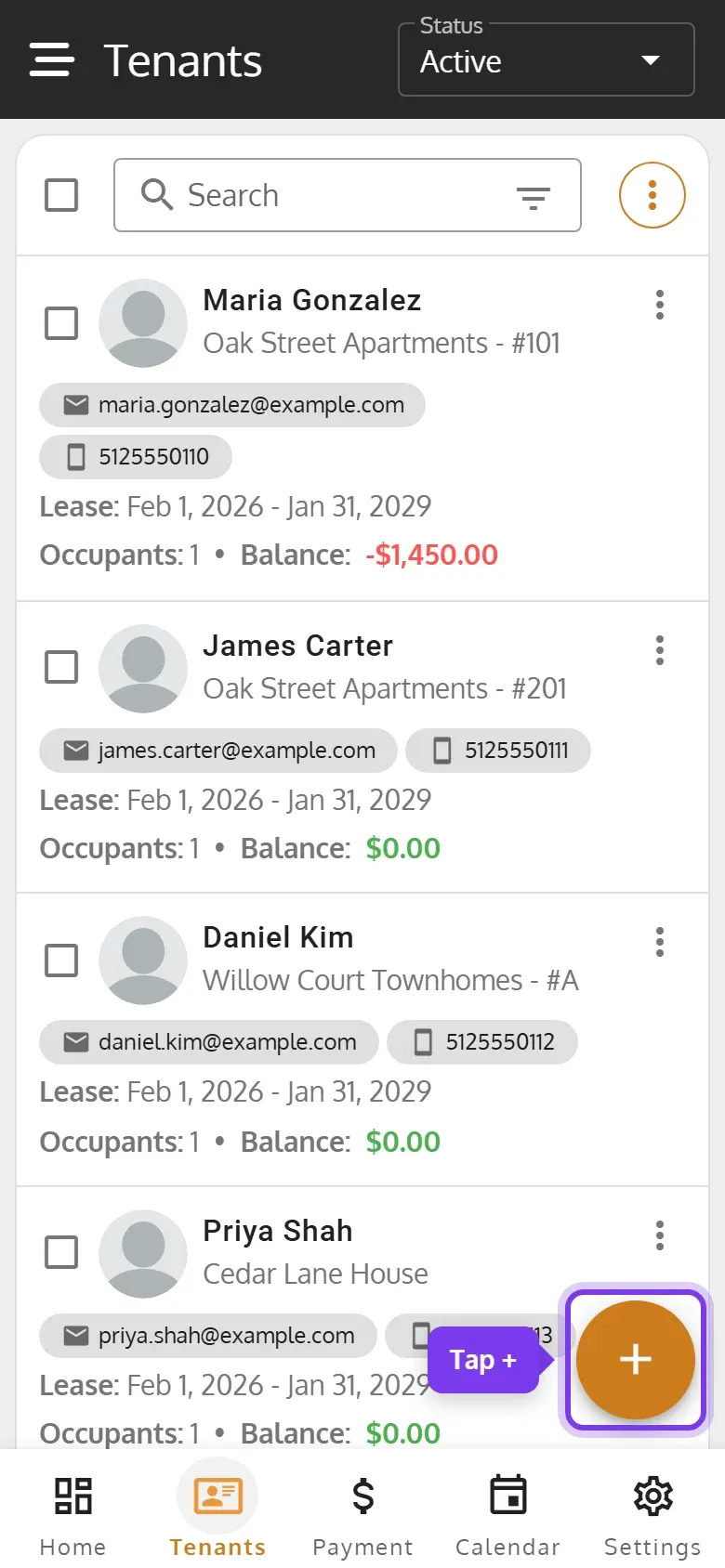
On the Tenants page, tap + at the bottom right.
-
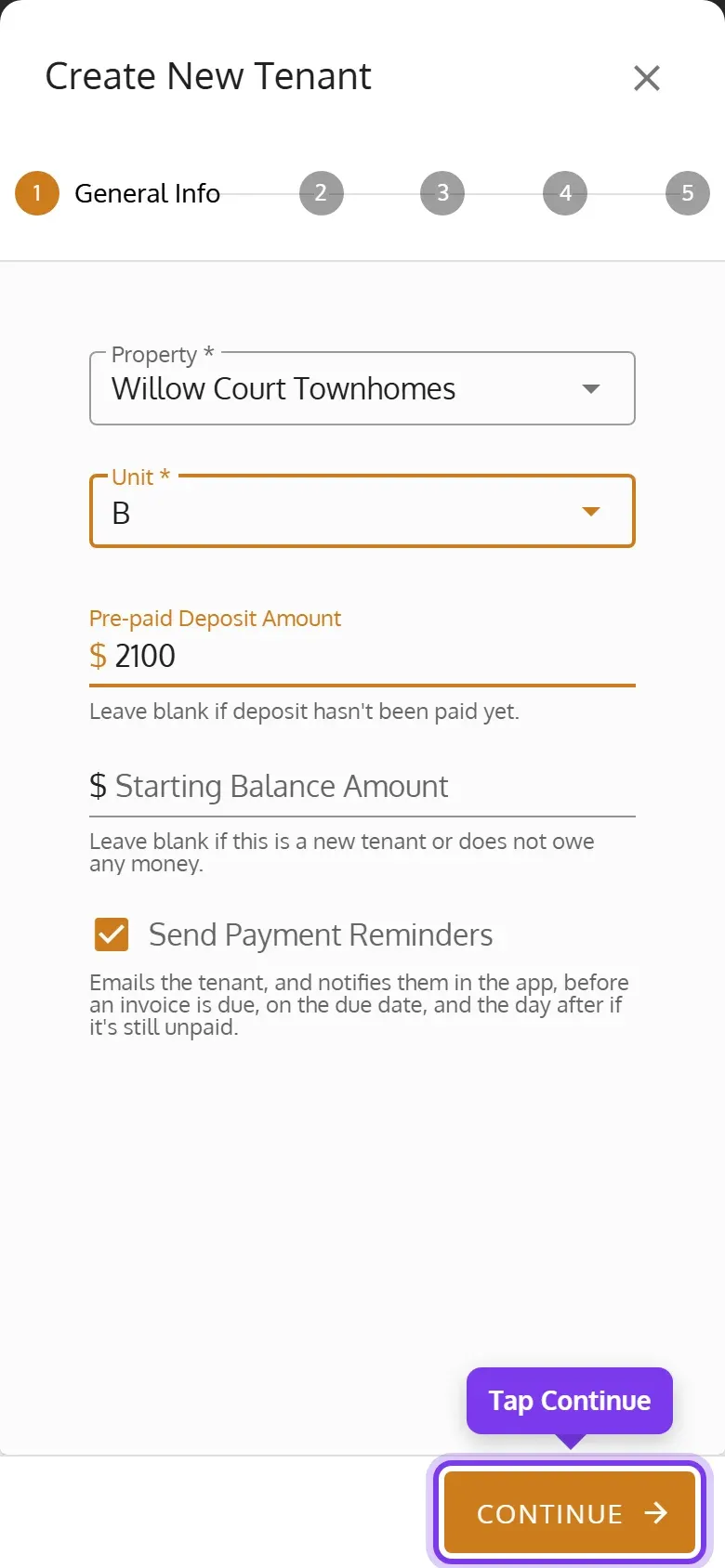
On step 1, General Info, pick the Property, and the Unit for a Multi Unit property. Then tap Continue.
-
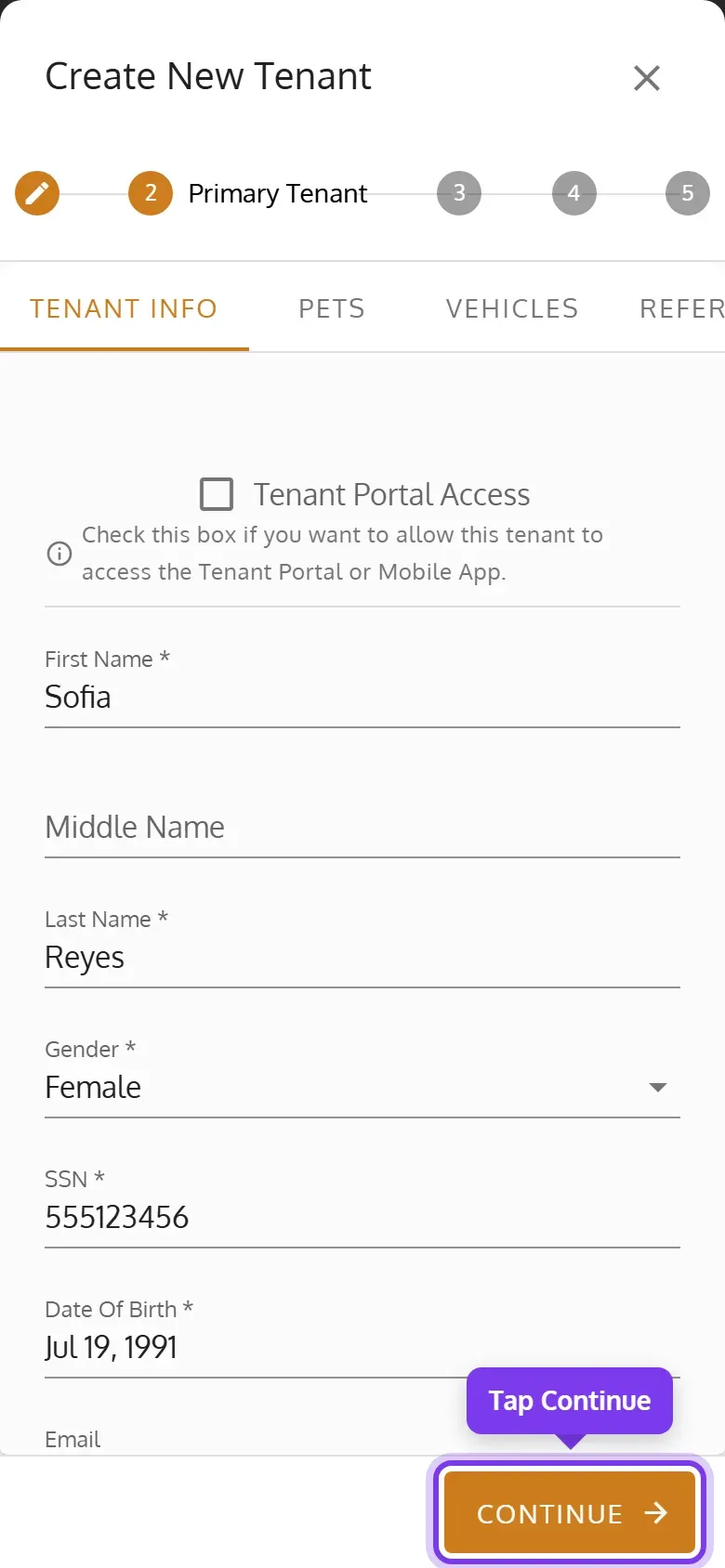
On step 2, Primary Tenant, enter the tenant’s details, then tap Continue.
-
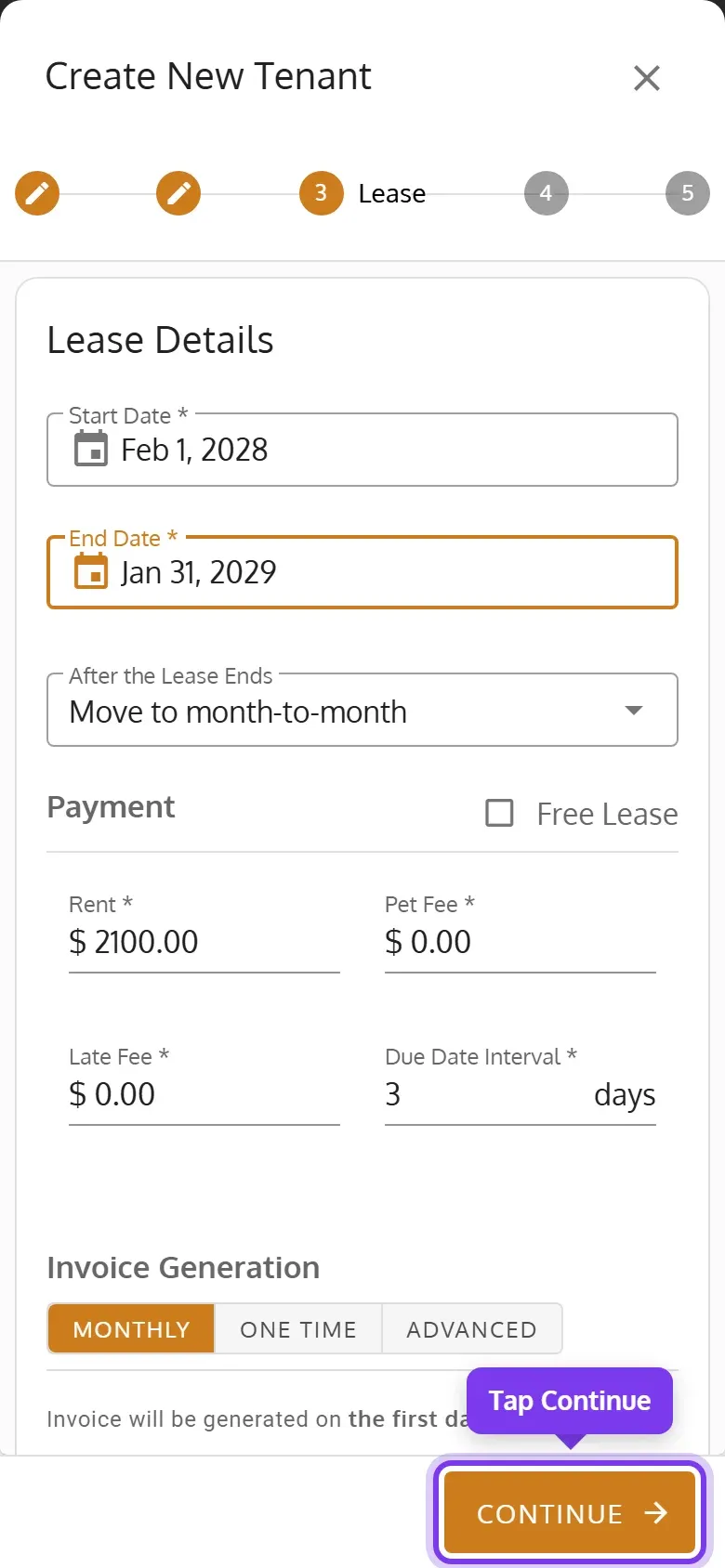
On step 3, Lease, set the lease’s dates, rent and fees, then tap Continue.
-
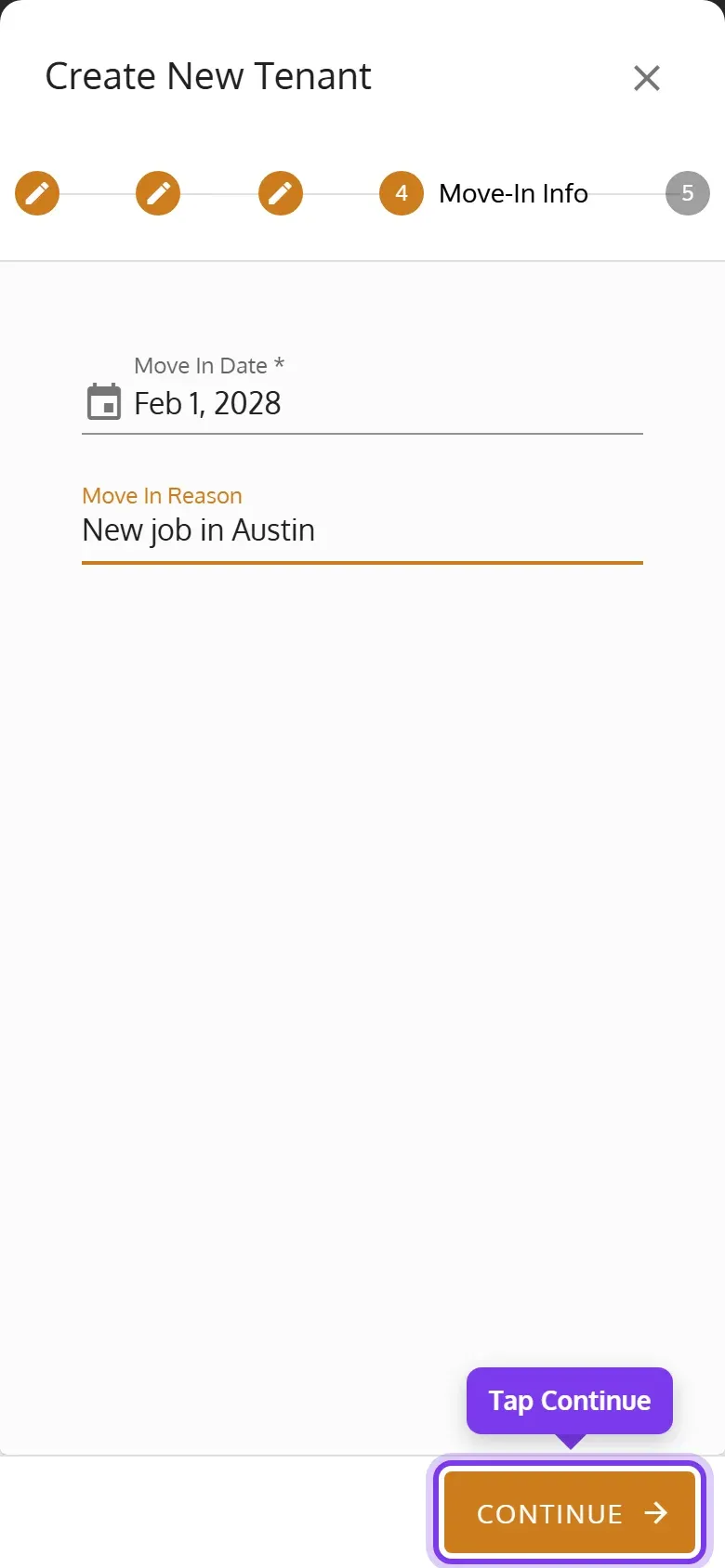
On step 4, Move-In Info, enter the Move In Date, then tap Continue.
-
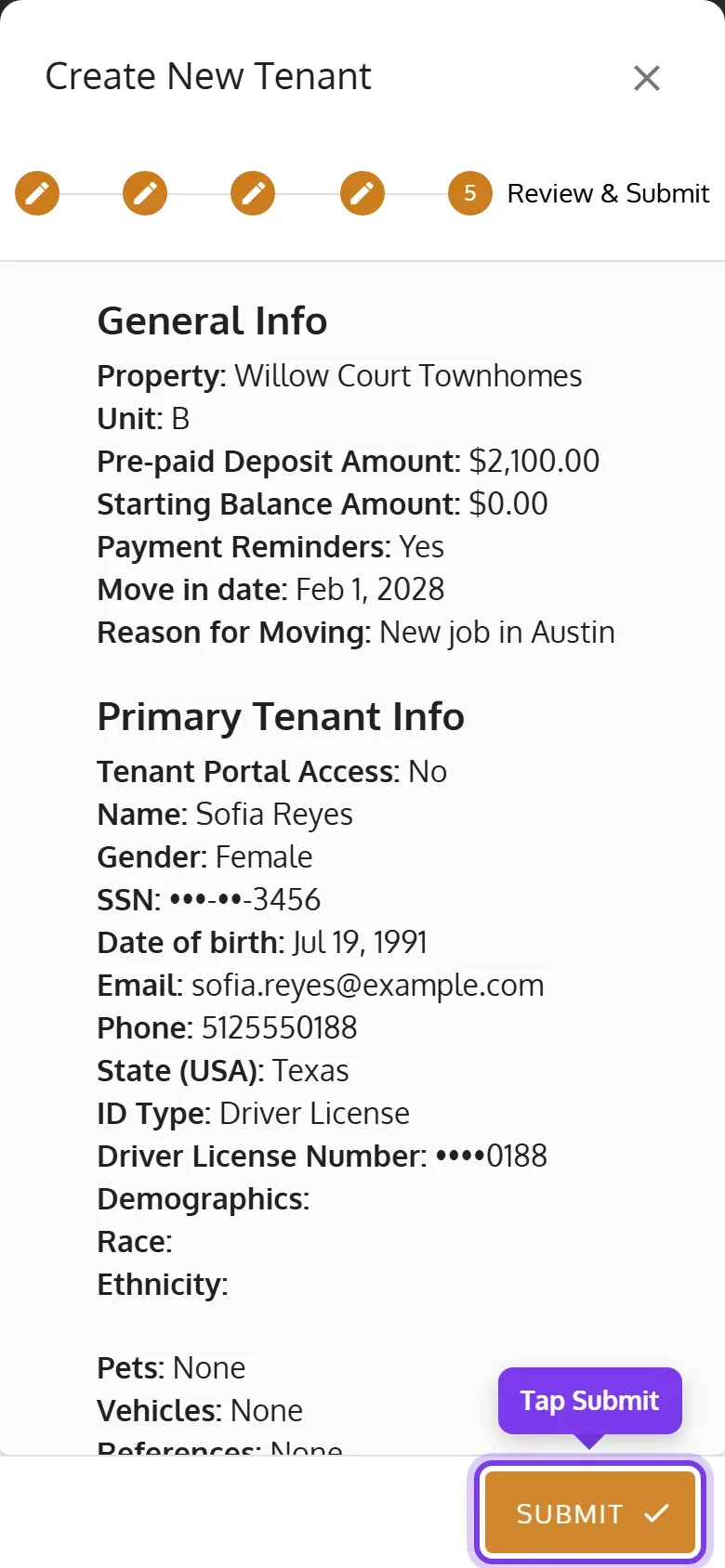
Check everything on step 5, Review & Submit, then tap Submit.
-
The tenant’s record opens.
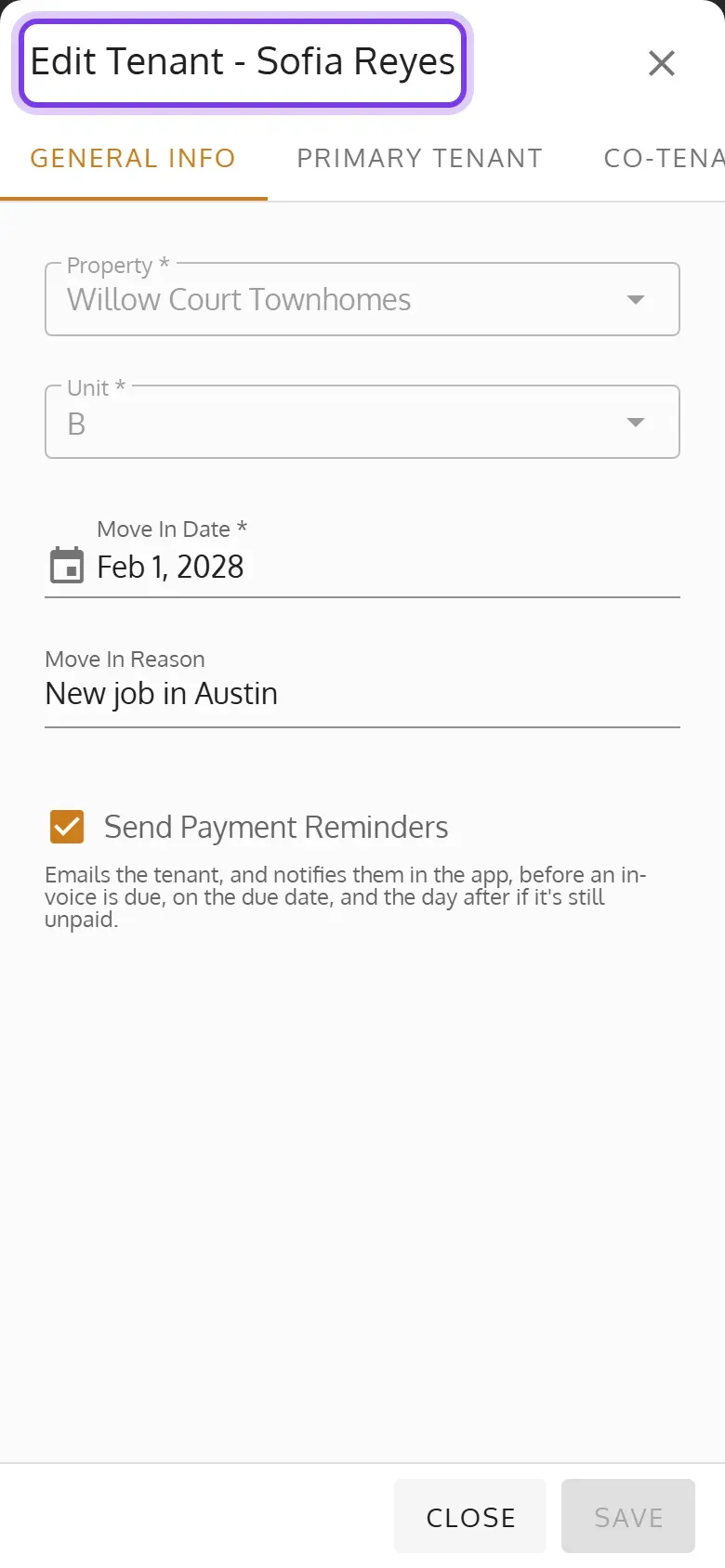
To go back to an earlier step, click its name at the top, or on a phone, tap its number.
What each step asks
Section titled “What each step asks”General Info
- Property leaves out Single Unit properties that aren’t vacant.
- Unit lists the property’s vacant units. To add a unit here, pick + Add unit.
- Pre-paid Deposit Amount: a deposit the tenant has already paid. Leave it blank if they haven’t. It becomes their deposit balance, and is recorded as income.
- Starting Balance Amount: money the tenant already owes, such as from before you used Seamless Tenants. It becomes an unpaid invoice.
- Send Payment Reminders starts checked. It and Send Payment Link are explained in How a Lease Bills.
Primary Tenant
- First Name, Last Name, Gender, SSN (9 digits), Date Of Birth, Phone, State (USA), ID Type and the ID’s number are required.
- Tenant Portal Access shows when your organization has the Tenant Portal on, and starts checked. The tenant then needs an Email, and gets an email to set up their account, or to sign in if it’s already set up. Uncheck it to leave them out.
- The tabs beside Tenant Info add the tenant’s Pets, Vehicles, References, Incomes, Residences and Employment. You can also add them later.
Lease
- Start Date and End Date are the lease’s first and last days.
- Rent starts as the unit’s rent, and Late Fee and Due Date Interval as the property’s defaults.
- After the Lease Ends, Free Lease and Invoice Generation: see How a Lease Bills.
- If you clear First Invoice Date on a lease that started before this month, Continue first asks whether to bill every period since then or start billing from a date you pick.
Move-In Info
- The Move In Date has to be within the lease.
If a similar tenant already exists
Section titled “If a similar tenant already exists”When a tenant who owes you money has the same SSN, ID, name, phone or email, Review & Submit warns you. Submit then lists them under Existing tenant profiles found. Click or tap Accept & Create Tenant to add the tenant anyway, with an optional note for the activity log, or Cancel.
What happens when you submit
Section titled “What happens when you submit”- The unit becomes Occupied.
- Invoices that are already due are made, and the tenant gets them by email.
- With Tenant Portal Access, the tenant gets an email to set up their account, or to sign in if it’s already set up.
If the tenant can’t be added, such as when the unit already has a lease for those dates, a message says why.